
In this lesson you will
- Save an invoice as a recurring template with Make recurring
- Give the template a monthly schedule
- Post the recurring invoices that are due
- Enter a recurring invoice by hand on any date
Before you start
Save the invoice as a template
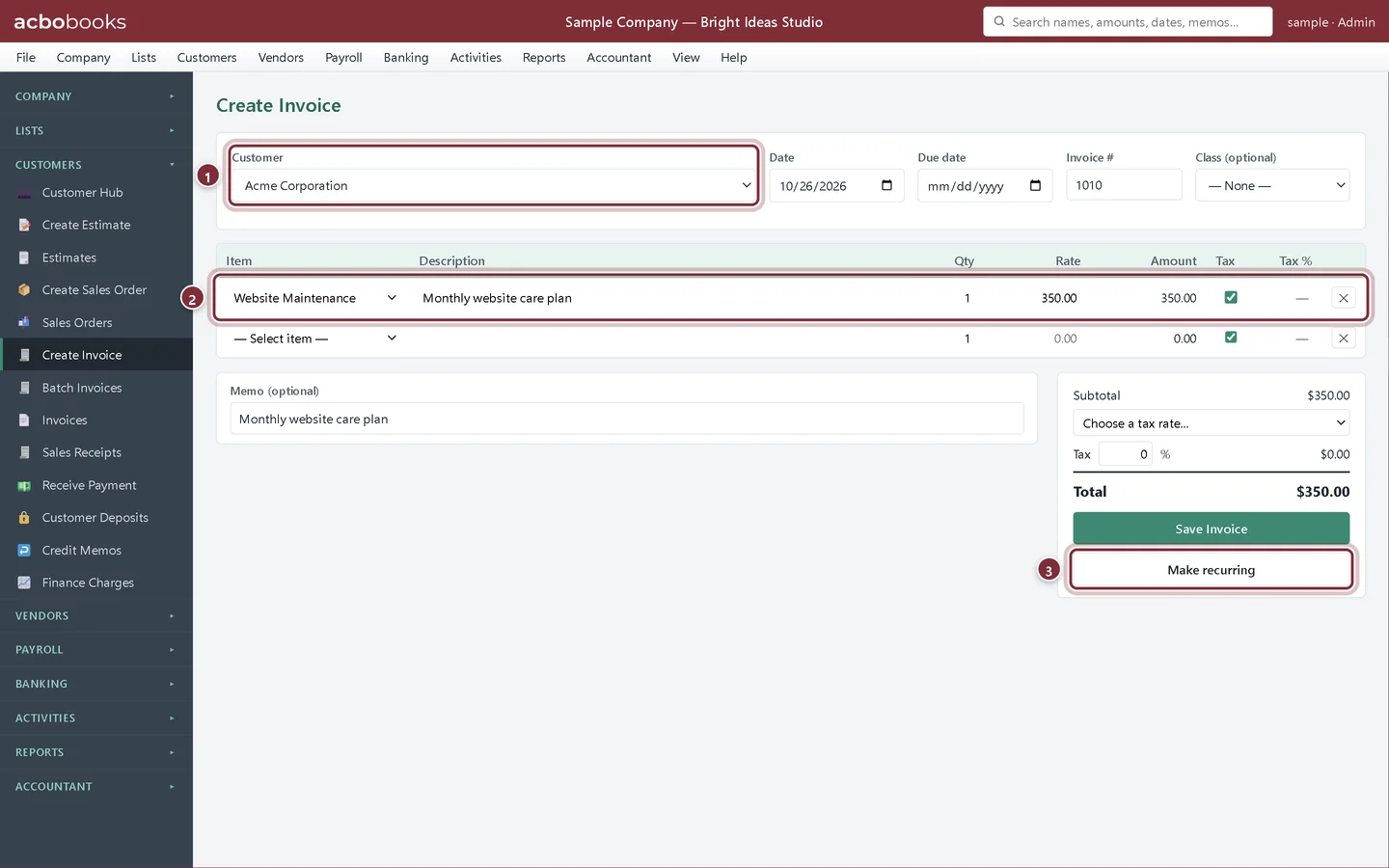
Acme Corporation has signed up for the studio's monthly website care plan at $350.00 a month.
Step 1: Fill in the invoice, then click Make recurring
Open Customers → Create Invoice and fill it in as usual: the Customer, the lines and a Memo. Then click Make recurring under Save Invoice. This saves the invoice as a template only. It doesn't post an invoice, so click Save Invoice as well if you want to bill this month now.
- Customer: who you bill every period.
- The lines to repeat, here the Website Maintenance service.
- Make recurring saves the invoice as a template.
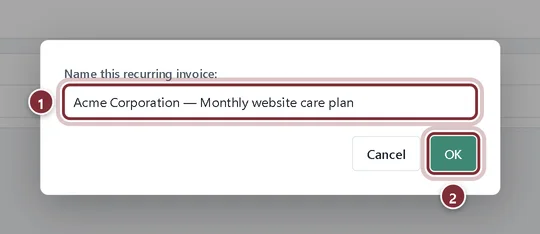
Step 2: Name the template
AcboBooks suggests a name from the customer and the memo. Change it if you like and click OK.
- The template's name, as it will appear in the Recurring list.
- OK saves it.
Step 3: Check the confirmation
A green banner confirms the template's name and tells you where to find it: Activities → Recurring, where you enter it or put it on a schedule. Each entry gets the next invoice number.

Schedule it
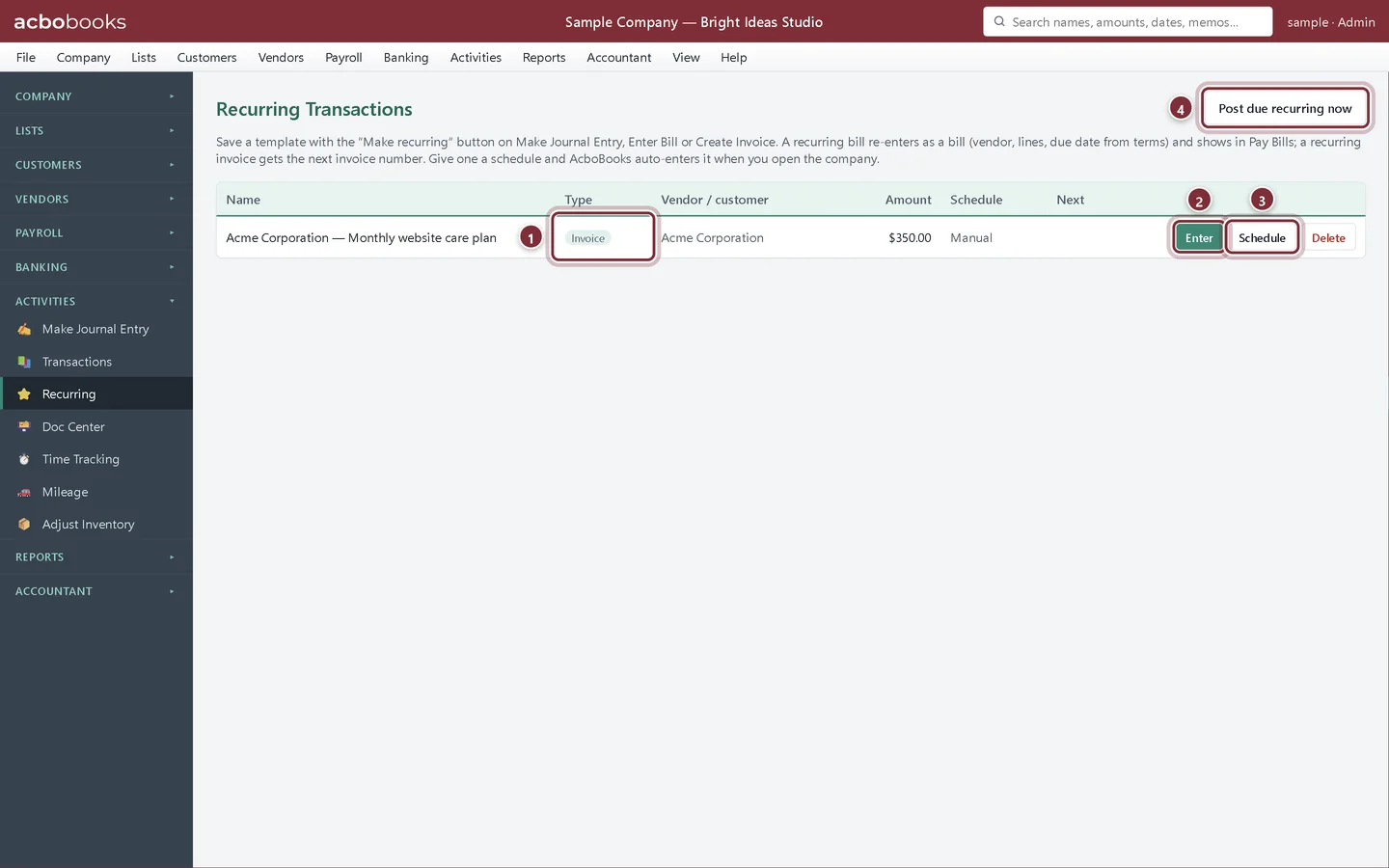
Step 4: Open Activities → Recurring
Recurring Transactions lists every template: recurring invoices, bills and journal entries. Each row shows the customer or vendor, the amount and the schedule. A new template is Manual until you schedule it.
- Type: Invoice, Bill or Journal.
- Enter posts the template once, on the date you choose.
- Schedule sets how often it repeats.
- Post due recurring now posts every scheduled template whose date has come.
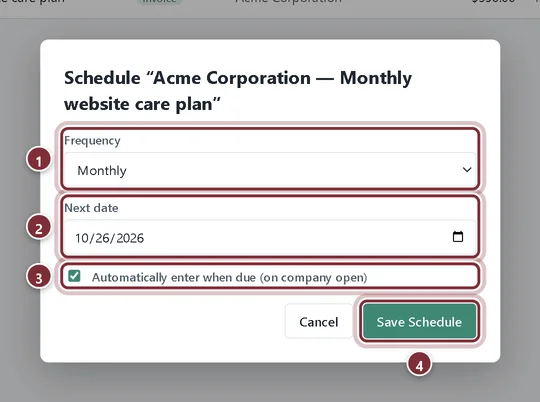
Step 5: Set the frequency and the next date
Click Schedule. Choose the Frequency (daily, weekly, every 2 weeks, monthly, quarterly, twice a year or yearly) and the Next date the invoice should be dated. Tick Automatically enter when due (on company open) and click Save Schedule.
- Frequency: Monthly for a monthly plan.
- Next date: the date of the next invoice.
- Automatically enter when due: AcboBooks posts it when you open the company on or after that date.
- Save Schedule.
Post the invoices that are due
Step 6: Post due recurring now
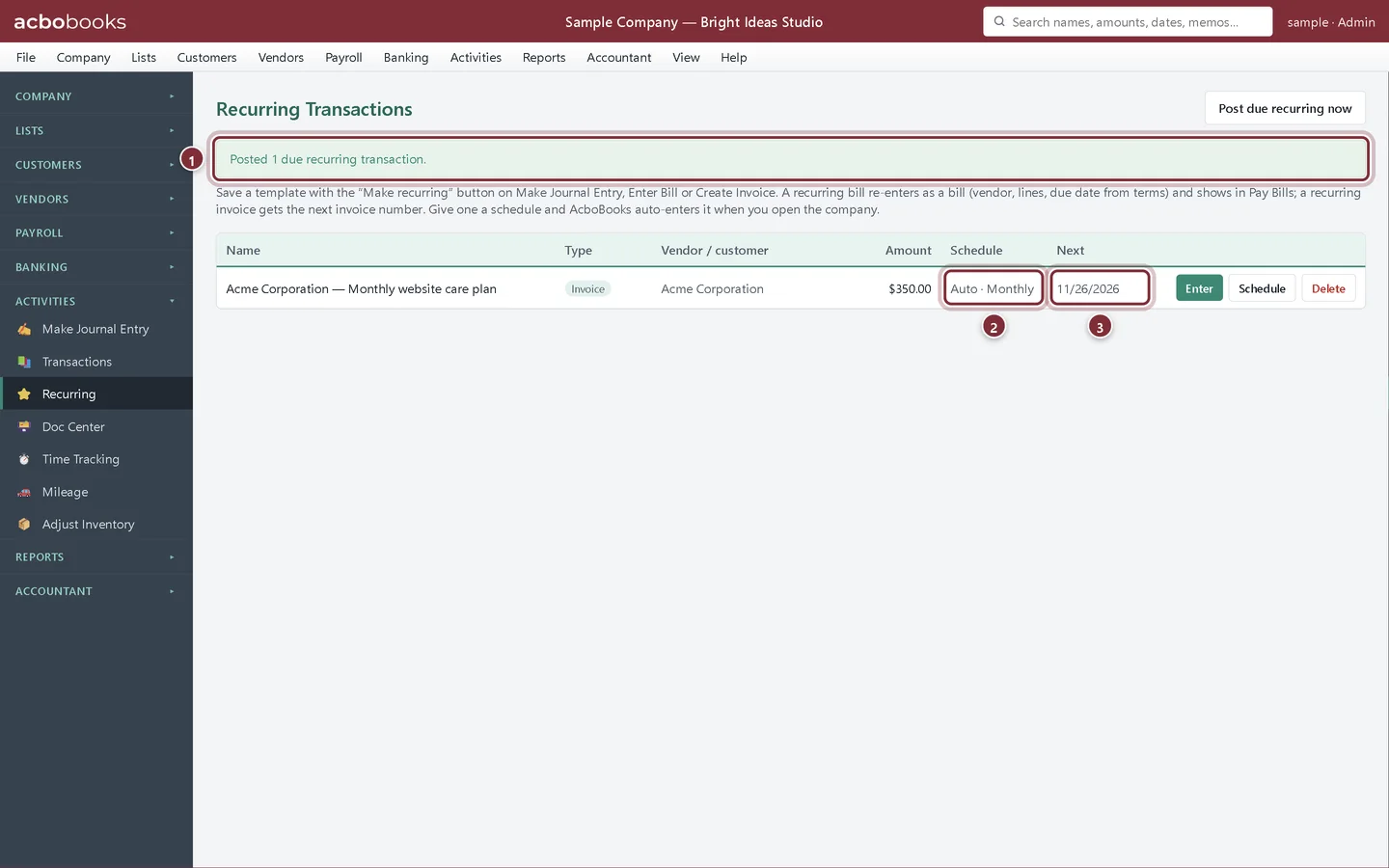
Scheduled templates are entered automatically the next time you open the company file. To post them straight away, click Post due recurring now. AcboBooks says how many it posted, and the Next date moves on by one period.
- How many recurring transactions were posted.
- Auto · Monthly: scheduled and entered automatically.
- Next: the date of the next invoice.
Step 7: Check the invoice
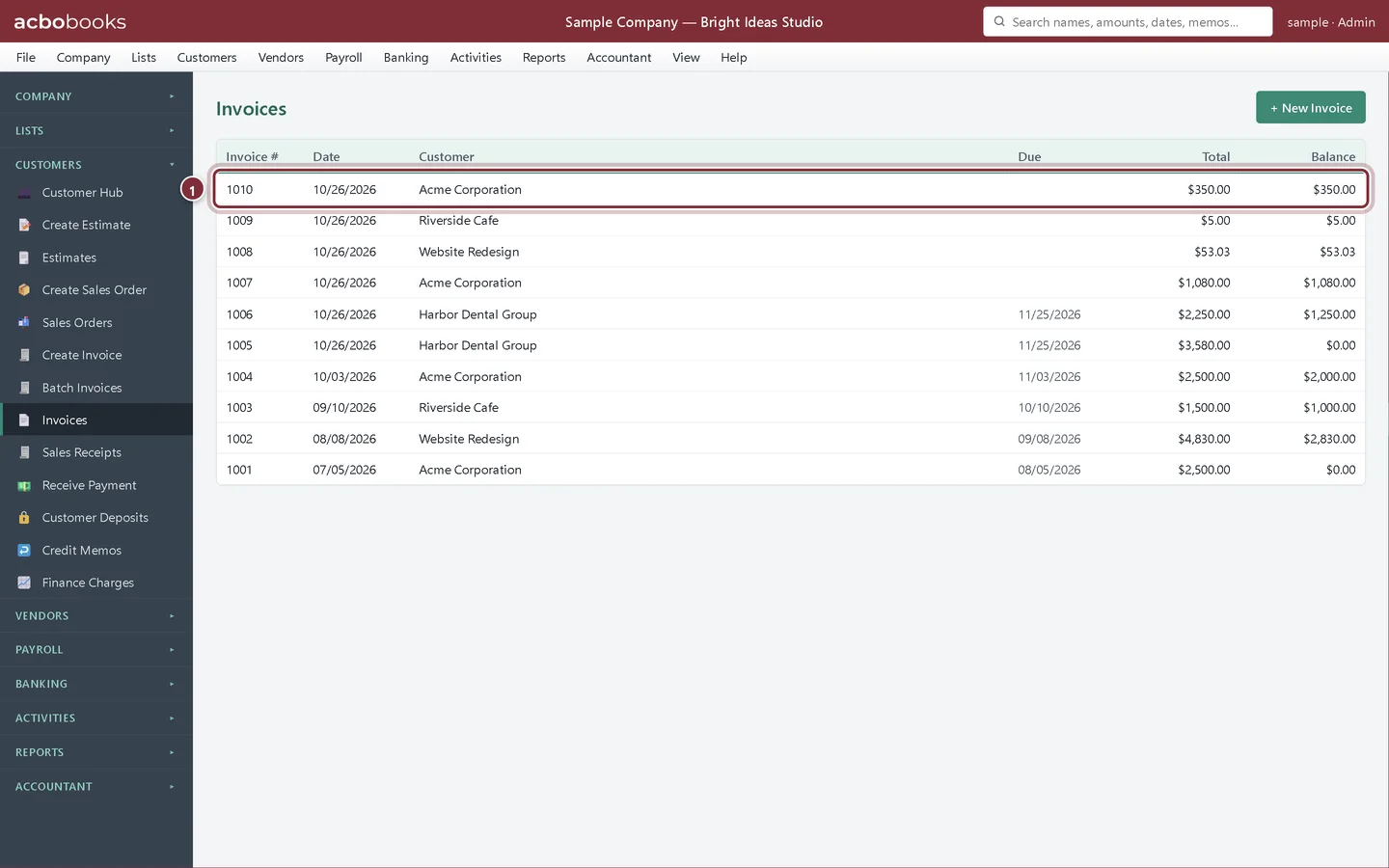
The new invoice is on Customers → Invoices with the next invoice number, ready to save as a PDF or send with Request Payment like any other invoice.
- The invoice the template posted.
Recap
- Save any invoice as a recurring template with Make recurring.
- Schedule a template to repeat monthly or on another cycle.
- Post the templates that are due with Post due recurring now.
- Change or delete a template from Activities → Recurring.
Questions
Can I change the amount on a recurring invoice?
The template keeps the lines it was saved with. To change them, delete the template, fill in a new invoice with the new amounts and click Make recurring again. To change one month only, edit that month's invoice after it is posted.
What if I don't open AcboBooks for two months?
When you open the company, every date that has come is entered, one invoice per period, and the next date moves on each time.
Does a recurring invoice send itself to the customer?
No. It posts the invoice in your books. Send it from the Invoices list with Save PDF or Request Payment.
Related
Screenshots from AcboBooks 0.2.2 with the built-in sample company. Updated October 25, 2026. Your screens may differ slightly with another version or window size.