
In this lesson you will
- Add a customer with payment terms and a credit limit
- Enter what a customer already owes when you start
- Set up a job (sub-customer) under a customer
- Look up a customer's history in the Customer Hub
Before you start
The customer list
Step 1: Go to Lists → Customers
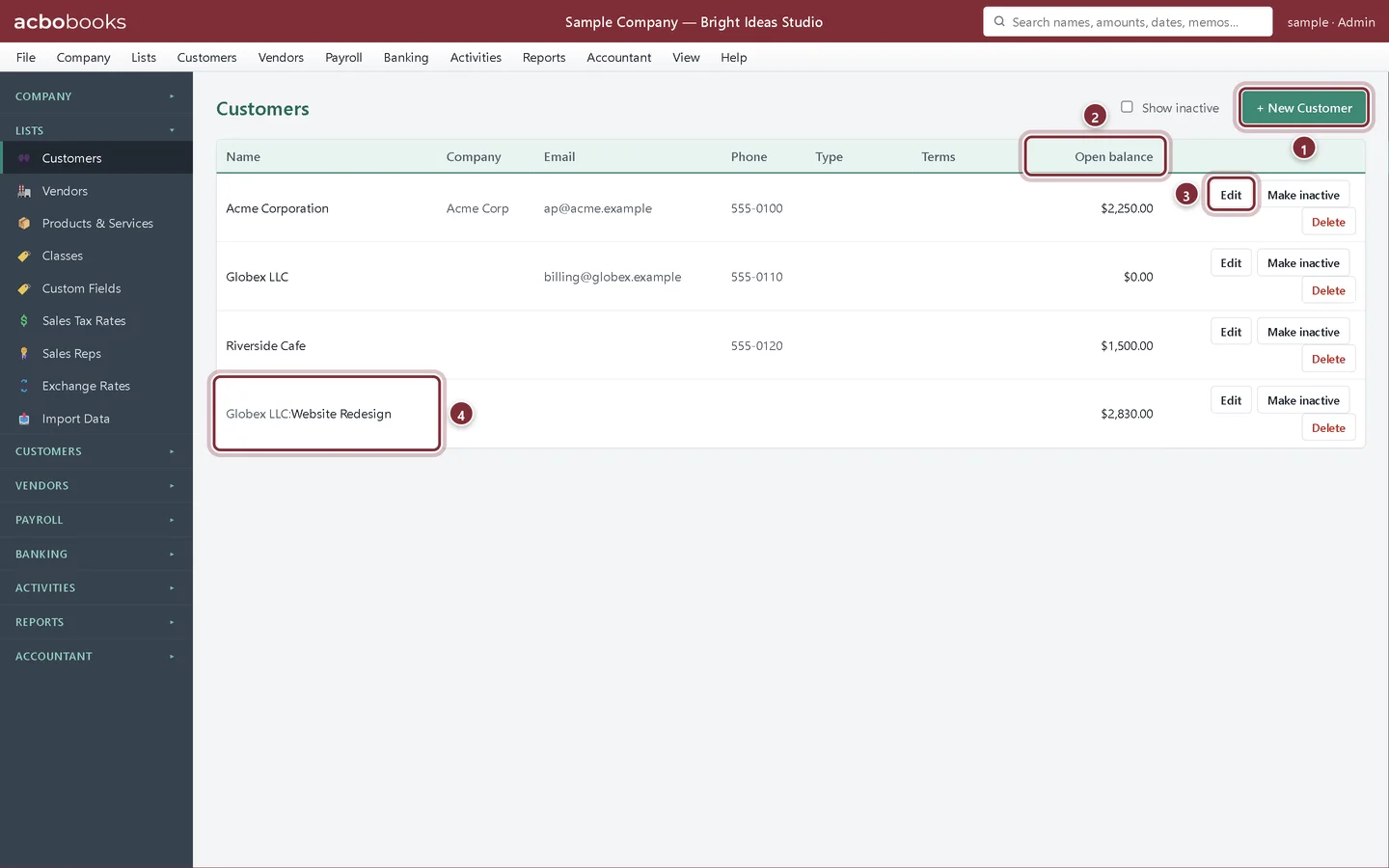
The customer list shows each customer's company, email, phone, type, terms and Open balance, which is what they owe you right now.
- + New Customer adds a customer.
- Open balance: unpaid invoices less credits.
- Edit changes a customer's details, including the street address.
- A job shows under its customer as Customer:Job.
Add a new customer
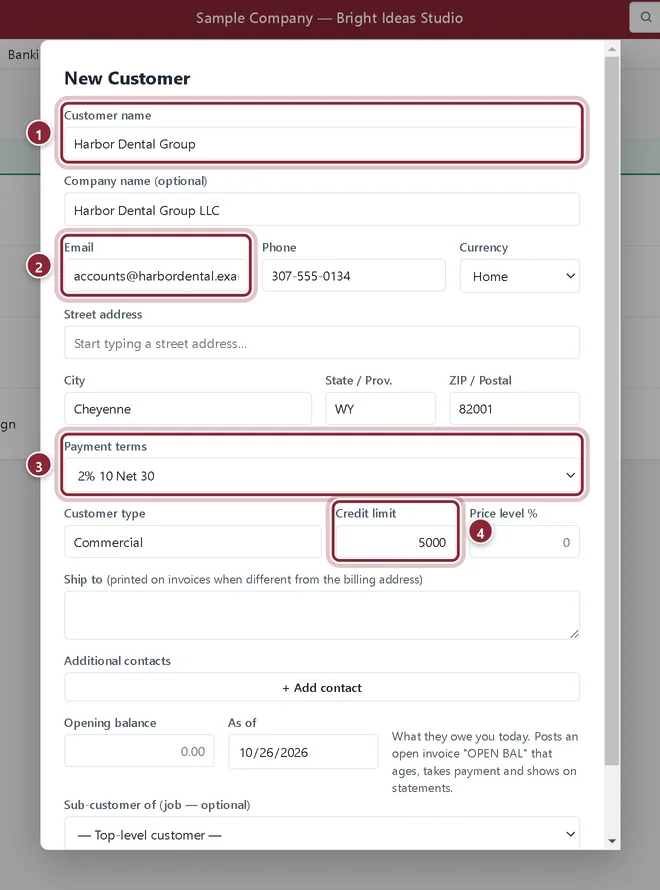
In the example we add Harbor Dental Group, a new client who has agreed to 2% 10 Net 30 terms.
Step 2: Enter the contact details and terms
Click + New Customer. Enter the Customer name (how you'll find them in lists), the Company name if it's different, and the Email and Phone. AcboBooks checks the email and phone format as you type.
- Customer name: required; the rest is optional.
- Email: used when you request payment or email a statement.
- Payment terms: sets each invoice's due date, and any early-payment discount.
- Credit limit: Create Invoice warns you when a new invoice would take them over it.
Step 3: Opening balance and jobs
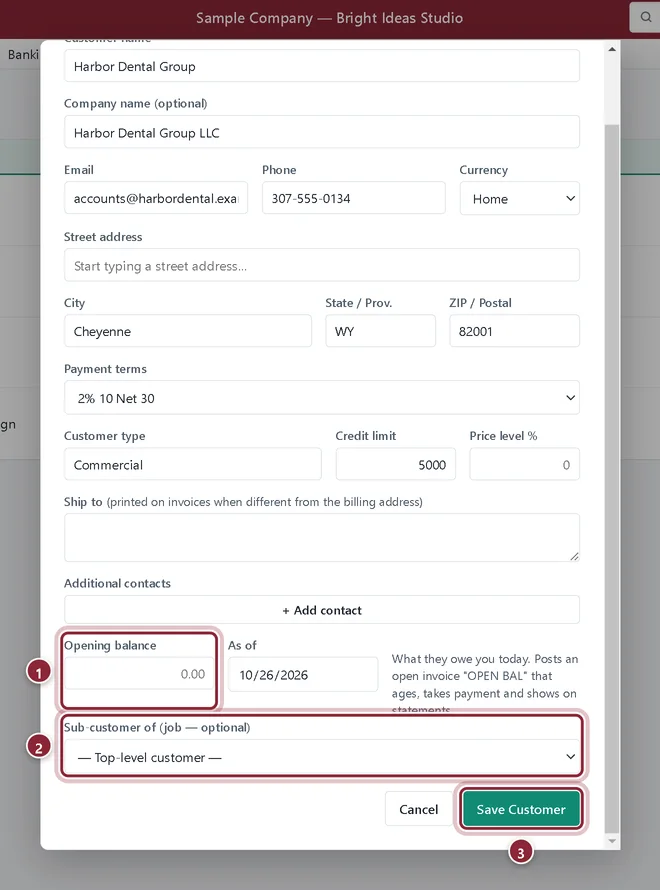
Scroll down. If the customer already owes you money when you start using AcboBooks, enter it in Opening balance with the As of date. It becomes an open invoice called OPEN BAL that ages, takes payment and shows on statements. To track a project separately, pick the parent customer in Sub-customer of (job — optional).
- Opening balance: what they owe you on the As of date.
- Sub-customer of: makes this record a job under another customer.
- Save Customer adds the record.
See everything about a customer
Step 4: Open the Customer Hub
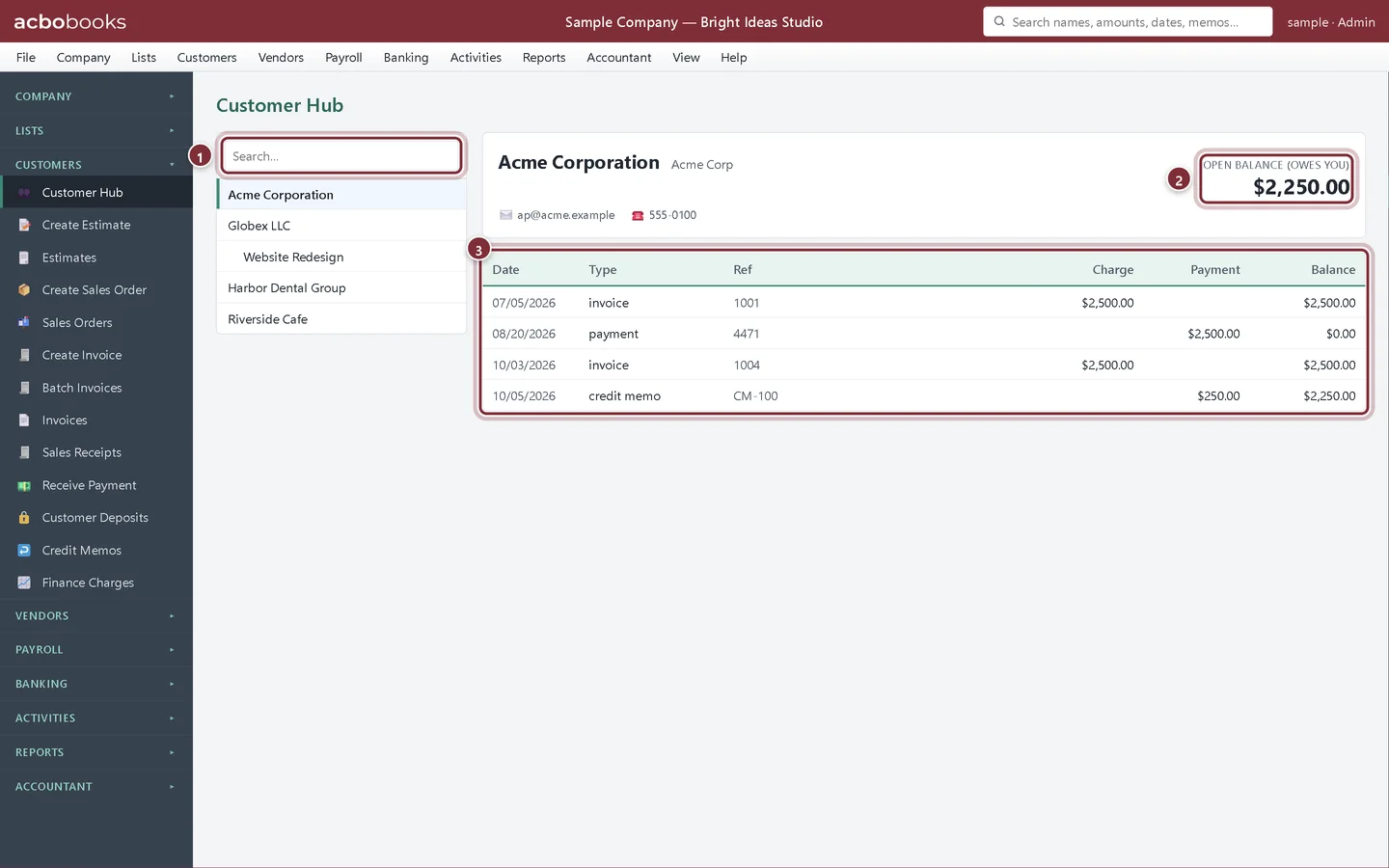
Choose Customers → Customer Hub. Pick a customer on the left to see their contact details, what they owe and every invoice, payment and credit memo in date order with a running balance.
- Search the customer list.
- Open balance (owes you).
- Their history: invoices, payments and credits with a running balance.
Recap
- Add a customer with terms, contact details and a credit limit.
- Bring in what a customer owed you when you started.
- Set up a job under a customer.
- Check a customer's balance and history in the Customer Hub.
Questions
What does Price level % do?
It takes a percentage off your list prices when you pick items on that customer's invoices. A negative number marks prices up instead.
Does the credit limit stop me from invoicing?
No. Create Invoice shows a warning with the customer's open balance and asks whether to save anyway.
Should I delete a customer I no longer work with?
Use Make inactive. Deleting removes the record for good; an inactive customer keeps its history and drops out of the pick lists.
Related
Screenshots from AcboBooks 0.2.2 with the built-in sample company. Updated October 25, 2026. Your screens may differ slightly with another version or window size.