
In this lesson you will
- Record a payment that pays an invoice in full
- Take an early-payment discount
- Record a partial payment with Auto Apply
- Know what happens to an overpayment
Before you start
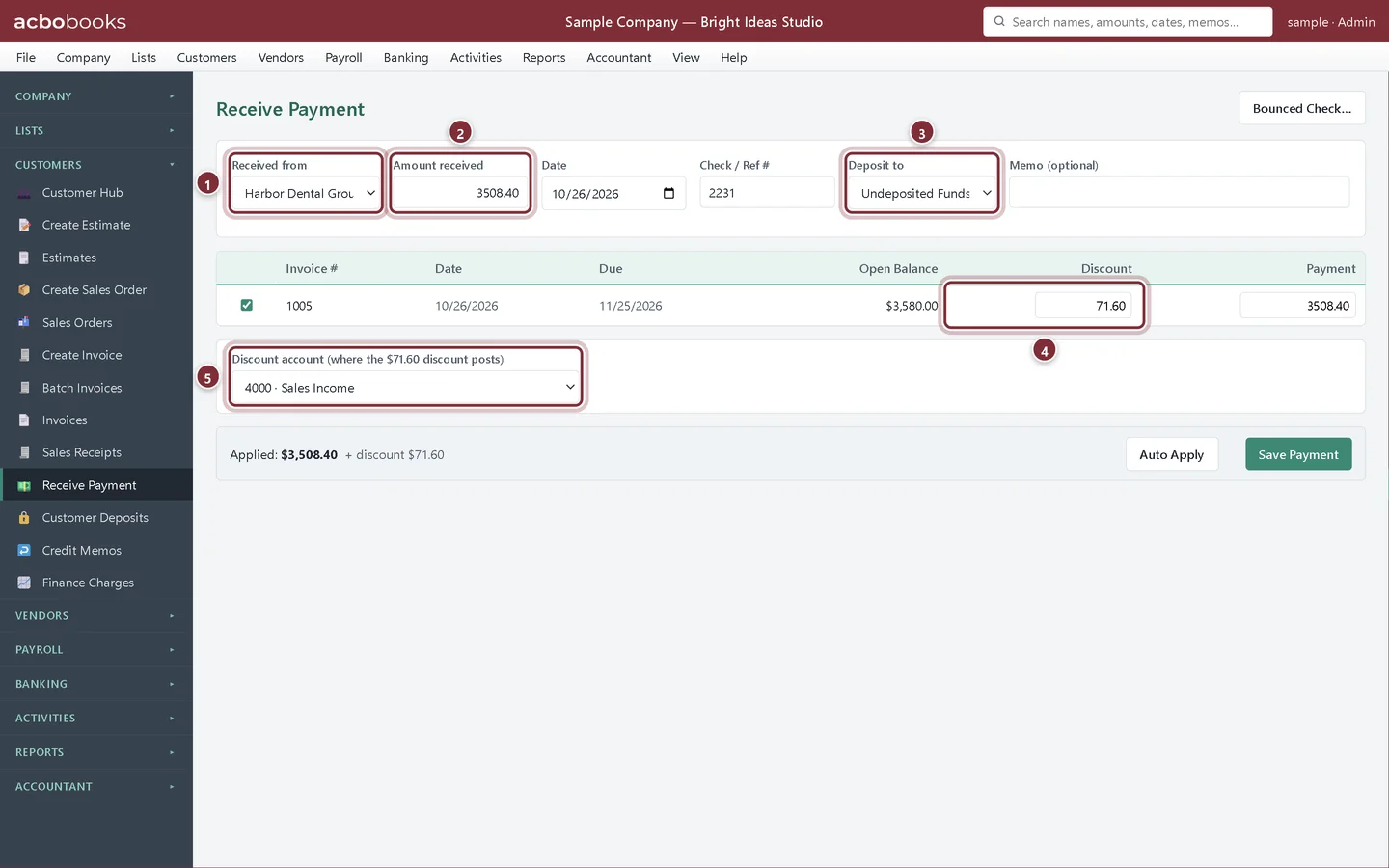
A full payment with an early-payment discount
Harbor Dental Group pays invoice 1005 within 10 days, so their 2% 10 Net 30 terms let them take 2% off.
Step 1: Choose the customer and the invoice
Choose Customers → Receive Payment. Pick the customer in Received from: their open invoices appear below. Enter the Amount received and the Check / Ref #. Tick the invoice it pays. Because the payment date is inside the discount window, AcboBooks fills in the Discount and pays the rest.
- Received from.
- Amount received: what the customer actually paid.
- Deposit to: Undeposited Funds holds the check until you take it to the bank.
- Discount: suggested from the terms; you can change it.
- Discount account: where the discount posts.
Step 2: Save the payment
Check the Applied total along the bottom and click Save Payment. AcboBooks confirms the payment and the discount, and the invoice's balance drops to zero.
A partial payment
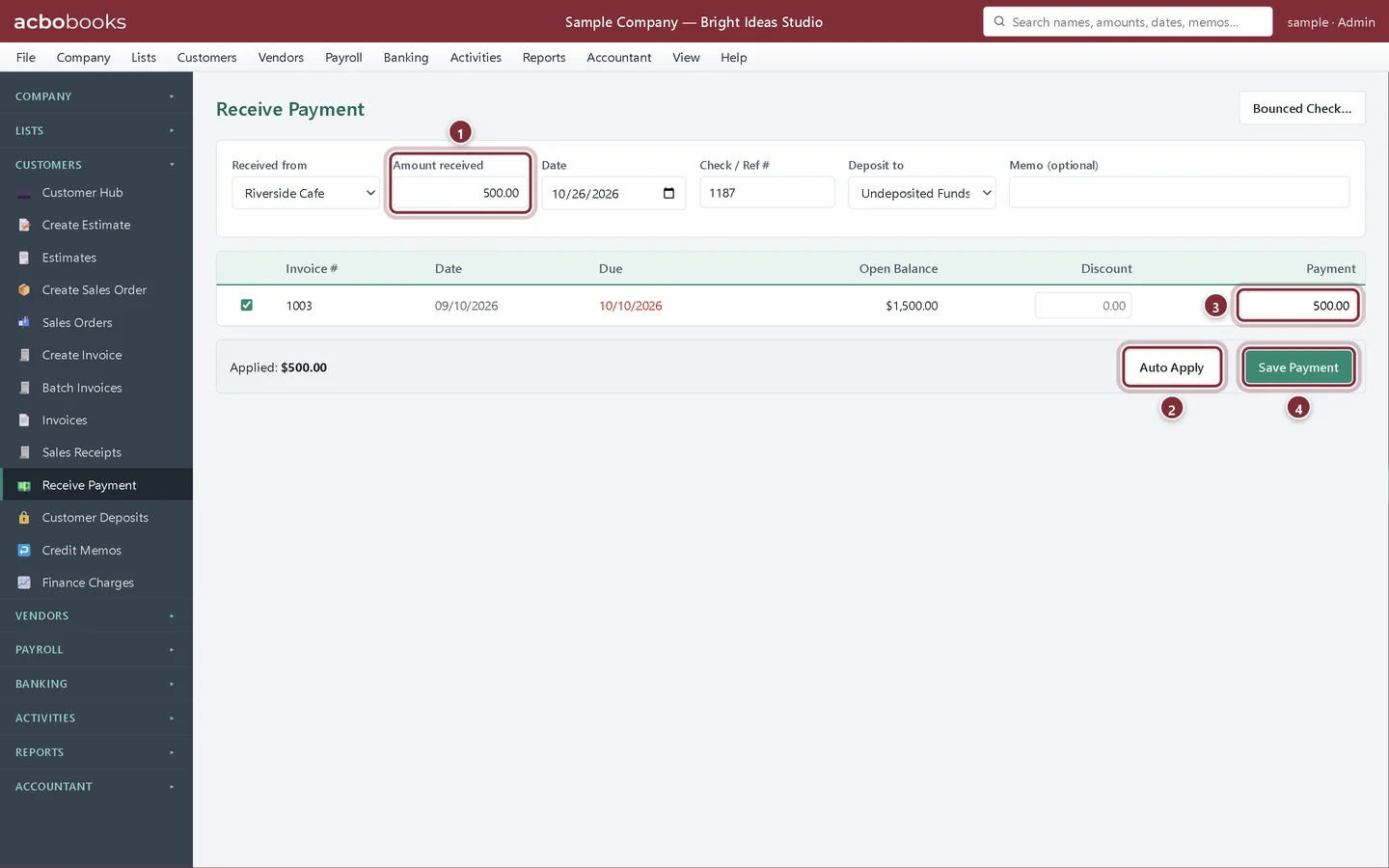
Riverside Cafe sends $500 towards invoice 1003, which is overdue.
Step 3: Let Auto Apply spread the money
Pick the customer, type the Amount received and click Auto Apply. AcboBooks applies it to the oldest invoice first. You can also type amounts into the Payment column yourself. Click Save Payment: the invoice stays open for the rest.
- Amount received.
- Auto Apply: oldest invoice first.
- Payment on each invoice.
- Save Payment.
Overpayments and bounced checks
Step 4: When the customer pays too much
If the amount received is more than you apply, AcboBooks asks before saving and keeps the extra on the customer's account as a credit. Next time you pick that customer, a banner shows their available credits with Apply credits to open invoices. To give the money back instead, refund it from Credit Memos.
Step 5: When a check bounces
Use Bounced Check… at the top of Receive Payment. It reverses the payment, reopens the invoices, expenses your bank's fee and can invoice the customer a returned-check charge in one step.
Recap
- Record a payment against one or more invoices.
- Take an early-payment discount from the customer's terms.
- Record a partial payment with Auto Apply.
- Handle overpayments and bounced checks.
Questions
Where does the money go after I save?
Into the Deposit to account. With Undeposited Funds it waits there until you group it on Make Deposit, which keeps your deposits matching the bank statement. See deposit customer payments.
Can I take a discount after the discount date?
AcboBooks only suggests a discount inside the window, but you can type one into the Discount column if you agree to it.
The customer paid two invoices with one check. What do I do?
Enter the full amount once and tick both invoices, or use Auto Apply. One payment can cover any number of invoices.
Related
Screenshots from AcboBooks 0.2.2 with the built-in sample company. Updated October 25, 2026. Your screens may differ slightly with another version or window size.