
In this lesson you will
- Find the Products & Services list
- Add a service item with a price and income account
- Choose the right item type for what you sell
- Mark items taxable or not taxable
Before you start
- The Getting started track
Open the item list
Step 1: Go to Lists → Products & Services
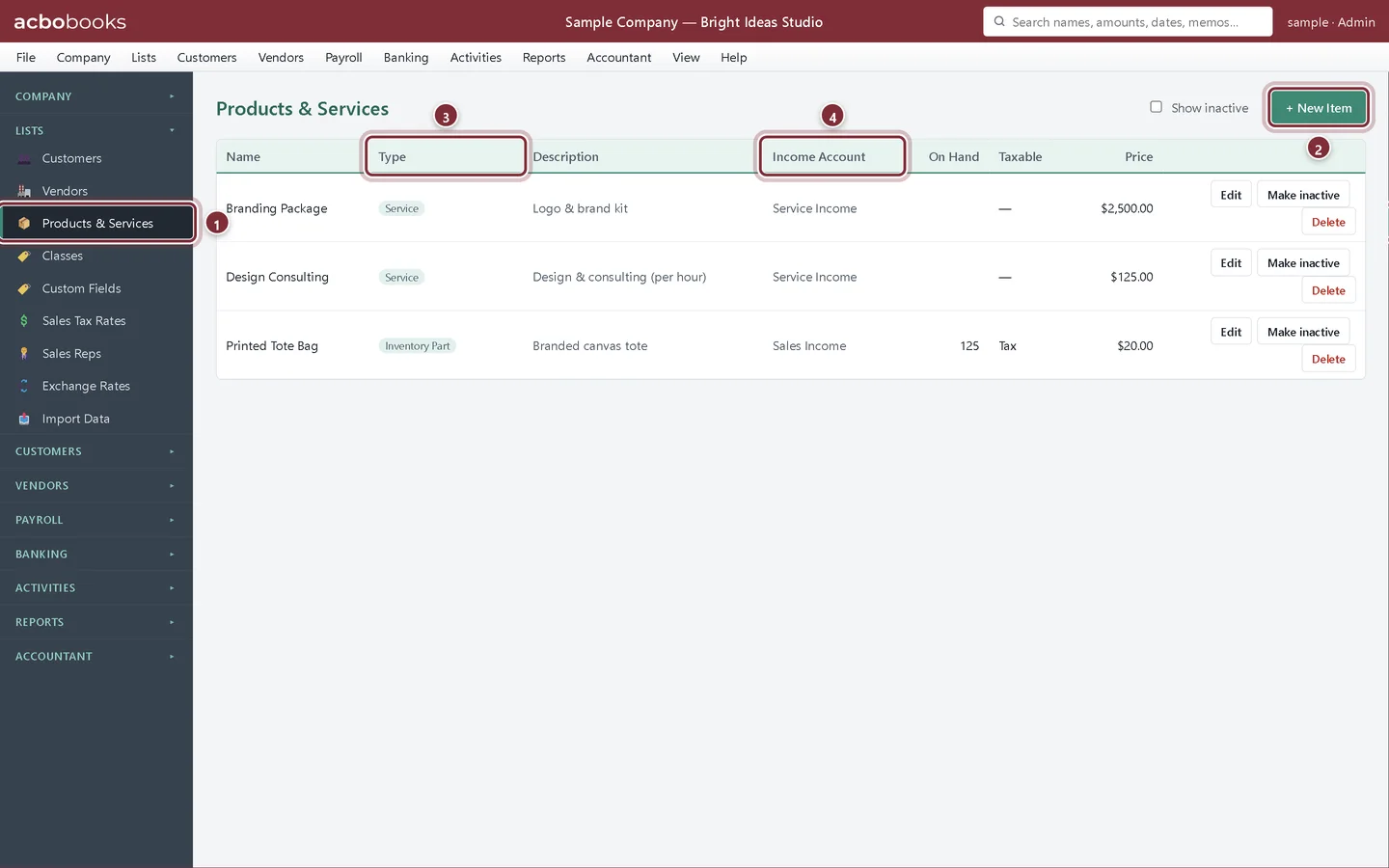
Choose Lists → Products & Services from the menu bar or the side panel. The list shows everything you sell, with its type, the income account it posts to, the quantity on hand for stock items, whether it is taxable and its price.
- Products & Services in the side panel (also under the Lists menu).
- + New Item adds an item.
- Type decides how the item behaves on forms and in your books.
- Income Account is where the sale lands on your Profit & Loss.
Add a service
A design studio sells its time, so most of its items are services. Here we add a monthly website care plan.
Step 2: Fill in the New Item form
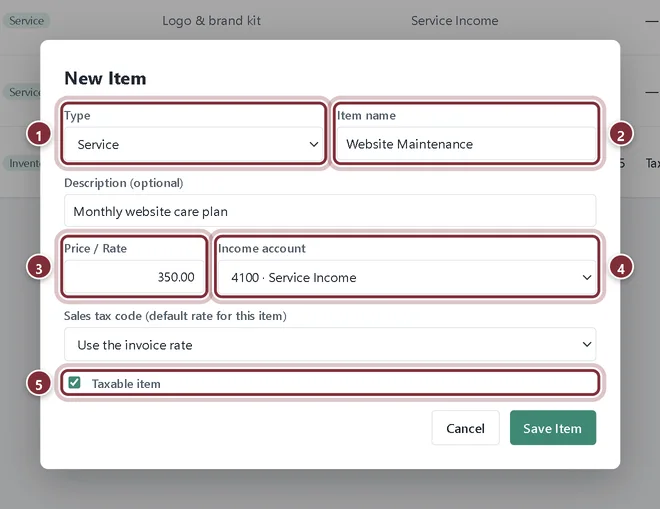
Click + New Item. Choose the Type, give the item a short Item name (this is what you pick on forms) and an optional Description (this is what the customer reads on the invoice). Enter the Price / Rate and pick the Income account.
- Type: Service for work you do.
- Item name: short and easy to find in a list.
- Price / Rate: filled in on each new line; you can still change it on the invoice.
- Income account: usually Service Income for services and Sales Income for goods.
- Taxable item: untick it if this item is never taxed.
Step 3: Save the item
Click Save Item. The item appears in the list and in the item drop-down on every sales form. An item's type can't be changed after it is saved, so if you picked the wrong one, make the item inactive and add it again.
Pick the right item type
Step 4: What each type is for
Service: work you do, by the hour or by the job. Non-inventory Part: goods you sell but don't track in stock. Inventory Part: goods you stock, with a purchase cost, quantity on hand, reorder point and the COGS and Inventory Asset accounts. Other Charge: fees such as delivery. Discount: a fixed amount, or a Discount % of the line or Subtotal directly above it. Subtotal: shows the total of the lines above it on an invoice and posts nothing.
Recap
- Open Lists → Products & Services and read the list.
- Add a service with a price, income account and tax setting.
- Choose between service, part, charge, discount and subtotal items.
- Make an item inactive instead of deleting it.
Questions
Can I change an item's price later?
Yes. Click Edit on the item and change Price / Rate. Invoices you already saved keep the price they were made with.
Why can't I change the item type?
The type decides which accounts the item posts to, so AcboBooks locks it once the item is saved. Make the old item inactive and add a new one with the right type.
Do I need an item for every single thing I sell?
Each invoice line needs an item, but one item can cover many jobs: change the description and rate on the line as you go.
Related
Screenshots from AcboBooks 0.2.2 with the built-in sample company. Updated October 25, 2026. Your screens may differ slightly with another version or window size.