
In this lesson you will
- Create an invoice with several lines
- Apply sales tax to the right lines
- Save an invoice as a PDF and request payment
- Edit, void or delete an invoice safely
Before you start
Fill in the invoice
Step 1: Open Create Invoice and pick the customer
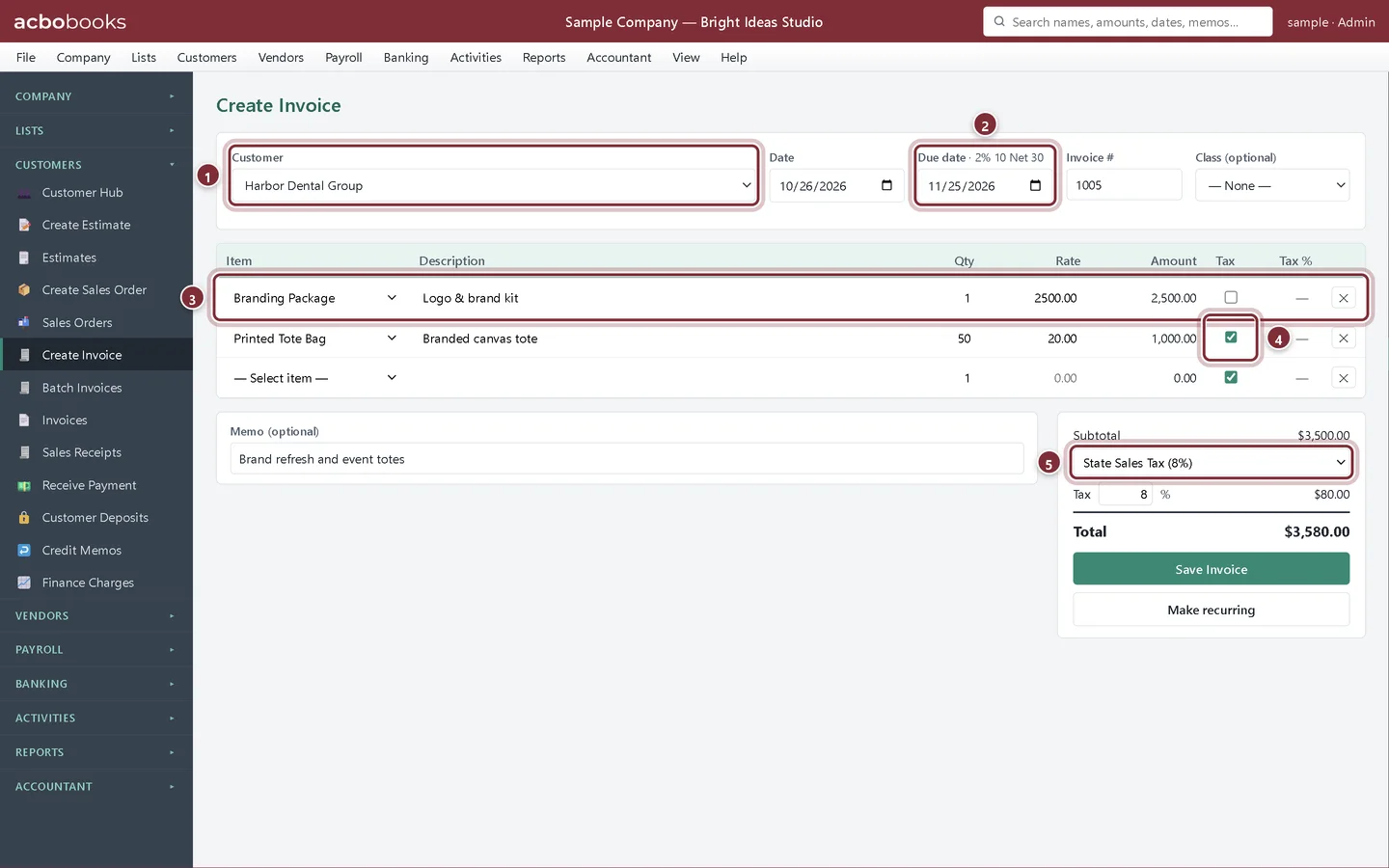
Choose Customers → Create Invoice (or + New Invoice on the Invoices list). Pick the Customer. The Due date follows the customer's payment terms, which are shown next to the label. The Invoice # is the next number in sequence.
- Customer.
- Due date, worked out from the terms (here 2% 10 Net 30). Pick another date to override it.
- Each line starts with an item: the description and rate fill in.
- Tax ticks which lines are taxable. The services line is not; the tote bags are.
- Choose the tax rate so the tax is reported under the right agency.
Step 2: Check the totals and save
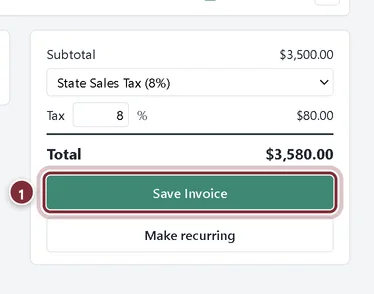
The panel on the right shows the Subtotal, the tax and the Total, worked out the same way the books will. Add a Memo if you want an internal note. Click Save Invoice. AcboBooks saves it and opens the Invoices list.
- Save Invoice posts the invoice: Accounts Receivable goes up by the total, income by the lines, and Sales Tax Payable by the tax.
Find, print and send the invoice
Step 3: Open the Invoices list
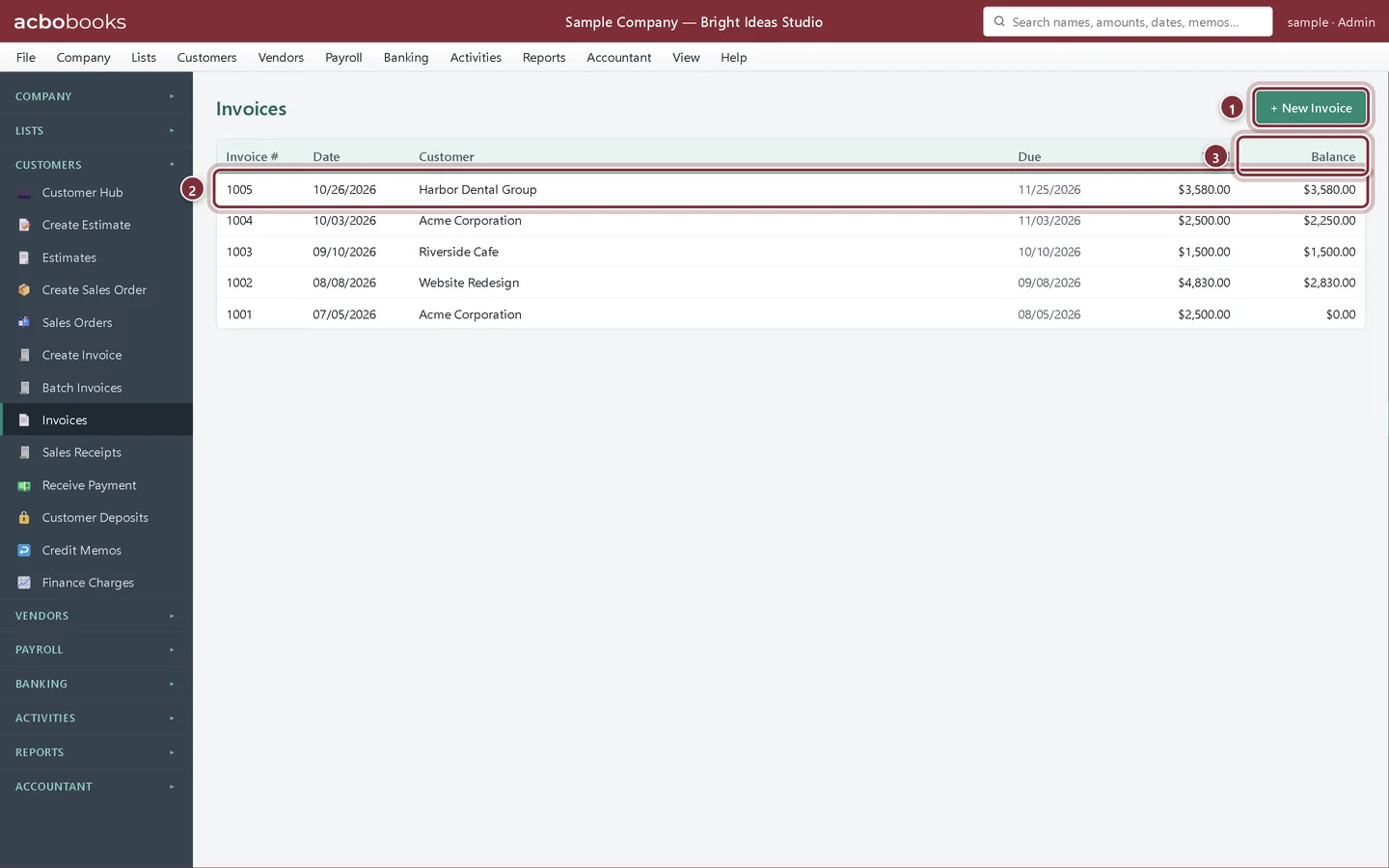
Choose Customers → Invoices. Every invoice is listed with its date, customer, due date, total and the Balance still owed. Click a row to open the invoice.
- + New Invoice.
- The invoice you just saved.
- Balance: what is still unpaid.
Step 4: Save a PDF, request payment or send a card link
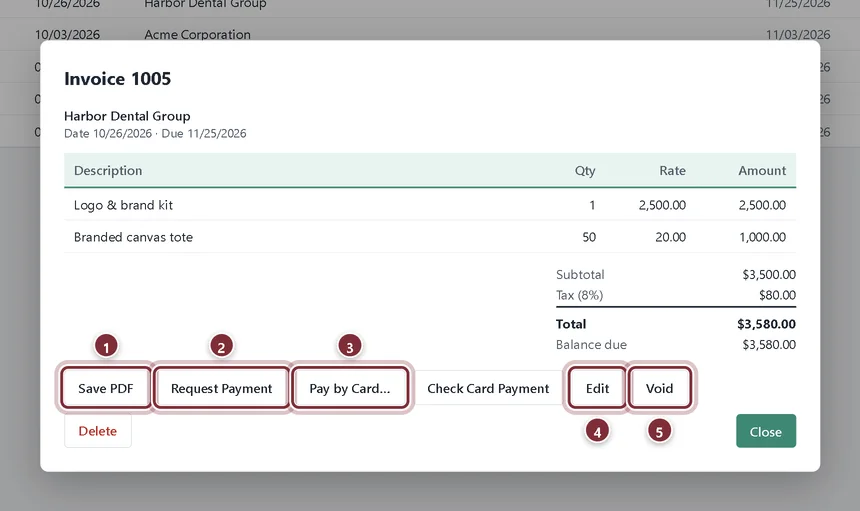
The invoice window shows the lines and totals, with buttons along the bottom. Save PDF saves a printable copy you can attach to an email or print. Request Payment opens a ready-written email to the customer in your email program, with the amount, due date and your payment instructions. Pay by Card… creates a Stripe payment link for the balance and copies it, and Check Card Payment records the payment once the customer has paid.
- Save PDF.
- Request Payment: an email draft; attach the PDF if you want the customer to have it.
- Pay by Card…: needs your Stripe secret key in Company → Company Settings.
- Edit reopens the invoice in the form.
- Void keeps the invoice at $0 for your records.
Step 5: Void or delete?
Void an invoice that was sent but shouldn't have been: it stays in the list marked VOID with a $0 total, so the number sequence has no gaps. Delete removes it for good and can't be undone. Use it only for an invoice made by mistake.
Step 6: Bill the same thing every month?
Make recurring, under Save Invoice, saves the invoice as a template that AcboBooks can enter on a schedule. See Set up recurring invoices.
Recap
- Create an invoice with taxable and non-taxable lines.
- Let payment terms set the due date.
- Save a PDF, request payment by email or send a card link.
- Choose between void and delete.
Questions
Can I bill several customers the same thing at once?
Yes. Customers → Batch Invoices creates the same invoice for every customer you tick, with one invoice date and optional due date.
How do I bill time and expenses I recorded for a customer?
When a customer has unbilled time or costs, Create Invoice shows a banner with Add unbilled time & costs…. Pick what to bill and it is added as lines.
Why is Save Invoice greyed out?
The total has to be more than zero. Pick an item on at least one line and check its quantity and rate.
Related
Screenshots from AcboBooks 0.2.2 with the built-in sample company. Updated October 25, 2026. Your screens may differ slightly with another version or window size.