
In this lesson you will
- Set the rate, minimum charge and grace days
- Preview the charges before anything is posted
- Post finance charge invoices to the customers you choose
- Know why a customer isn't charged twice
Before you start
Set up the charge
Step 1: Fill in Assess Finance Charges
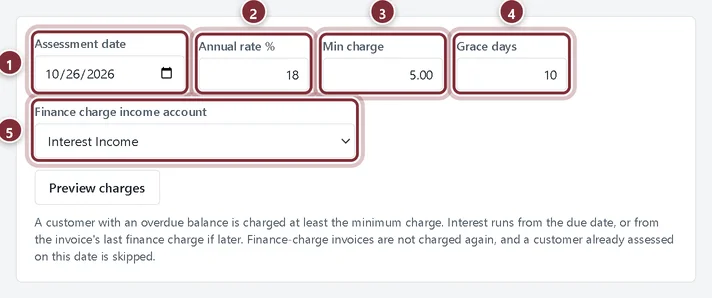
Choose Customers → Finance Charges. Set the Assessment date, the Annual rate %, the Min charge, any Grace days after the due date, and the Finance charge income account.
- Assessment date: the date of the finance charge invoices.
- Annual rate %: 18 is filled in; use the rate in your terms.
- Min charge: the smallest charge. A customer whose interest comes to less is charged this amount.
- Grace days: days after the due date before interest starts.
- Finance charge income account: Interest Income in the example.
Preview, then post
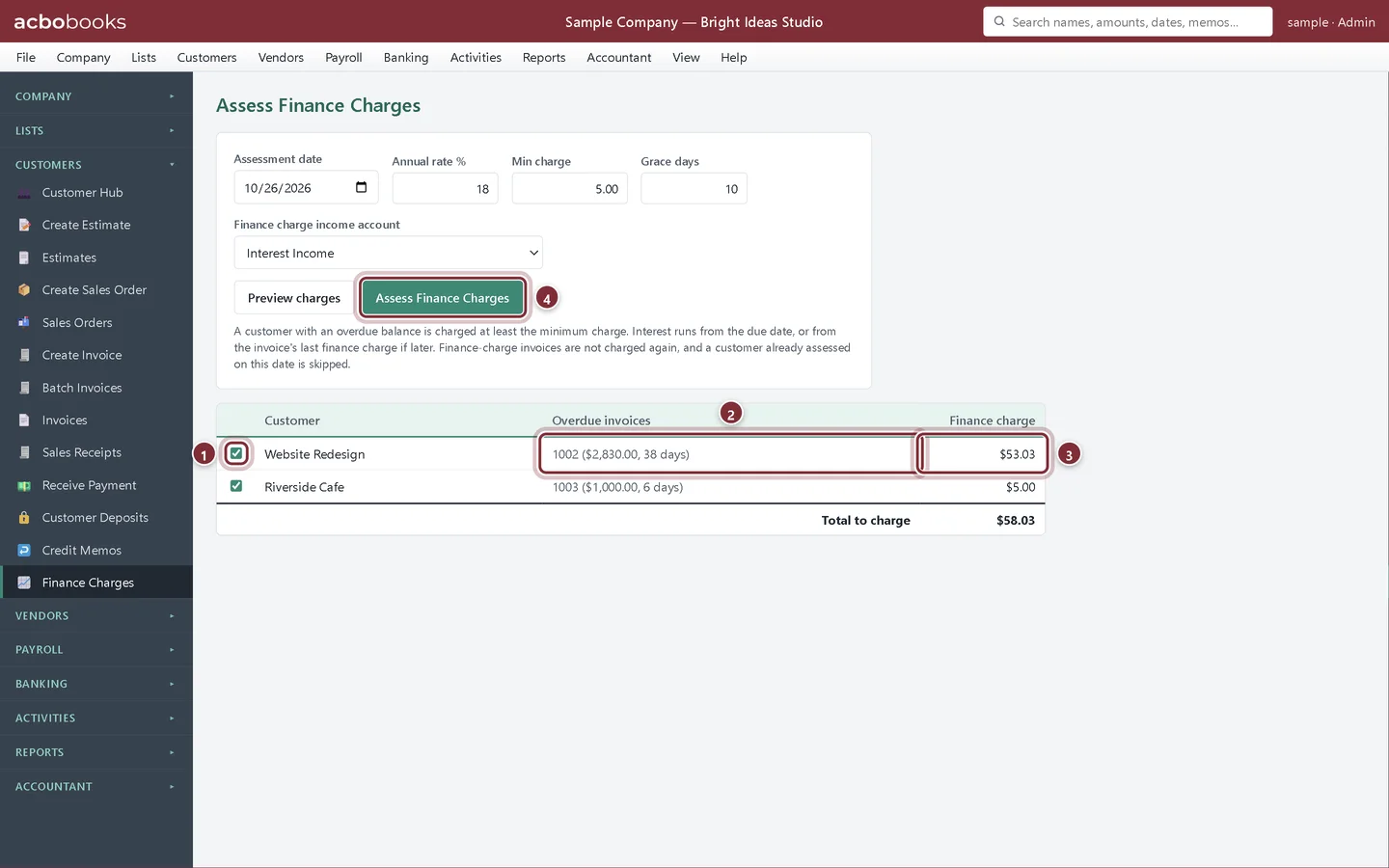
Step 2: Click Preview charges
AcboBooks lists each customer with an overdue balance, the overdue invoices with their balance and the days being charged, and the charge. Nothing is posted yet. Untick a customer you don't want to charge, for example one who has just agreed a payment plan.
- Ticked customers are charged. Untick anyone to leave them out.
- The overdue invoices behind the charge: number, open balance and the days charged (after the grace days, or since the last finance charge).
- The finance charge. Riverside Cafe's interest is below the minimum, so it is raised to $5.00.
- Assess Finance Charges posts the charges for the ticked customers.
Step 3: Assess the charges
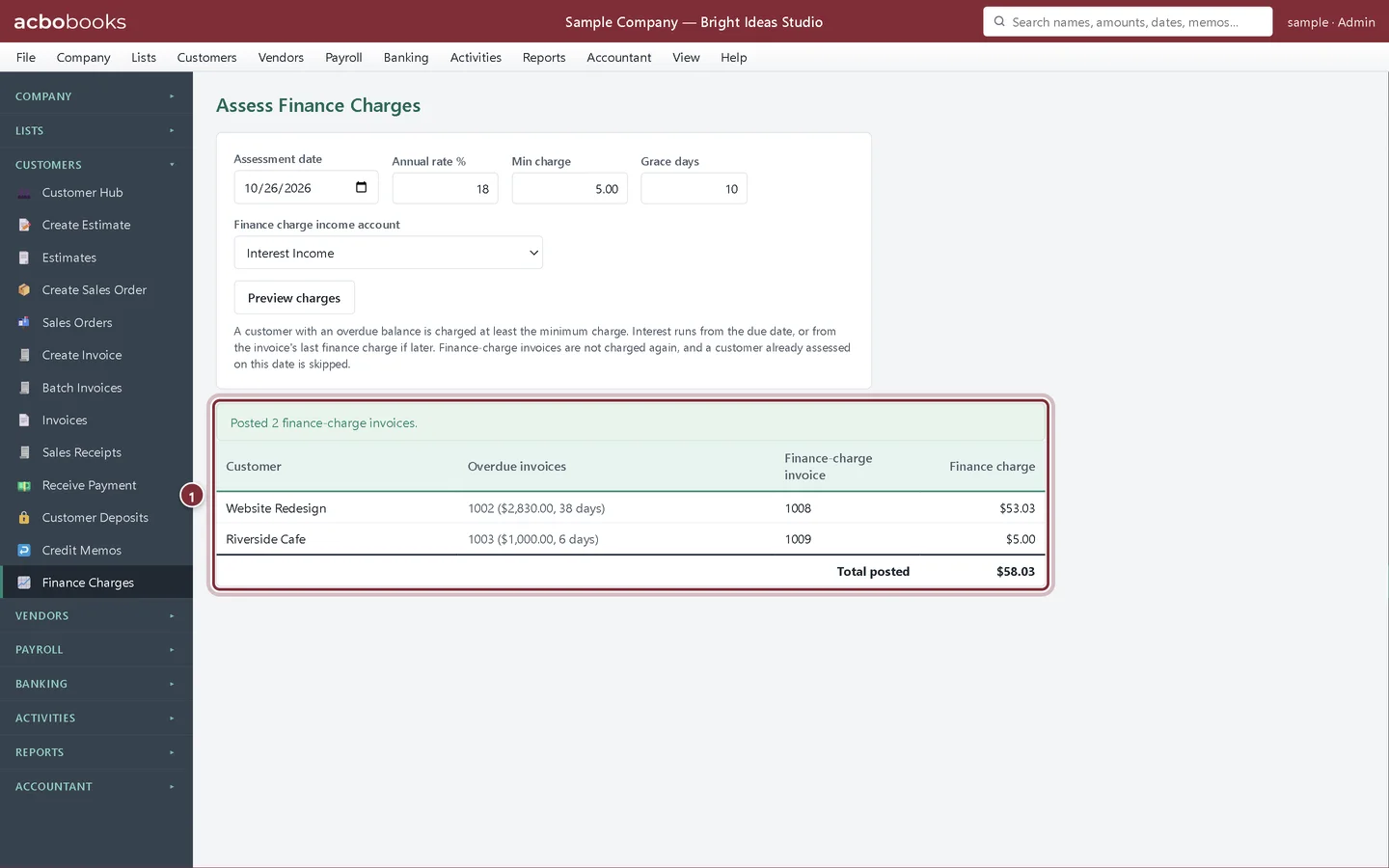
Click Assess Finance Charges and confirm. AcboBooks posts one invoice to each ticked customer, with the memo Finance charge on overdue balance, and shows the number of each new invoice. You'll find them on Customers → Invoices.
- The finance charge invoice posted to each customer, with the total.
Recap
- Set the rate, minimum charge and grace period.
- Preview who would be charged and untick anyone to leave out.
- Post finance charges to the ticked customers.
- Void a finance charge invoice posted by mistake.
Questions
Is there a legal limit on the rate?
Interest on late payments is regulated by state or provincial law and should be in your written terms. Check the rules where you and your customer are before you charge.
Are finance charges taxable?
AcboBooks posts them as non-taxable lines.
How often should I assess?
Once per statement period, usually monthly, on the day you send statements.
Related
Screenshots from AcboBooks 0.2.2 with the built-in sample company. Updated October 25, 2026. Your screens may differ slightly with another version or window size.