
In this lesson you will
- Receive a deposit or retainer before the work
- See how much you are holding for each customer
- Apply a deposit to an invoice
- Refund a deposit when a job is cancelled
Before you start
Receive the deposit
Step 1: Fill in Customer Deposits
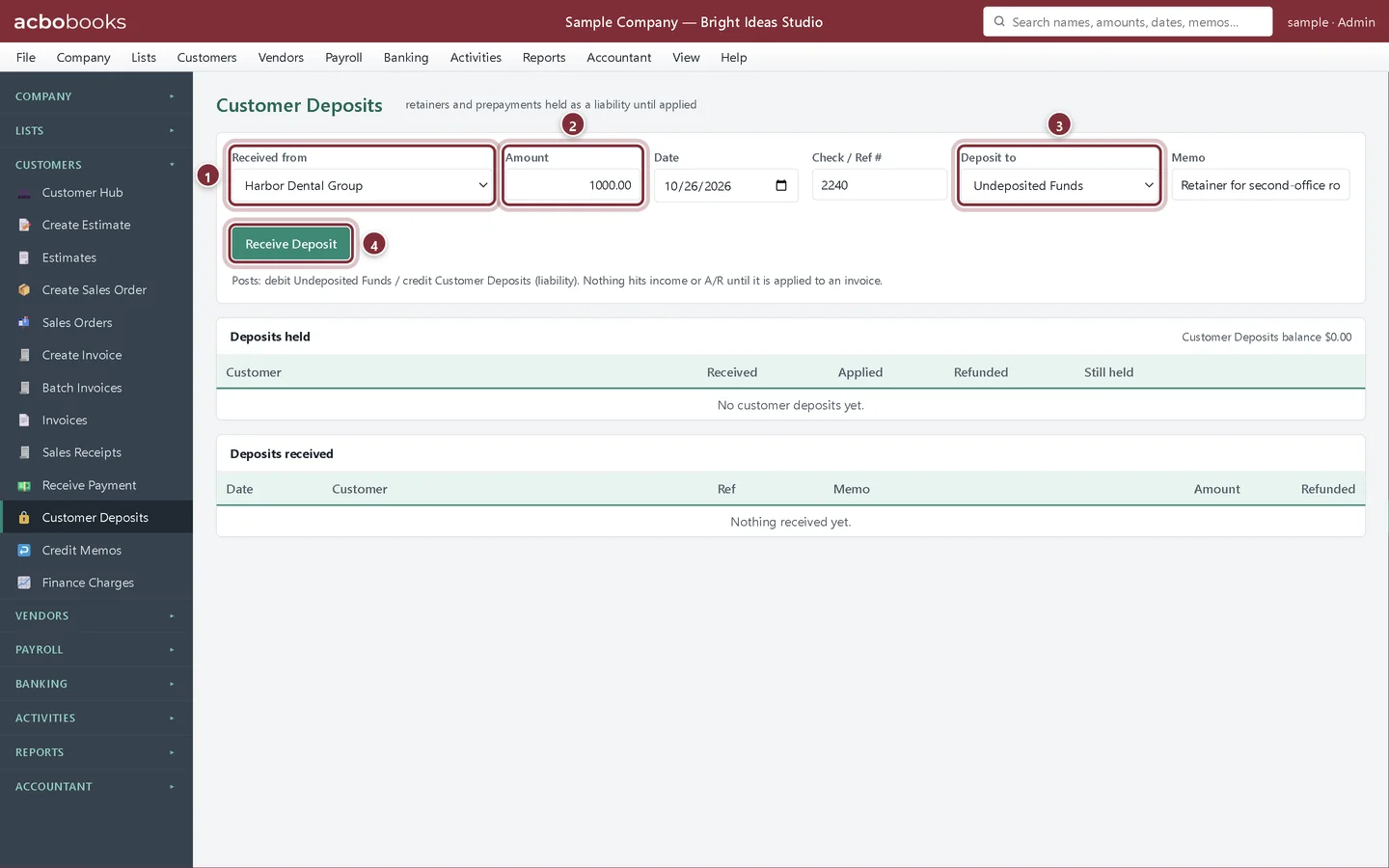
Choose Customers → Customer Deposits. Pick the customer in Received from, enter the Amount, date, Check / Ref # and where the money goes in Deposit to. Click Receive Deposit. Nothing reaches income or Accounts Receivable yet: the money is held in the Customer Deposits liability account.
- Received from.
- Amount.
- Deposit to.
- Receive Deposit.
Use or return the deposit
Step 2: Deposits held
Deposits held shows, for each customer, what was received, applied and refunded, and what is Still held. The total at the top right is the balance of the Customer Deposits account.
- Still held.
- Apply to invoice….
- Refund….

Step 3: Apply it to the invoice
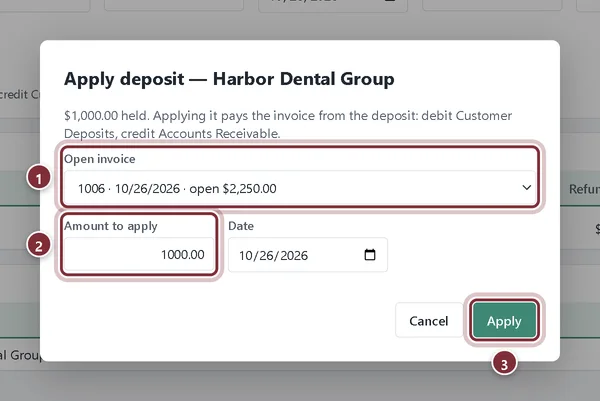
When you invoice the work, click Apply to invoice…. Choose the Open invoice, check the Amount to apply and click Apply. The invoice balance goes down and the held amount goes down by the same amount.
- Open invoice.
- Amount to apply.
- Apply.
Step 4: Refund it if the job is cancelled
Refund… pays held money back. Choose the deposit, the Amount, the account it is Paid from and the Method: a check (leave the number blank to print it later) or Other for an e-transfer, card reversal or cash.
Recap
- Record a retainer as a customer deposit, not income.
- Check what you hold for each customer.
- Apply a deposit to the invoice for the work.
- Refund a deposit for a cancelled job.
Questions
Why not just record the deposit as a payment?
A payment needs an invoice to pay. A deposit taken before the work is money you owe back until the work is done, so it belongs in a liability account until you invoice.
Can I apply part of a deposit?
Yes. Change Amount to apply. The rest stays held for the next invoice.
Screenshots from AcboBooks 0.2.2 with the built-in sample company. Updated October 25, 2026. Your screens may differ slightly with another version or window size.