
In this lesson you will
- Save a bill as a recurring template with Make recurring
- Enter the template on the date you choose
- Find the new bill in Pay Bills
- Schedule a template to enter itself
Before you start
Save the bill as a template
The studio pays Maple Property Mgmt $3,000.00 rent every month.
Step 1: Fill in Enter Bill, then click Make recurring
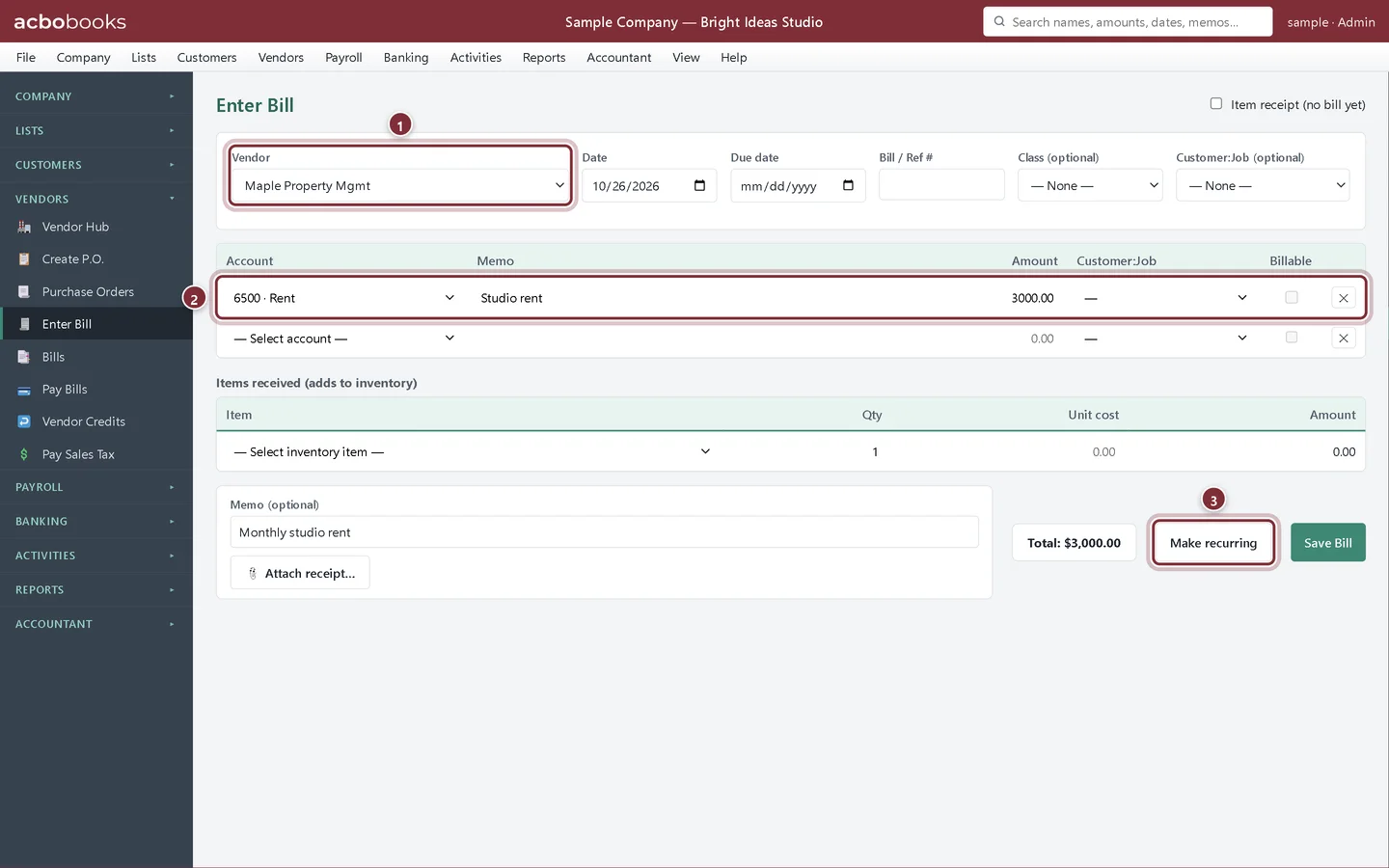
Open Vendors → Enter Bill, choose the Vendor and add the lines, here one line to Rent. Add a Memo such as Monthly studio rent. Then click Make recurring next to Save Bill. This saves a template only and doesn't post a bill.
- Vendor: who you pay every month.
- The lines to repeat.
- Make recurring saves the bill as a template.
Step 2: Name it
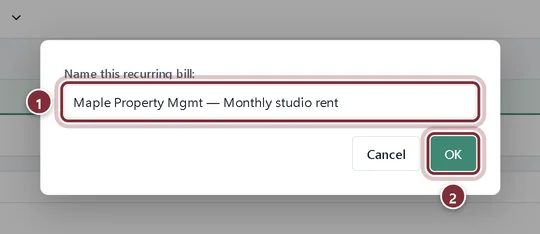
AcboBooks suggests a name from the vendor and memo. Change it if you like and click OK. A banner confirms the template was saved.
- The template's name.
- OK saves it.
Enter it each month
Step 3: Open Activities → Recurring
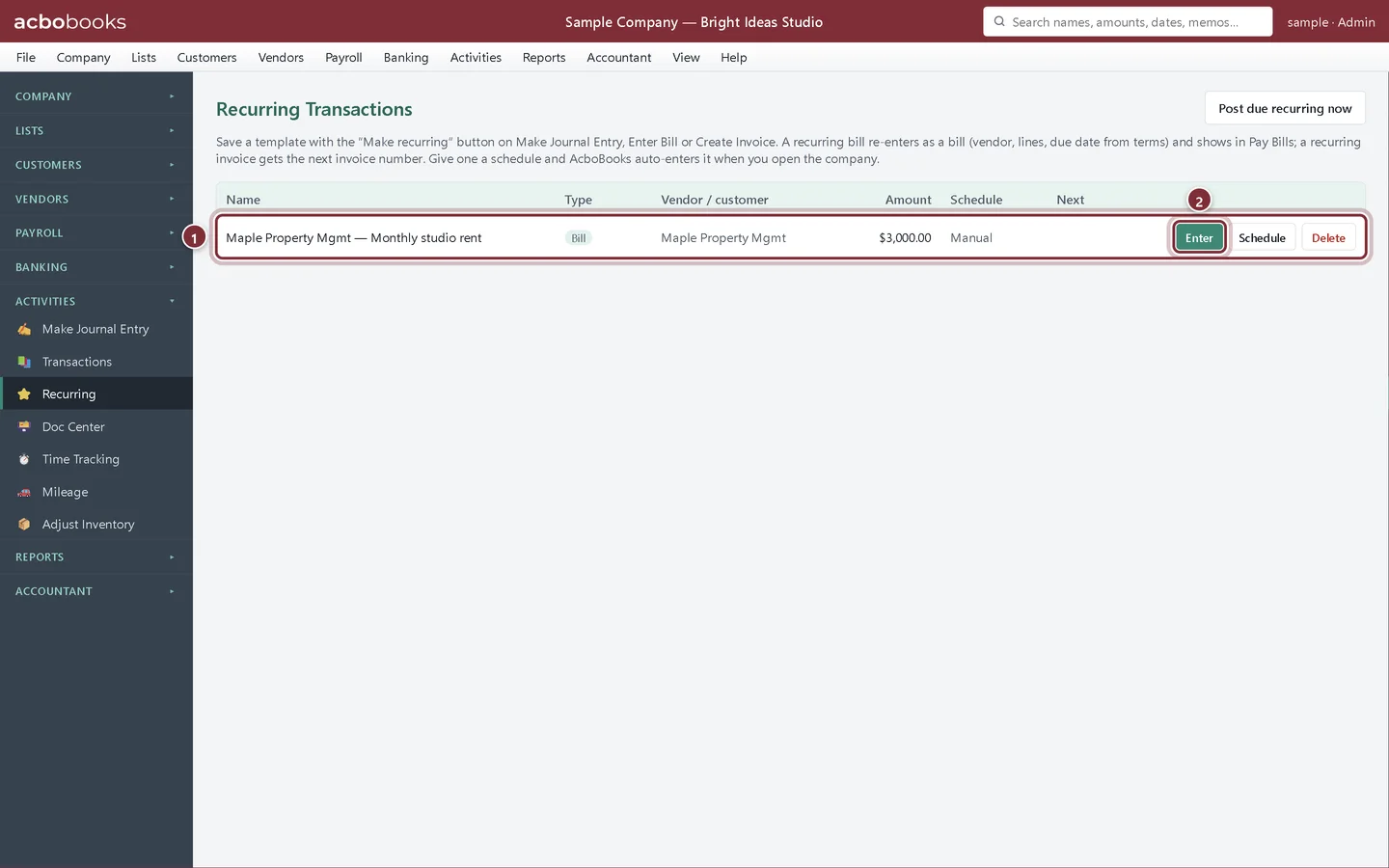
The template is listed with its type Bill, the vendor and the amount. Its schedule is Manual, so it is entered only when you ask.
- The recurring rent bill.
- Enter posts it once.
Step 4: Click Enter and give the date
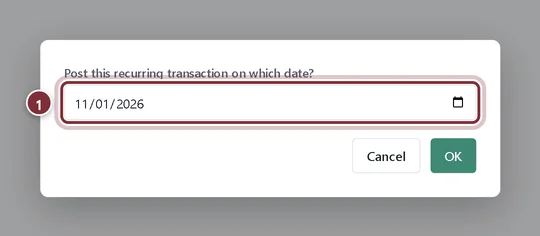
AcboBooks asks for the date to post it on, filled in with today. Pick the date of this month's bill, for example November 1, and click OK.
- The bill date.
Step 5: Pay it as usual
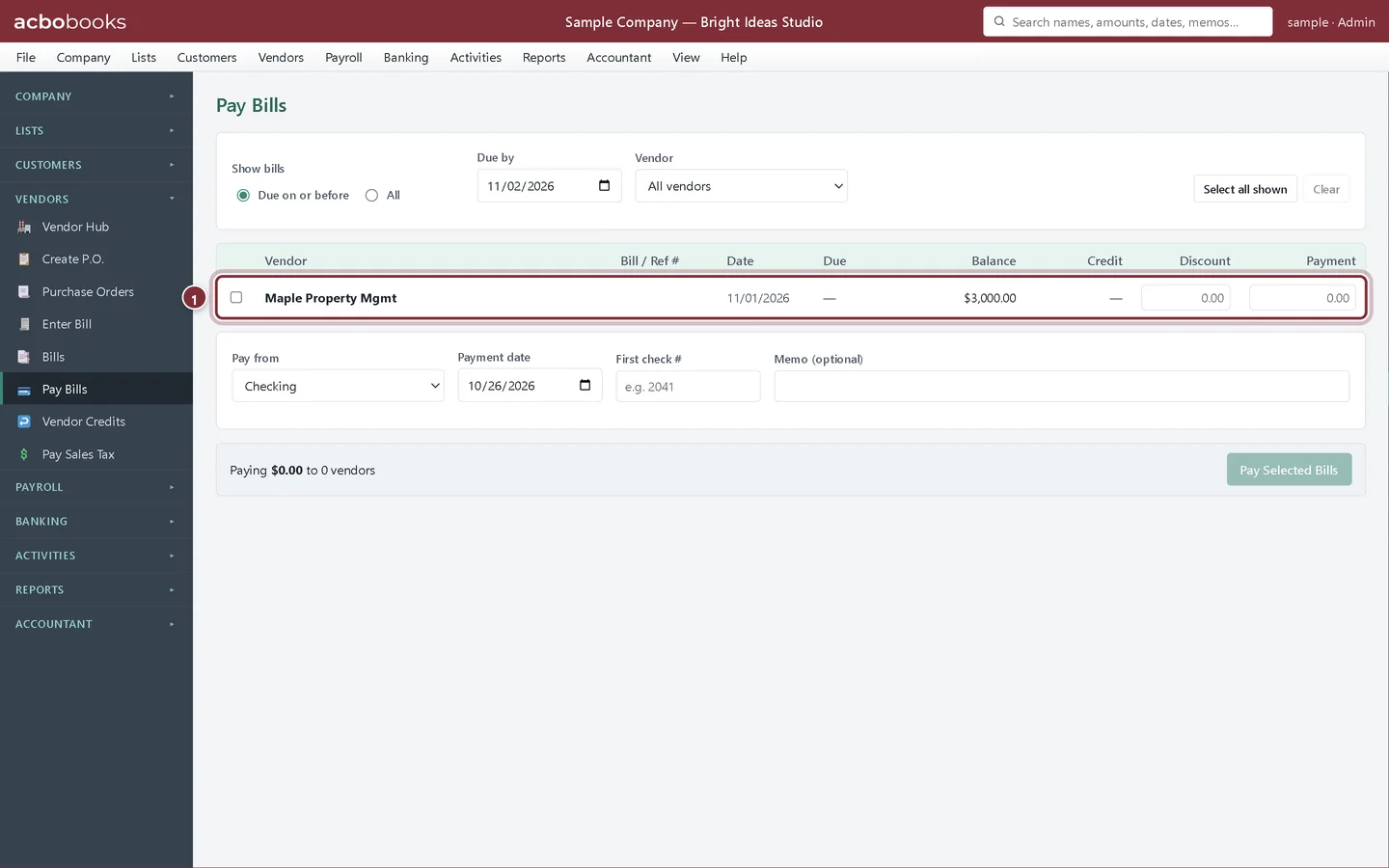
A banner confirms the bill was posted. It is a normal bill: it is on Vendors → Bills and waits in Vendors → Pay Bills until you pay it. The due date follows the vendor's payment terms; with no terms the bill has no due date and Pay Bills shows it at once.
- The new rent bill in Pay Bills.
Let it enter itself
Step 6: Schedule the template
Click Schedule on the template, choose a Frequency such as Monthly and the Next date, and tick Automatically enter when due (on company open). AcboBooks then enters the bill when you open the company on or after that date, or when you click Post due recurring now. The steps are the same as for invoices: see Set up recurring invoices.
Recap
- Save a regular bill as a recurring template.
- Enter it on the date you choose from Activities → Recurring.
- Pay it from Pay Bills like any other bill.
- Schedule it to enter itself each month.
Questions
The amount changes every month, like a utility bill. Can I still use it?
Yes. Enter it from the template, then open the bill from Vendors → Bills, click Edit, change the amount and click Update Bill.
Is a recurring bill paid automatically?
No. It is entered as a bill you owe. You still pay it in Pay Bills, or your bank pays it and you record the payment there.
Can a journal entry be recurring too?
Yes. Make Journal Entry has the same Make recurring button. See Reversing and recurring journal entries.
Screenshots from AcboBooks 0.2.2 with the built-in sample company. Updated October 25, 2026. Your screens may differ slightly with another version or window size.