
In this lesson you will
- Create a purchase order for stock and other costs
- Receive part of an order as an item receipt
- Turn an item receipt into a bill when the invoice arrives
- Receive the rest with the vendor's bill and close the PO
Before you start
Create the purchase order
The studio orders 100 printed tote bags for its holiday client gifts, plus two window decals, from Canvas & Co. Printing.
Step 1: Open Vendors → Create P.O.
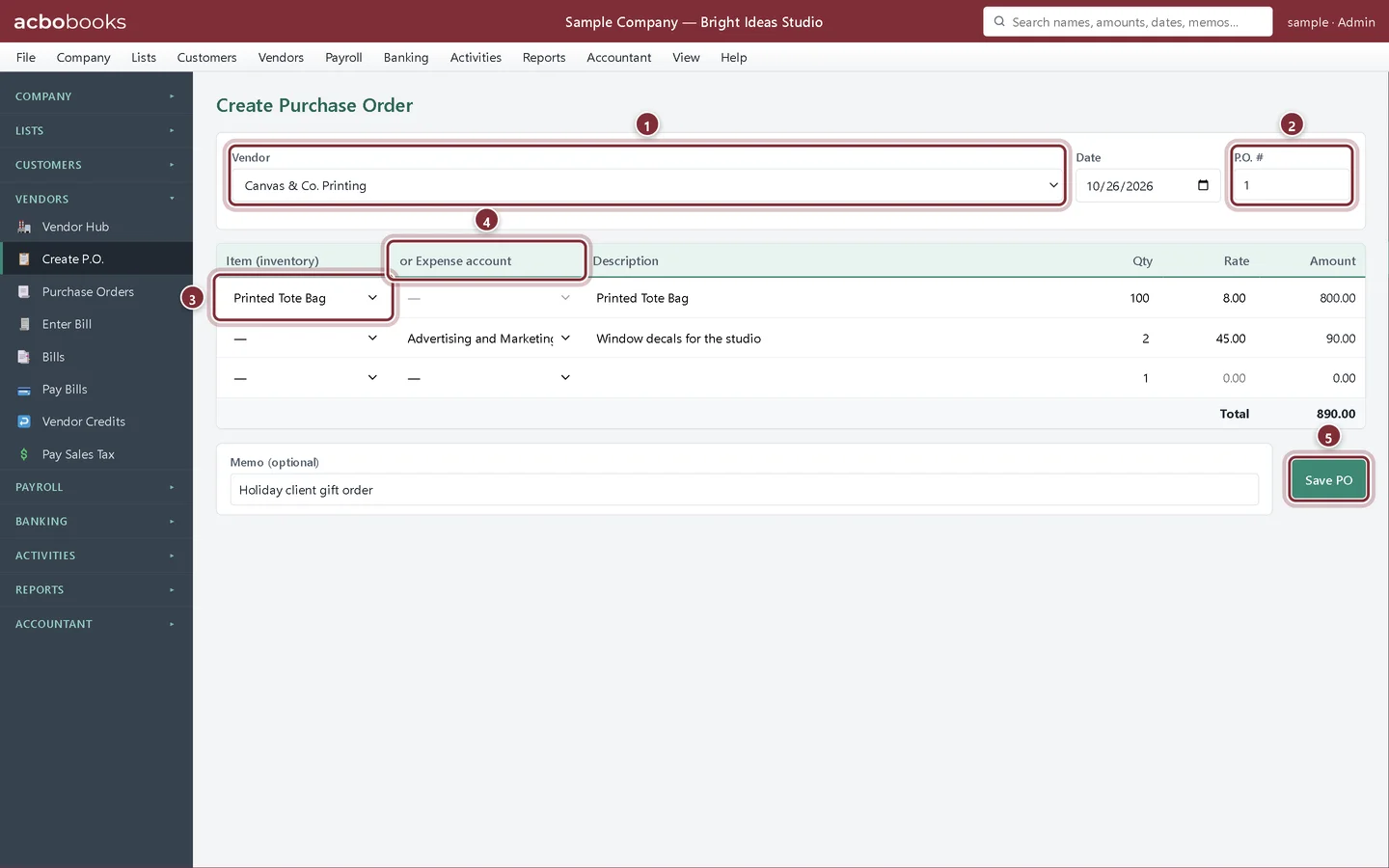
Choose the Vendor. AcboBooks numbers the order in P.O. #. On each line pick an inventory Item (the description and cost fill in from the item), or an Expense account for anything you don't stock, then the Qty and Rate. Add a Memo and click Save PO.
- Vendor: who you are ordering from.
- P.O. #: numbered for you; change it if you use your own scheme.
- Item (inventory): stock you track.
- or Expense account: for anything else on the order.
- Save PO saves the order.
Step 2: Open the order from Vendors → Purchase Orders
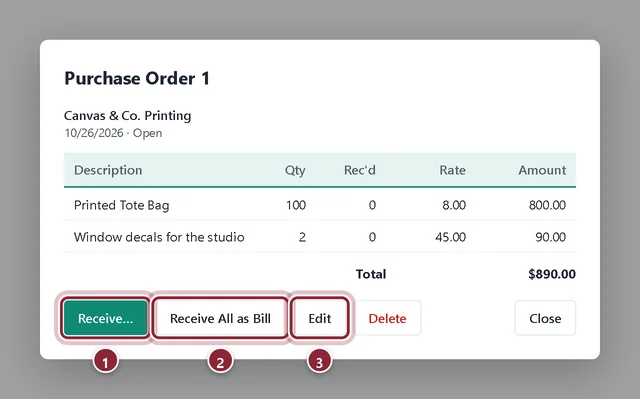
The Purchase Orders list shows each order's status: Open, Partly received or Received. Click an order to see its lines, with Qty ordered and Rec'd so far.
- Receive… receives some or all of the lines.
- Receive All as Bill receives everything still open in one step, as a bill.
- Edit changes the order while nothing has been received.
Receive part of the order
Step 3: Receive what arrived
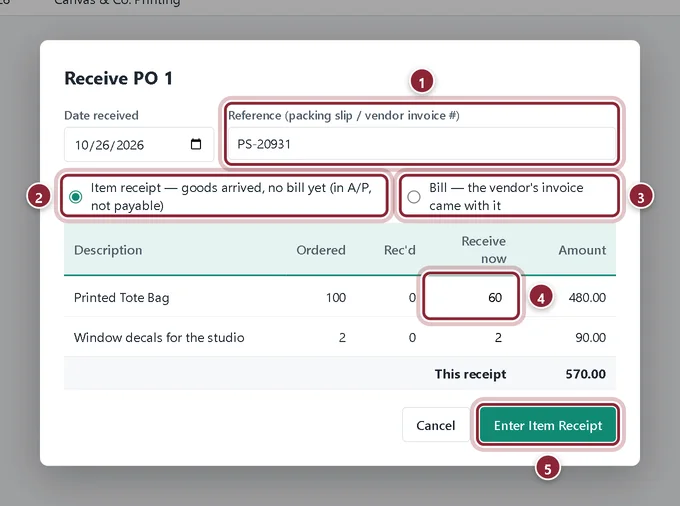
The first box holds 60 of the 100 totes, and the decals. Click Receive…. Type the packing slip number in Reference, then choose how to record it: Item receipt when the goods came without a bill, or Bill when the vendor's invoice came with them. In Receive now, type what actually arrived on each line.
- Reference: the packing slip or the vendor's invoice number.
- Item receipt: goods arrived, no bill yet. It is in A/P but not payable.
- Bill: the vendor's invoice came with the goods, so it is payable now.
- Receive now: what came in on this delivery. It starts at what is still open.
- Enter Item Receipt (or Enter Bill) records the delivery.
Step 4: The order is now partly received
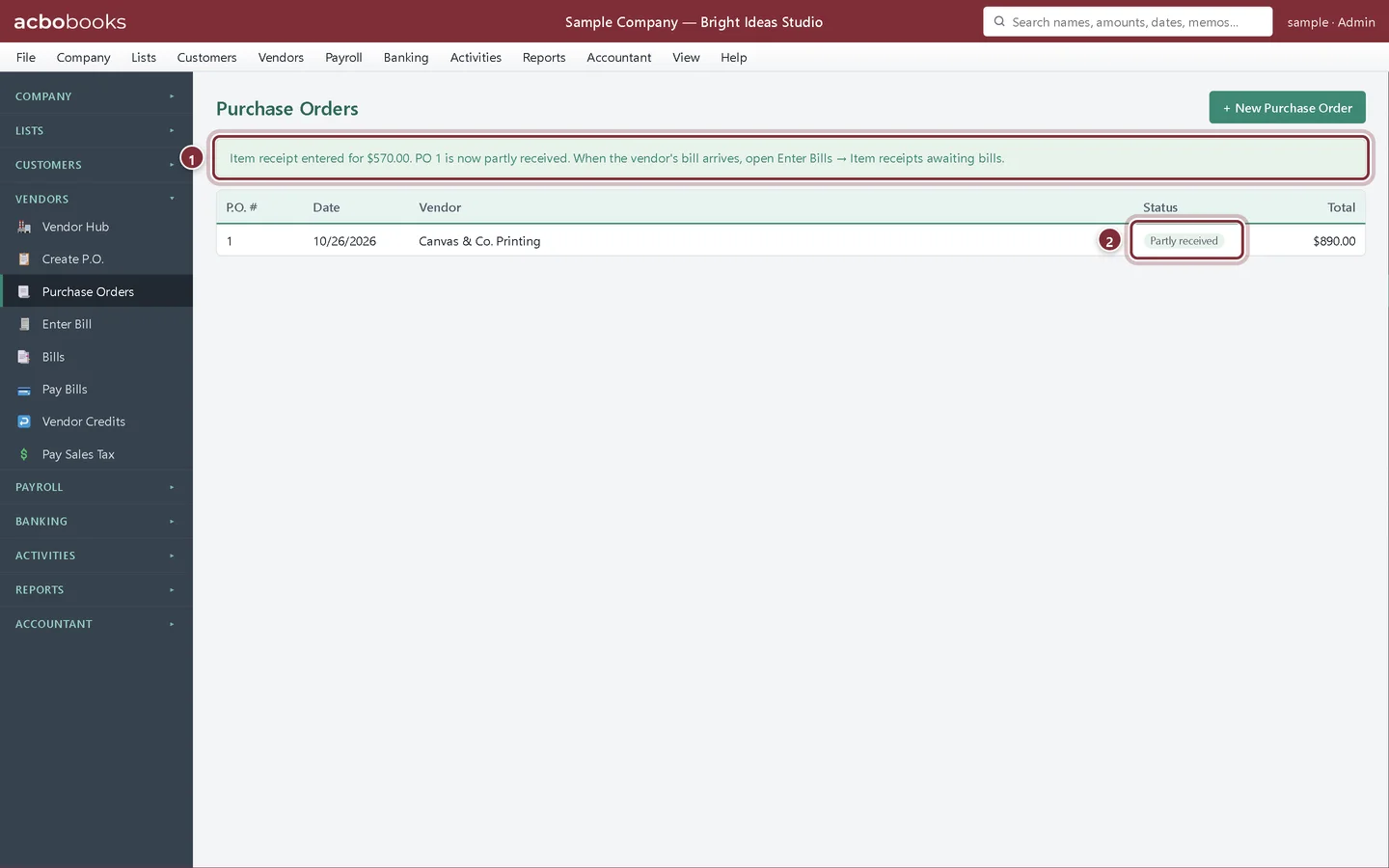
AcboBooks confirms the receipt and the PO's status changes to Partly received. The 60 totes are now in stock at their cost, and the amount sits in Accounts Payable, but it won't show in Pay Bills until it becomes a bill.
- The confirmation message.
- Partly received: some lines are still to come.
When the vendor's bill arrives
Step 5: Find the item receipt
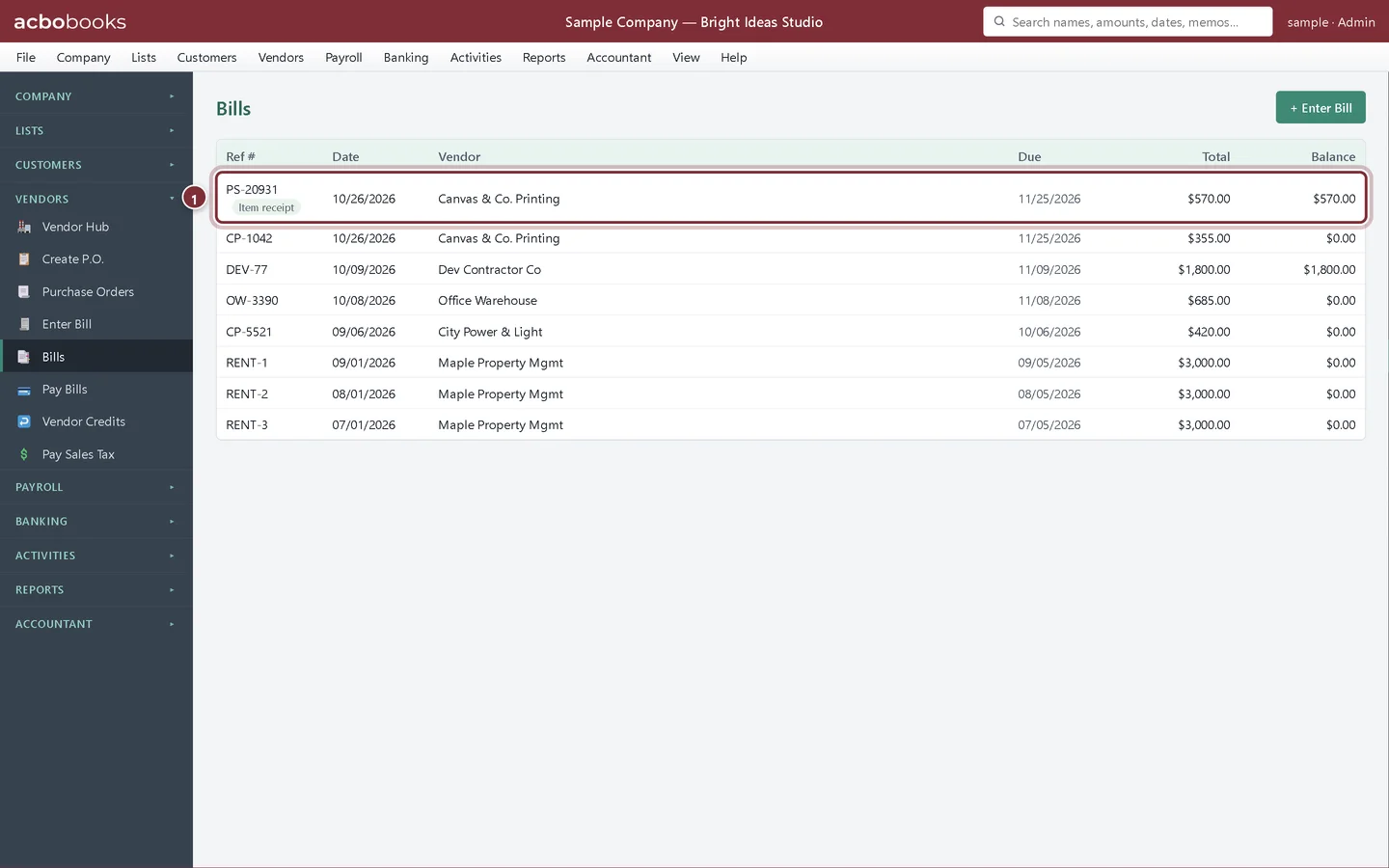
Open Vendors → Bills. Item receipts are in the list with an Item receipt tag. Click it, then click Edit.
- The item receipt, tagged Item receipt.
Step 6: Turn it into a bill
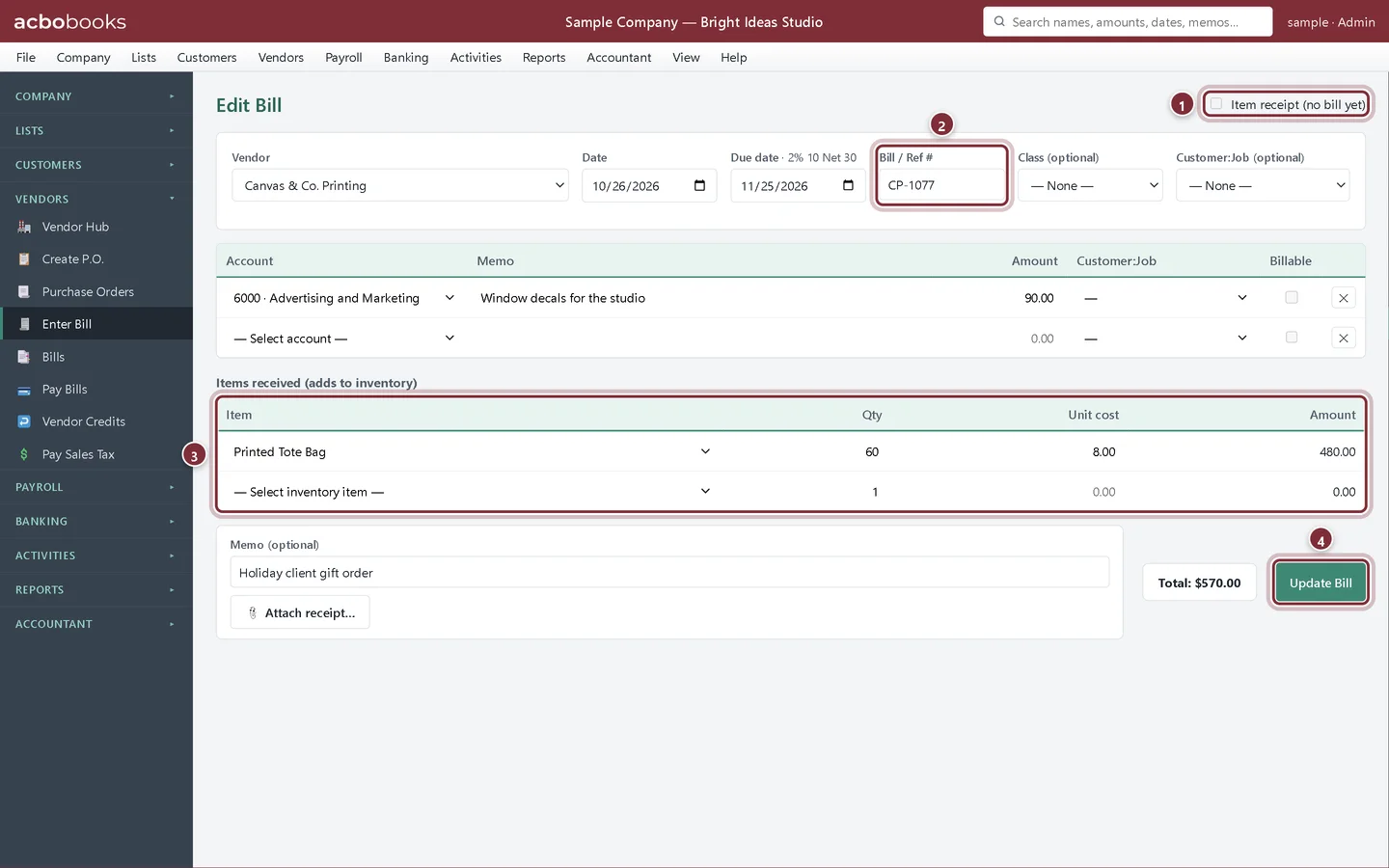
On the edit screen, clear Item receipt (no bill yet). The screen becomes Edit Bill. Change Bill / Ref # to the number on the vendor's invoice and correct any amounts if the invoice differs from what you expected. Click Update Bill. The bill is now payable in Pay Bills, and the due date follows the vendor's terms.
- Clear Item receipt (no bill yet).
- Bill / Ref #: the vendor's invoice number.
- The items received stay as they were, so stock is not counted twice.
- Update Bill saves it as a bill.
Receive the rest and close the order
Step 7: Receive the last 40 with the bill
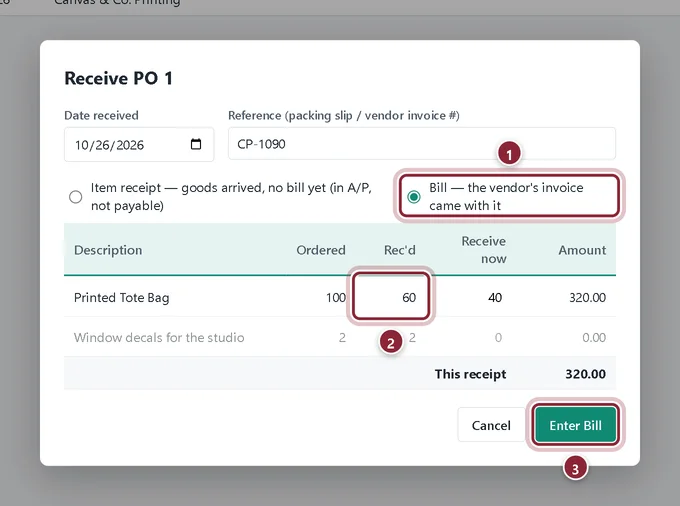
The rest of the totes arrive with the vendor's invoice. Open the PO again, click Receive… and choose Bill. Rec'd shows the 60 already in, and Receive now offers the 40 still open. Type the invoice number in Reference and click Enter Bill.
- Bill: the invoice came with the goods.
- Rec'd: what earlier receipts brought in.
- Enter Bill records the goods and the bill together.
Step 8: The PO is received
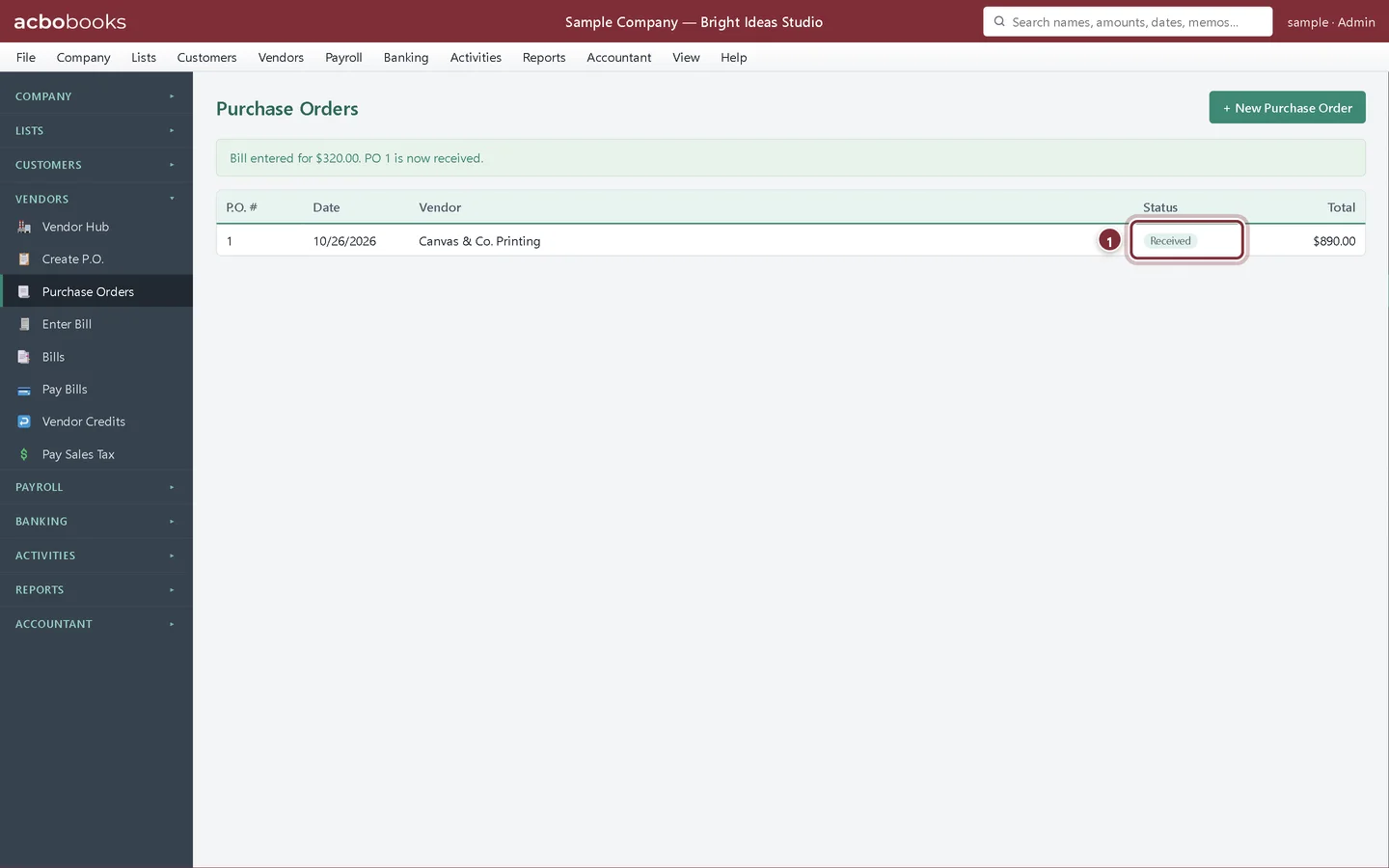
With every line in, the status changes to Received. The order stays in the list as a record of what you ordered and when it came.
- Received: nothing left to come.
Recap
- Create a PO with stock items and expense lines.
- Receive part of an order as an item receipt.
- Turn the item receipt into a bill when the invoice comes.
- Receive the rest as a bill and see the PO marked Received.
Questions
Does a purchase order affect my books?
No. It only records the order. Stock and Accounts Payable change when you receive the goods.
What if the vendor sends fewer than I ordered and won't send the rest?
Receive what came. The order stays Partly received; delete it or leave it as a record. Nothing is owed for goods that never arrive.
The vendor's invoice price is different from the PO. What do I do?
Use the price on the invoice. When you turn the item receipt into a bill, change the unit cost on the item line before you click Update Bill.
Screenshots from AcboBooks 0.2.2 with the built-in sample company. Updated October 25, 2026. Your screens may differ slightly with another version or window size.