
In this lesson you will
- Show the bills that are due and tick the ones to pay
- Take an early-payment discount
- Apply a vendor credit to a bill
- Pay several vendors at once with sequential check numbers
Before you start
Choose the bills to pay
Step 1: Open Vendors → Pay Bills
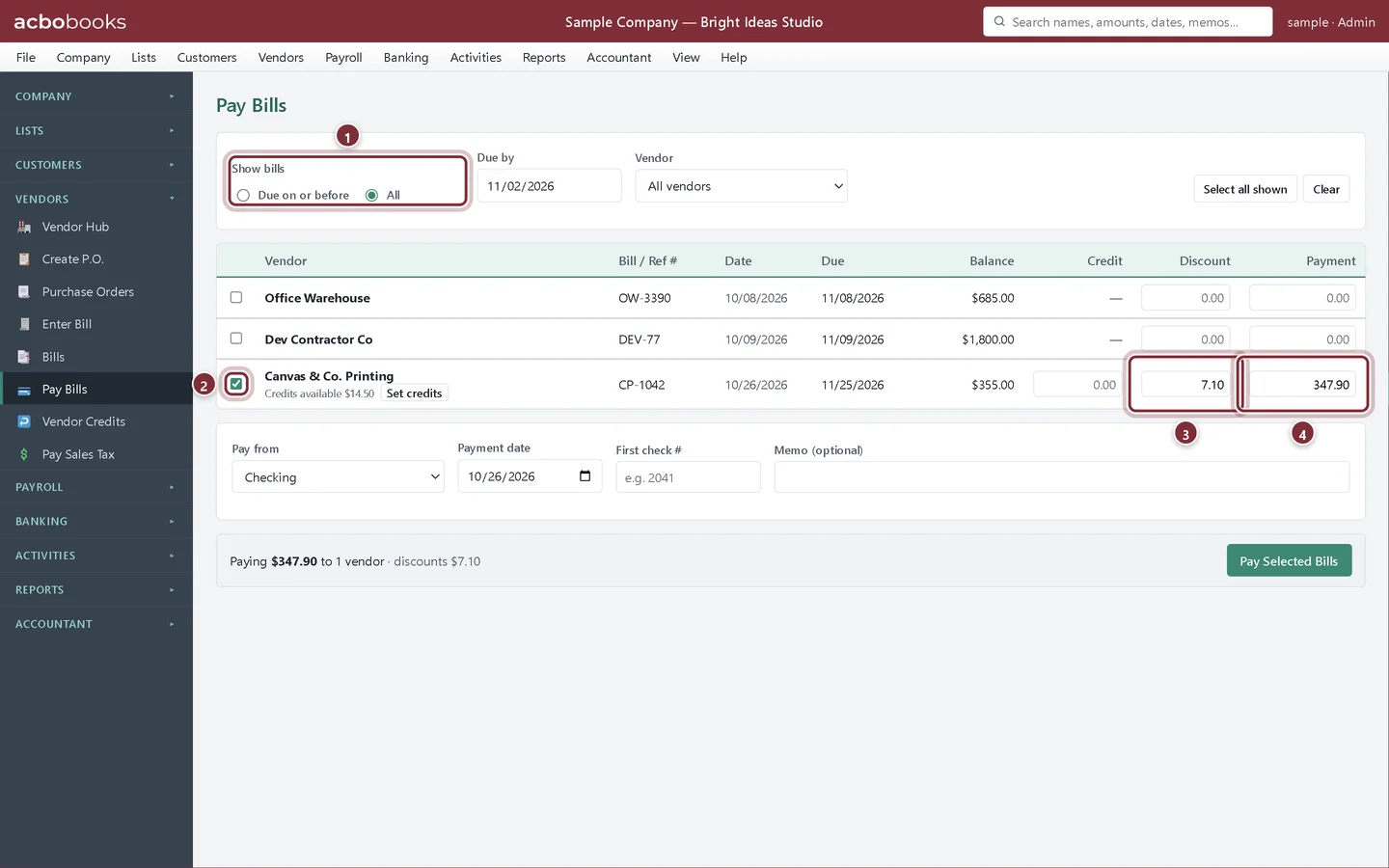
Pay Bills lists your unpaid bills. Show bills switches between Due on or before a date in Due by (a week ahead to start with) and All. Pick a Vendor to see just theirs. Tick a bill to pay it: AcboBooks fills in the Payment for the full balance.
- Show bills: what is due by a date, or everything.
- Tick a bill to pay it. Select all shown ticks every bill on screen.
- Discount: filled in from the vendor's terms when you pay within the discount period.
- Payment: the cash going out, after any discount and credit.
Step 2: Take the early-payment discount
Canvas & Co. Printing gives 2% off if paid within 10 days. Because the payment date is inside that window, AcboBooks fills in Discount with 2% of the balance ($7.10) and lowers the payment to match. You can change the discount or clear it. Discounts taken post to a Purchase Discounts account, which AcboBooks adds to your chart of accounts the first time you take one.
Use credits and pay
Step 3: Apply a vendor credit
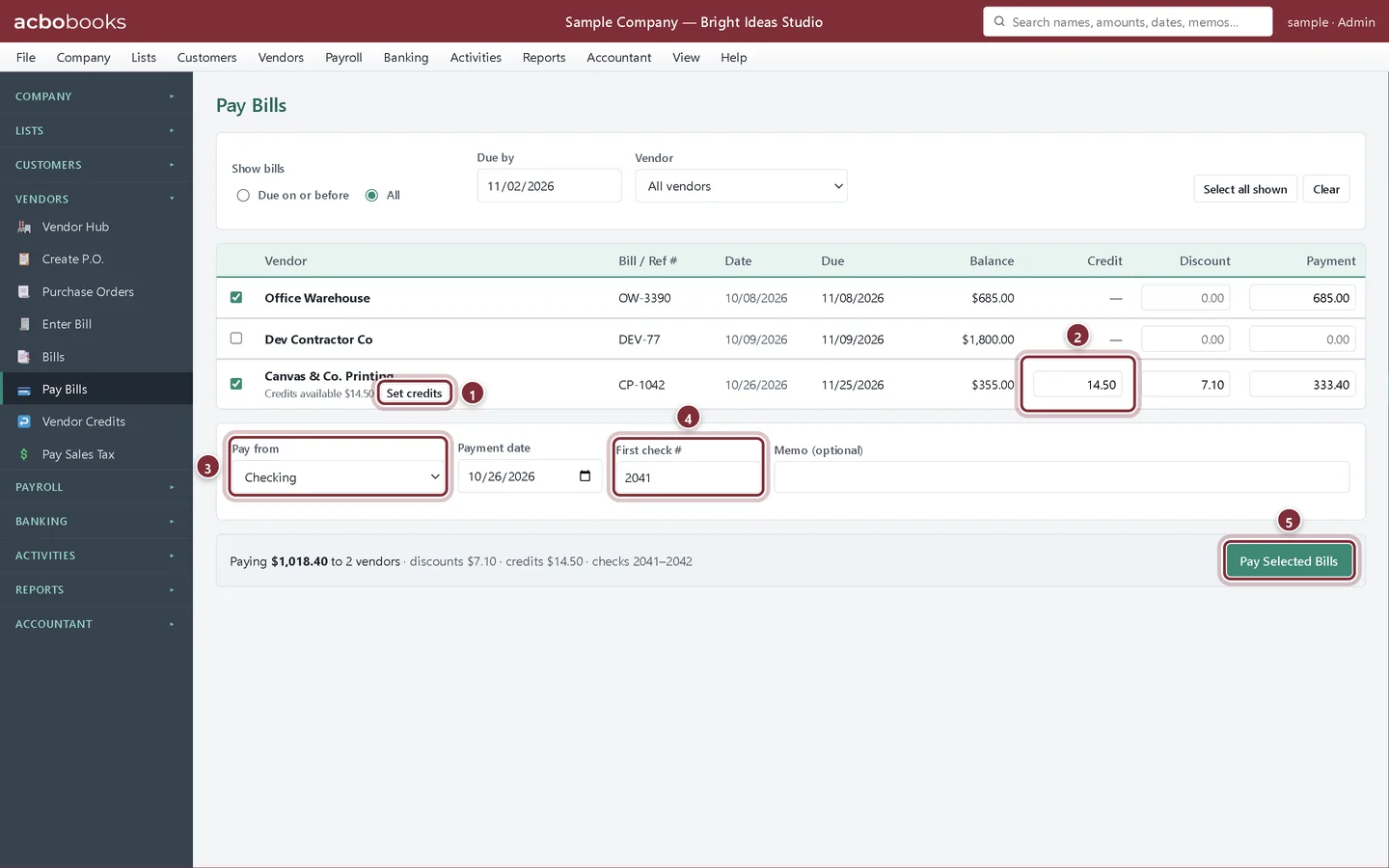
When a vendor has an open credit, the row says Credits available with the amount. Click Set credits to put the credit against that vendor's ticked bills, oldest first. The Credit column shows how much is used and the payment drops by the same amount. You can also type a credit amount yourself.
- Set credits applies the vendor's available credit.
- Credit: the part of the bill settled by the credit.
- Pay from: a bank account, or a credit card if you paid by card.
- First check #: the number of the first check. Each vendor gets the next number.
- Pay Selected Bills posts the payments.
Step 4: Check the summary and pay
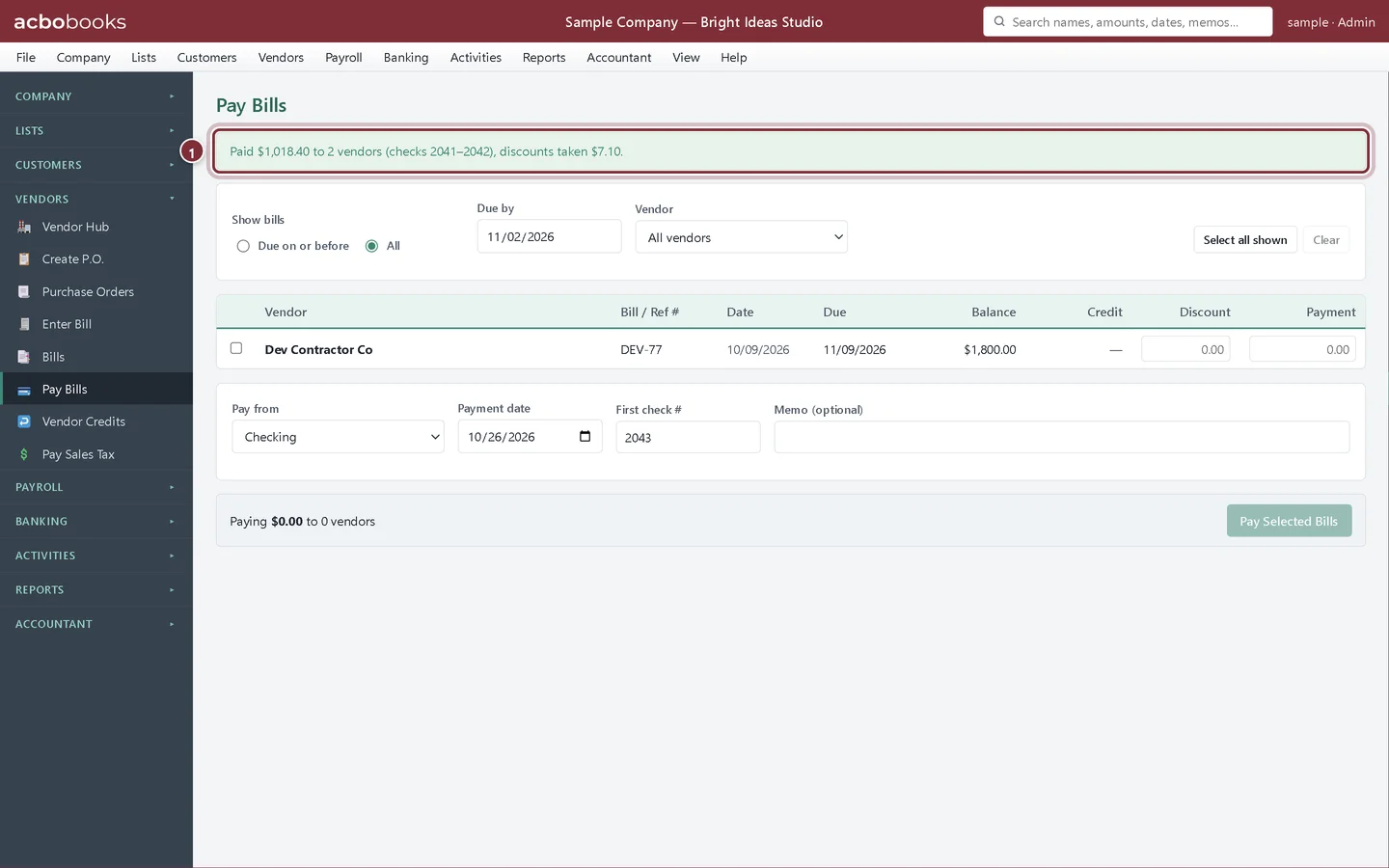
The bar at the bottom adds it up before you commit: here $1,018.40 to 2 vendors, with $7.10 of discounts, a $14.50 credit and checks 2041 to 2042. Set the Payment date, add a Memo if you like, and click Pay Selected Bills. AcboBooks posts one payment per vendor and confirms what it paid. Paid bills leave the list, and the next check number is ready for your next run.
- The confirmation: total paid, the check numbers used and the discounts taken.
Step 5: Pay part of a bill
To pay only some of a bill, tick it and type a smaller amount in Payment. The rest stays open with a lower balance and comes back next time you open Pay Bills.
Recap
- List the bills due by a date, or all of them.
- Pay one bill, part of a bill, or many bills at once.
- Take the early-payment discount from the vendor's terms.
- Apply a vendor credit with Set credits.
- Number checks for several vendors in one run.
Questions
Can I print the checks from Pay Bills?
Yes. Bill payments made by check from a bank account appear in Banking → Print Checks, marked Bill payment, next to the checks from Write Checks. See Write and print checks.
Where does the discount go in my books?
To the Purchase Discounts account, a cost of goods sold account that lowers your costs on the Profit & Loss.
I paid a bill by mistake. How do I undo it?
Find the bill payment in Activities → Transactions and void it. The bill becomes unpaid again. See how to fix a duplicate payment.
Related
Screenshots from AcboBooks 0.2.2 with the built-in sample company. Updated October 25, 2026. Your screens may differ slightly with another version or window size.