
In this lesson you will
- Open the Vendors list and read its columns
- Add a vendor with payment terms and an opening balance
- Add a street address, tax ID and notes to a vendor
- Look up a vendor's history in the Vendor Hub
Before you start
Open the vendor list
Step 1: Go to Lists → Vendors
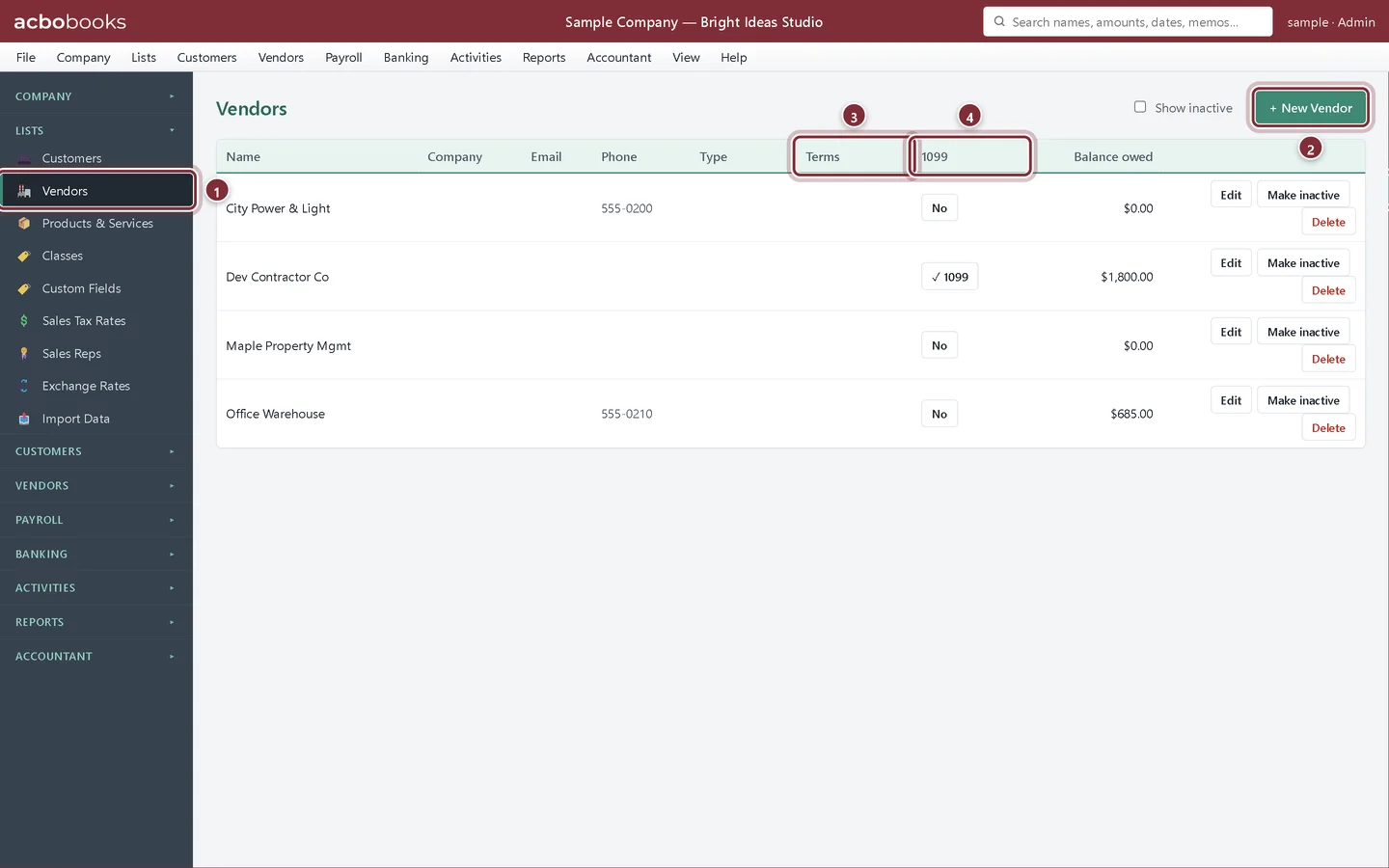
Choose Lists → Vendors from the menu bar or the side panel. Each row shows the vendor's company, contact details, type, payment Terms, whether they are tracked for a 1099, and the Balance owed: what your open bills to them add up to right now.
- Vendors in the side panel, under Lists.
- + New Vendor adds a vendor.
- Terms: the payment terms that set each bill's due date.
- 1099: click a vendor's button to switch 1099 tracking on or off.
Add a vendor
The studio has started ordering printed postcards and tote bags from a new supplier, Canvas & Co. Printing, who offers 2% off if you pay within 10 days.
Step 2: Fill in the New Vendor form
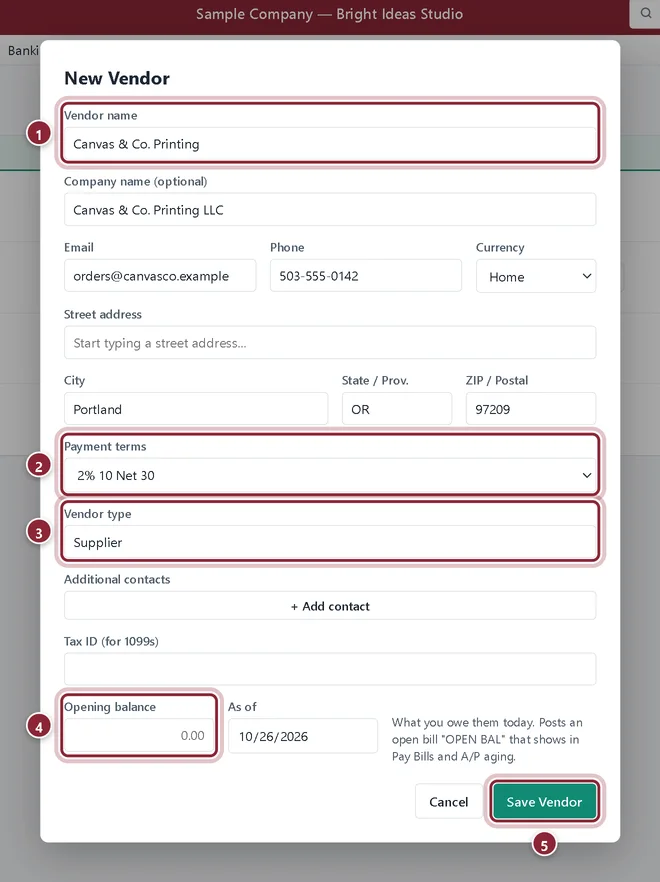
Click + New Vendor. Type the Vendor name (the name you pick on bills and checks), then the contact details. Choose the Payment terms the vendor gives you, and a Vendor type such as Supplier, Subcontractor or Utility if you want to group vendors.
- Vendor name: short and easy to find in a list.
- Payment terms: Net 30, Due on receipt, 2% 10 Net 30 and so on. Custom… sets any other days and discount.
- Vendor type: optional, for grouping and reports.
- Opening balance: what you already owe this vendor today, if anything.
- Save Vendor adds the vendor to the list.
Step 3: Enter an opening balance if you owe them already
If you are starting in AcboBooks part way through the year and already owe this vendor money, type it in Opening balance with the As of date. AcboBooks posts it as an open bill called OPEN BAL against Opening Balance Equity, so it shows in Pay Bills and on the A/P Aging report and you can pay it like any other bill. Leave it at 0.00 for a new vendor.
Add the rest of the details
Step 4: Edit the vendor for address, tax ID and notes
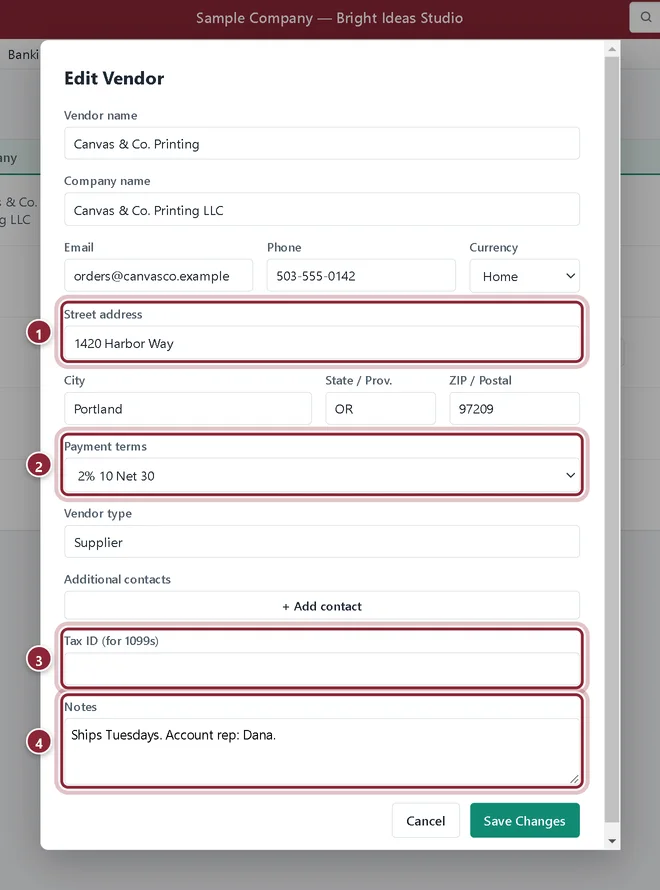
The full vendor record has a few more fields than the quick New Vendor form. Click Edit on the vendor's row to add the Street address (printed on checks and 1099s), the Tax ID (for 1099s) of a contractor, and Notes for your team. Click Save Changes.
- Street address: as you type, AcboBooks suggests matching addresses. Pick one or keep typing.
- Payment terms can be changed here at any time. Bills you already entered keep their dates.
- Tax ID (for 1099s): the contractor's EIN or SSN from their Form W-9.
- Notes: anything your team should know when dealing with this vendor.
See a vendor's history
Step 5: Open Vendors → Vendor Hub
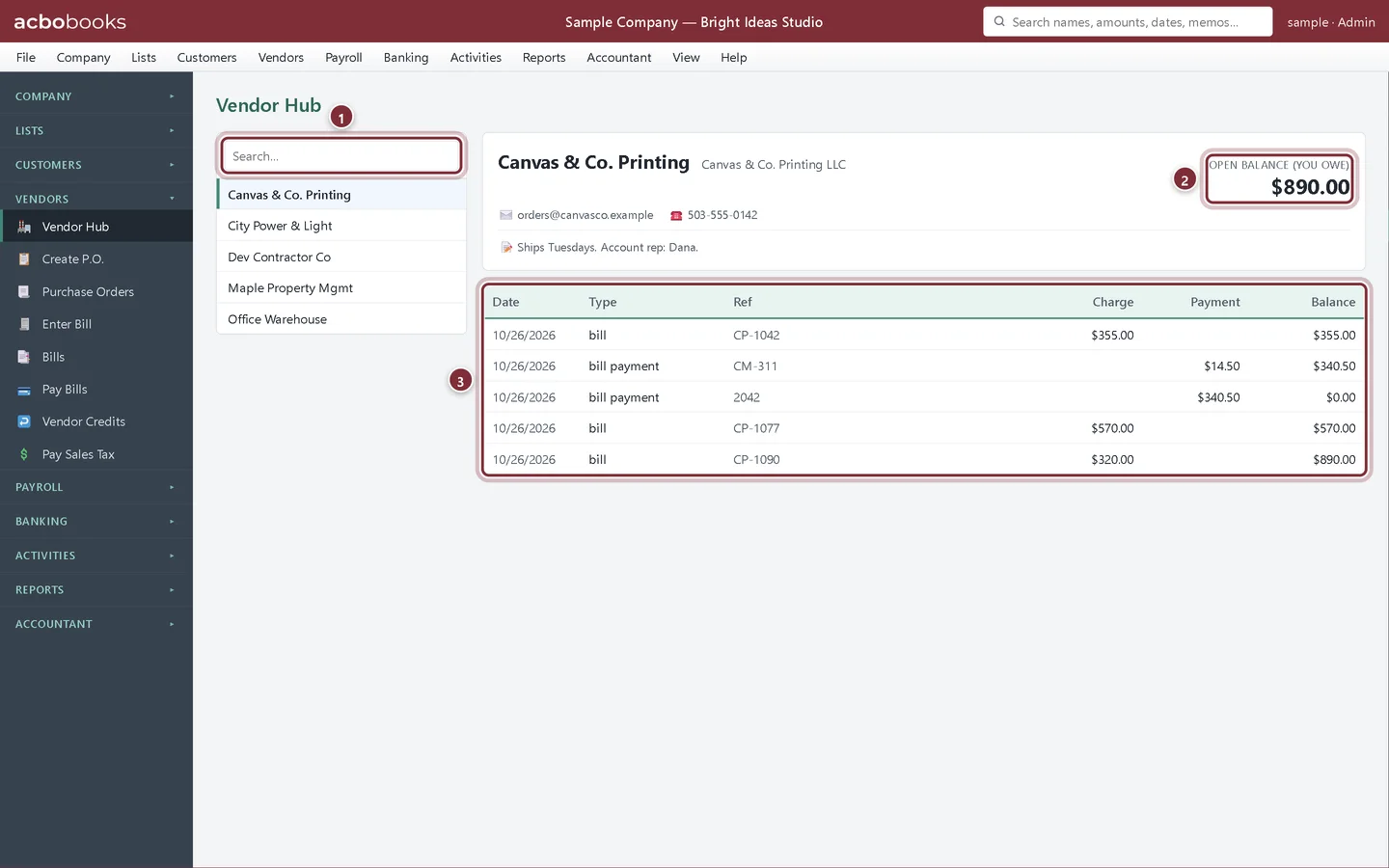
The Vendor Hub lists your vendors on the left. Click one to see their contact details, notes, what you owe them and every bill, payment and credit in date order with a running balance. It is the quickest way to answer a vendor who calls about an invoice.
- Search… narrows the list as you type.
- Open balance (you owe): the total of this vendor's unpaid bills.
- The vendor's bills, bill payments and applied credits, with a running balance.
Recap
- Open Lists → Vendors and read the terms, 1099 and balance columns.
- Add a vendor with payment terms and, if needed, an opening balance.
- Add the street address, tax ID and notes with Edit.
- Look up a vendor's full history in the Vendor Hub.
Questions
Can a vendor also be a customer?
Names are kept per list, so add them in both Customers and Vendors if you both buy from and sell to the same business. Their bills and invoices stay separate.
Can I delete a vendor I no longer use?
Delete removes the record for good, so use Make inactive instead for anyone you have bills or checks with. Inactive vendors drop out of the pick lists but stay on old transactions and reports.
Do I have to set payment terms?
No. With No terms, Enter Bill leaves the due date for you to type. Terms just save that step and let Pay Bills suggest the early-payment discount.
Screenshots from AcboBooks 0.2.2 with the built-in sample company. Updated October 25, 2026. Your screens may differ slightly with another version or window size.