
In this lesson you will
- Enter a card purchase split across accounts
- Record a refund to the card
- See what you owe on the card
- Record the payment to the card company
Before you start
Enter a card purchase
Step 1: Open Banking → Enter Credit Card Charges
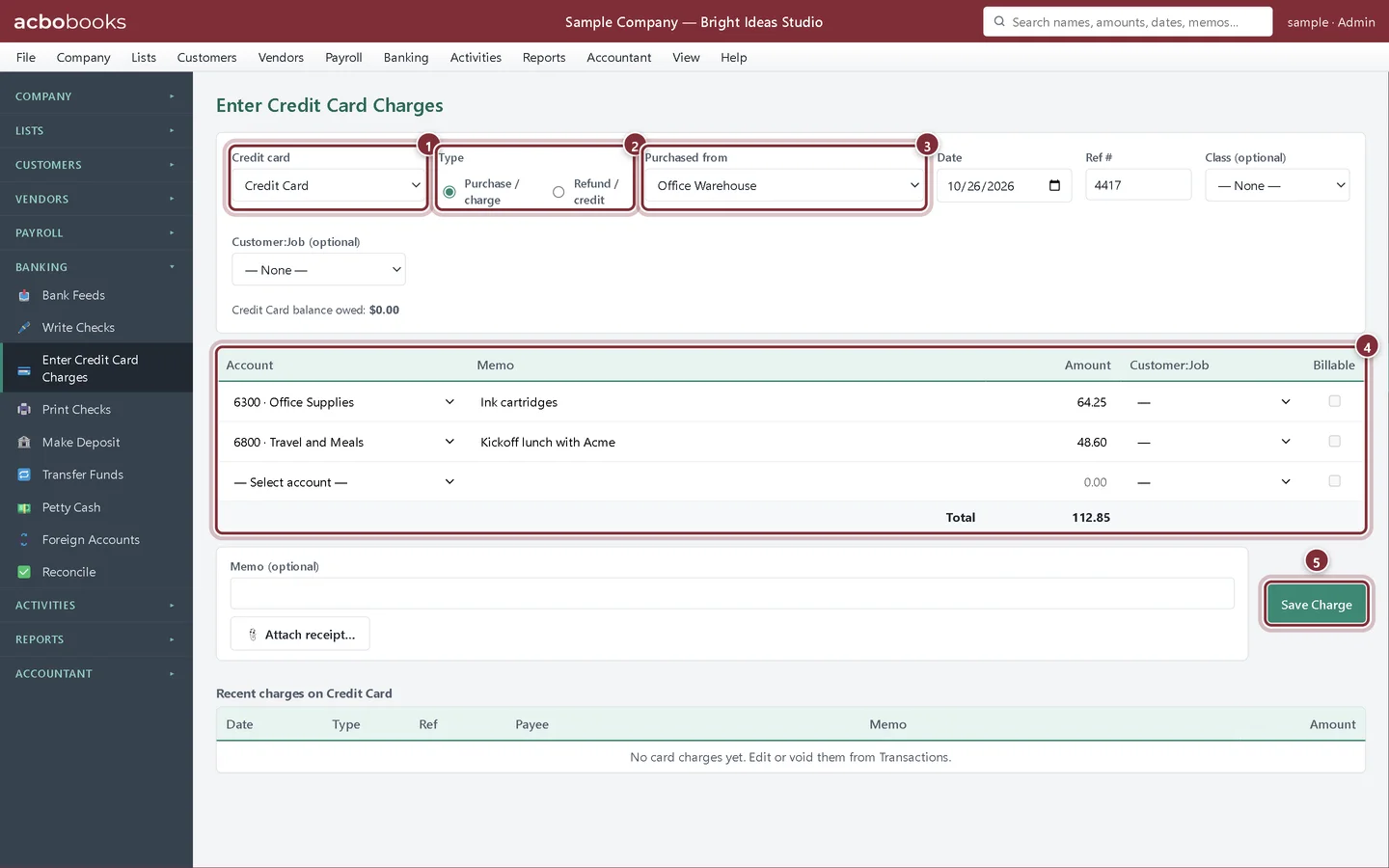
Choose the Credit card account and leave Type on Purchase / charge. Pick the vendor in Purchased from (optional), the Date and the card slip number in Ref #. Add a line per expense account and click Save Charge.
- Credit card: the card account in your chart of accounts.
- Type: a purchase, or a refund back to the card.
- Purchased from: the vendor, if you want it on their history.
- One line per account. This purchase was ink for the office and a client lunch.
- Save Charge records it.
Refunds and the card balance
Step 2: Record a refund to the card
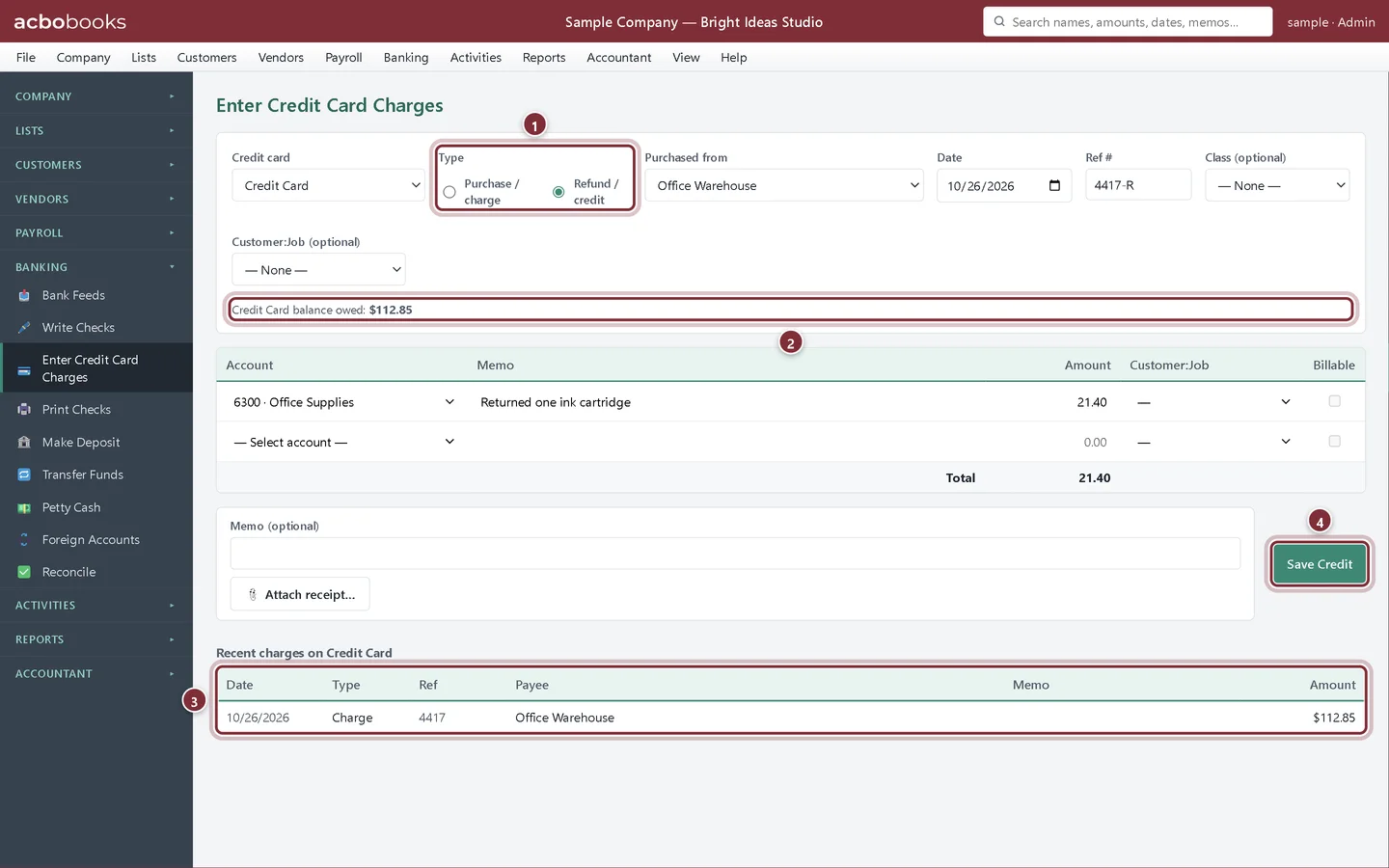
One ink cartridge went back to the store. Choose Refund / credit in Type, the vendor and the same expense account, and click Save Credit. The line under the card shows what you owe on it, and Recent charges lists the latest charges and credits.
- Refund / credit: money coming back to the card.
- What you owe on the card.
- Recent charges on this card.
- Save Credit records the refund.
Pay the card
Step 3: Transfer from the bank to the card
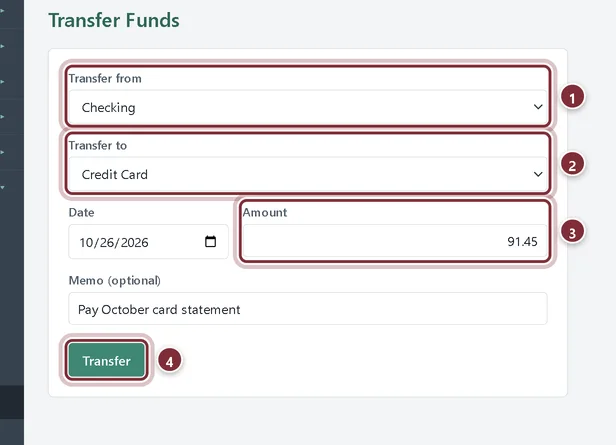
When you pay the card statement, open Banking → Transfer Funds. Choose your bank in Transfer from, the card in Transfer to, type the Amount and click Transfer. That lowers both the bank balance and what you owe on the card. No expense is recorded again, because each purchase already recorded its own.
- Transfer from: the bank account you pay from.
- Transfer to: the credit card account.
- Amount: what you paid the card company.
- Transfer records the payment.
Recap
- Enter a card purchase split across accounts.
- Record a refund to the card.
- See what you owe on the card.
- Pay the card with Transfer Funds.
Questions
Can I pay a vendor bill with the credit card?
Yes. In Pay Bills, choose the card in Pay from. The bill is paid and the amount is added to what you owe on the card.
Should I enter every card purchase by hand?
You can, or import the card statement in Bank Feeds and match it. See the Banking track.
Does a card payment count as an expense?
No. The expense was recorded with each purchase. The payment just moves money from the bank to the card.
Related
Screenshots from AcboBooks 0.2.2 with the built-in sample company. Updated October 25, 2026. Your screens may differ slightly with another version or window size.