
In this lesson you will
- Enter a bill with a due date from the vendor's terms
- Split a bill across expense accounts
- Mark a cost billable so it goes on a customer's next invoice
- Find, edit or void a bill from the Bills list
Before you start
Bill, check or card?
Step 1: Pick the right form
Use Enter Bill when you will pay later: the cost is recorded now, and the amount sits in Accounts Payable until you pay it in Pay Bills. If you pay on the spot, skip the bill: use Write Checks for a check or bank payment, or Enter Credit Card Charges for a card. Entering a bill and then also writing a check for the same purchase would count the cost twice.
Fill in the bill
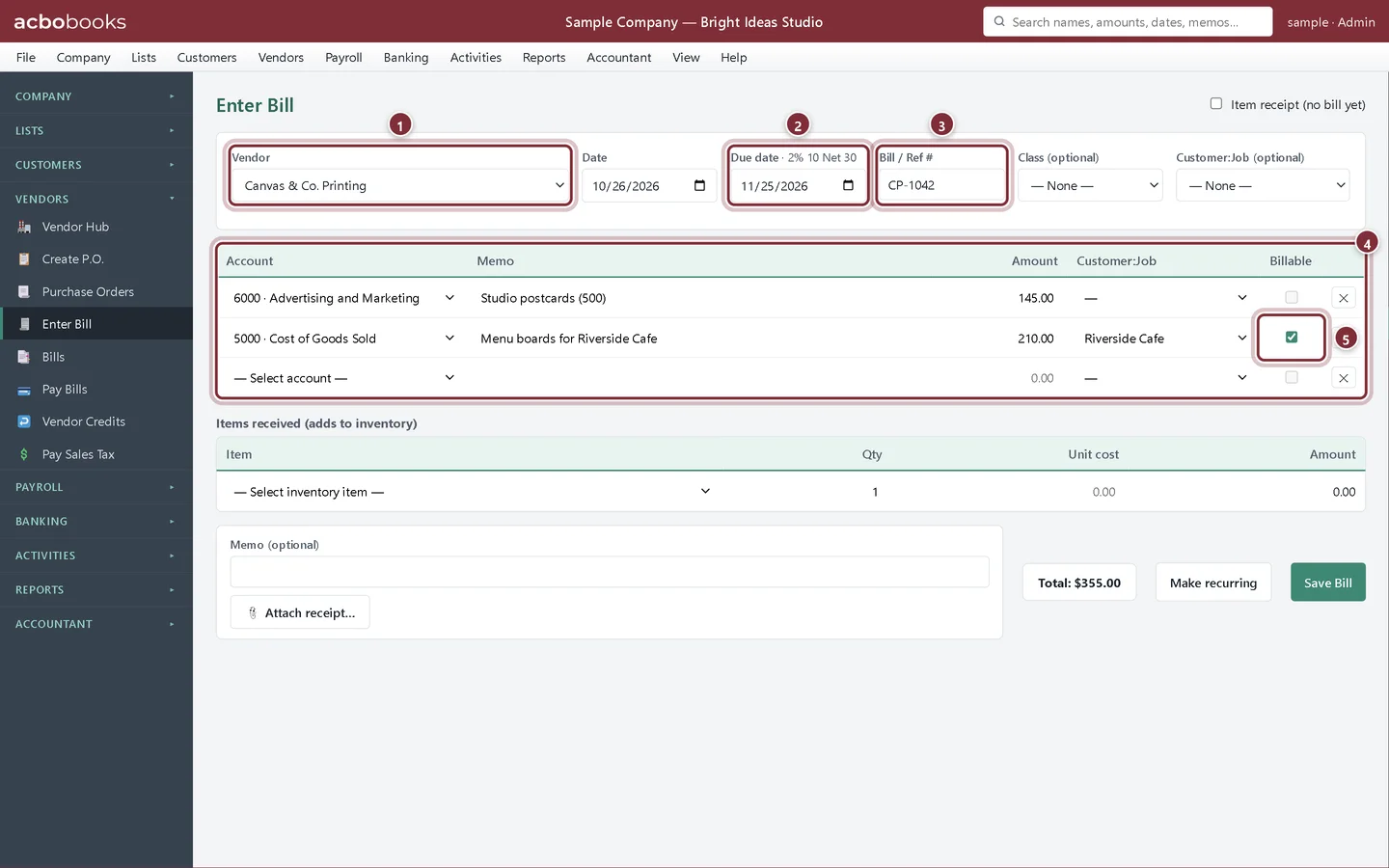
Canvas & Co. Printing has billed the studio for 500 postcards for its own marketing, plus menu boards printed for a client, Riverside Cafe.
Step 2: Open Vendors → Enter Bill and choose the vendor
Choose the Vendor. If the vendor has payment terms, the Due date fills in from the bill Date and the terms show next to the label. Type the vendor's invoice number in Bill / Ref # so you can match it later.
- Vendor: who sent the bill.
- Due date follows the vendor's terms (here 2% 10 Net 30) until you type a different date.
- Bill / Ref #: the number on the vendor's invoice.
- One line per expense account, with a Memo and Amount. A new blank line appears as you fill the last one.
- Customer:Job and Billable: tag a cost to a customer and tick Billable to pass it on to them.
Step 3: Pass costs on to a customer
The menu boards were printed for Riverside Cafe, so that line has Customer:Job set to Riverside Cafe and Billable ticked. The next time you create an invoice for Riverside Cafe, Add unbilled time & costs… offers the line so you can charge it on. Untagged lines are simply your own costs.
Step 4: Stock, receipts and saving
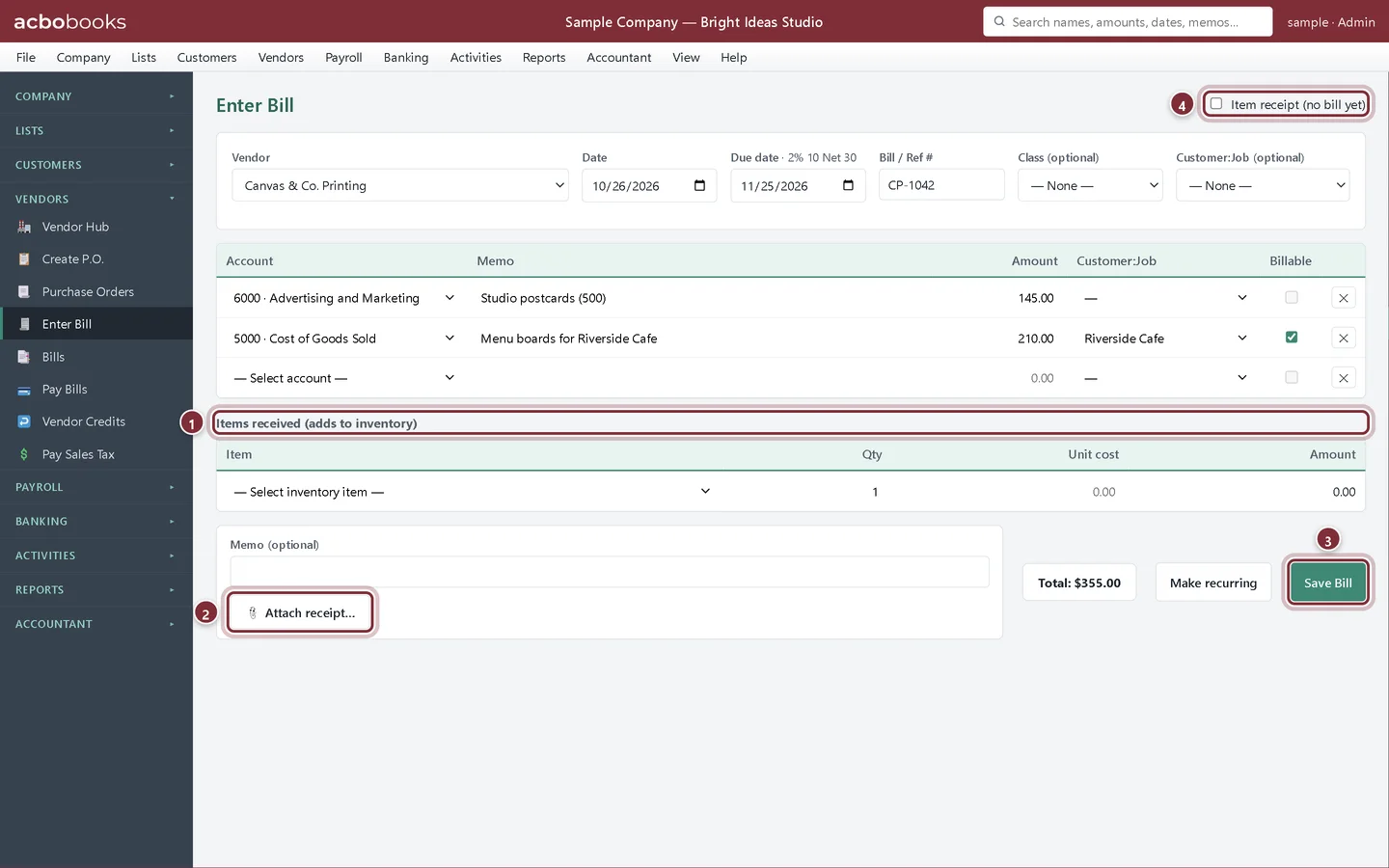
If the bill includes inventory you stock, add it under Items received (adds to inventory) with the quantity and unit cost; the Inventory track covers this. Click Attach receipt… to keep the vendor's PDF or a photo with the bill. When you attach an image, Read receipt reads the vendor, date and total off it on your PC and fills them in for you to check. Then click Save Bill.
- Items received (adds to inventory): stock on the same bill.
- Attach receipt…: the file is stored inside the company file with the bill.
- Save Bill posts the bill and opens the Bills list.
- Item receipt (no bill yet): for goods that arrived before the bill. See Enter the bill for goods you already received.
Find and change a bill
Step 5: Vendors → Bills
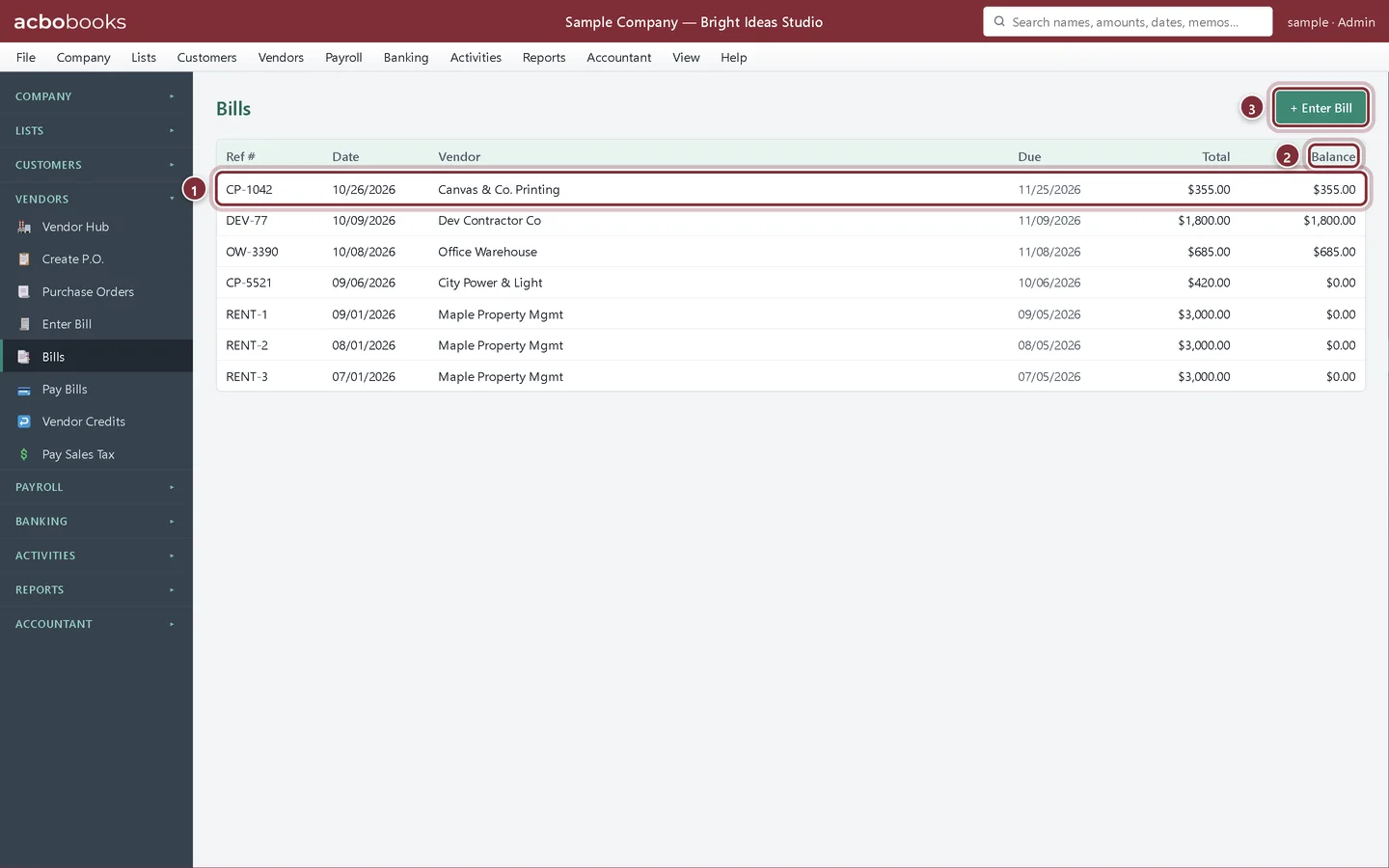
Bills lists every bill with its due date, total and the Balance still unpaid. A balance of $0.00 means it is paid. + Enter Bill opens a new one.
- The bill you just saved, newest first.
- Balance: what is still owed on each bill.
- + Enter Bill starts another bill.
Step 6: Open a bill to edit or void it
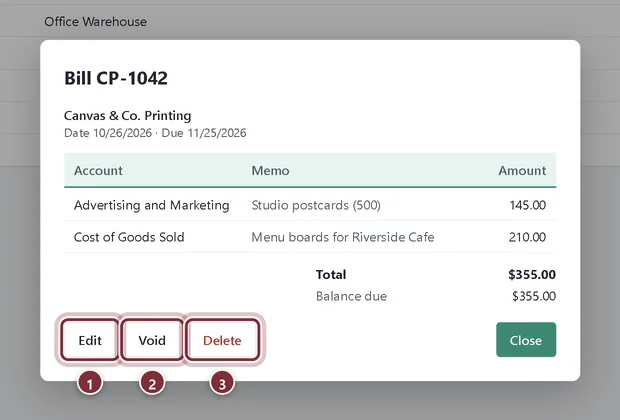
Click a bill to see its lines. Edit reopens it on the Enter Bill screen, where you change what you need and click Update Bill. Void keeps the bill on record with a zero amount, which is the safer choice once a period is reported. Delete removes it completely.
- Edit the bill.
- Void it (keeps a record).
- Delete it (no record left).
In the Canadian edition
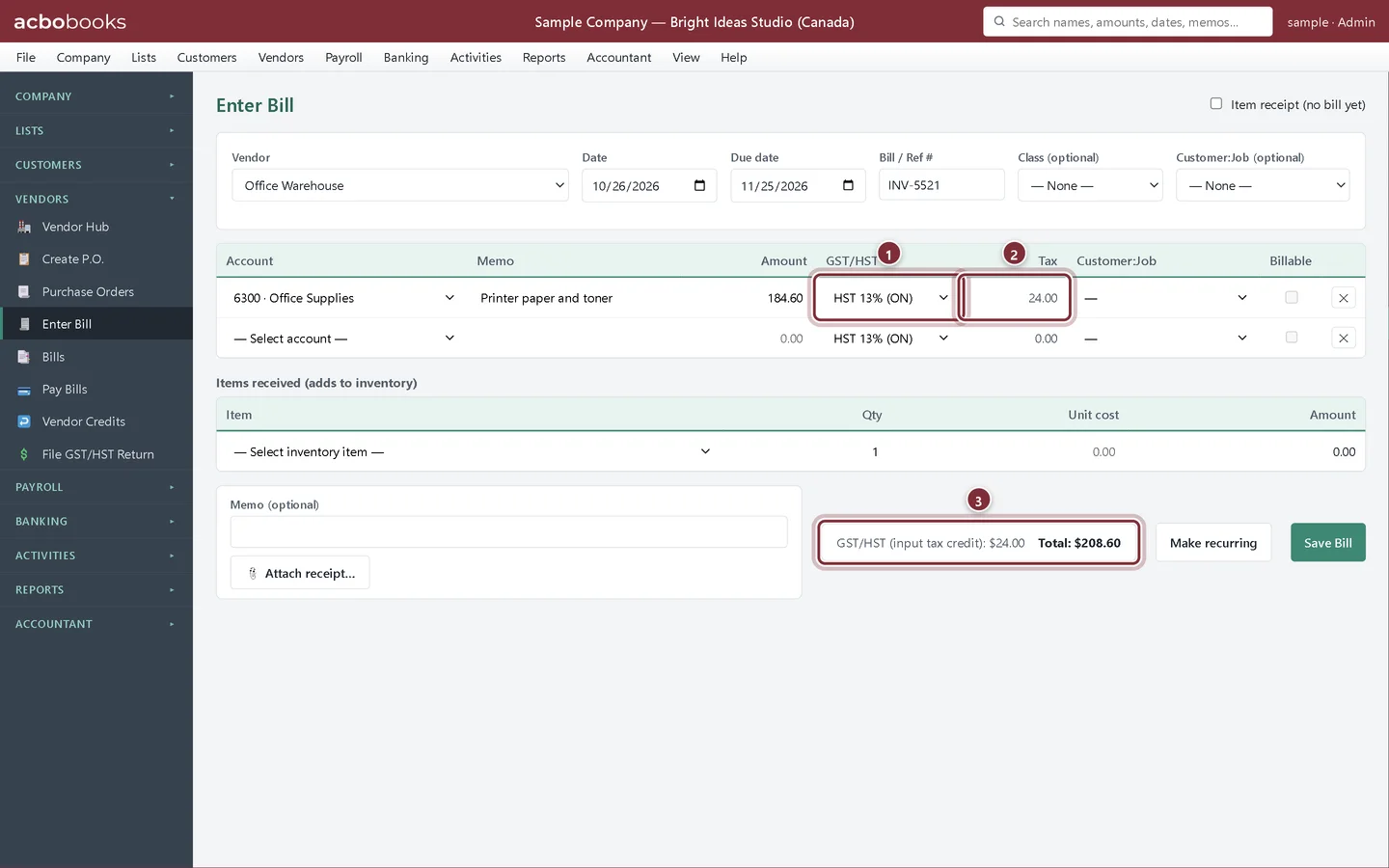
Step 7: GST/HST on each bill line
Canadian company files add a GST/HST column to each bill line. Pick the rate charged on that line and AcboBooks works out the Tax and shows the total as GST/HST (input tax credit). That tax goes to your GST/HST account as an input tax credit, not to the expense, so it reduces what you remit on your return.
- GST/HST: the rate on this line.
- Tax: the tax on the line, worked out for you.
- The bill's input tax credit and total.
Recap
- Choose between a bill, a check and a card charge.
- Enter a bill with a due date from the vendor's terms.
- Tag a cost to a customer and mark it billable.
- Attach the vendor's invoice to the bill.
- Find, edit or void bills from the Bills list.
Questions
What date should I use on a bill?
The date on the vendor's invoice. That puts the expense in the right month, and the due date is counted from it.
Can I enter a bill for something I already paid?
Only if you then record the payment in Pay Bills. If it is already paid, use Write Checks or Enter Credit Card Charges instead so the cost is not counted twice.
Why is the due date blank?
The vendor has no payment terms. Type the due date yourself, or set terms on the vendor with Edit so it fills in next time.
I get the same bill every month. Do I type it every time?
No. Click Make recurring to save it as a template and enter it from Activities → Recurring. See Set up recurring bills.
Related
Screenshots from AcboBooks 0.2.2 with the built-in sample company. Updated October 25, 2026. Your screens may differ slightly with another version or window size.