
In this lesson you will
- Enter a vendor credit
- Apply the credit to the vendor's next bill
- Record a refund that comes back to the bank
- Record a refund that comes back to a credit card
Before you start
Enter a vendor credit
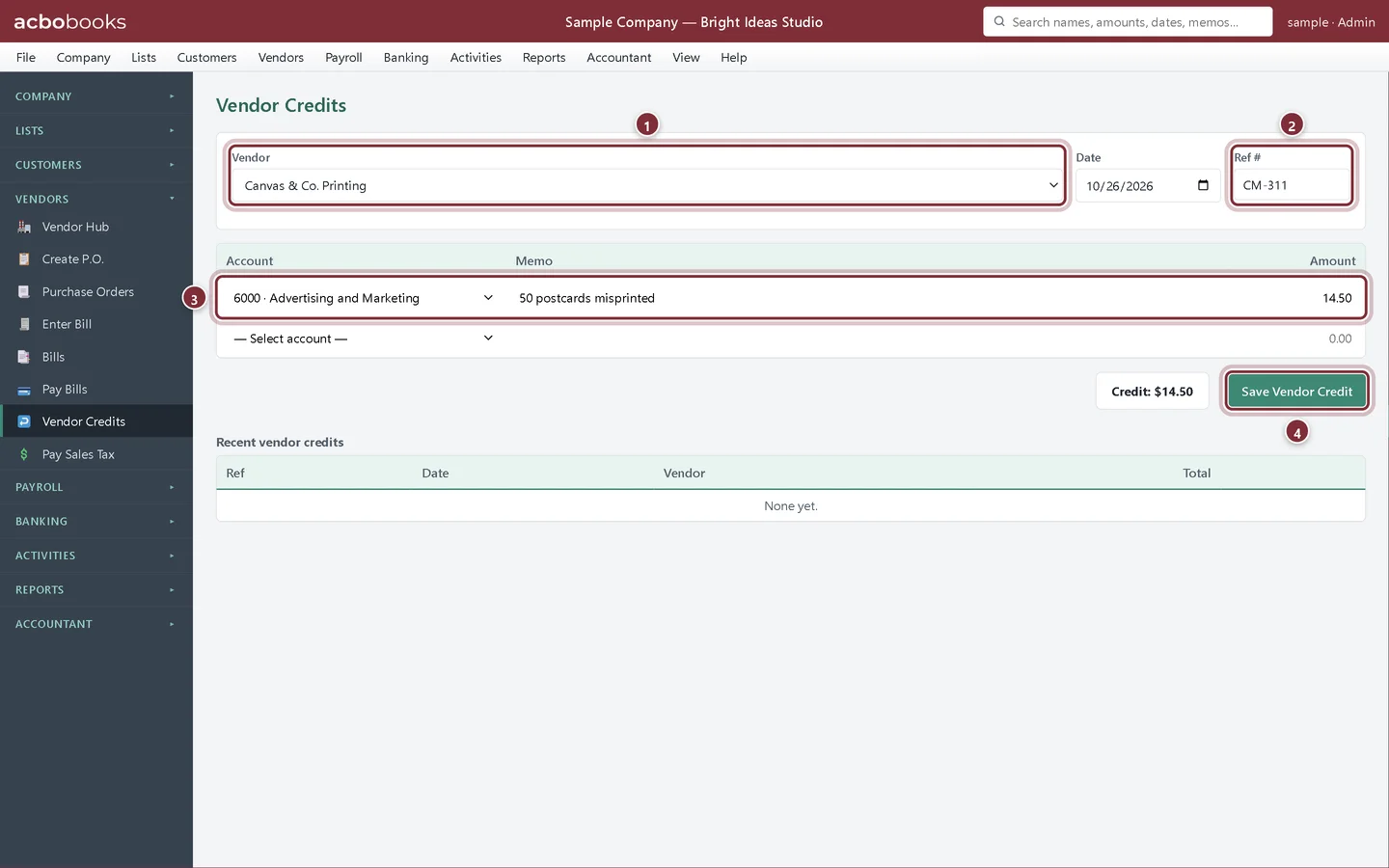
Fifty of the studio's postcards were misprinted, and Canvas & Co. Printing sent a credit note for $14.50 instead of a refund.
Step 1: Open Vendors → Vendor Credits
Choose the Vendor, type the credit note number in Ref #, and add a line for each amount: the Account the original cost went to, a Memo and the Amount. Click Save Vendor Credit.
- Vendor: who gave you the credit.
- Ref #: the number on their credit note.
- The account the original purchase was charged to, so the credit reduces that cost.
- Save Vendor Credit records it.
Step 2: Check it saved
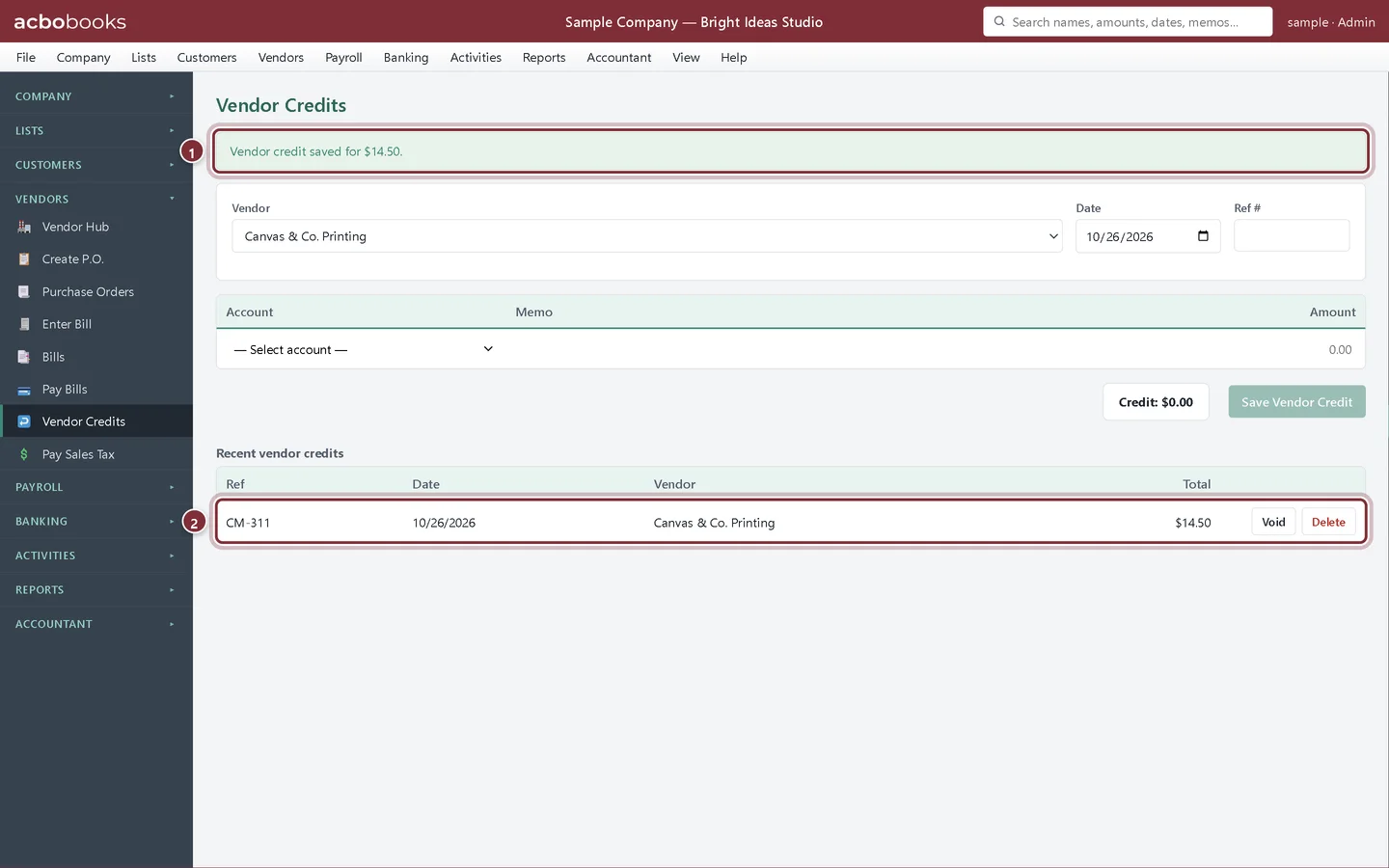
A message confirms the credit, and Recent vendor credits lists it. The credit lowers the vendor's balance and the cost on your Profit & Loss straight away. Use Void if you entered it by mistake.
- The confirmation.
- The credit in Recent vendor credits, with Void and Delete.
Use the credit
Step 3: Apply it in Pay Bills
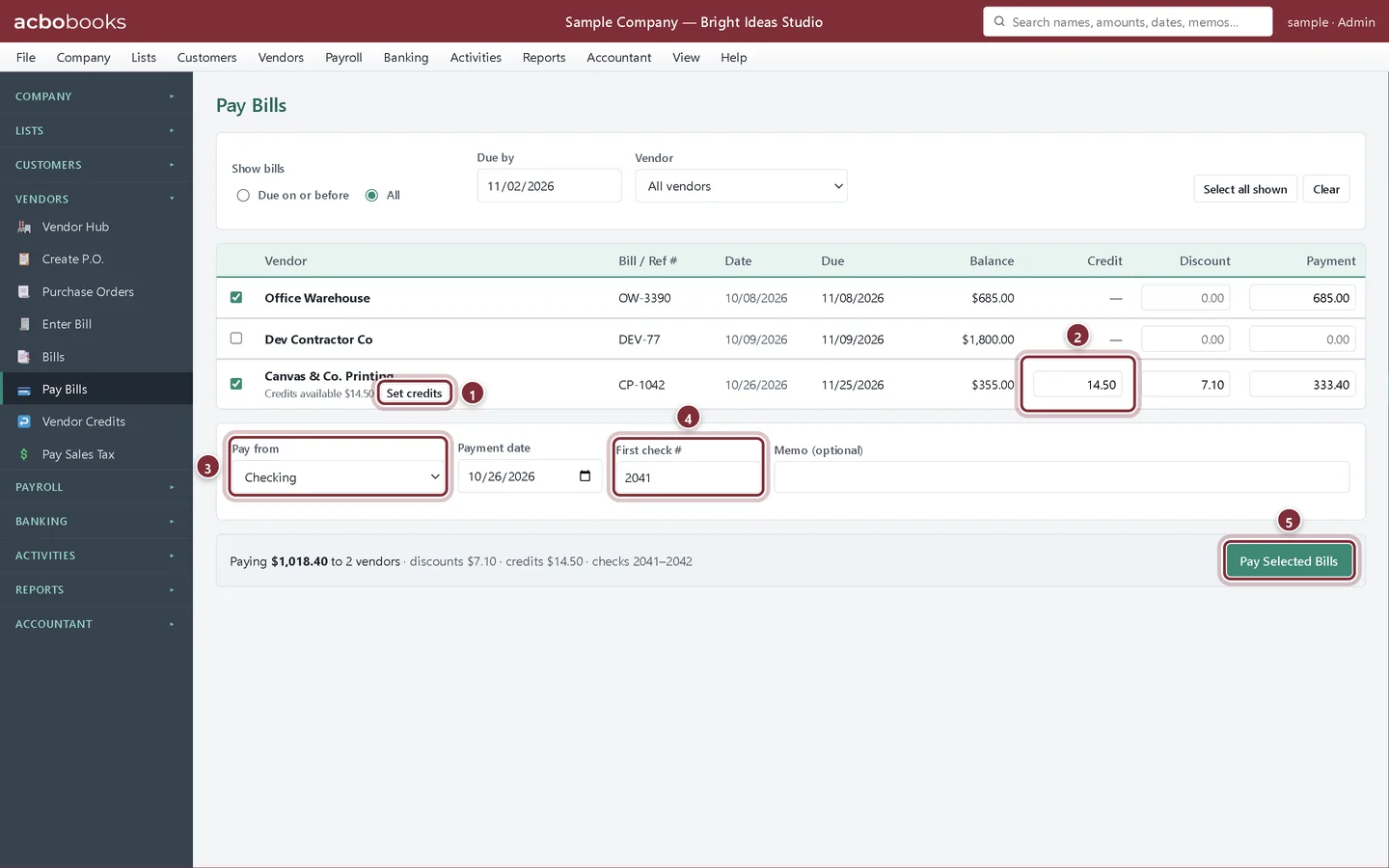
Open Vendors → Pay Bills and tick the vendor's bill. The row shows Credits available. Click Set credits and the credit goes against the bill, so you pay that much less. The step-by-step is in Pay bills, take discounts and use credits.
Record a refund
Step 4: Money back in the bank: Make Deposit
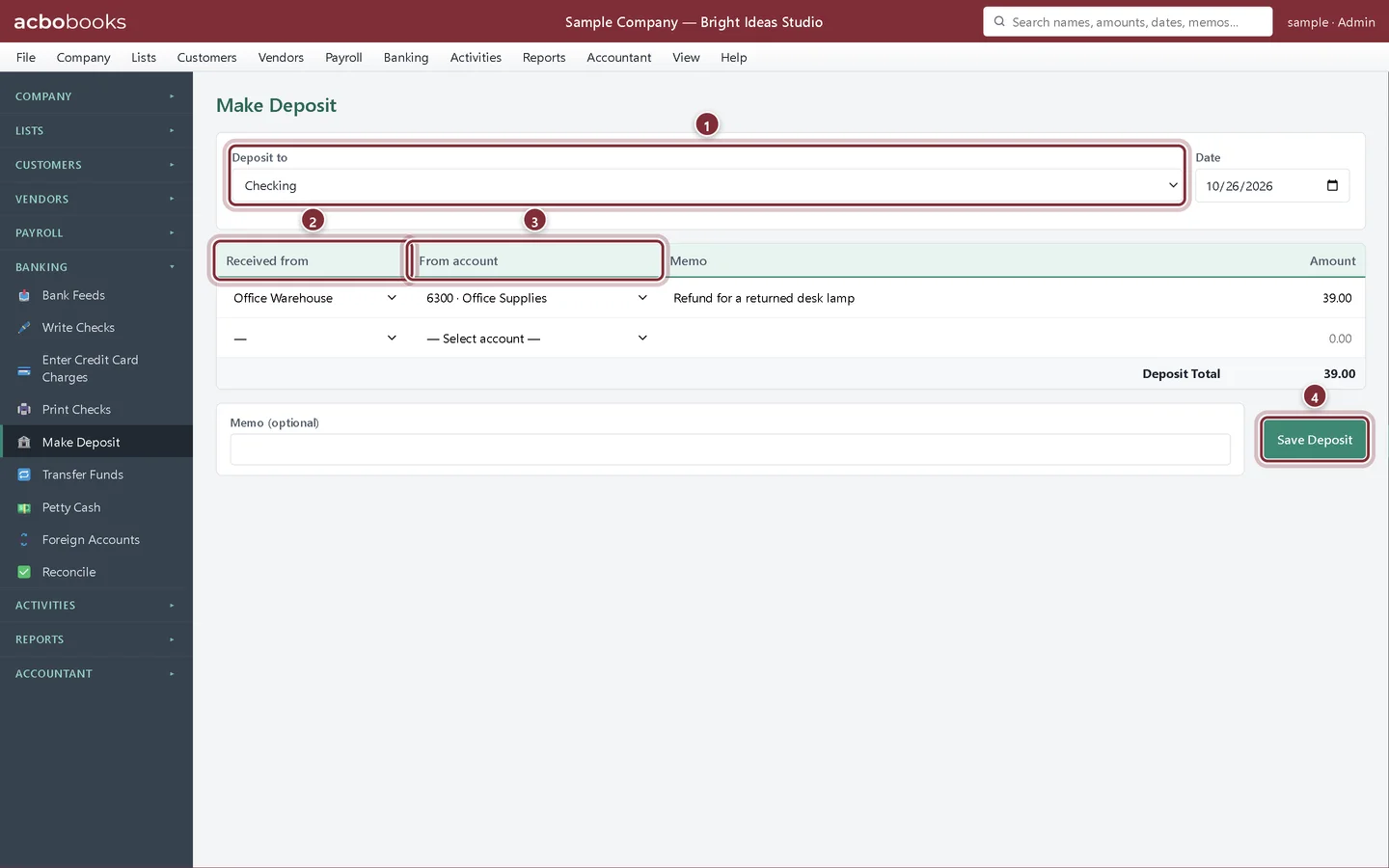
There is no separate vendor refund form: record a refund check or transfer from a vendor with Banking → Make Deposit. Choose the bank in Deposit to. On a line, choose the vendor in Received from and, in From account, the expense or inventory account the purchase was charged to. Add a Memo and the Amount, then click Save Deposit. The refund reduces that cost instead of showing up as income.
- Deposit to: the bank account the refund went into.
- Received from: the vendor.
- From account: the account the original purchase was charged to.
- Save Deposit records the refund.
Step 5: Money back on the card: Refund / credit
If the vendor refunded your business credit card, open Banking → Enter Credit Card Charges, choose Refund / credit, pick the vendor and the original account, and click Save Credit. See Enter credit card charges.
Recap
- Enter a vendor credit against the original cost account.
- Apply it to the vendor's next bill with Set credits.
- Record a refund to the bank with Make Deposit.
- Record a refund to a card with Refund / credit.
Questions
Should I use a credit or a refund?
Follow what the vendor does. A credit note you will use against future bills is a vendor credit. Money actually paid back to you is a refund.
Can a vendor credit take returned stock off my inventory?
Vendor credits have account lines only, so they don't change quantities. Take the returned units off with Activities → Adjust Inventory using Cost of Goods Sold as the adjustment account, then enter the vendor credit to Cost of Goods Sold for the same amount. The two cancel out, leaving less stock and less owed to the vendor. See Count and adjust inventory.
Is a vendor refund income?
No. It reverses part of a cost, so post it back to the account the cost went to.
Related
Screenshots from AcboBooks 0.2.2 with the built-in sample company. Updated October 25, 2026. Your screens may differ slightly with another version or window size.