
In this lesson you will
- Print the Physical Inventory Worksheet for a count
- Load every item and type the counted quantities
- Pick the right adjustment account
- Post the adjustment and check the result
Before you start
Count the stock
Step 1: Reports → Physical Inventory
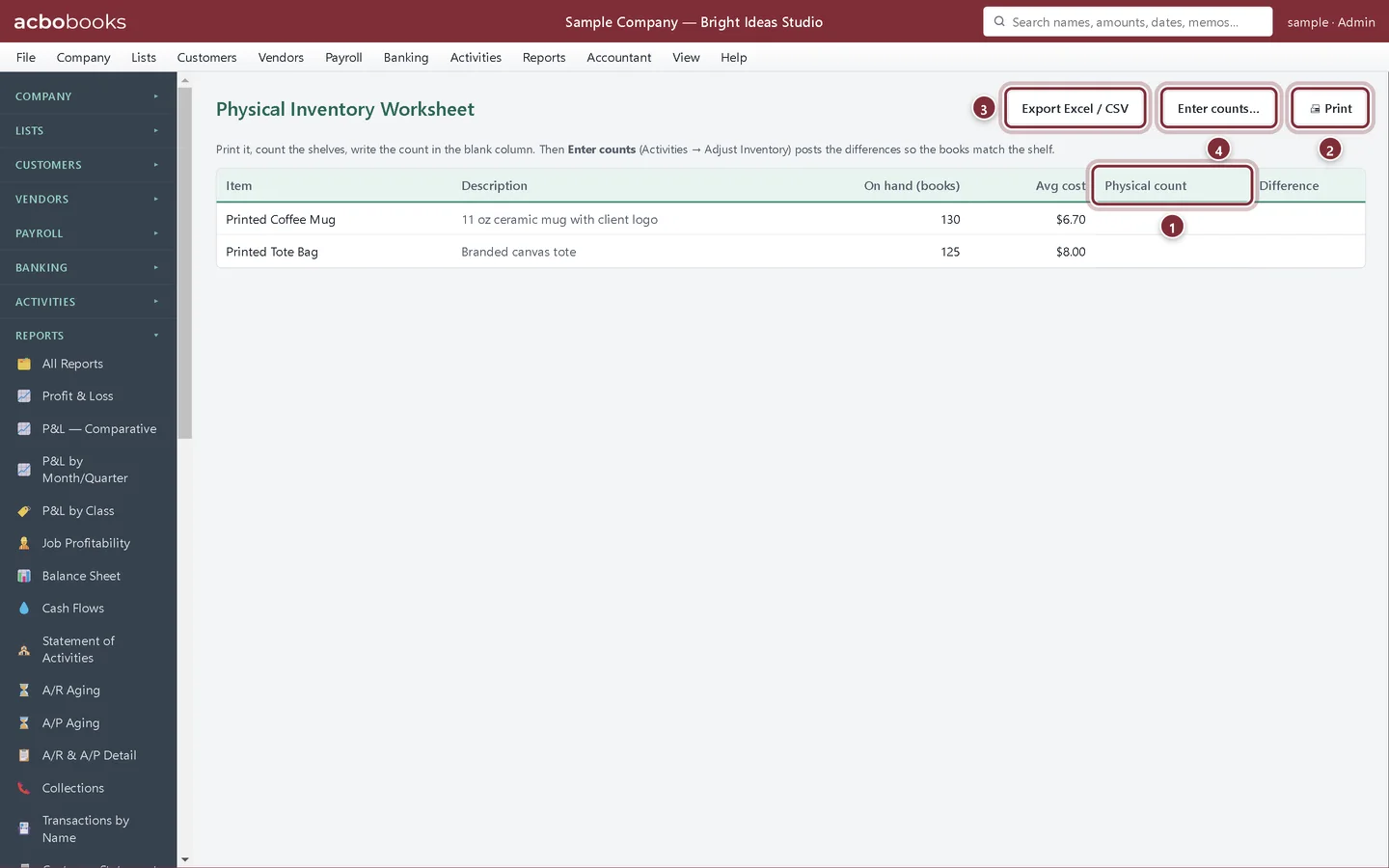
The Physical Inventory Worksheet lists every inventory part with what the books say is On hand (books), its average cost, and a blank Physical count column. Print it, take it to the shelves, and write down what you actually find.
- Physical count: blank, for writing the count in.
- Print the worksheet.
- Export Excel / CSV if you would rather count on a tablet or laptop.
- Enter counts… opens Adjust Inventory with every item loaded.
Post the differences
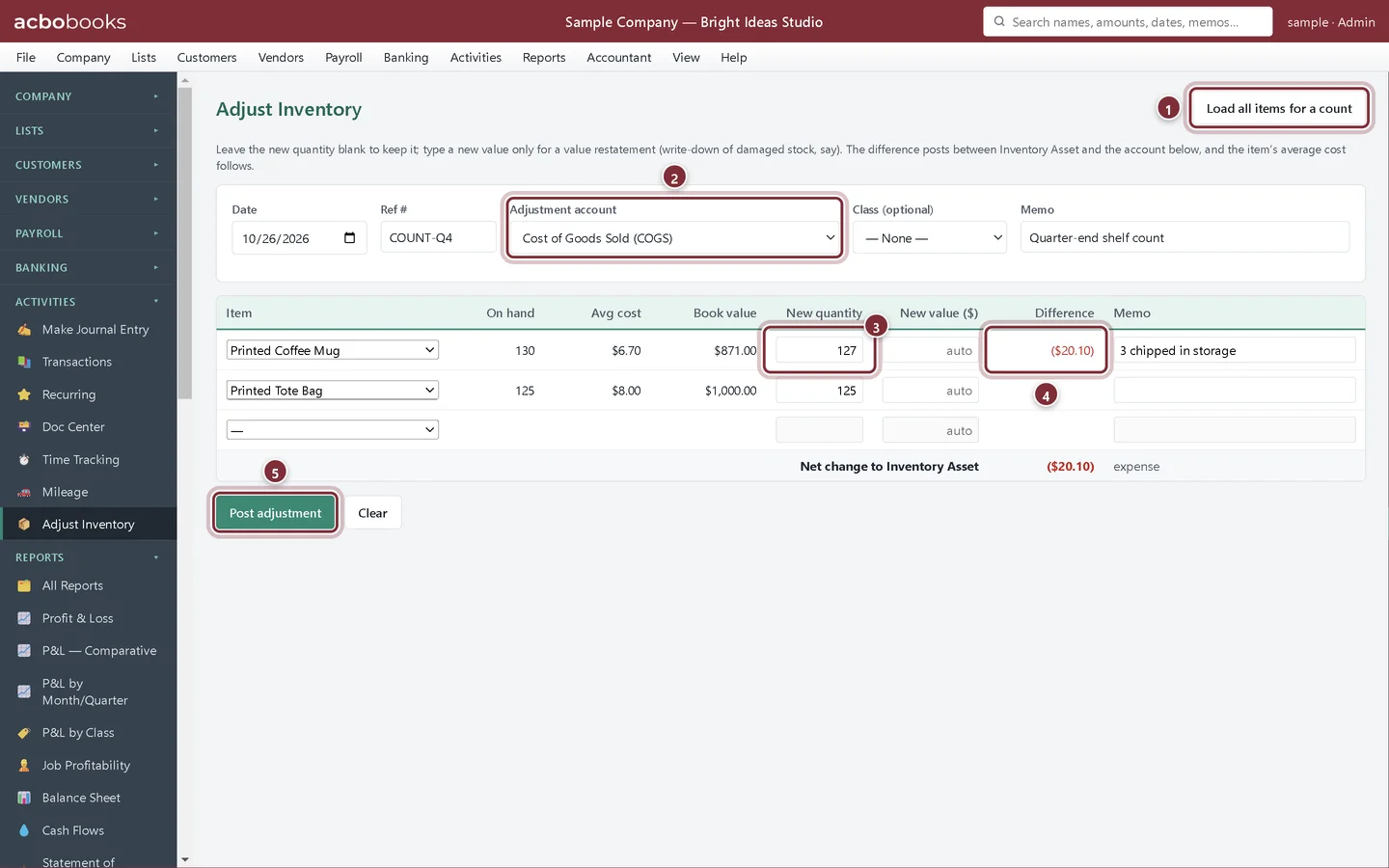
The count finds 127 mugs, not 130: three were chipped in storage and thrown away. The tote bags match.
Step 2: Enter the counts in Activities → Adjust Inventory
Click Enter counts… on the worksheet, or open Activities → Adjust Inventory and click Load all items for a count. Every item appears with its book quantity in New quantity; type over the ones that differ. Add a Ref # (the count sheet) and a Memo, and a memo on each changed line. Difference shows the change in value before you post.
- Load all items for a count fills in every inventory part.
- Adjustment account: where the difference in value is posted.
- New quantity: what you counted.
- Difference: the value change, at average cost (3 × $6.70 = $20.10).
- Post adjustment posts it.
Step 3: Choose the adjustment account
The value of missing or damaged stock has to go somewhere. Cost of Goods Sold is the usual choice for normal shrinkage. Some businesses use a separate expense account such as Inventory Shrinkage so the loss is visible on its own line; add it in the chart of accounts first. See how to record inventory shrinkage.
Step 4: Check the result
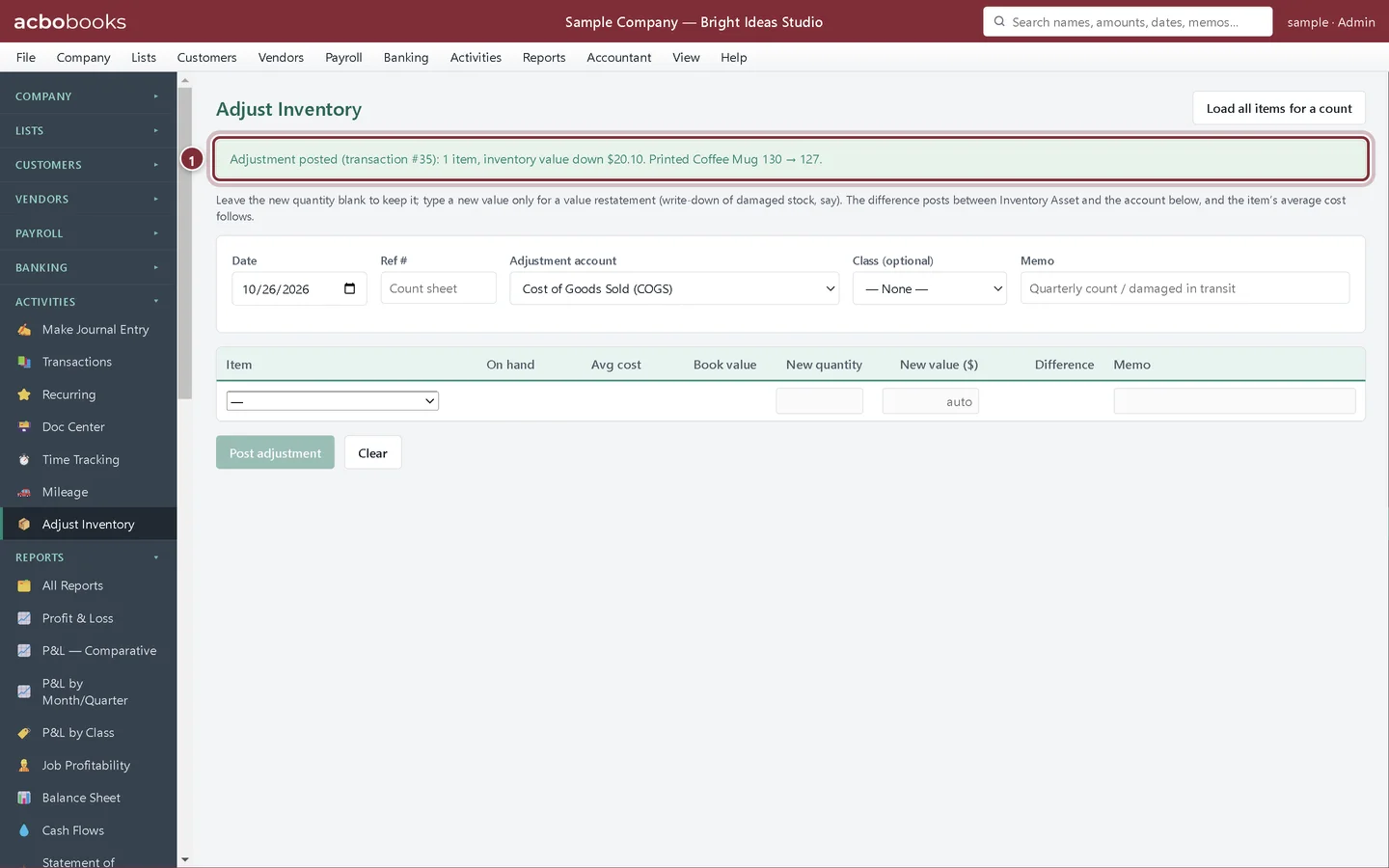
Click Post adjustment. AcboBooks confirms what it posted: one item, inventory value down $20.10, mugs 130 → 127. The quantity and value change at once in every report.
- The confirmation, with each item's old and new quantity.
Write down damaged stock
Step 5: Change the value without changing the count
If stock is still there but worth less (shop-worn, out of season), leave New quantity blank and type the new total value in New value ($). AcboBooks posts the drop to the adjustment account and the item's average cost follows, so future sales are costed at the lower figure.
Recap
- Print or export the Physical Inventory Worksheet.
- Load every item and type the counted quantities.
- Post the differences to COGS or a shrinkage account.
- Write down damaged stock with New value.
Questions
How often should I count?
At least once a year at year end, when your accountant needs the closing stock value. Counting fast-moving or valuable items monthly catches problems sooner.
Can I undo an adjustment?
Yes. Find it in Activities → Transactions and void it, then post the correct one.
What if I find more stock than the books show?
Type the higher count. The value goes up at the average cost and the difference is credited to the adjustment account.
Related
Screenshots from AcboBooks 0.2.2 with the built-in sample company. Updated October 25, 2026. Your screens may differ slightly with another version or window size.