
In this lesson you will
- Set a reorder point and preferred vendor on an item
- Read Stock Status and filter to items to reorder
- Use Stock Status by Vendor to plan an order
- Check your stock value in Inventory Valuation
Before you start
Set the reorder point
Step 1: Edit the item
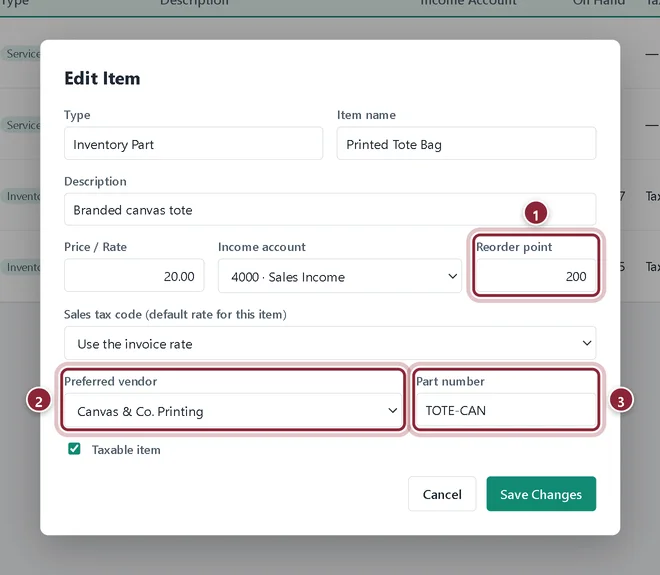
In Lists → Products & Services, click Edit on the item. Set Reorder point to the stock level at which you want to reorder. Add the Preferred vendor you usually buy from and their Part number so the item lands in the right group on the vendor report. Click Save Changes.
- Reorder point: here 200 tote bags.
- Preferred vendor: who you usually buy it from.
- Part number: the vendor's code, handy when you order.
What needs reordering
Step 2: Reports → Stock Status
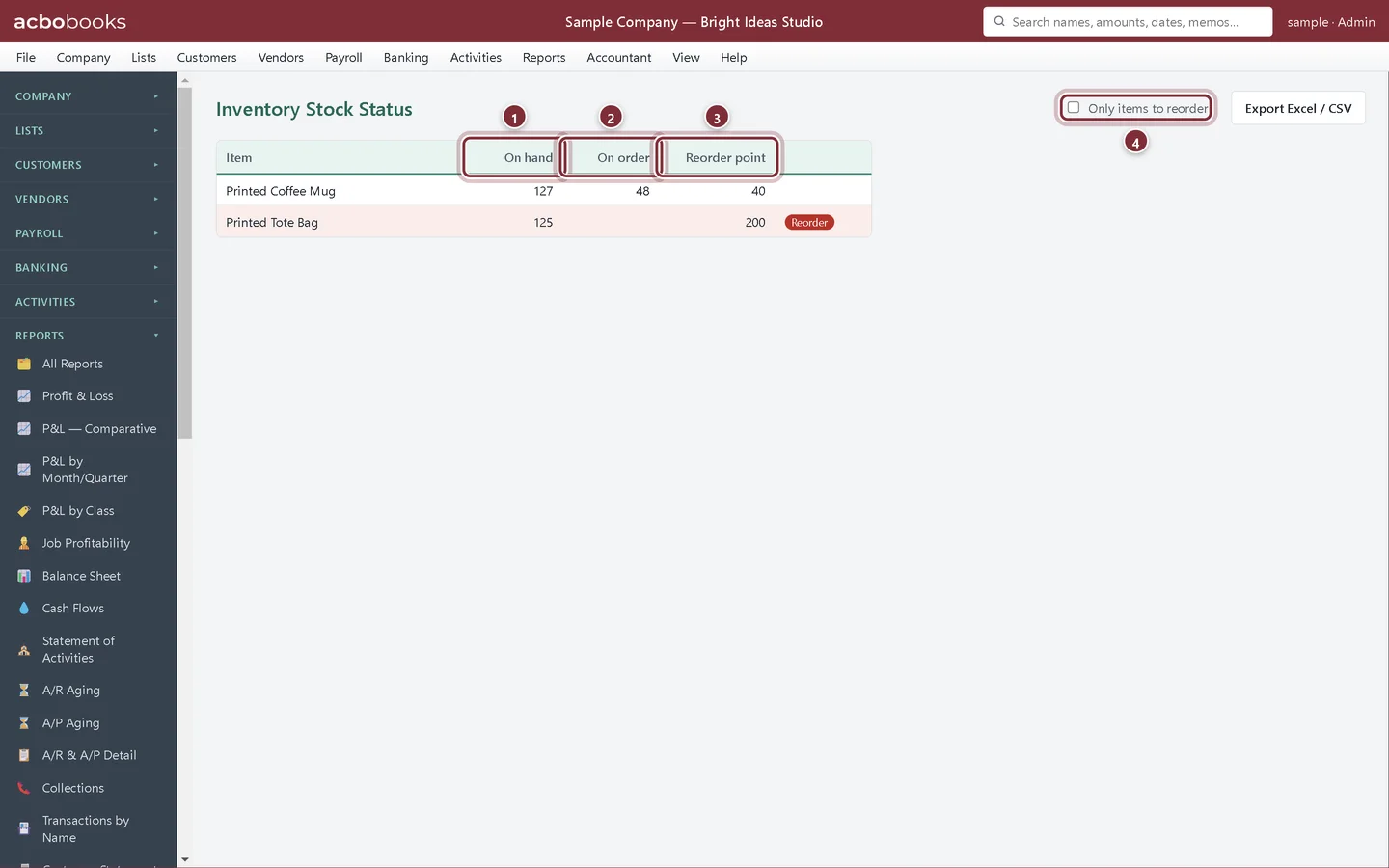
Inventory Stock Status shows each inventory part's On hand, what is On order on open purchase orders, and its Reorder point. An item is flagged Reorder when what you will have (on hand plus on order, minus what is promised on sales orders) is at or below its reorder point. The mugs have 48 on order, so they are fine; the totes are below 200 and flagged.
- On hand: in stock now.
- On order: on open purchase orders.
- Reorder point: from the item.
- Only items to reorder hides everything else.
Step 3: Reports → Stock Status by Vendor
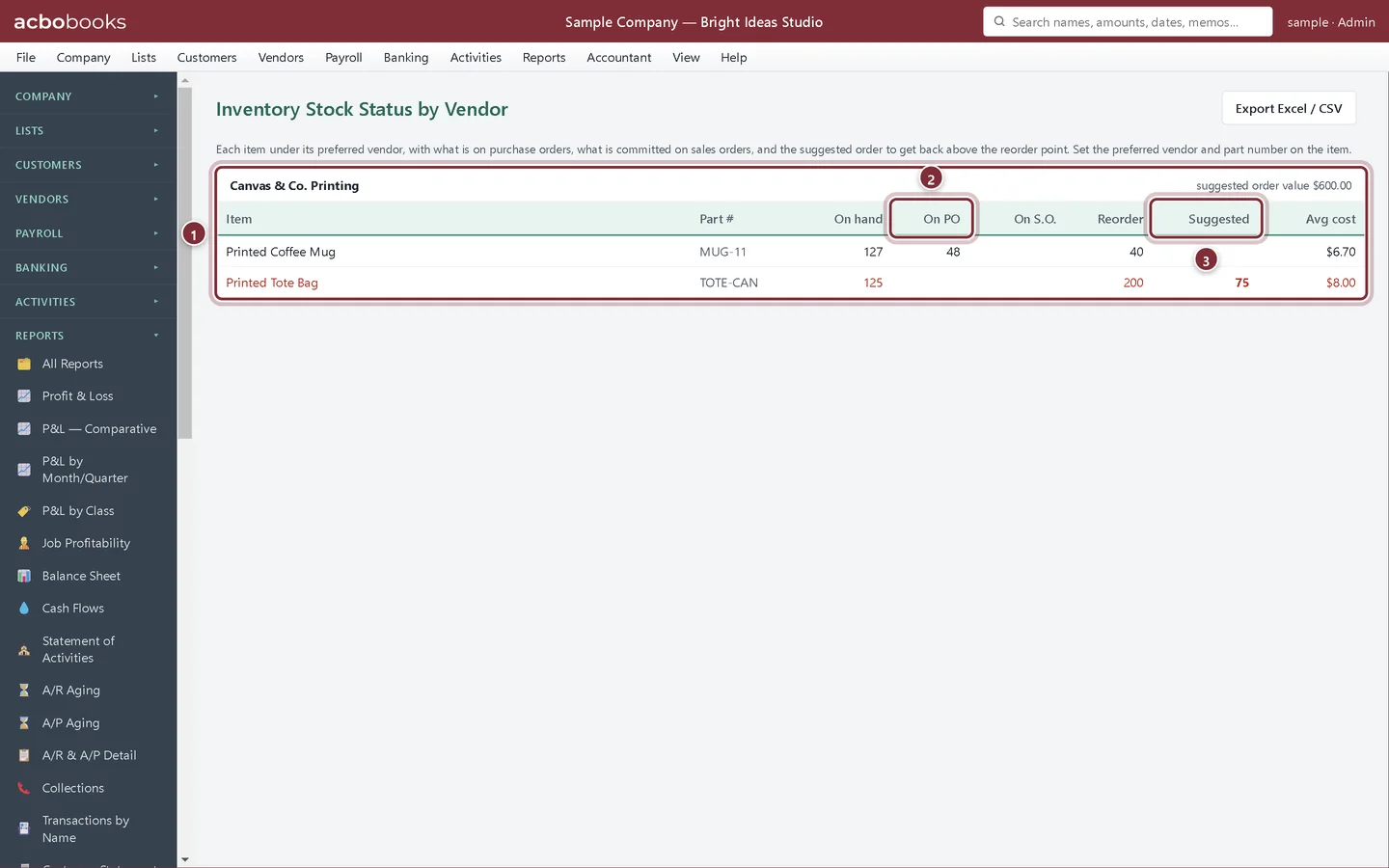
This report groups items under their preferred vendor and adds On S.O. (committed on sales orders) and a Suggested order that brings each item back up to its reorder point. The total suggested order value for each vendor shows at the top of its group, ready for a purchase order.
- Canvas & Co. Printing's items, with the suggested order value.
- On PO: already ordered.
- Suggested: 200 − 125 = 75 totes to order.
What your stock is worth
Step 4: Reports → Inventory Valuation
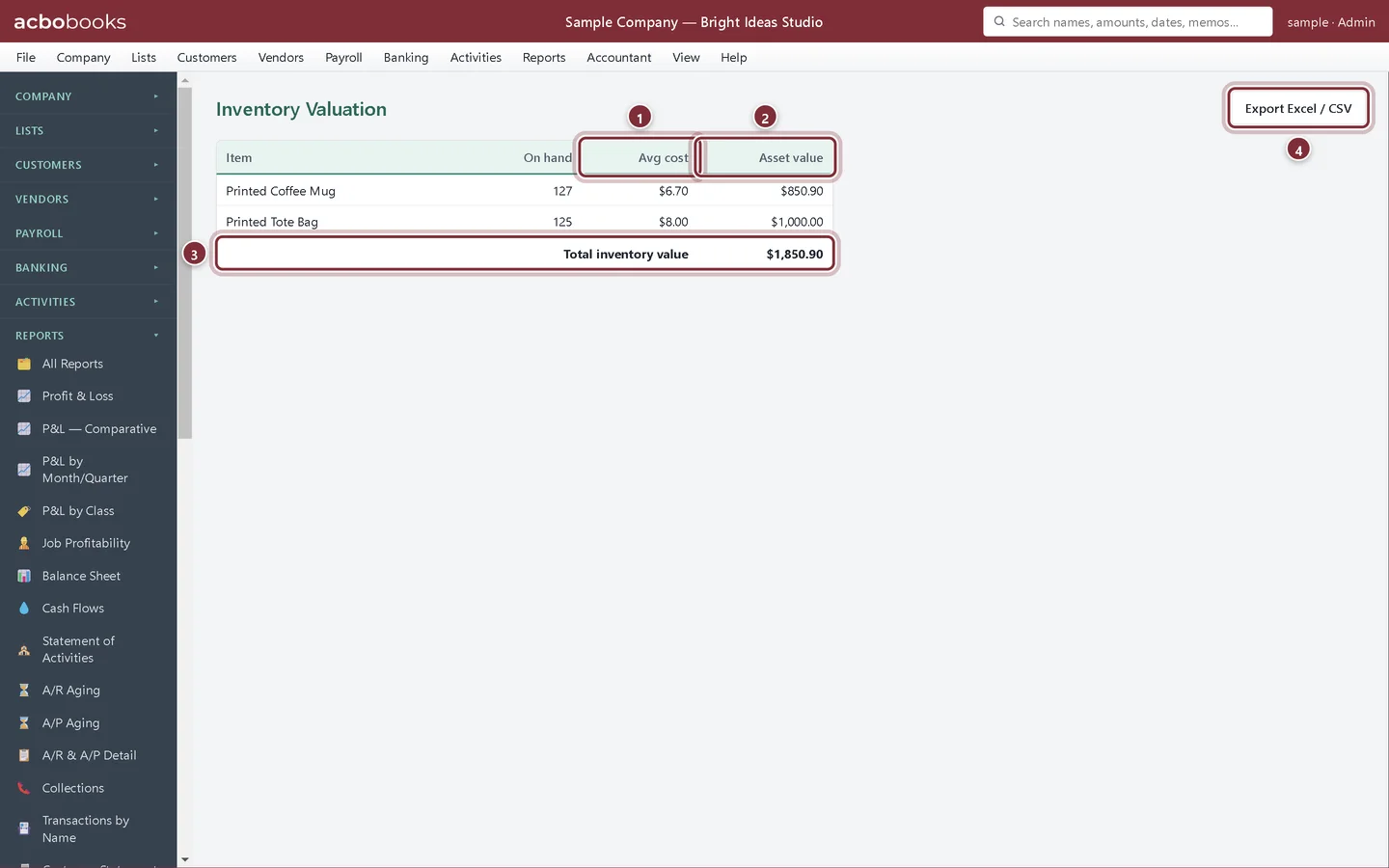
Inventory Valuation shows each item's quantity, Avg cost and Asset value, and the Total inventory value. That total should match the Inventory Asset balance on your Balance Sheet. Export Excel / CSV gives your accountant a copy for year end.
- Avg cost: the current average cost of each item.
- Asset value: quantity × average cost.
- Total inventory value: compare it with Inventory Asset on the Balance Sheet.
- Export Excel / CSV for your accountant.
Recap
- Set a reorder point, preferred vendor and part number.
- Use Stock Status to see what to reorder.
- Plan orders per supplier with Stock Status by Vendor.
- Check the stock value against the Balance Sheet.
Questions
What if an item has no reorder point?
It is flagged only when you are out of stock (nothing on hand or on order).
Can I see the value of my stock on a past date?
Inventory Valuation shows stock as it is now. For a past date, use the Inventory Asset balance on the Balance Sheet for that date.
Why does the vendor report say No preferred vendor?
Those items have no Preferred vendor set. Edit the item and choose one.
Related
Screenshots from AcboBooks 0.2.2 with the built-in sample company. Updated October 25, 2026. Your screens may differ slightly with another version or window size.