
In this lesson you will
- Know when to use an Inventory Part instead of a Non-inventory Part
- Add an inventory part with its price and purchase cost
- Enter the quantity you already have on hand
- Choose the COGS and Inventory Asset accounts
Before you start
Inventory part or not?
Step 1: Pick the item type that matches how you work
Use Inventory Part for goods you buy ahead, store and resell, where you want AcboBooks to count them and value them. Use Non-inventory Part for goods you buy only for a specific job or drop-ship, and Service for your time. Only inventory parts have a quantity on hand, a reorder point and cost of goods sold worked out for you.
Step 2: Open Lists → Products & Services
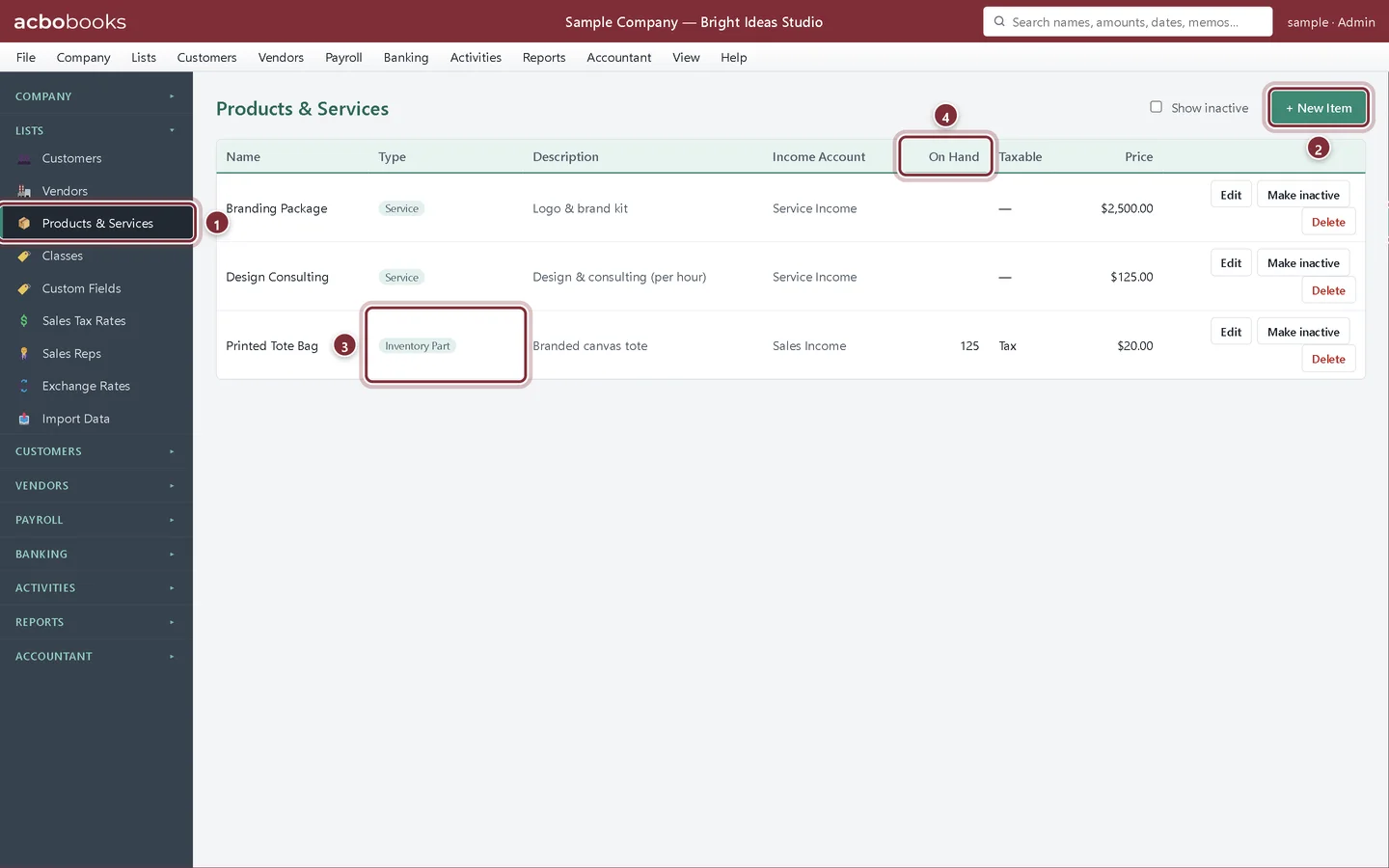
The Products & Services list shows every item with its Type and, for inventory parts, the quantity On Hand. The sample company already stocks one inventory part, a printed tote bag.
- Products & Services in the side panel, under Lists.
- + New Item adds an item.
- Inventory Part: the type for stock you track.
- On Hand: the current count of each inventory part.
Add the item
The studio is adding branded coffee mugs to its client gift range. It buys them from Canvas & Co. Printing for about $6.50 and sells them for $18.00.
Step 3: Fill in the New Item form
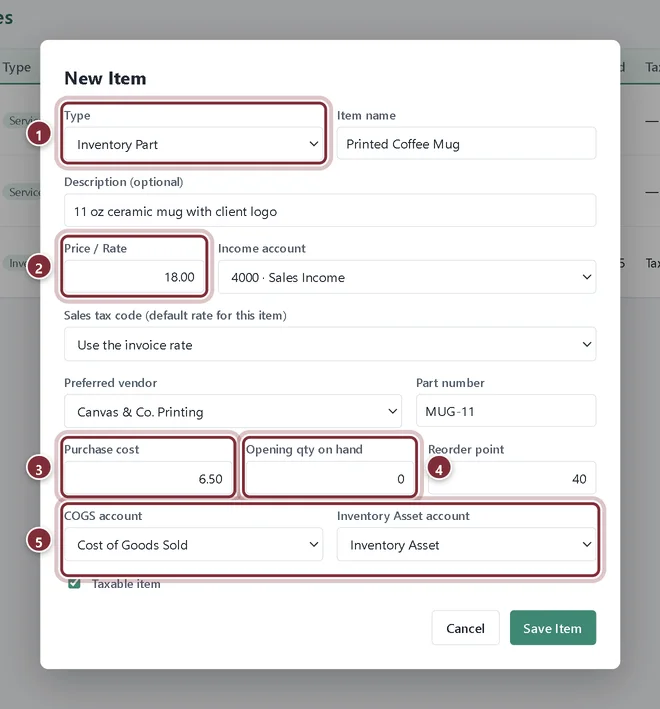
Click + New Item and choose Inventory Part in Type. The form grows the inventory fields. Give the item a name and a description for your sales forms, the selling Price / Rate and its Income account. Then fill in the stock details and save with Save Item.
- Type: Inventory Part.
- Price / Rate: what you charge. It fills in on invoices and can be changed per sale.
- Purchase cost: what you usually pay. It fills in on bills and purchase orders.
- Opening qty on hand: how many you have today. Leave it at 0 for a new product.
- COGS account and Inventory Asset account: where the cost goes when you sell, and where unsold stock sits.
Step 4: The other stock fields
Preferred vendor and Part number (the vendor's code for the product) group the item on the Stock Status by Vendor report. Reorder point is the level at which the item gets flagged for reordering; here 40 mugs. Taxable item decides whether sales tax applies by default.
Step 5: What the opening quantity does
If you type an opening quantity, AcboBooks values it at the Purchase cost and posts it to Inventory Asset against Opening Balance Equity, the same way an opening bank balance is entered. Use it once, when you start using AcboBooks; after that, stock should only come in through bills, item receipts and adjustments.
Recap
- Use Inventory Part for stock you buy, keep and resell.
- Add an item with a price, purchase cost and accounts.
- Enter today's quantity once as the opening quantity.
- Set a reorder point, preferred vendor and part number.
Questions
Does AcboBooks support assemblies or bills of materials?
No. AcboBooks 0.2.2 tracks inventory parts one by one. If you build a product from parts, adjust the parts out and the finished product in with Adjust Inventory.
Can I track stock in more than one location?
Not in 0.2.2. Each inventory part has one quantity on hand for the whole company.
Which costing method does AcboBooks use?
Average cost: each purchase blends into the item's average, and sales are costed at that average. See Glossary: average cost.
Related
Screenshots from AcboBooks 0.2.2 with the built-in sample company. Updated October 25, 2026. Your screens may differ slightly with another version or window size.