
In this lesson you will
- Write a check for an expense without a bill
- Split a check across accounts and tag it to a customer
- Print one check or several to PDF
- Fix or void a check afterwards
Before you start
Write a check
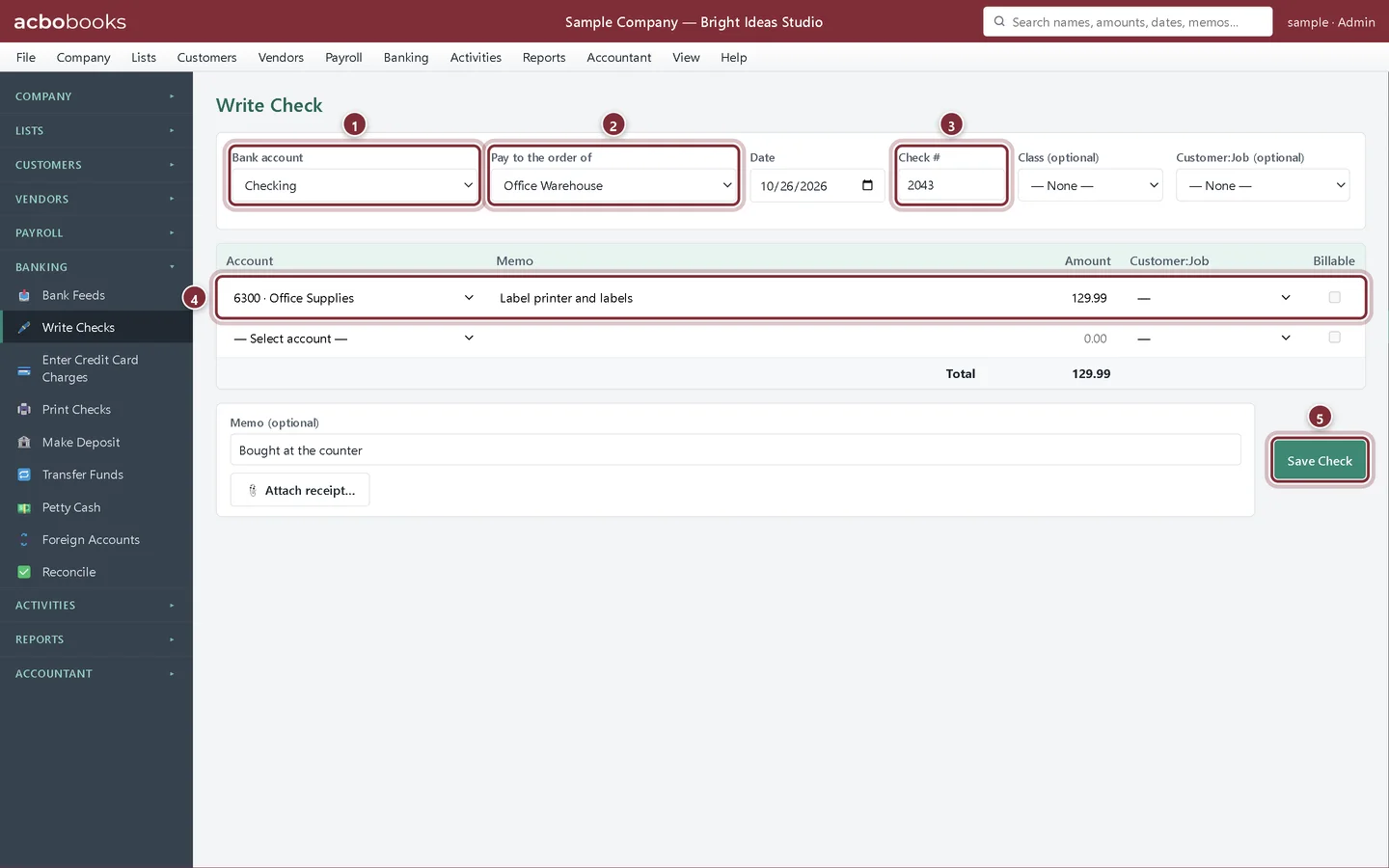
The studio bought a label printer at Office Warehouse and paid at the counter with a company check.
Step 1: Open Banking → Write Checks
Choose the Bank account the check is drawn on and the payee in Pay to the order of. The payee list has your vendors, customers and other names; it is optional for things like a bank fee. Type the Check #, then one line per expense account with a Memo and Amount. Click Save Check.
- Bank account: where the money comes from.
- Pay to the order of: the vendor or other name.
- Check #: the number printed on the check.
- An expense line. Add more lines to split the check; tag a Customer:Job and tick Billable to charge it on.
- Save Check records it.
Step 2: What it does to your books
A check takes the amount out of the bank account and puts it on the expense accounts on its lines, both on the check's date. There is no Accounts Payable step, because nothing is owed. Write Checks has no inventory lines; to buy stock, enter a bill with the items received and pay it.
Print checks
Step 3: Open Banking → Print Checks
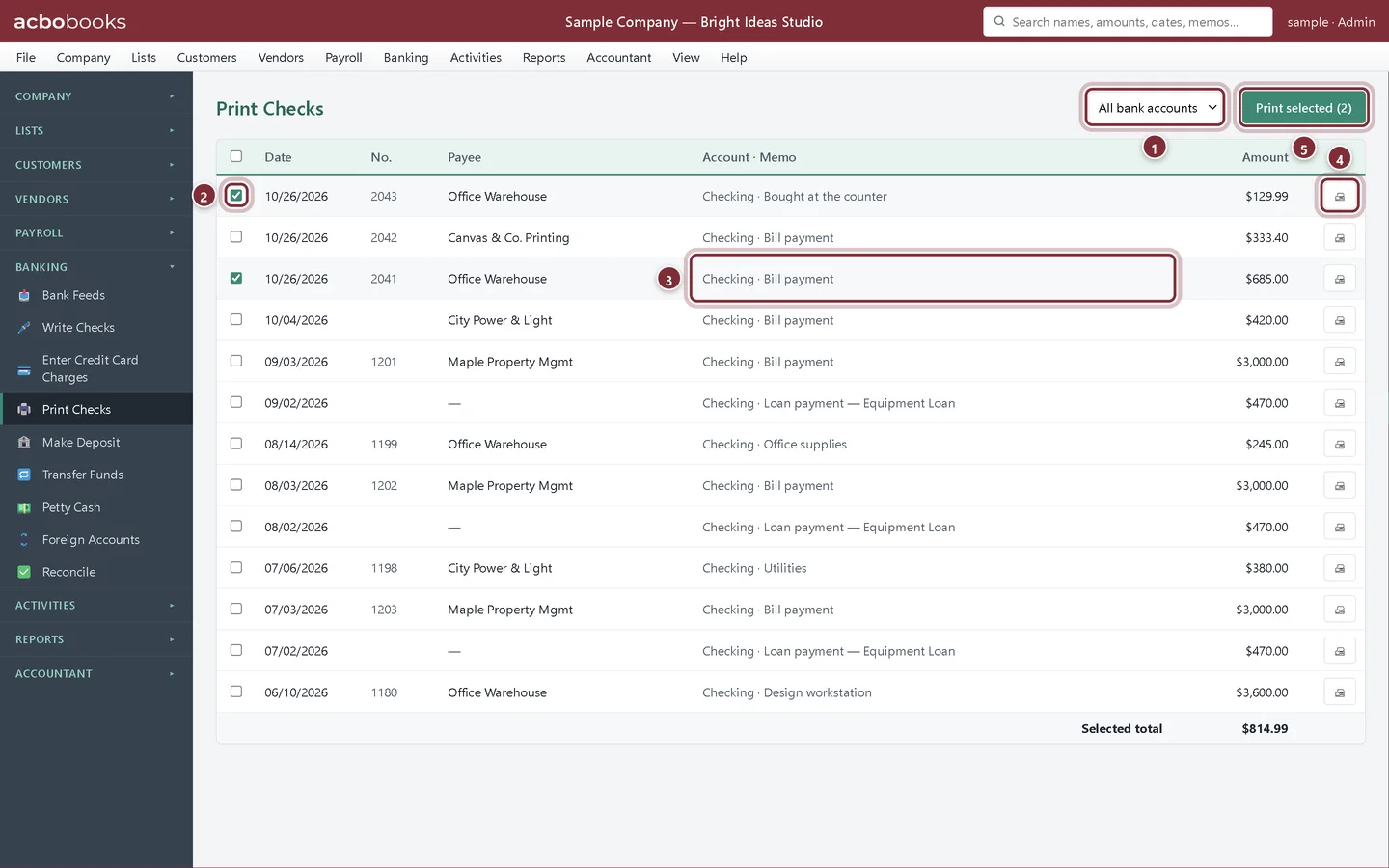
Print Checks lists every check, newest first: the ones you wrote with Write Checks and the bill payments you made by check in Pay Bills. Filter by bank account, tick the checks to print and click Print selected, or click the printer button on one row. AcboBooks makes a PDF with one check per page. Each page draws the whole check: your company name and address from Branding, the check number and date, the amount in figures and in words, the payee, the memo and a signature line.
- Show checks from all bank accounts or one.
- Tick each check to print. The total of the ticked checks shows at the bottom.
- Bill payment: a check from Pay Bills, ready to print with the others.
- Print just this check.
- Print selected puts every ticked check in one PDF.
Step 4: Fix or void a check
Open Activities → Transactions, find the check and use Edit to change it or Void to cancel it. Voiding keeps the check number on record with a zero amount, which is what you want for a check that was printed and then spoiled. See void vs delete a check.
In the Canadian edition
Step 5: Cheques
In a Canadian company file the menu entries read Write Cheques and Print Cheques, the screen is titled Write Cheque, and the number field is Cheque #. The fields work the same way, and each line also has a GST/HST rate for the input tax credit, as on bills.
Recap
- Write a check for an expense paid on the spot.
- Split a check across accounts and tag it to a customer.
- Print one check or a batch to PDF.
- Void a spoiled check from Transactions.
Questions
Does AcboBooks number checks for me?
On Write Checks you type the Check # yourself. Pay Bills numbers its payments from the First check # you give it.
Can I print on pre-printed check forms?
Print Checks draws the whole check face on each page rather than filling in the blanks of a pre-printed form, so test on plain paper first and check the result against your stock and your bank's requirements.
Can I record a debit card or online payment here?
Yes. Use Write Checks and leave the number blank or type the bank's reference. For a credit card, use Enter Credit Card Charges instead.
Related
Screenshots from AcboBooks 0.2.2 with the built-in sample company. Updated October 25, 2026. Your screens may differ slightly with another version or window size.