
In this lesson you will
- Open the US or the Canadian sample company
- Know what is in it and why it is safe to experiment
- Close it and get back to the welcome screen
Before you start
Open a sample company
Step 1: Choose the US or the Canadian sample
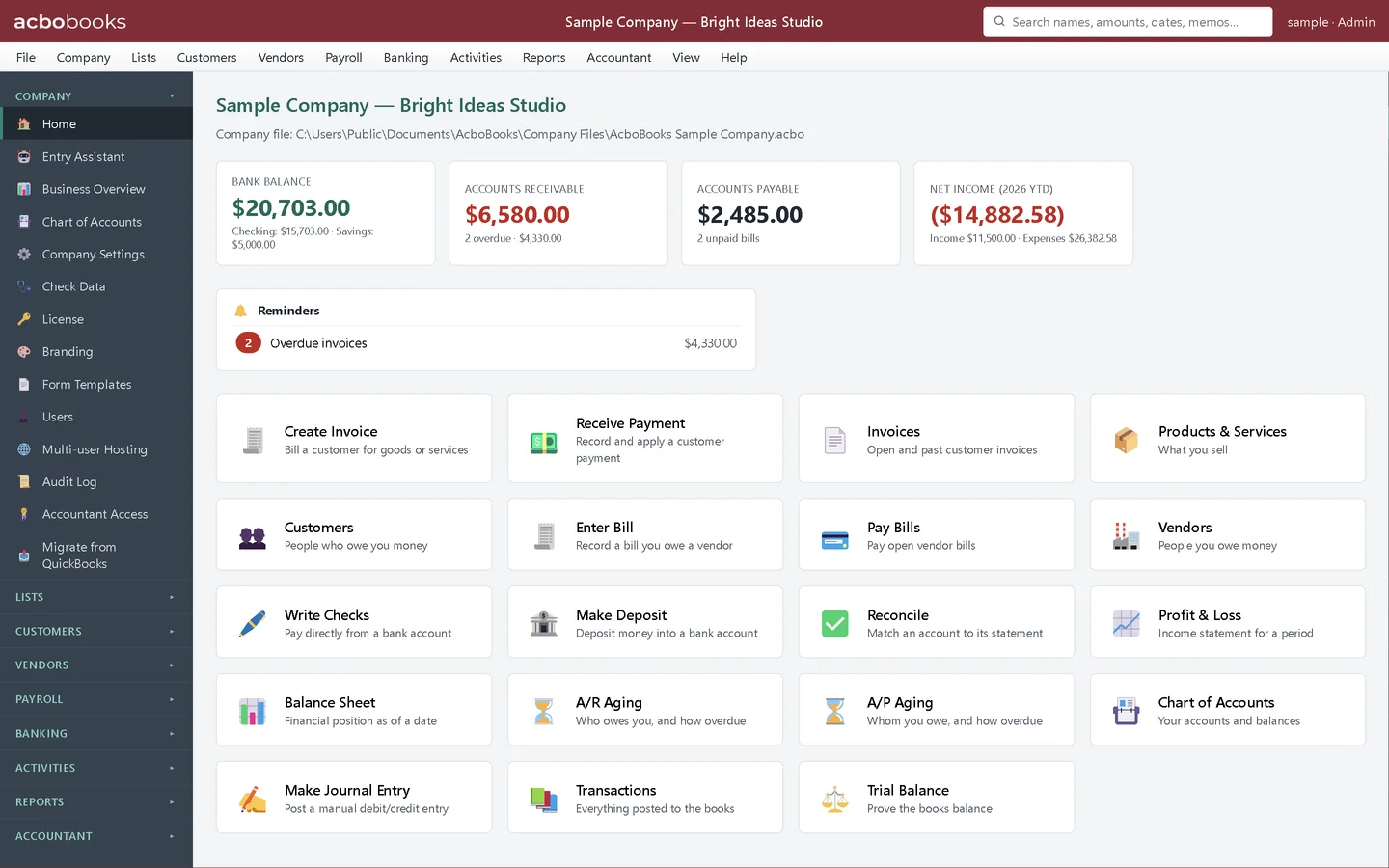
On the welcome screen, click Sample company (US) or Sample company (Canada). The US sample uses US sales tax and W-2 payroll; the Canadian one is set up for Ontario with GST/HST and CPP/EI payroll. Pick the one that matches your business, so the screens look the way yours will.
- The two sample company buttons, with a note on what each one is set up for.
Step 2: Look at what is already there
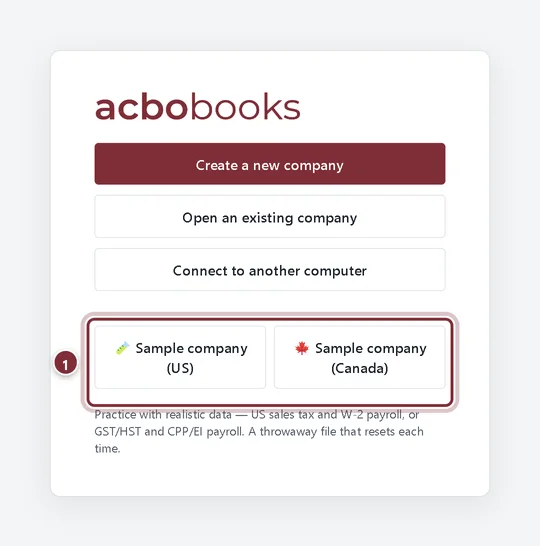
The sample opens on the home screen of Sample Company — Bright Ideas Studio. It already has checking and savings accounts, customers with open invoices (two of them overdue), unpaid vendor bills, products and services, payroll and a loan, so every report has something to show. The Reminders box points out the overdue invoices.
Practise freely
Step 3: Change anything
Create invoices, pay bills, run payroll, reconcile, delete things. The sample is a separate practice file, kept apart from your own company files. The trial's 100-transaction limit is counted per company file, so practising in the sample does not use up any of your own company's allowance.
Step 4: Close the sample when you are done
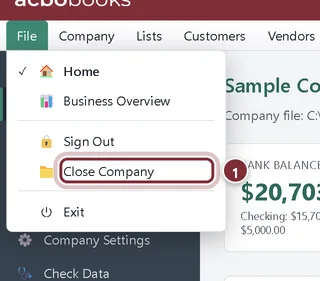
Choose File → Close Company. AcboBooks returns to the welcome screen, where you can create your own company or open another sample.
- Close Company in the File menu.
Recap
- You can open the US or Canadian sample company from the welcome screen.
- You know the sample is a throwaway practice file that starts fresh each time.
- You can close a company with File → Close Company.
Questions
Will practising in the sample affect my real books?
No. The sample is its own company file. Nothing you do there touches your company files.
Can I keep my changes to the sample?
No. It is recreated each time you open it. Use your own company file for anything you want to keep.
Related
Screenshots from AcboBooks 0.2.2 with the built-in sample company. Updated October 25, 2026. Your screens may differ slightly with another version or window size.