
In this lesson you will
- Search by name, document number, amount, date or memo
- Open a search result
- Find every list under the Lists menu
- Edit list entries and make old ones inactive
Before you start
Search
Step 1: Search for a name or document
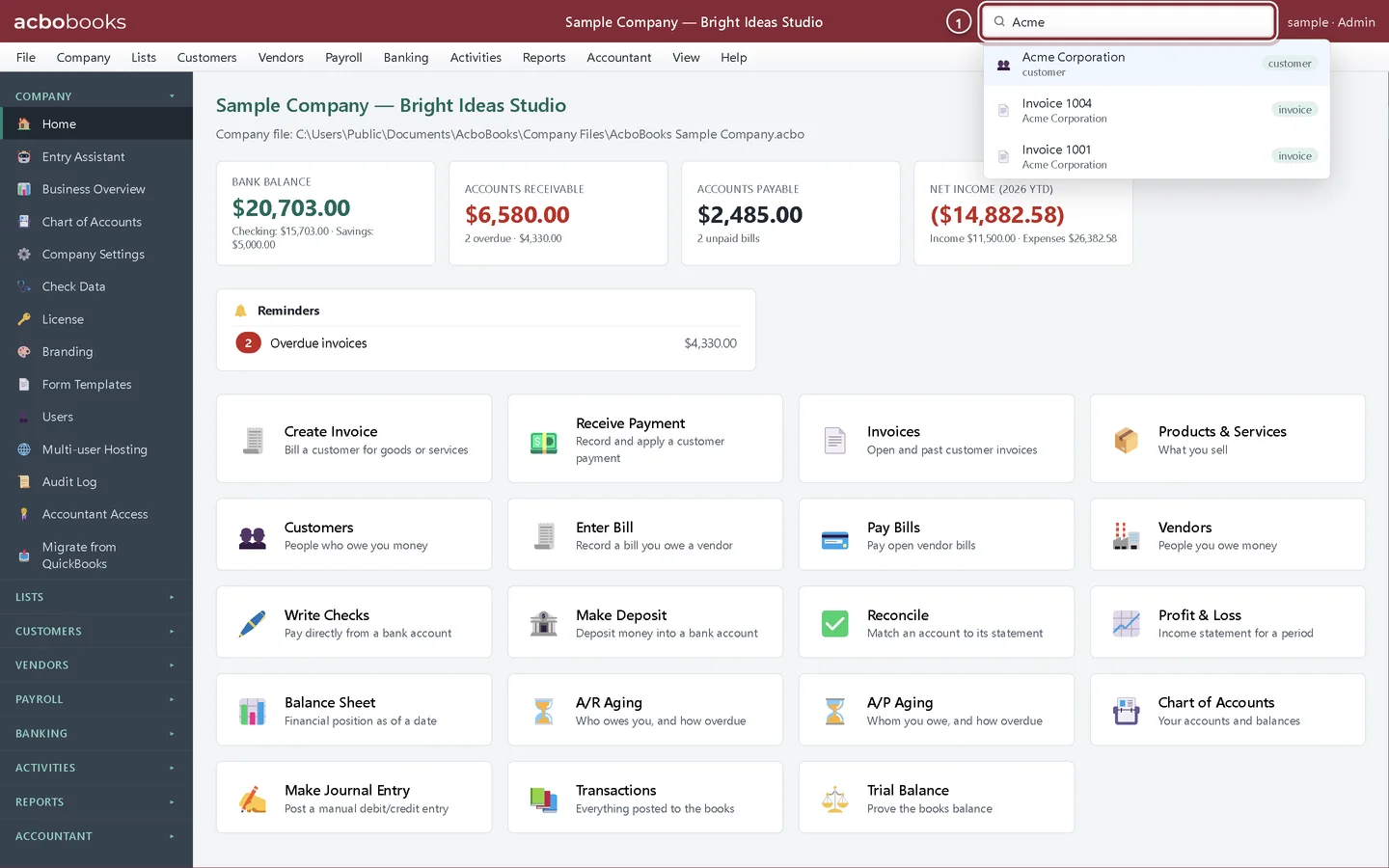
Click the search box in the top bar and start typing. Results appear as you type, each with a tag that says what it is: customer, vendor, employee, item, account, invoice, bill, estimate, purchase order or transaction.
- Type part of a name, such as Acme, to see the customer and its invoices.
Step 2: Search for an amount
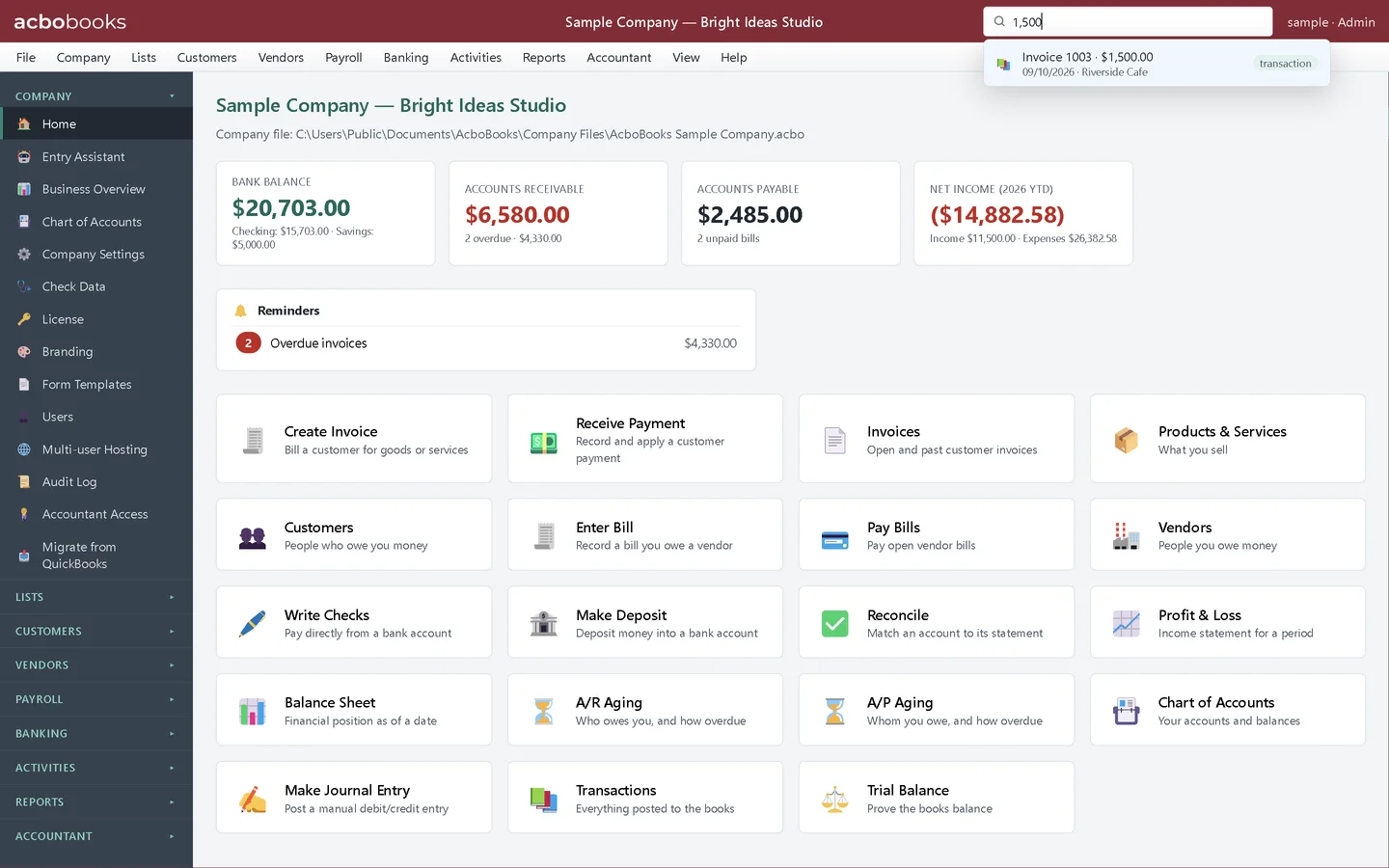
Type an amount to find any posted transaction for that amount, such as 1,500. The same works for a date, a reference number or words from a memo. Use the arrow keys and Enter, or click a result, to open it.
Lists
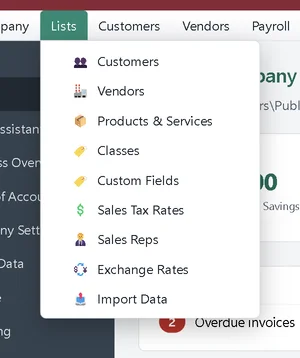
Step 3: Find the lists
The Lists menu holds Customers, Vendors, Products & Services, Classes, Custom Fields, Sales Tax Rates, Sales Reps, Exchange Rates and Import Data for bringing lists in from a spreadsheet.
Step 4: Work with a list
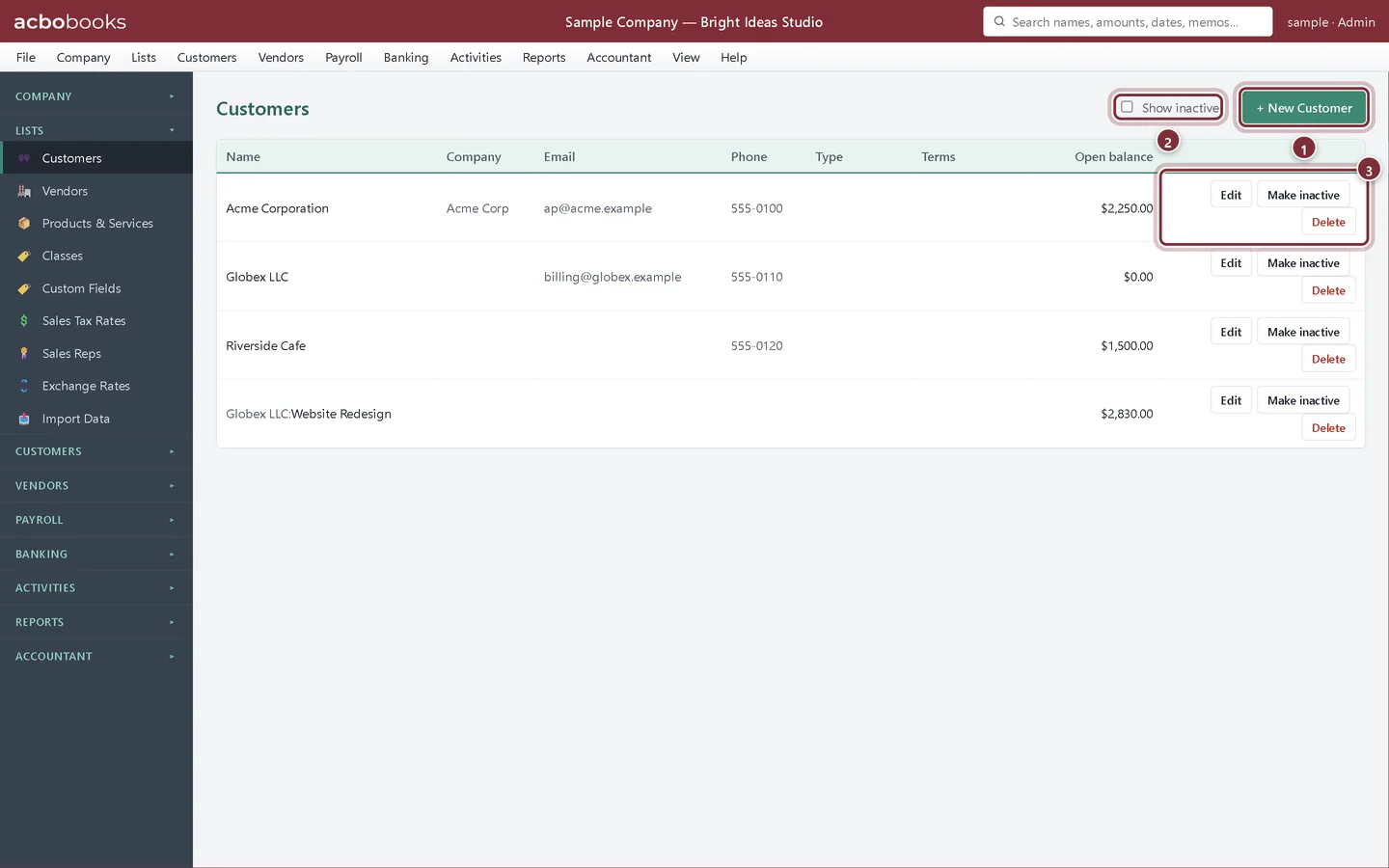
Every list works the same way. Here is Lists → Customers.
- + New Customer adds an entry.
- Show inactive shows entries you have made inactive.
- Edit, Make inactive and Delete for each entry.
Recap
- You can search by name, number, amount, date or memo.
- You can open a search result with the mouse or the keyboard.
- You know which lists live under the Lists menu.
- You can keep lists tidy with Make inactive.
Questions
Search did not find a transaction I know is there. Why?
Search looks at posted transactions and at names, items, accounts and document numbers. Try fewer characters, the amount without the dollar sign, or the document number on its own.
Where is the Customer Hub?
Under the Customers menu. The hub shows one customer's details, transactions and balance in one place; the Customers list under Lists is the quick list for adding and editing.
Related
Screenshots from AcboBooks 0.2.2 with the built-in sample company. Updated October 25, 2026. Your screens may differ slightly with another version or window size.