
In this lesson you will
- Read the Chart of Accounts screen
- Add a new account, with a number and a parent account
- Map income and expense accounts to tax form lines
- Retire accounts you no longer use without losing history
Before you start
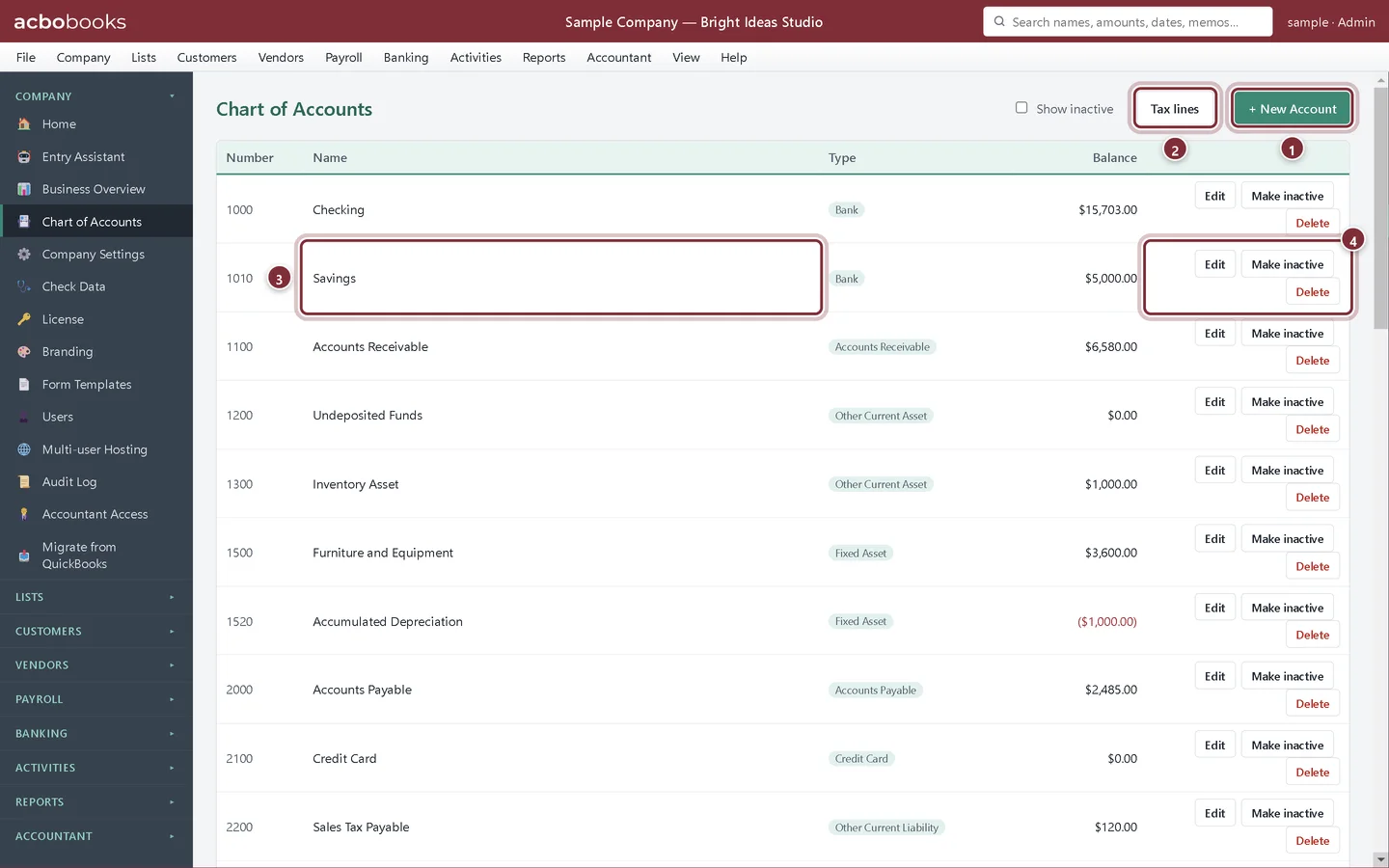
The Chart of Accounts screen
Open Company → Chart of Accounts. New to the idea of accounts? The chart of accounts lesson in our bookkeeping course explains it in plain words.
Step 1: Find your way around the list
Each row shows the account Number, Name, Type and Balance. Sub-accounts are indented under their parent account.
- + New Account adds an account.
- Tax lines switches to a view where you map accounts to tax form lines.
- Click an account name to open its register, the list of every transaction in that account.
- Edit, Make inactive and Delete for each account.
Add an account
Step 2: Fill in New Account
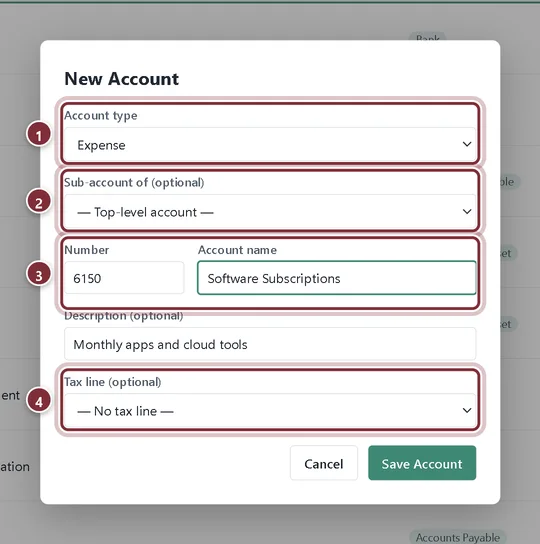
Click + New Account. In this example we add an expense account for software subscriptions.
- Account type decides where the account appears: on the Balance Sheet (bank, assets, liabilities, equity) or on the Profit & Loss (income, cost of goods sold, expenses). It cannot be changed later.
- Sub-account of nests it under another account of the same type, so reports can show a subtotal.
- Number (optional) and Account name. Numbers keep the list in a fixed order; most charts use 1000s for assets through 6000s and up for expenses.
- Tax line (income and expense accounts only) says which tax form line the account reports on.
Step 3: Save it
Click Save Account. The account appears in the list in number order, ready to use on checks, bills and journal entries.
Map accounts to tax lines
Step 4: Use the Tax lines view
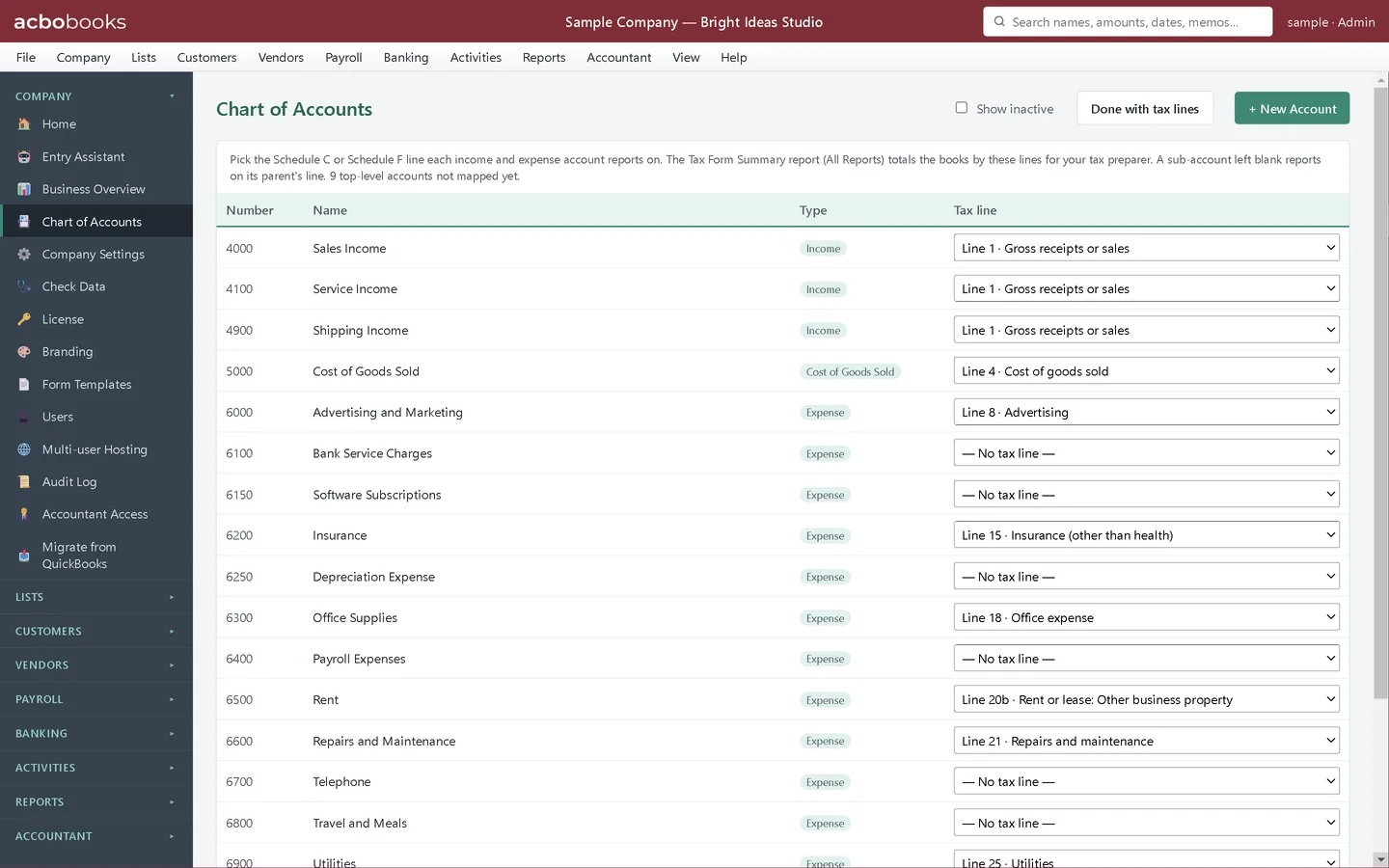
Click Tax lines to see every income and expense account with a tax-line dropdown. A change saves as soon as you pick it. The Tax Form Summary report (under Reports → All Reports) then totals your books by these lines for your tax preparer. A sub-account left blank reports on its parent's line. Click Done with tax lines to go back.
Change or retire an account
Step 5: Edit, make inactive or delete
Edit changes the name, number, description, parent account and tax line, but not the type. Make inactive hides an account from lists and dropdowns while keeping its history in reports; tick Show inactive to see it again and Activate to bring it back. Delete removes an account permanently, so use it only for an account you added by mistake.
Recap
- You can read the chart of accounts and open an account's register.
- You can add an account with the right type, number and parent.
- You can map income and expense accounts to tax form lines.
- You know to make old accounts inactive rather than deleting them.
Questions
Should I copy my old chart of accounts exactly?
If your accountant is used to it, yes: keep the same names and numbers. Otherwise start from the AcboBooks chart and add only what you need. Fewer, clearer accounts make better reports.
Why can't I change an account's type?
The type decides which report the account belongs to and how its balance is calculated, so changing it would silently rewrite past reports. Create a new account of the right type and move the entries with a journal entry instead.
Does AcboBooks warn me about duplicate account numbers?
Yes. Each number belongs to one account, so AcboBooks tells you if the number you type is already taken. Accounts it adds for you, such as Petty Cash, take the next free number.
Related
Screenshots from AcboBooks 0.2.2 with the built-in sample company. Updated October 25, 2026. Your screens may differ slightly with another version or window size.