
In this lesson you will
- Fill in the Create a New Company form
- Choose the US or Canadian edition with the right state or province
- Set the file password and save the recovery key
- Find your new company on the welcome screen next time
Before you start
Fill in the form
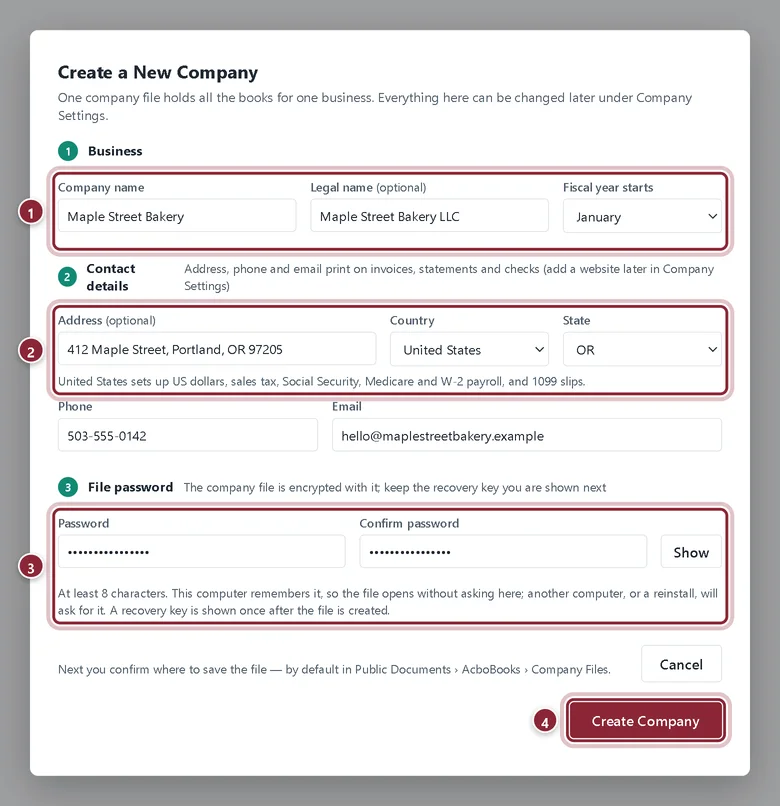
On the welcome screen, click Create a new company. Everything on this form can be changed later under Company Settings, except the file password, which has its own place there.
Step 1: Enter the business details
Work down the three numbered sections of the form. Our example is a bakery in Portland, Oregon.
- Business: the Company name customers know you by, the Legal name if it is different, and the month your Fiscal year starts. Most businesses use January; pick another month only if your accountant or incorporation documents say so.
- Contact details: Address, Country and State (or Province / territory). The state or province is required, because it sets up your tax rates.
- File password: at least 8 characters, typed twice. Show reveals what you typed.
- Create Company checks the form, then asks where to save the file.
Step 2: Pick the country carefully
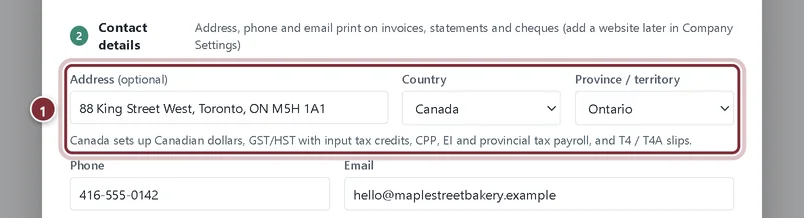
United States sets up US dollars, sales tax, Social Security, Medicare and W-2 payroll, and 1099 slips. Canada sets up Canadian dollars, GST/HST with input tax credits, CPP, EI and provincial tax payroll, and T4 / T4A slips. The line under the address row says which one you have chosen.
- With Canada chosen, the second box becomes Province / territory. Your province sets your GST/HST rates.
Step 3: Save the file
After Create Company, Windows asks where to save the file. The suggested place is Public Documents › AcboBooks › Company Files, with your company name as the file name. Keep that unless you have a reason to change it. The file ends in .acbo.
Save your recovery key
Step 4: Keep the recovery key somewhere safe
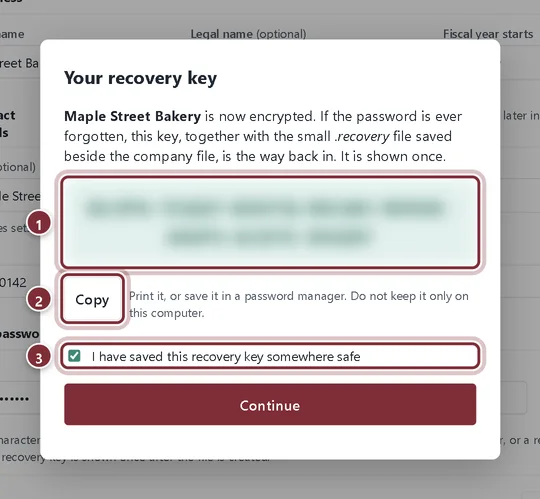
Your company file is encrypted with the file password. Next, AcboBooks shows a one-time recovery key. With the small .recovery file saved beside the company file, it is the way back in if the password is ever forgotten. It is shown once.
- The recovery key (blurred in this picture). Write it down or save it in a password manager.
- Copy puts it on the clipboard so you can paste it into a password manager.
- Tick I have saved this recovery key somewhere safe, then click Continue.
Step 5: Start in your new company
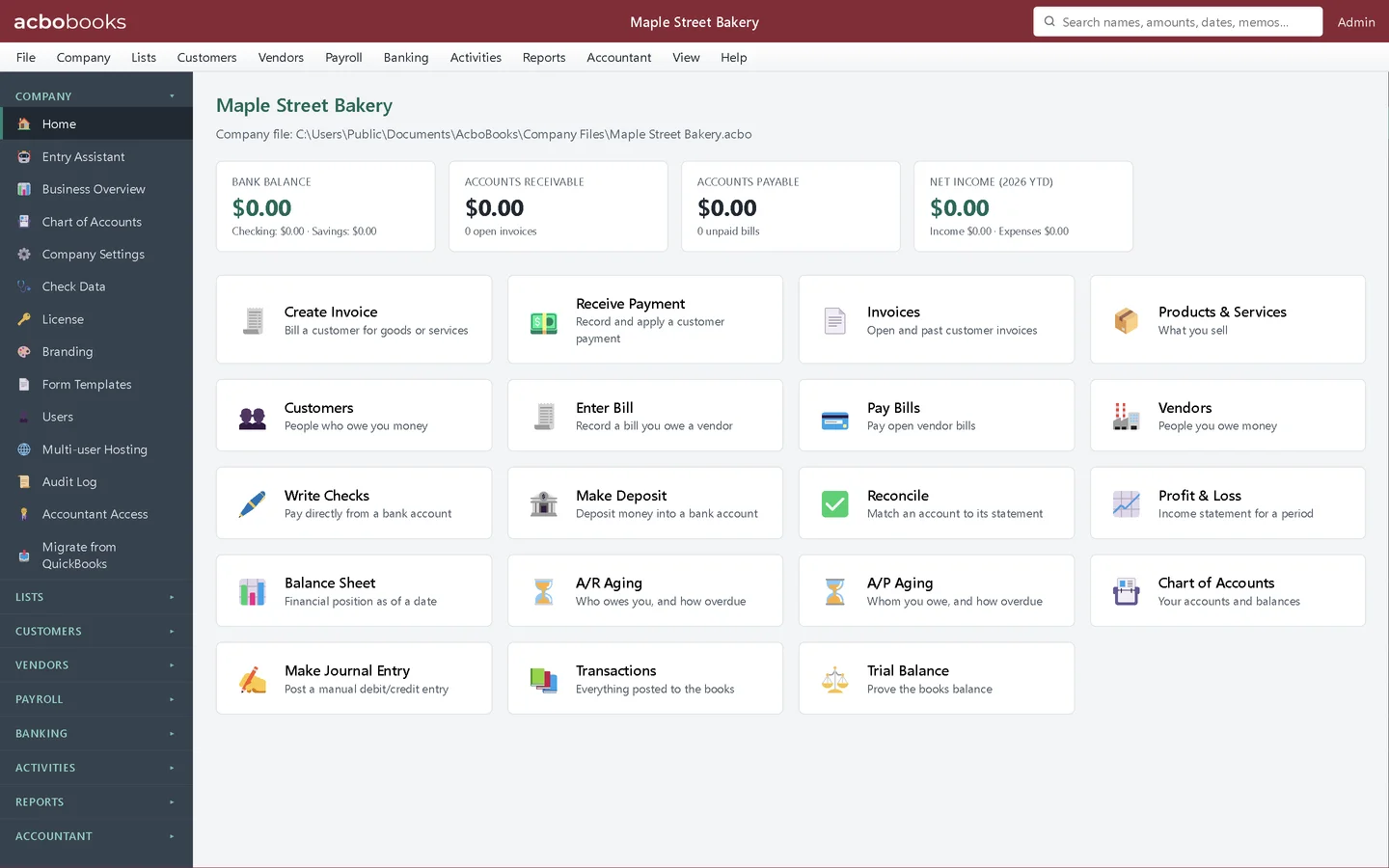
The new company opens on its home screen with everything at zero. It starts with a basic chart of accounts and one user, Admin, with no password, so AcboBooks opens it without a sign-in screen. This computer remembers the file password, so the file opens without asking here. Another computer will ask for it.
Open it next time
Step 6: Use Your companies on the welcome screen
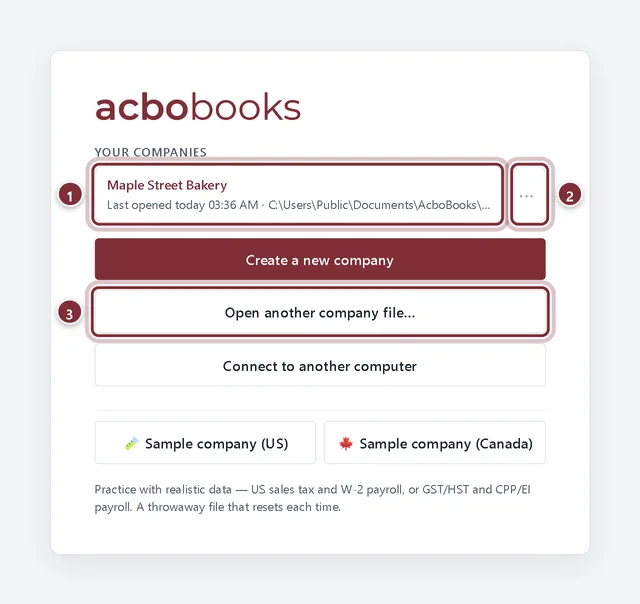
Company files you have opened on this computer are listed under Your companies, with when each was last opened and its folder.
- Click a company to open it.
- The ⋯ button opens more options for that file.
- Open another company file… finds a file that is not on the list, such as a backup.
Step 7: More options for a company
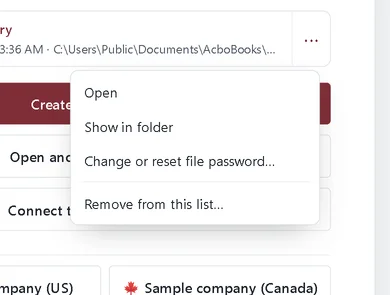
The ⋯ menu has Open, Show in folder, Change or reset file password… and Remove from this list…. Removing a company from the list does not delete the file; you can open it again with Open another company file….
Recap
- You can create a company file for a US or Canadian business.
- You know the state or province sets up tax and payroll, and the fiscal year start can be changed later.
- You have saved the recovery key away from the computer.
- You can reopen the company from Your companies on the welcome screen.
Questions
Can I have more than one company?
Yes. Each business gets its own company file. Create as many as you need; they all appear under Your companies.
I chose the wrong country or state. Do I start again?
No. Change it in Company → Company Settings. Switching country changes labels and payroll calculations from then on, not entries already made, so fix it before you enter transactions.
What if I lose the file password and the recovery key?
Licensed customers can ask for a password reset from My licences on acbobooks.com. See the file password lesson.
I am moving from QuickBooks. Should I create a company first?
Follow the Moving from QuickBooks track; it shows the best order for your situation.
Related
Screenshots from AcboBooks 0.2.2 with the built-in sample company. Updated October 25, 2026. Your screens may differ slightly with another version or window size.