
In this lesson you will
- Read the File security section of Company Settings
- Change the file password and save the new recovery key
- Make AcboBooks ask for the password every time
- Open a file with the recovery key if the password is lost
Before you start
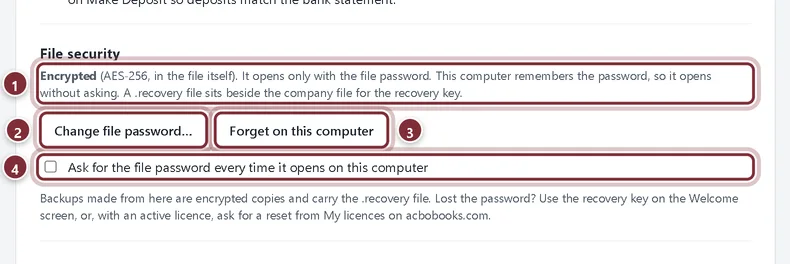
File security settings
Open Company → Company Settings and scroll to File security. On the welcome screen, a company's ⋯ menu has a shortcut: Change or reset file password… opens the company straight at this section.
Step 1: Read the status
The section says how the file is protected on this computer.
- The status: Encrypted, whether this computer remembers the password, and whether the .recovery file was found beside the company file.
- Change file password… sets a new password and gives you a new recovery key.
- Forget on this computer removes the remembered password, so the next open asks for it.
- Ask for the file password every time it opens on this computer keeps the password remembered but asks for it on every open anyway.
Change the file password
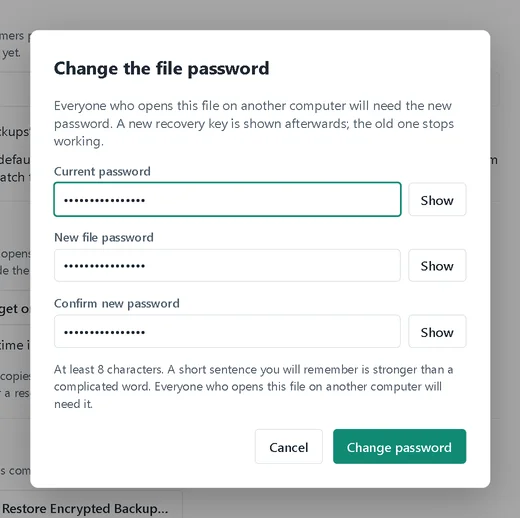
Step 2: Enter the current and new password
Click Change file password…. Enter the Current password, then the New file password twice: at least 8 characters. A short sentence you will remember is stronger than a complicated word. Click Change password.
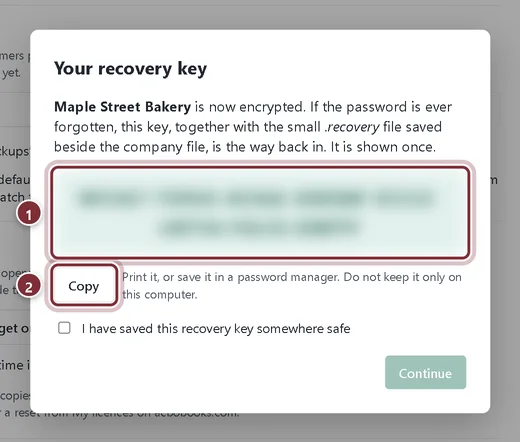
Step 3: Save the new recovery key
AcboBooks shows a new recovery key. The old key stops working. Save the new one the same way as the first: in a password manager or on paper, away from the computer. Tick I have saved this recovery key somewhere safe and click Continue.
- The new recovery key (blurred here).
- Copy puts it on the clipboard.
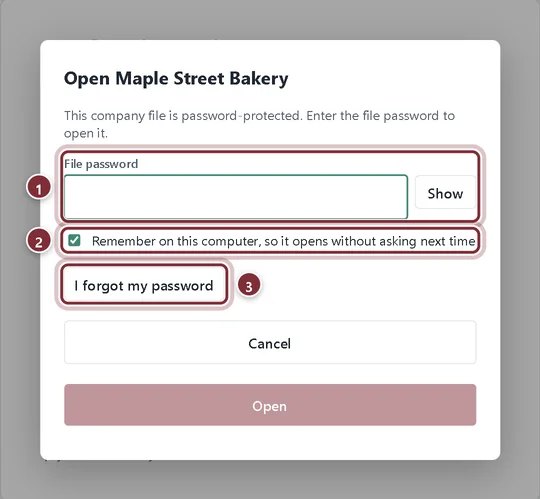
Opening a protected file
Step 4: Enter the file password
On a computer that does not remember the password, or with Ask for the file password every time ticked, opening the company shows this dialog.
- File password: type it, then press Enter or click Open.
- Remember on this computer, so it opens without asking next time. Untick it on a shared or public computer.
- I forgot my password switches to the recovery key.
Step 5: Use the recovery key
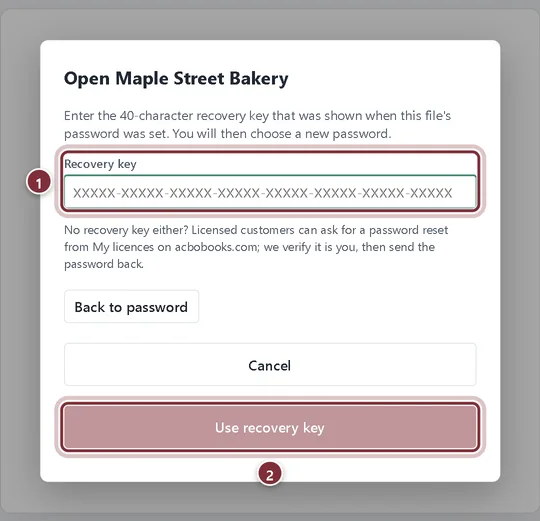
Enter the 40-character recovery key that was shown when the password was set, and click Use recovery key. The .recovery file must be beside the company file. AcboBooks opens the file and asks you to choose a new password straight away, with a new recovery key.
- Recovery key: type or paste it exactly as it was shown.
- Use recovery key becomes available once all 40 characters are in.
Recap
- You know the company file is encrypted and where its security settings are.
- You can change the file password and save the new recovery key.
- You can make AcboBooks ask for the password on every open, or forget it on this computer.
- You can open a file with the recovery key and set a new password.
Questions
Is my file encrypted if I never set a password?
Every company created in AcboBooks has a file password: you choose it when you create the company. Files made by early versions, before encryption, show Not protected and a Protect this file… button.
Where is the remembered password kept?
In your Windows user profile, protected by Windows. Another Windows user, or another computer, cannot use it.
What is the .recovery file?
A small file saved beside the company file. The recovery key only works together with it, so keep them together when you move or copy the company file. Backups made from AcboBooks copy it for you.
Related
Screenshots from AcboBooks 0.2.2 with the built-in sample company. Updated October 25, 2026. Your screens may differ slightly with another version or window size.