
In this lesson you will
- Run Check Data and read the result
- Find who changed what in the audit log
- Set a closing-date password for locked periods
Before you start
Check Data
Step 1: Run the checks
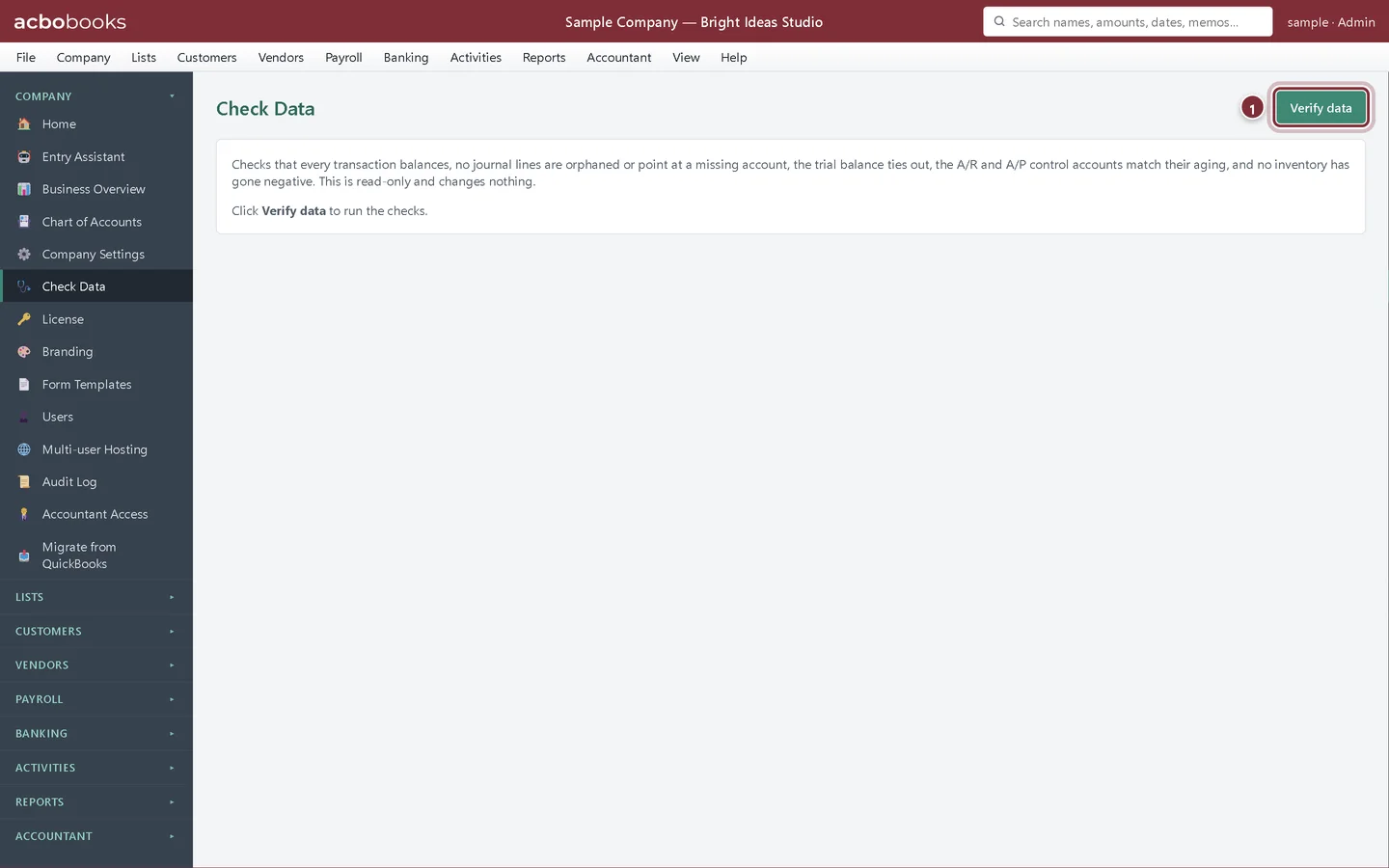
Open Company → Check Data and click Verify data. It checks that every transaction balances, no journal lines are orphaned or point at a missing account, the trial balance ties out, the A/R and A/P control accounts match their aging reports, and no inventory has gone negative. It is read-only and changes nothing.
- Verify data runs the checks. Afterwards the button says Verify again.
Step 2: Read the result
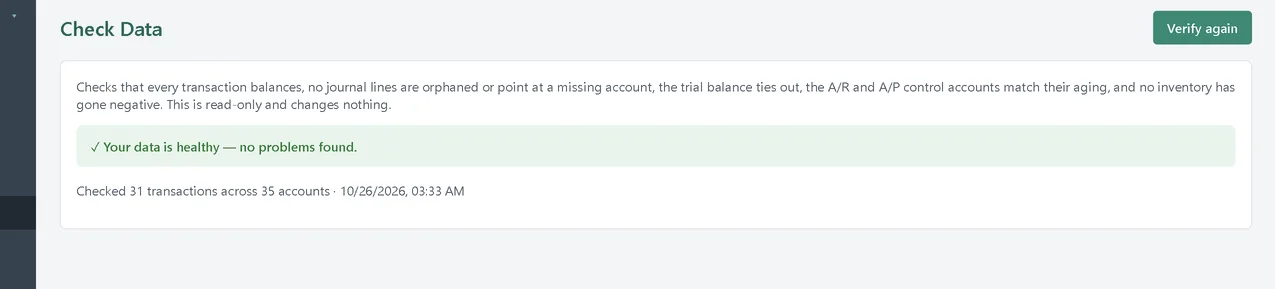
A green line means the file is healthy. Problems are listed under Errors, and notes worth a look under Advisory, each with its category and a description. The line below the result shows how many transactions and accounts were checked, and when.
The audit log
Step 3: See who did what
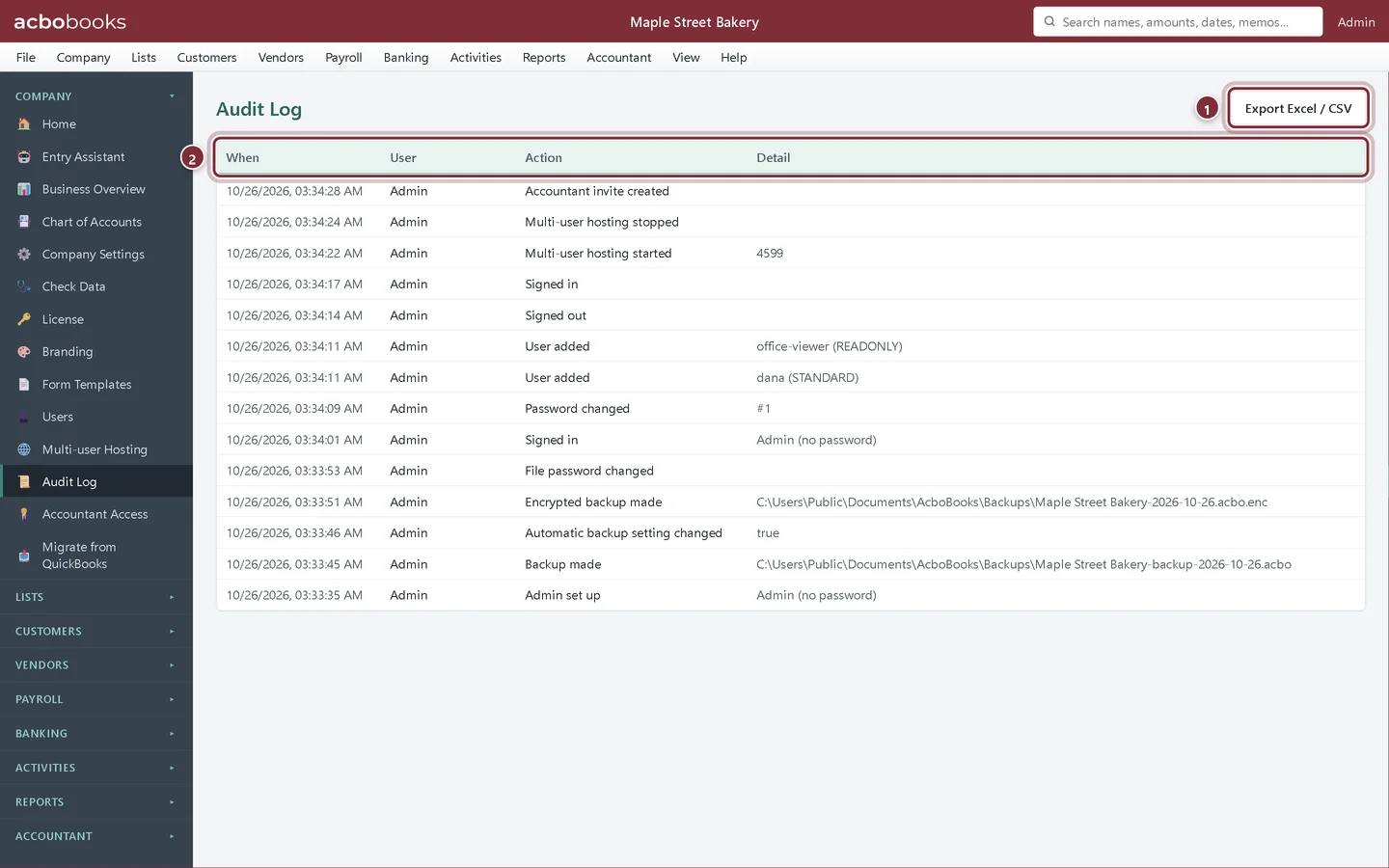
Open Company → Audit Log (Administrators only). The most recent 500 entries are listed newest first: When, User, Action and Detail. It records sign-ins and sign-outs, users added and passwords set, backups, file password changes, hosting starts and stops, and every change to the books.
- Export Excel / CSV saves the log for your accountant or your records.
- The columns: when, which user, what they did, and details.
The closing-date password
Step 4: Lock closed periods, with a recorded way in
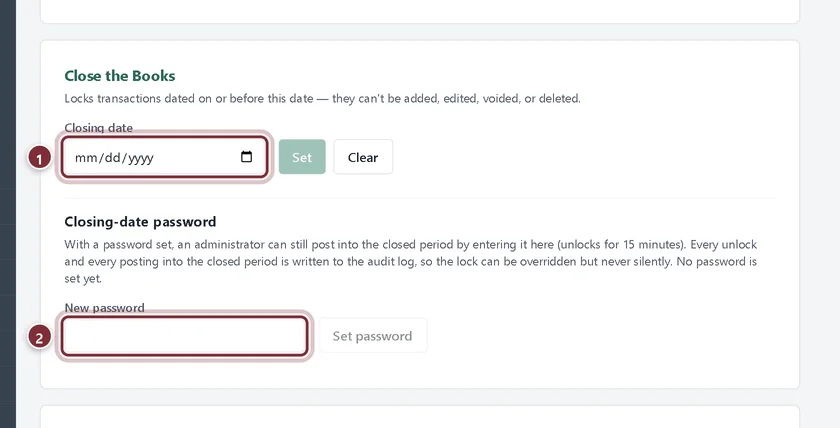
In Company → Company Settings, the Close the Books panel sets a Closing date: transactions on or before it can no longer be added, edited, voided or deleted. Below it, Closing-date password lets an administrator still post into the closed period by entering the password, which unlocks it for 15 minutes. Every unlock, and every posting into the closed period, goes into the audit log, so the lock can be overridden but never silently.
- Closing date, then Set.
- New password (at least 4 characters), then Set password. Once set, the same box unlocks the period with Unlock for 15 minutes.
Recap
- You can run Check Data and read errors and advisory notes.
- You can review and export the audit log.
- You can set a closing-date password and know that every unlock is recorded.
Questions
Check Data found errors. What now?
Read each message: it names the transaction or account involved. Fix that entry, or restore a recent backup made before the problem started, then run Check Data again. If you are stuck, use Help → Copy Diagnostics for Support and email us.
Can a user hide their changes from the audit log?
No. Entries are written by AcboBooks itself, and there is no screen to edit or delete them.
Related
Screenshots from AcboBooks 0.2.2 with the built-in sample company. Updated October 25, 2026. Your screens may differ slightly with another version or window size.