
In this lesson you will
- Create an accountant invite code with the right access
- Know how your accountant signs in with it
- Revoke access when the work is done
- Exchange a backup and adjusting entries instead
Before you start
Invite your accountant
Your accountant connects to your company the same way an office computer does, so start hosting first (see the previous lesson). On your office network it works as is; from outside, your accountant needs a VPN or another secure way into the network.
Step 1: Create an invite
Open Company → Accountant Access.
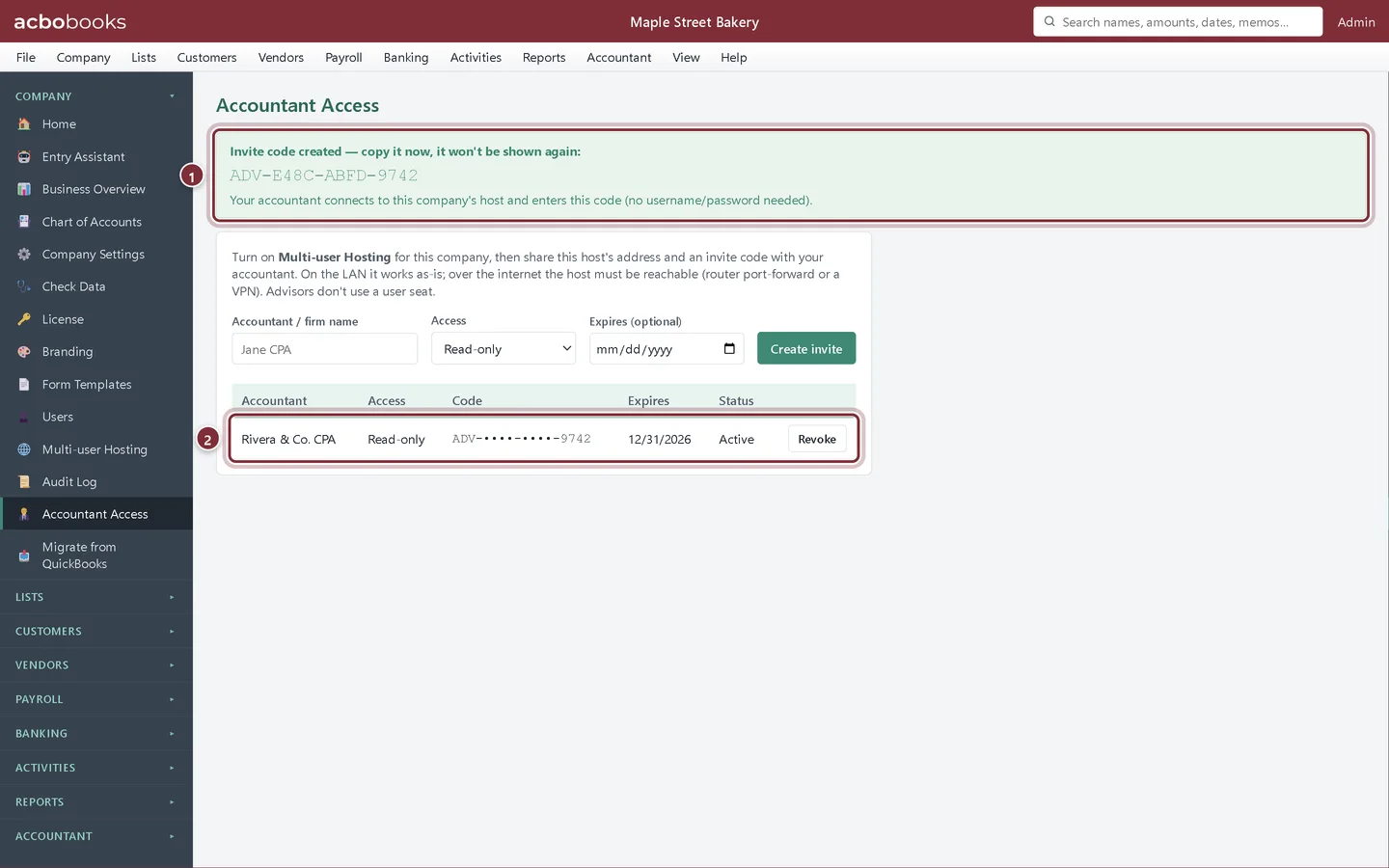
- Enter the Accountant / firm name, choose Access: Read-only or Standard (can edit), and an optional Expires date.
- Click Create invite.
Step 2: Copy the code
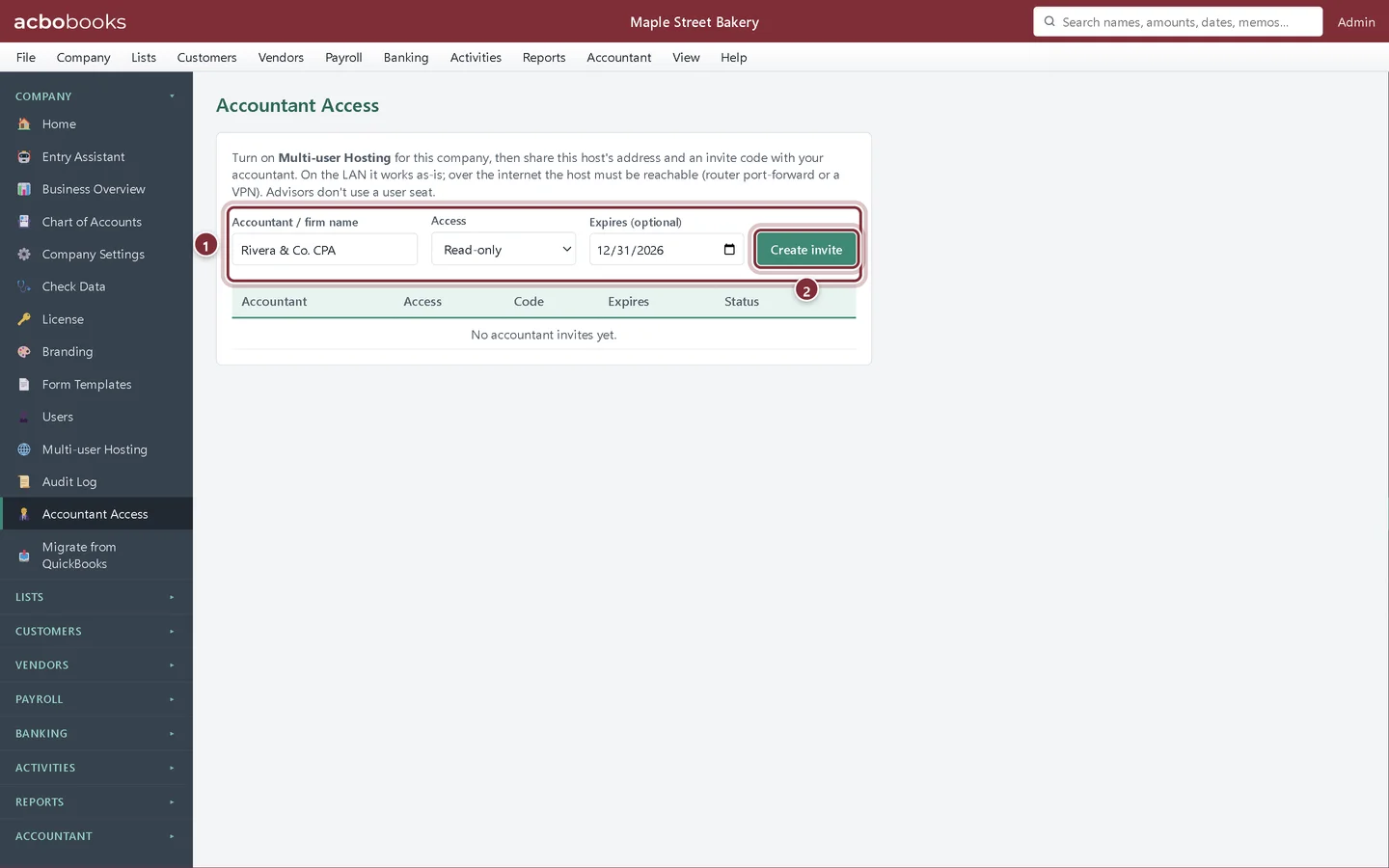
AcboBooks shows the invite code once. Send it to your accountant with your host's address.
- The invite code, starting ADV-. Copy it now; it will not be shown again.
- The invite in the list, with its access, the last characters of the code, the expiry date and Revoke.
Step 3: How your accountant signs in
Your accountant connects to your host from their own AcboBooks (Connect to another computer), then on the sign-in screen clicks I'm an accountant with an invite code, enters the code and clicks Connect as accountant. No user name or password is needed, and an invite does not use one of your users.
Step 4: Revoke access
When the work is done, click Revoke next to the invite. Your accountant is disconnected on their next action. An invite with an expiry date stops working after that date by itself.
Or swap a backup and adjusting entries
Step 5: Use the accountant exchange
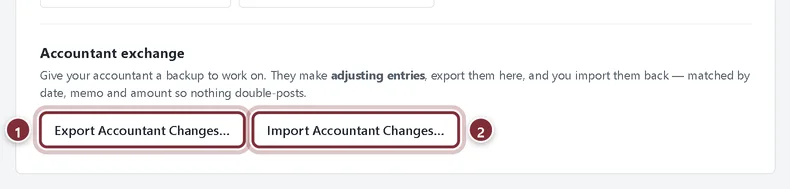
If your accountant prefers to work on their own copy, send them a backup (an encrypted backup is best for email). They make their adjusting entries in that copy and export them; you import them into your file. AcboBooks matches entries by date, memo and amount, so nothing posts twice.
- Export Accountant Changes… (used in the accountant's copy) saves the adjusting entries to a file.
- Import Accountant Changes… (used in your file) posts them.
Recap
- You can create a read-only or editing invite code with an optional expiry.
- You know your accountant signs in with I'm an accountant with an invite code.
- You can revoke an invite.
- You can exchange a backup and import your accountant's adjusting entries.
Questions
Read-only or Standard?
Read-only is enough for reviewing the books and preparing tax returns. Choose Standard only if your accountant will post entries directly in your file.
My accountant uses QuickBooks. Can they still help?
Yes. They can connect with an invite and run reports, or you can send them reports exported to Excel or PDF from any report screen.
Related
Screenshots from AcboBooks 0.2.2 with the built-in sample company. Updated October 25, 2026. Your screens may differ slightly with another version or window size.