
In this lesson you will
- Prepare the company for sharing
- Start hosting on the host computer
- Connect another computer to the host
- Know what only the host can do, and when to stop hosting
Before you start
On the host computer
Pick the computer that will hold the company file, usually the one that is on all day. Give Admin a password and add a user for each person first; AcboBooks will not start hosting while Admin has no password.
Step 1: Open Multi-user Hosting
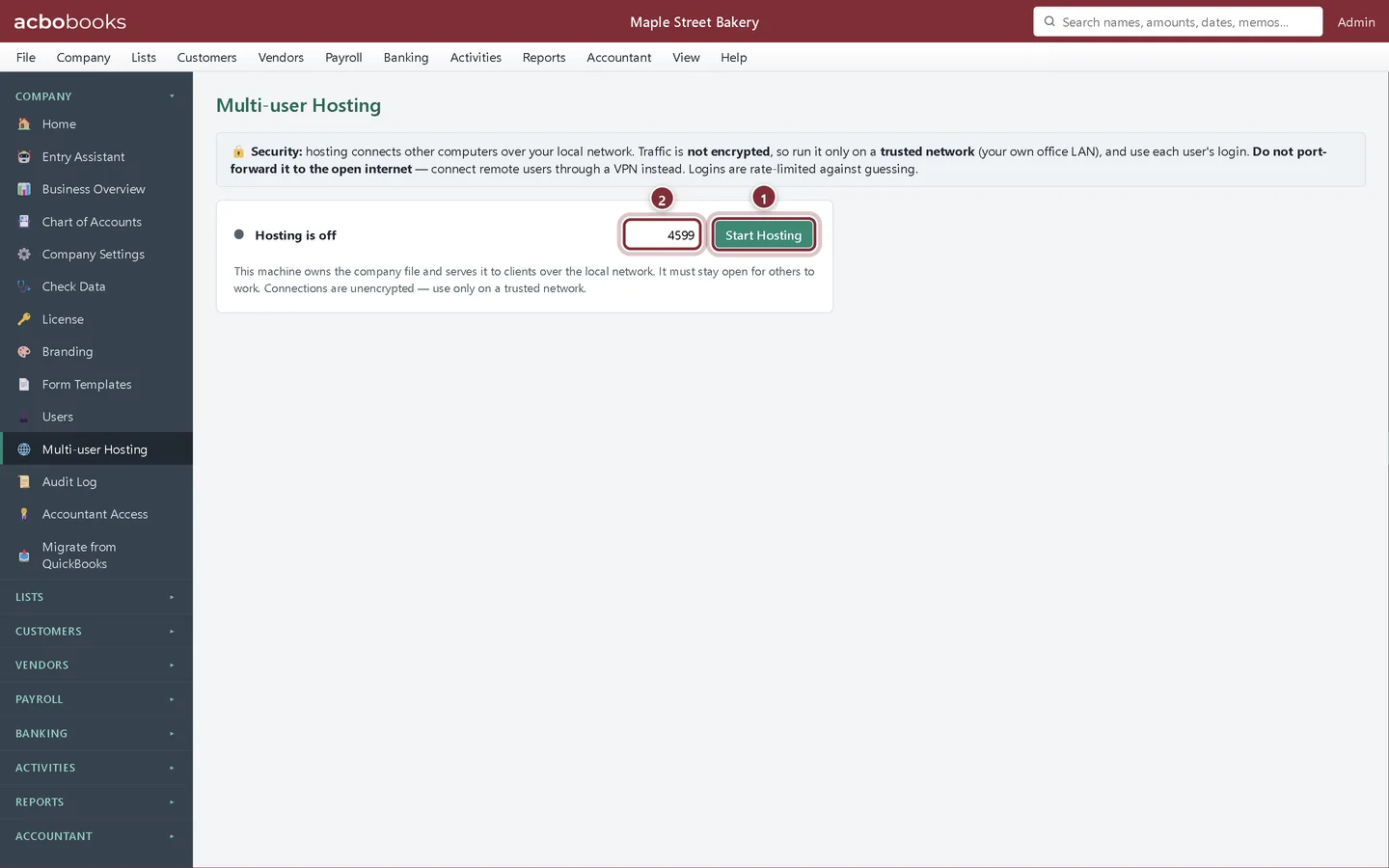
Open Company → Multi-user Hosting. The box at the top is a security reminder: traffic between computers is not encrypted, so host only on a network you trust, such as your own office network, and never forward the port to the internet. Remote staff should connect through a VPN.
- Start Hosting shares the open company.
- The port other computers connect on. 4599 is the default; change it only if your IT person asks.
Step 2: Start hosting
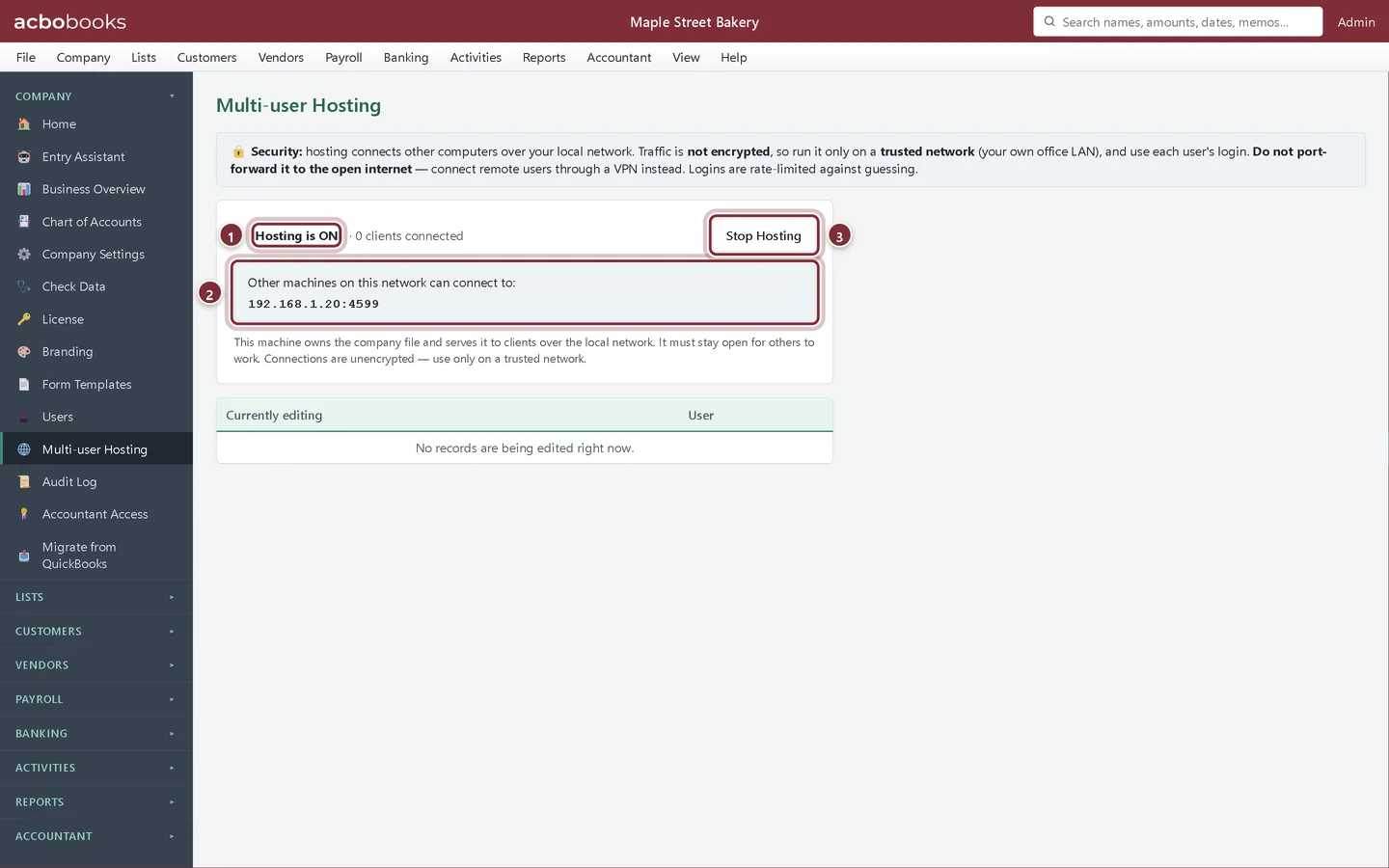
Click Start Hosting. The first time, Windows may ask whether to allow AcboBooks on networks: allow it on private networks. The screen then shows the address to give the other computers.
- Hosting is ON, with the number of computers connected.
- The address and port other computers enter, such as 192.168.1.20:4599.
- Stop Hosting ends sharing. Connected computers go back to their welcome screen.
On the other computers
Step 3: Connect to the host
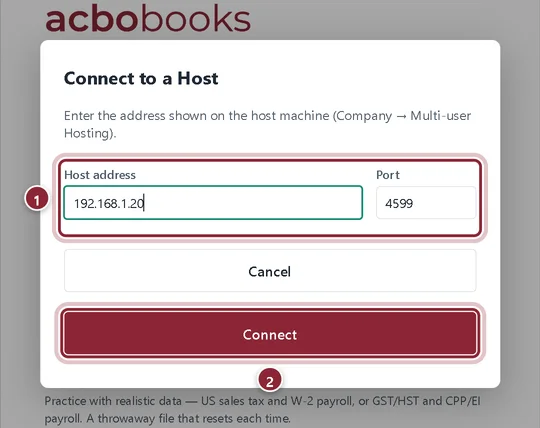
Install AcboBooks on the other computer. On its welcome screen, click Connect to another computer, enter the Host address shown on the host (and the Port if it was changed), and click Connect. Then sign in with your own user name and password.
- Host address and Port, exactly as the host's Multi-user Hosting screen shows them.
- Connect.
Step 4: Work side by side
Connected computers see live data and can enter transactions and run reports as if the file were local. When someone opens an invoice, bill or journal entry to edit it, it is locked for the others until they save or cancel; the host's Currently editing list shows who has what open.
Good to know
Step 5: What only the host can do
Anything that touches files on the host's own disk happens on the host: opening or creating another company, backups and encrypted backups, saving CSV or PDF exports, importing from QuickBooks and starting or stopping hosting. Reports still display on every computer.
Step 6: Licences and computers
Every computer that runs AcboBooks, host or client, uses one of your licence's computers. Two are included; you can add more from Company → License.
Recap
- You know the company must have an Admin password before hosting.
- You can start and stop hosting on the host computer.
- You can connect another computer with the host address and port.
- You know what only the host can do and that it must stay on.
Questions
The other computer cannot connect. What should I check?
That both computers are on the same network, that the address and port match the host screen, that Windows Firewall allows AcboBooks on private networks on the host, and that the network is set to Private, not Public. The multi-user help article has the full checklist.
Can someone work from home?
Yes, through a VPN to your office network. Do not forward the AcboBooks port on your router: the connection is not encrypted.
Do I need a server?
No. Any Windows 10 or 11 computer on your network can be the host.
Related
Screenshots from AcboBooks 0.2.2 with the built-in sample company. Updated October 25, 2026. Your screens may differ slightly with another version or window size.