
In this lesson you will
- Back up the company file in two clicks
- Turn on automatic backups each time the company closes
- Make a password-protected backup to send to someone
- Restore a backup
Before you start
Back up now
Step 1: Use the backup reminder
If the company has no backup from the last seven days, AcboBooks shows a reminder under the menus when you open it. Back up now makes a backup straight away; Dismiss hides the reminder for this session.
- Back up now saves a dated copy of the company file.

Step 2: Or back up from Company Settings
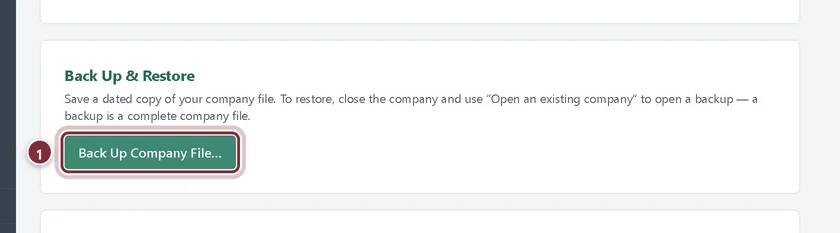
Open Company → Company Settings and scroll to Back Up & Restore. Click Back Up Company File…. Windows asks where to save; the suggested place is Public Documents › AcboBooks › Backups, with the company name and today's date in the file name.
- Back Up Company File… saves a complete copy of the company file.
Step 3: Check where it went
A green banner at the top of Company Settings shows exactly where the backup was saved. The backup is encrypted with the same file password as the company, and AcboBooks copies the small .recovery file next to it, so the recovery key works on the backup too.

Automatic backups
Step 4: Turn on backup on close
Further down Company Settings, tick Automatically back up to a "Backups" folder each time this company closes (keeps the last 5). From then on, closing the company (or exiting AcboBooks) copies the file into a Backups folder beside the company file. AcboBooks keeps the five most recent copies and removes older ones.
- Tick this box. It saves as soon as you click it.

Encrypted backups for sending
Step 5: Export an encrypted backup
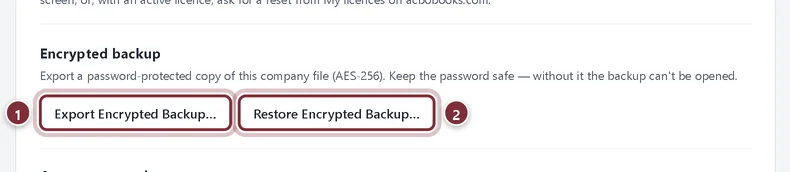
To email a copy or put it on a shared drive, use Encrypted backup in Company Settings. Export Encrypted Backup… asks for a password for this backup only, then where to save it. The file ends in .acbo.enc and opens only with that password.
- Export Encrypted Backup… makes a password-protected copy.
- Restore Encrypted Backup… turns one back into a company file.
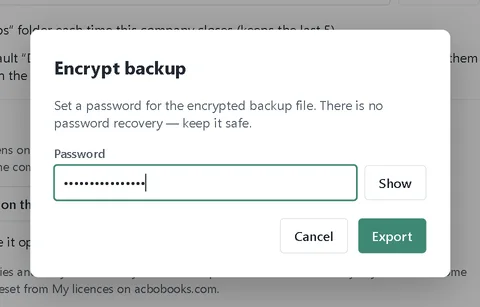
Step 6: Choose the backup password
Type the password and click Export. Send the password separately from the file, for example by phone or text message.
Restore
Step 7: Restore a backup
A backup is a complete company file, so restoring means opening it. Choose File → Close Company, then on the welcome screen click Open another company file… (or Open an existing company) and pick the backup. If AcboBooks asks for a password, enter the file password that was in use when the backup was made.
Step 8: Restore an encrypted backup
In Company Settings, click Restore Encrypted Backup…, enter the password used when it was made, and choose the .enc file. AcboBooks then asks where to save the restored company file. Open it from the welcome screen like any other company.
Recap
- You can back up from the reminder or from Company Settings.
- You have turned on automatic backups each time the company closes.
- You can export an encrypted backup and send its password separately.
- You can restore a backup or an encrypted backup.
Questions
How often should I back up?
At least once a week, and before anything big: a year-end close, a large import, or a software update. With automatic backups on, you also get a copy every time you close the company.
Can I keep my company file in OneDrive or Dropbox?
Keep backups there, not the live file. A sync service can copy the file halfway through a save. The company file help article explains the safe setups.
Can a user on another computer make the backup?
No. When the company is shared on your network, backups are made on the host computer, where the file lives.
Related
Screenshots from AcboBooks 0.2.2 with the built-in sample company. Updated October 25, 2026. Your screens may differ slightly with another version or window size.