
In this lesson you will
- Give the Admin user a password
- Add users with the right role
- Reset a password, change a role or deactivate a user
- Sign in and sign out
Before you start
Protect the Admin user
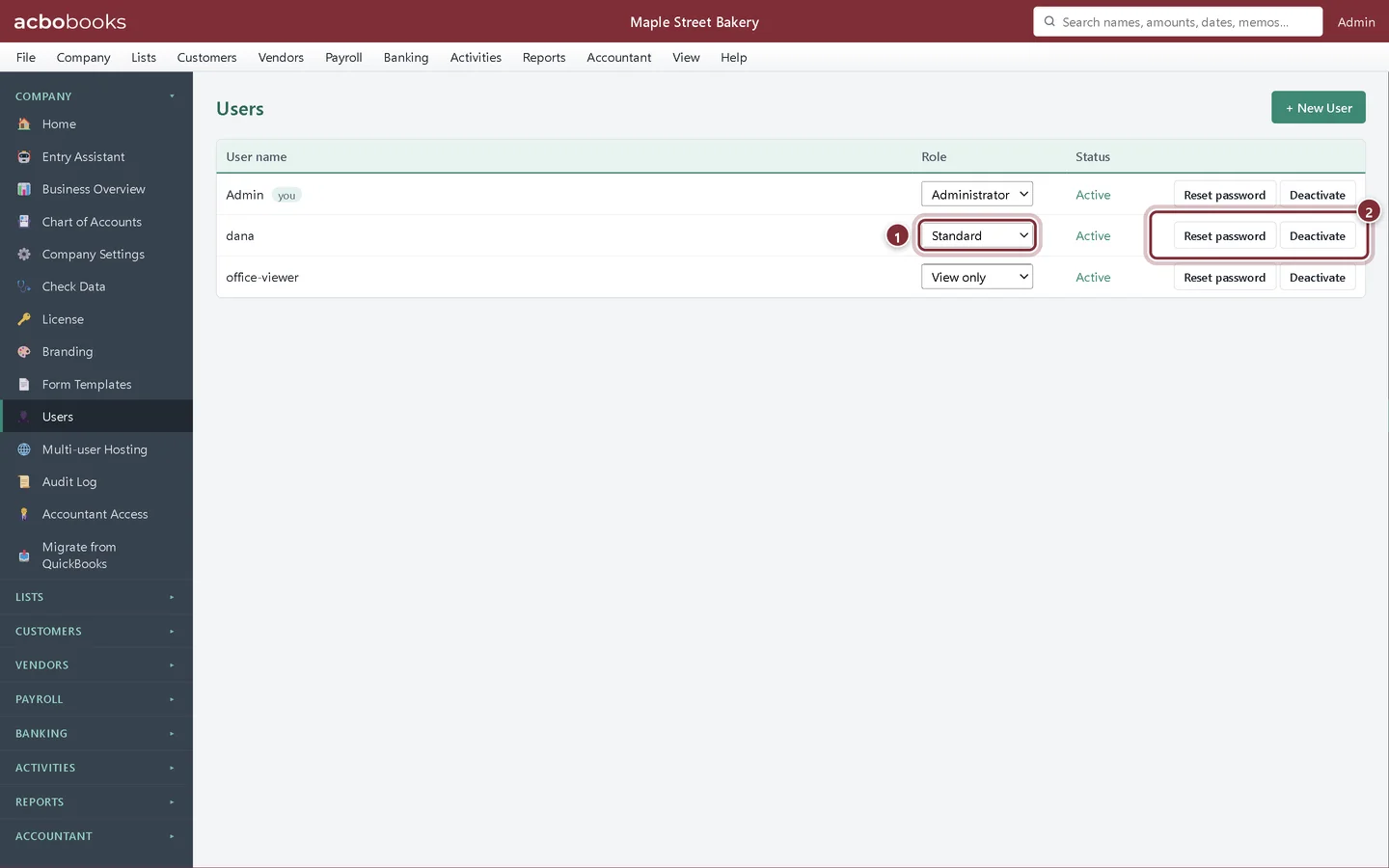
Open Company → Users. Only Administrators can open it.
Step 1: Set a password for Admin
While Admin has no password, a note at the top explains that AcboBooks opens without a sign-in screen. The file itself is still encrypted with the file password.
- The note about the password-less Admin.
- Set password for Admin.
- + New User adds another person.
Step 2: Choose the password
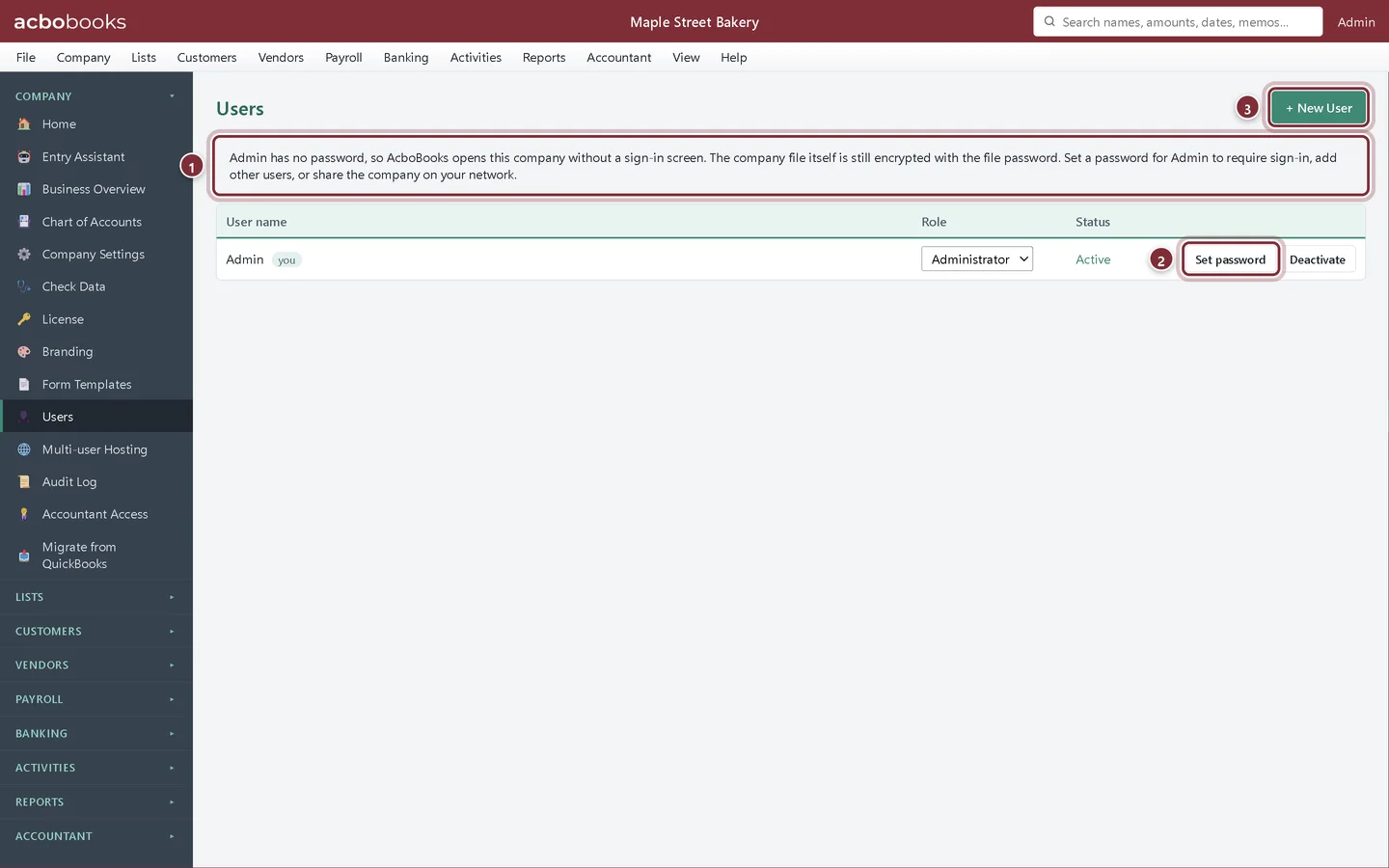
Type the new password (at least 6 characters) and click Set Password. From now on AcboBooks shows a sign-in screen when the company opens.
Add users
Step 3: Create a user for each person
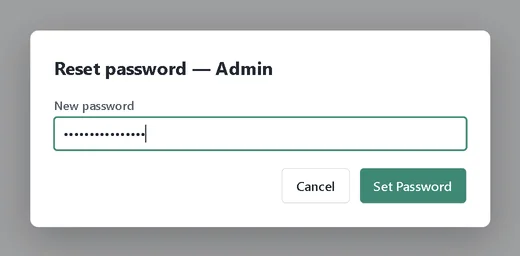
Click + New User, enter a User name and Password, and choose a Role. Give every person their own user, so the audit log shows who entered what.
Step 4: Pick the right role
Administrator can do everything, including Company Settings, users, Check Data, the audit log, hosting and the year-end close. Standard enters and edits day-to-day work such as invoices, bills, payroll and banking, but cannot open the administrator screens. View only can look at everything they are shown and run reports, but cannot enter or change anything; screens for entering transactions are hidden.
Step 5: Manage users
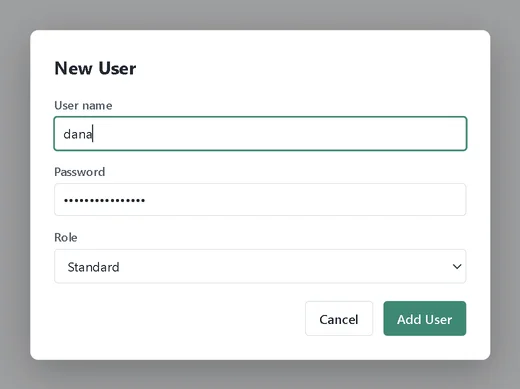
The Users list shows every user, their role and status.
- Change a role with the Role dropdown. It takes effect straight away.
- Reset password sets a new password for someone who forgot theirs. Deactivate stops a user signing in, while their history stays in the audit log.
Sign in and sign out
Step 6: Sign in
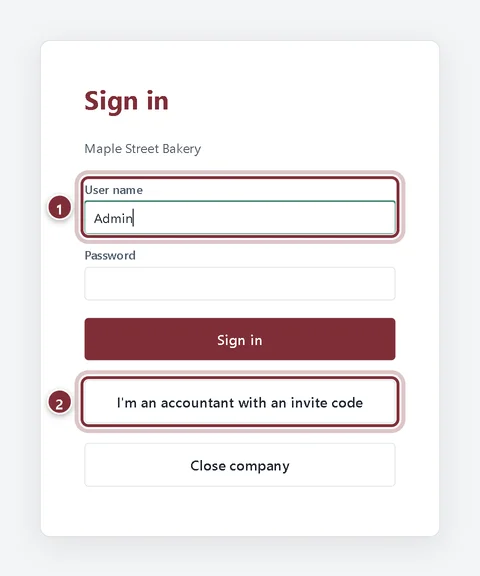
With users set up, the company opens on Sign in. Each person enters their User name and Password. Close company goes back to the welcome screen.
- User name and Password.
- Accountants with an invite code use I'm an accountant with an invite code instead. See Accountant access.
Step 7: Sign out
Choose File → Sign Out when you step away, so the next person signs in as themselves. The user you are signed in as is shown at the right of the top bar.
Recap
- You have given Admin a password.
- You can add users and choose Administrator, Standard or View only.
- You can reset passwords, change roles and deactivate users.
- You can sign in and out.
Questions
Does each user cost extra?
No. Users are free. What the licence counts is computers: every computer that runs AcboBooks, including those connecting to a shared company, uses one of the licence's computers.
Someone forgot their password. What do I do?
An Administrator opens Company → Users and clicks Reset password for that user. If the Admin password itself is lost, see the help article on users.
Can I delete a user?
Use Deactivate. The user can no longer sign in, and the audit log keeps showing their name against the work they did.
Related
Screenshots from AcboBooks 0.2.2 with the built-in sample company. Updated October 25, 2026. Your screens may differ slightly with another version or window size.