
In this lesson you will
- Run Books Checkup and read the summary
- Open the transaction behind a finding and fix it
- Ignore a finding that is correct, and bring it back later
Before you start
Run the checkup
Run it once a month before you look at your reports, and always before you close the year or send your books to your accountant.
Step 1: Open Company → Books Checkup
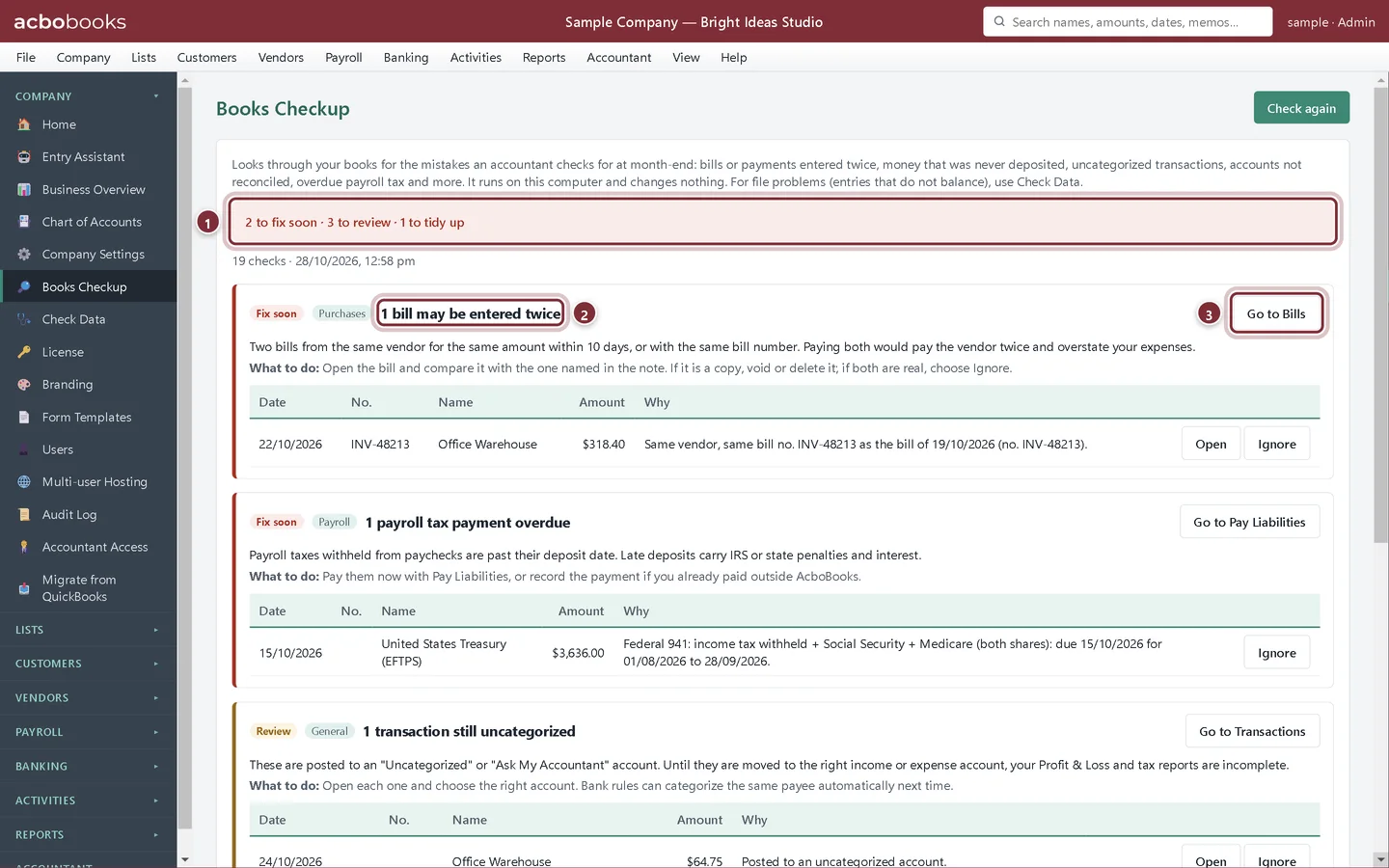
The checkup runs as soon as the screen opens and takes a second or two. Check again runs it after you have fixed something. The most serious findings come first.
- The summary: how many items to fix soon, to review and to tidy up.
- Each finding says what it found, here a bill that may be entered twice.
- Go to opens the screen where you fix it.
Step 2: What it checks
Bills, vendor payments and customer payments that look entered twice; invoice and check numbers used twice or missing; payments sitting in Undeposited Funds for more than 14 days; transactions in an Uncategorized account; downloaded bank lines not reviewed; bank and card accounts not reconciled for 45 days; reconciled transactions voided afterwards; overdue payroll tax deposits; a negative sales tax balance; dates that look mistyped; item receipts still waiting for a bill; unused customer and vendor credits; invoices more than 120 days overdue; negative stock; items priced below cost; and payments far larger than usual for that vendor.
Work through a finding
Step 3: Read why, then open the transaction
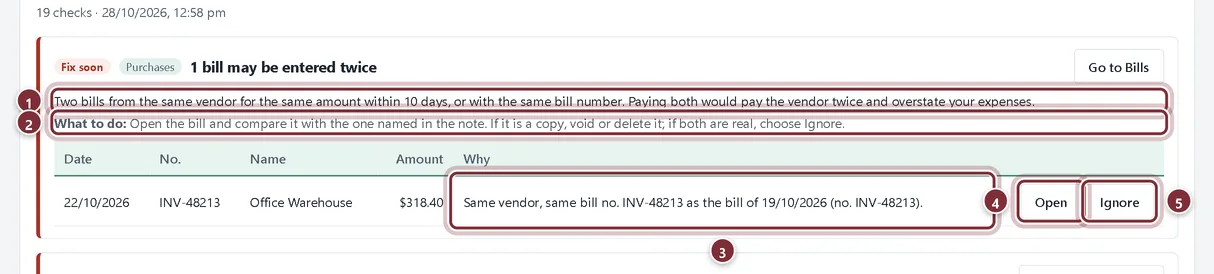
Every finding explains itself, and every line in it says exactly what was spotted. Open takes you to the transaction, where you can void a copy, fix a date or choose the right account. Then click Check again.
- Why it matters.
- What to do about it.
- What was found on this line, here the same vendor and bill number as an earlier bill.
- Open the transaction.
- Ignore hides this one line from later checkups.
Step 4: Ignore what is correct
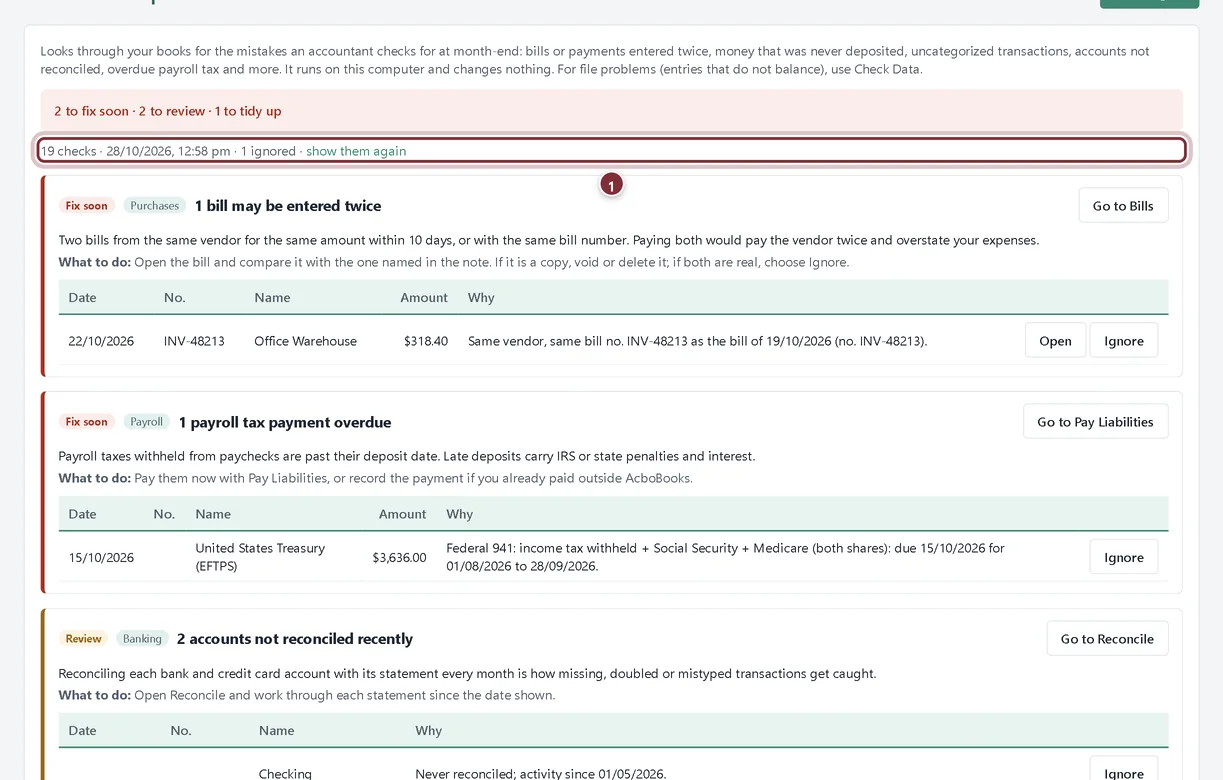
Sometimes a finding is right: two equal bills really were two orders, or a payment really is post-dated. Click Ignore on that line and it stops appearing. The line under the summary counts what you have ignored, and show them again brings every ignored item back.
- The ignored count and show them again.
Recap
- You can run Books Checkup from the Company menu.
- You can open the transaction behind each finding and fix it.
- You can ignore a correct finding and bring ignored items back.
Questions
Does Books Checkup change my books?
No. It only reads them. Every fix is something you do yourself, on the usual screen, so it is recorded like any other change.
Does it send my data anywhere?
No. It runs entirely on your computer, with no internet connection needed.
Who can run it?
Anyone who can enter transactions. Ignoring an item hides it for everyone using that company file.
Is a finding always a mistake?
Not always. Each one is something worth a look. If it is correct, choose Ignore.
Screenshots from AcboBooks 0.2.2 with the built-in sample company. Updated October 25, 2026. Your screens may differ slightly with another version or window size.