
In this lesson you will
- Filter a report to one customer, vendor or class
- Drill from a report total into the transactions
- Export a report to Excel or CSV, or print it to PDF
- Set the header and footer on every report
Before you start
Filter
Step 1: Pick a customer, vendor or class
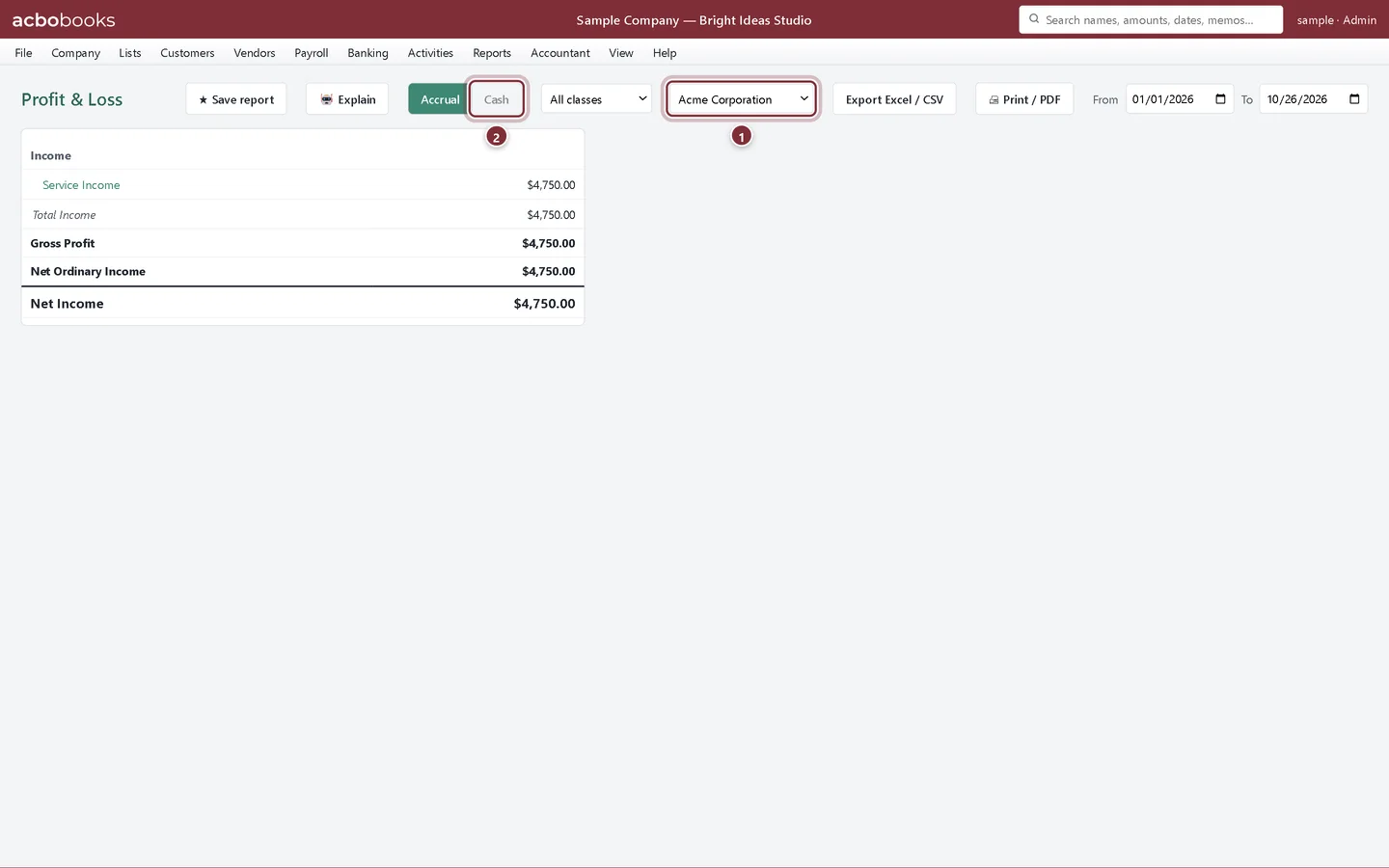
On the Profit & Loss, choose a name in the All names list to see only that customer's or vendor's income and expenses. The class list works the same way. Choose All names or All classes again to clear the filter.
- The name filter, set to Acme Corporation.
- Cash basis is greyed out while a filter is on.
Drill down
Step 2: Click an account
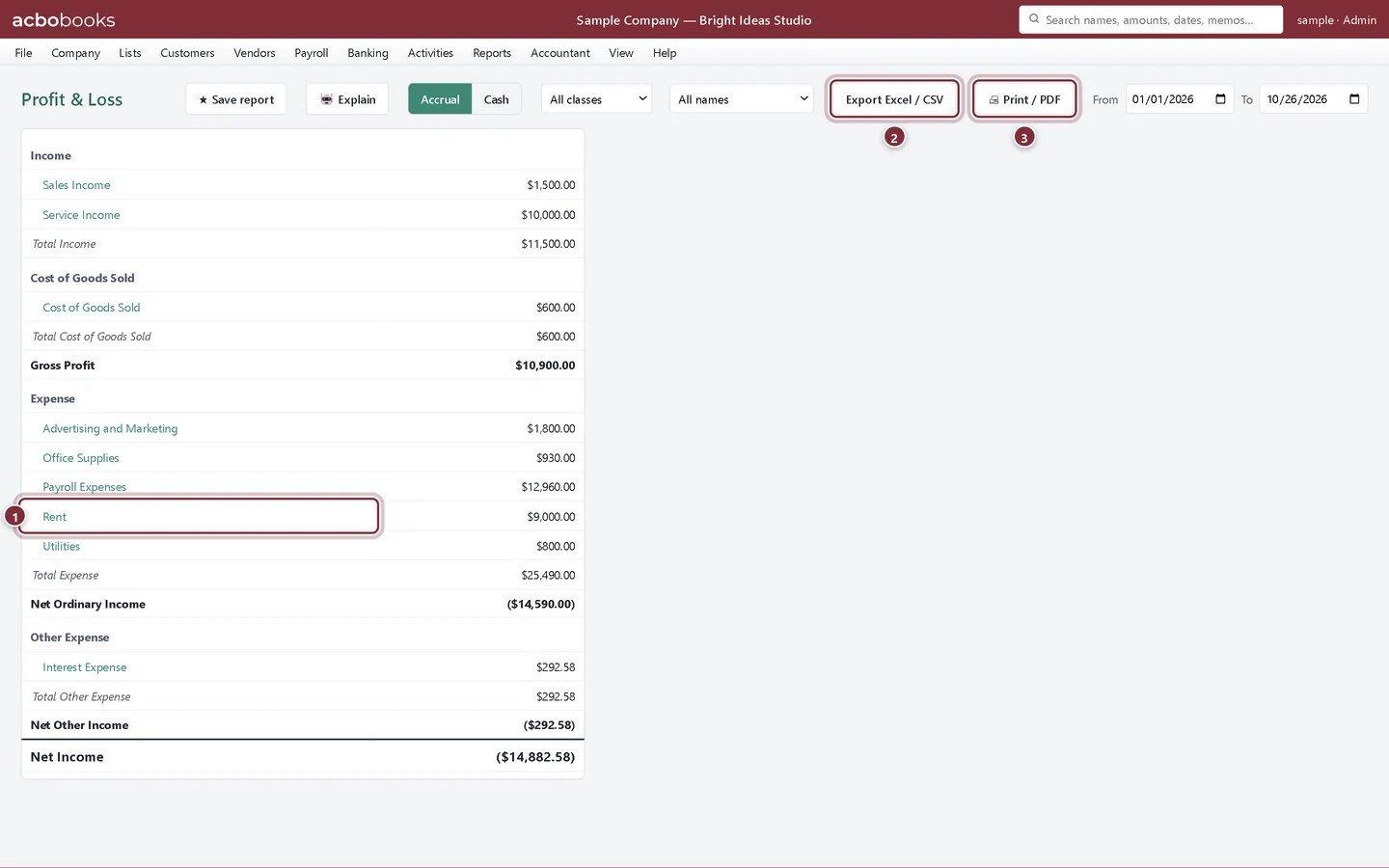
Account names in a report are links. Click one to open its transactions for the same dates.
- Click Rent to see what makes up the total.
- Export Excel / CSV saves the report as a file.
- Print / PDF prints it.
Step 3: Read the register
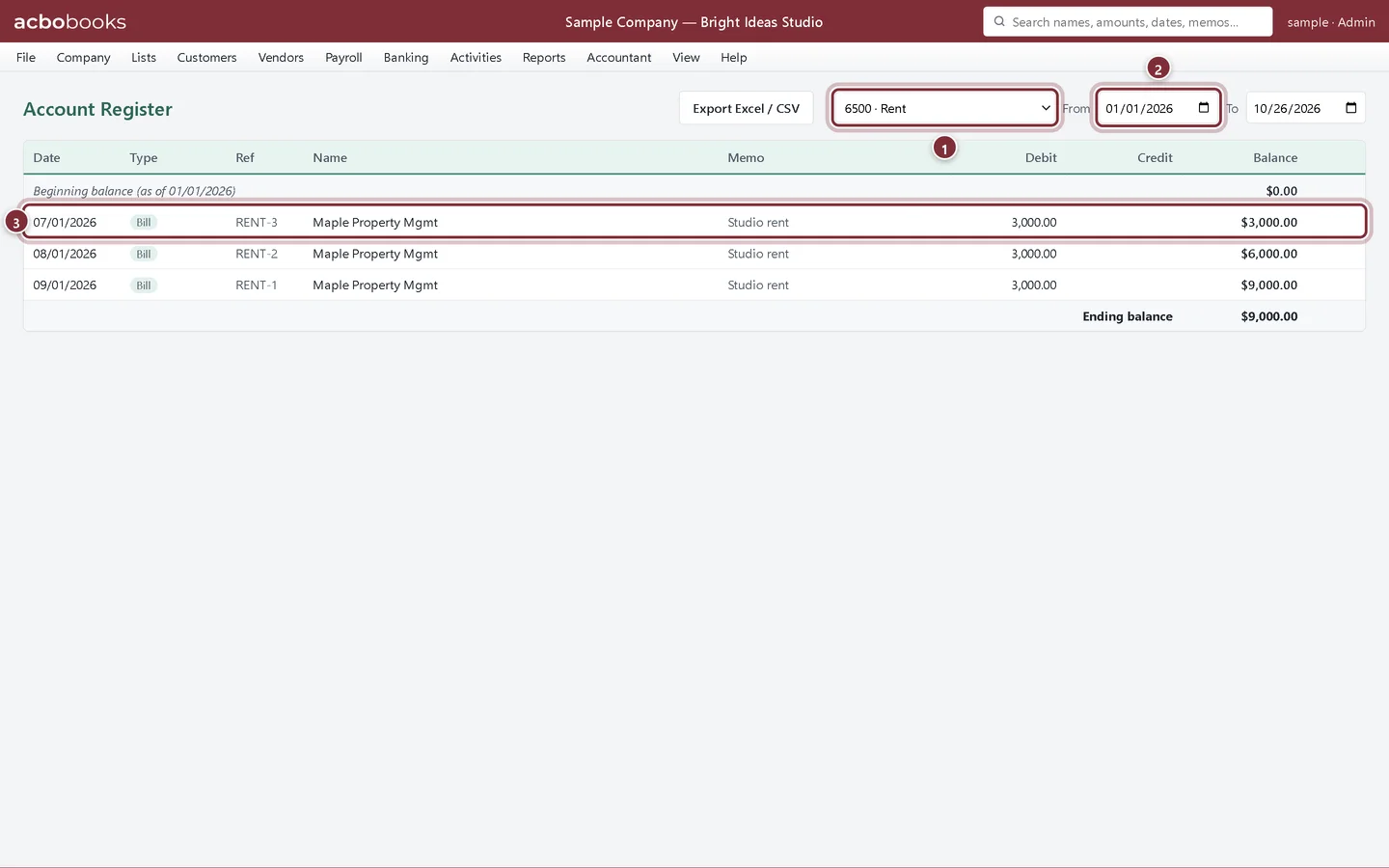
The Account Register lists every posting to the account in the period with a running balance. Change the account or the dates here to keep digging. Checks, deposits, transfers and journal entries have an Edit button on their line.
- The account. Pick another to switch.
- The dates, carried over from the report.
- Each posting with its date, type, reference, name and memo.
Export and print
Step 4: Excel, CSV or PDF
Export Excel / CSV opens a Save dialog. Save as Excel workbook (.xlsx), with totals as working SUM formulas, or as CSV file for other programs. Print / PDF opens the print dialog; to make a PDF, choose a PDF printer such as Microsoft Print to PDF.
Step 5: Set the report header
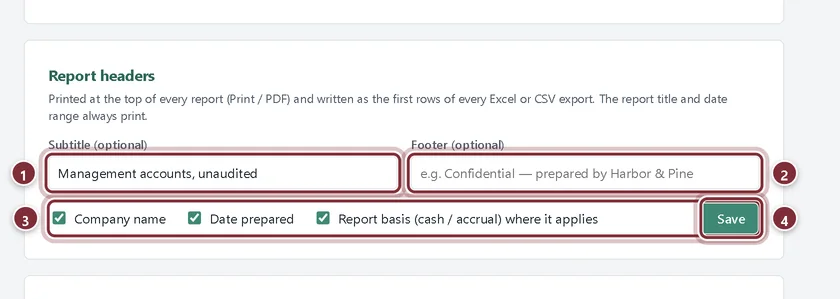
In Company → Company Settings, the Report headers panel sets what prints at the top of every report and the first rows of every export: a subtitle, a footer, and whether to show the company name, the date prepared and the basis. Click Save.
- Subtitle (optional), for example Management accounts, unaudited.
- Footer (optional).
- What to include in the header.
- Save.
Recap
- You can filter a report to one customer, vendor or class.
- You can drill from a total into the transactions behind it.
- You can export to Excel or CSV and print to PDF.
- You can set the header that goes on every report.
Questions
Can I send a report to my accountant by email?
Export it to Excel or print it to PDF, then attach the file to an email. For ongoing access, see the Data and security track for Accountant Access.
Does exporting change my books?
No. Exports and printouts are copies; nothing in the company file changes.
Can I keep a report set up the way I like it?
Yes. The Profit & Loss and Balance Sheet have ★ Save report. See Save a report and open it again.
Screenshots from AcboBooks 0.2.2 with the built-in sample company. Updated October 25, 2026. Your screens may differ slightly with another version or window size.