
In this lesson you will
- Save a Profit & Loss or Balance Sheet with its settings
- Give the saved report a clear name
- Open a saved report from All Reports
- Delete a saved report you no longer need
Before you start
Save the report
Step 1: Set the report up, then click Save report
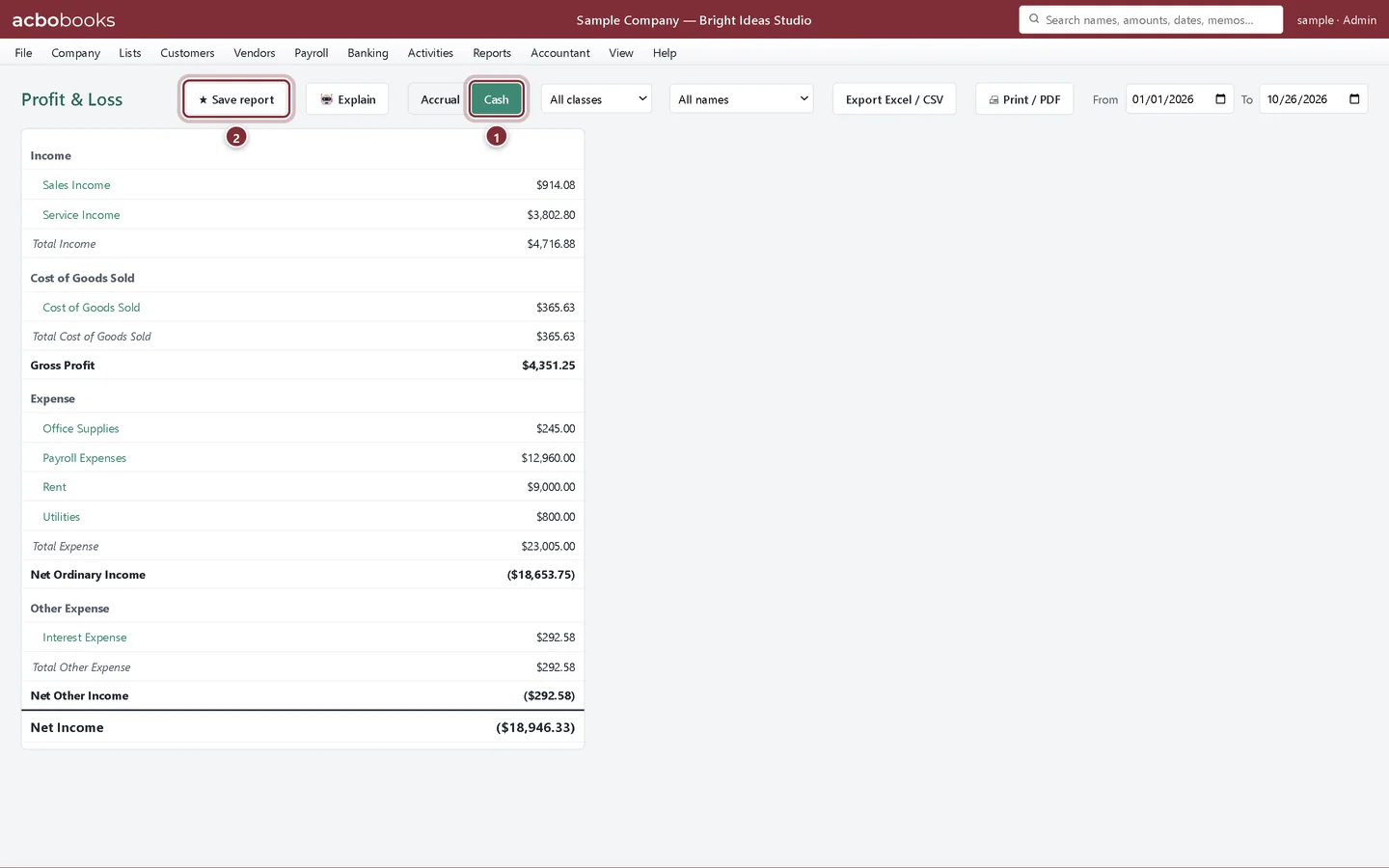
Open Reports → Profit & Loss and set it the way you want it: the From and To dates and Accrual or Cash. Here it is the year to date on a cash basis. Then click ★ Save report.
- Cash basis is on.
- ★ Save report saves the report with these settings.
Step 2: Name it
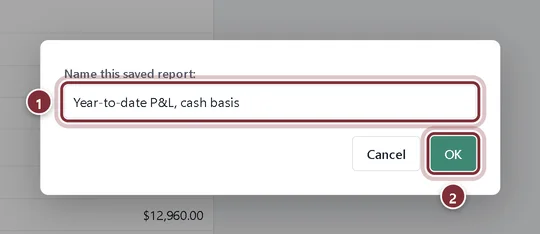
AcboBooks suggests a name made of the report, its dates and the basis. Type a name you will recognise, such as Year-to-date P&L, cash basis, and click OK. A banner confirms where to find it.
- The name shown on the All Reports page.
- OK saves it.
Open it again
Step 3: Reports → All Reports
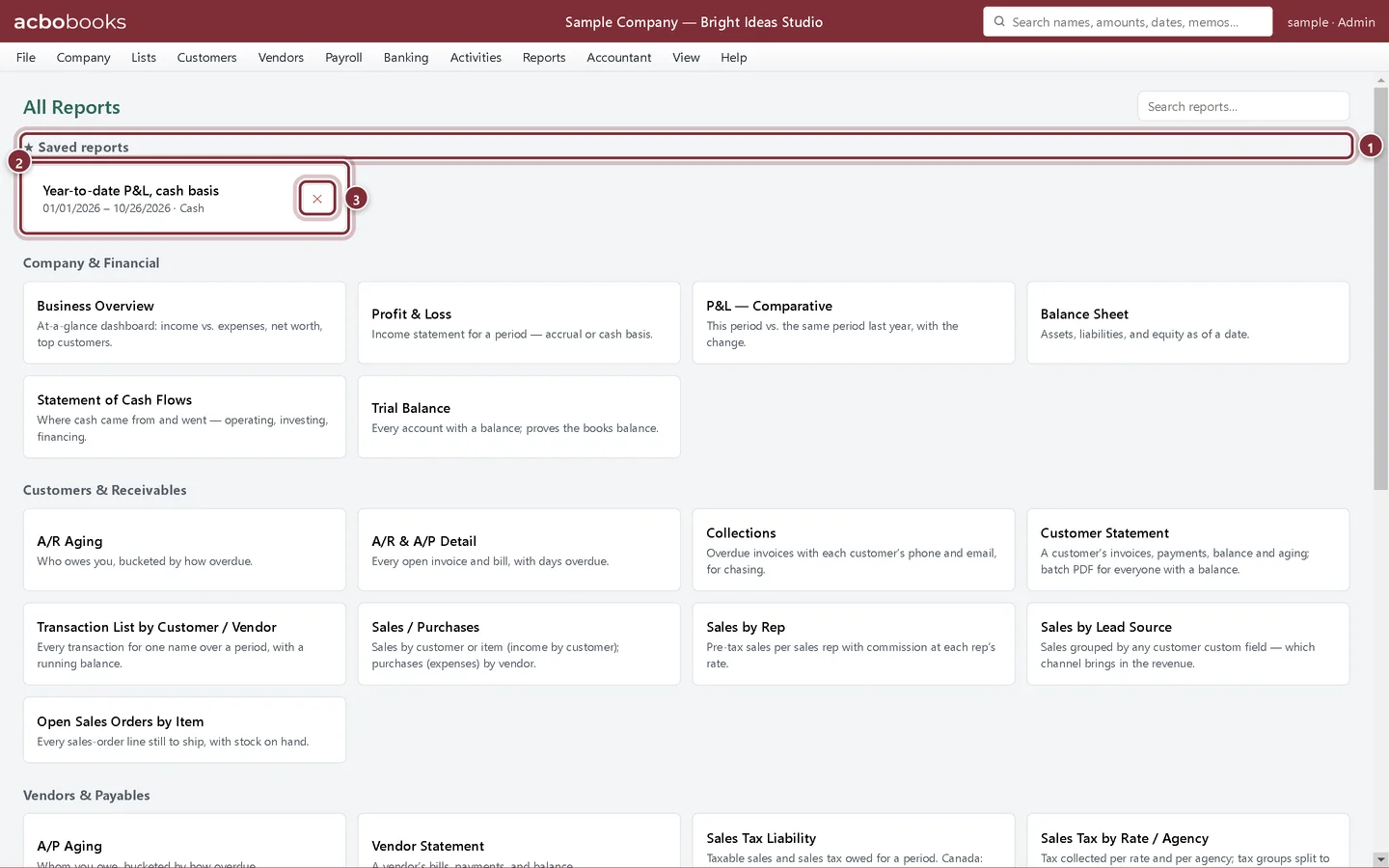
Saved reports have their own section at the top of the All Reports page, above the topic groups. Each card shows the name, the dates and the basis. Click the card to open the report.
- ★ Saved reports.
- The saved report: click it to run it.
- ✕ deletes the saved report. The report itself and your books are not affected.
Step 4: The report opens with its settings
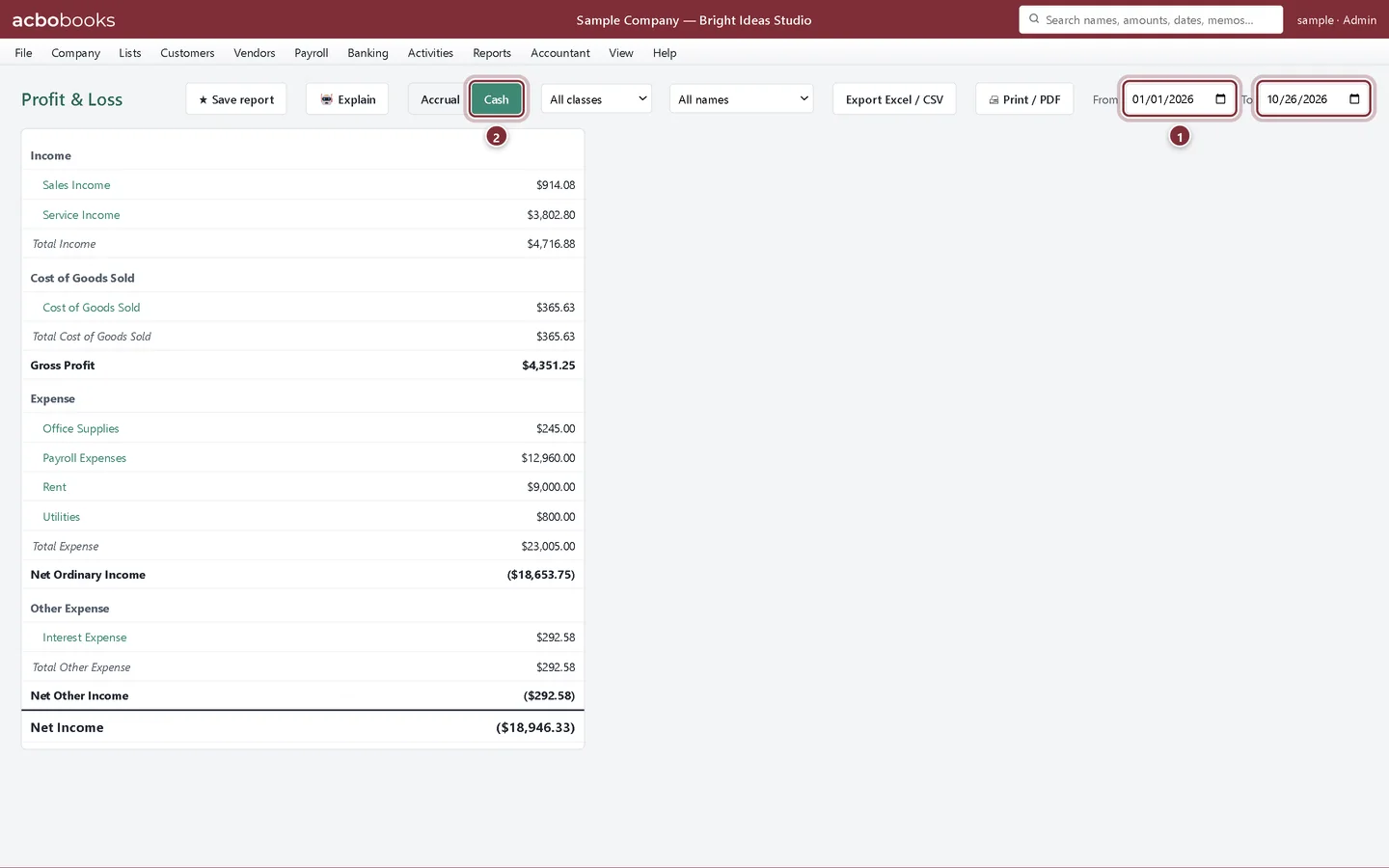
The Profit & Loss opens with the saved dates and basis. You can change anything on it from here; the saved report itself stays as it was saved.
- The saved From and To dates.
- The saved basis, Cash.
Recap
- You can save a Profit & Loss or Balance Sheet with its dates and basis.
- You can give it a name you will recognise.
- You can open it from Saved reports on the All Reports page.
- You can delete a saved report with ✕.
Questions
Does a saved report keep my customer or class filter?
No. It keeps the dates and the basis. Choose the filter again after you open it.
Can I save other reports?
In this version the ★ Save report button is on the Profit & Loss and the Balance Sheet. For other reports, export them to Excel and keep the file.
Related
Screenshots from AcboBooks 0.2.2 with the built-in sample company. Updated October 25, 2026. Your screens may differ slightly with another version or window size.