
In this lesson you will
- Update the business and contact details
- Add your EIN, or your Business Number in Canada
- Set what prints at the top of every report
- Choose your backup and deposit preferences
Before you start
Business and contact details
Open Company → Company Settings. Only an Administrator can open it.
Step 1: Check the first panel
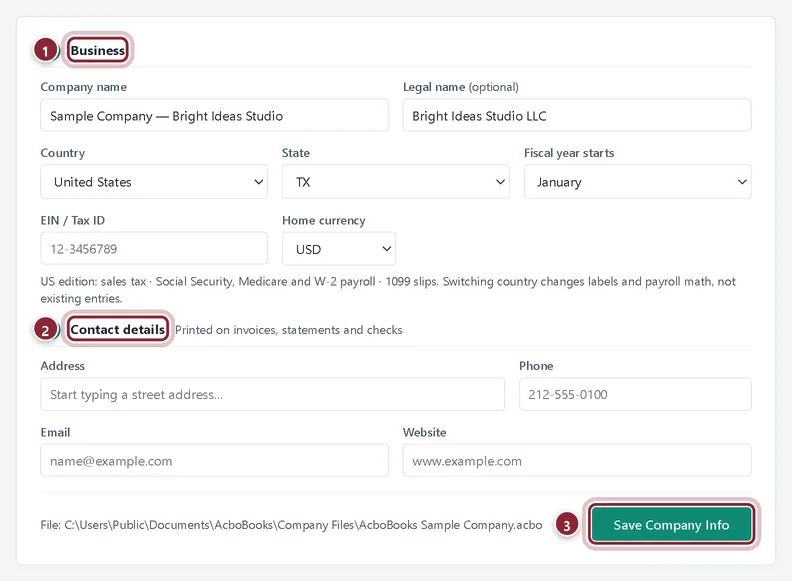
The first panel repeats what you entered when you created the company, plus a few fields the setup form left out.
- Business: company and legal name, Country, State, Fiscal year starts, EIN / Tax ID and Home currency.
- Contact details: address, phone, email and Website. These print on invoices, statements and checks.
- Save Company Info saves the panel. The company file's location is shown beside it.
Step 2: Be careful with the fiscal year and country
Changing Fiscal year starts shifts year-to-date figures and retained earnings. Switching Country changes labels and payroll math from then on, not existing entries. Set both correctly before you enter transactions.
Report headers
Step 3: Choose what prints on reports
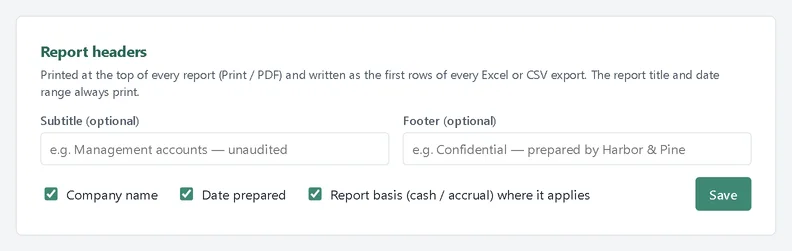
The Report headers panel sets what prints at the top of every report and goes into the first rows of every Excel or CSV export: the company name, the date prepared and the report basis (cash or accrual), plus an optional subtitle and footer. The report title and date range always print. Click Save.
Everyday preferences
Step 4: Turn on automatic backups and choose the deposit default
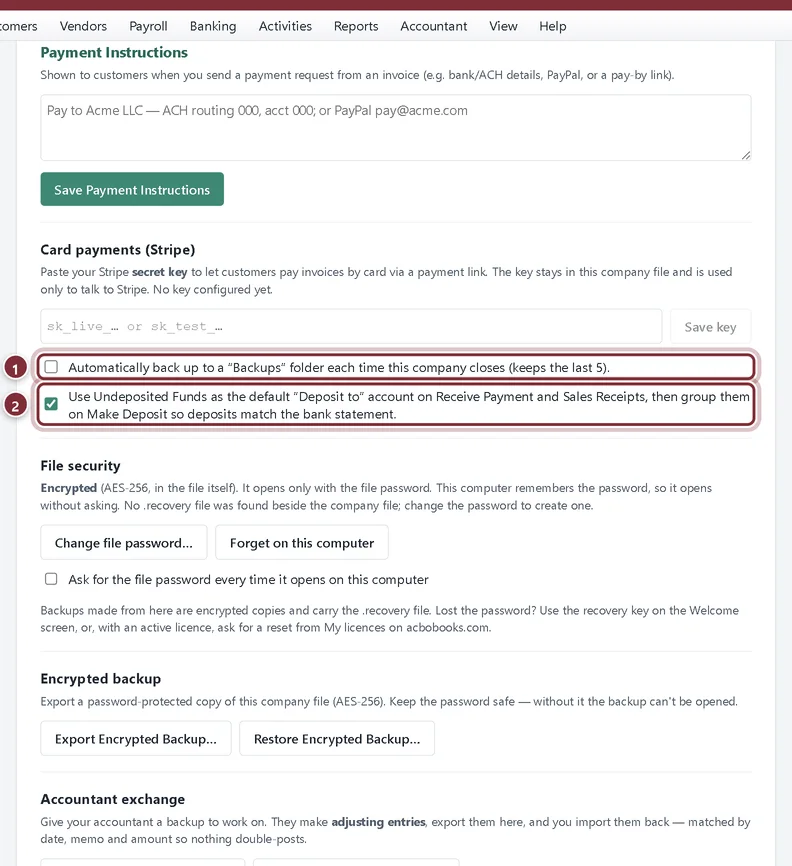
Further down the page, two checkboxes change everyday behaviour. They save as soon as you click them.
- Automatically back up to a "Backups" folder each time this company closes (keeps the last 5). We recommend turning this on.
- Use Undeposited Funds as the default "Deposit to" account: customer payments wait in Undeposited Funds until you group them on Make Deposit, so each deposit matches the bank statement. Untick it to deposit payments straight to the first bank account.
Step 5: Other panels on this page
Company Settings also holds direct deposit and payroll tax settings (covered in the payroll tracks), Close the Books (see Reports and year-end), backups and file security (see Your data, users and security), payment instructions for invoices, and the accountant exchange. Your logo and invoice colours live on a separate screen, Company → Branding.
Recap
- You can update business and contact details and save them.
- You know where the EIN or Business Number goes.
- You can set report headers and footers.
- You have chosen the automatic backup and Undeposited Funds preferences.
Questions
Why can't I see Company Settings?
It is for Administrators only. Ask the person who set up the company file to change your role in Company → Users.
Where do I add my logo?
In Company → Branding, which sets the logo, accent colour and footer on invoices and checks.
Related
Screenshots from AcboBooks 0.2.2 with the built-in sample company. Updated October 25, 2026. Your screens may differ slightly with another version or window size.