
In this lesson you will
- Know the five main parts of the window
- Open any screen from the menus or the side panel
- Read the key figures and reminders
- Change the view: side panel, dark mode and zoom
Before you start
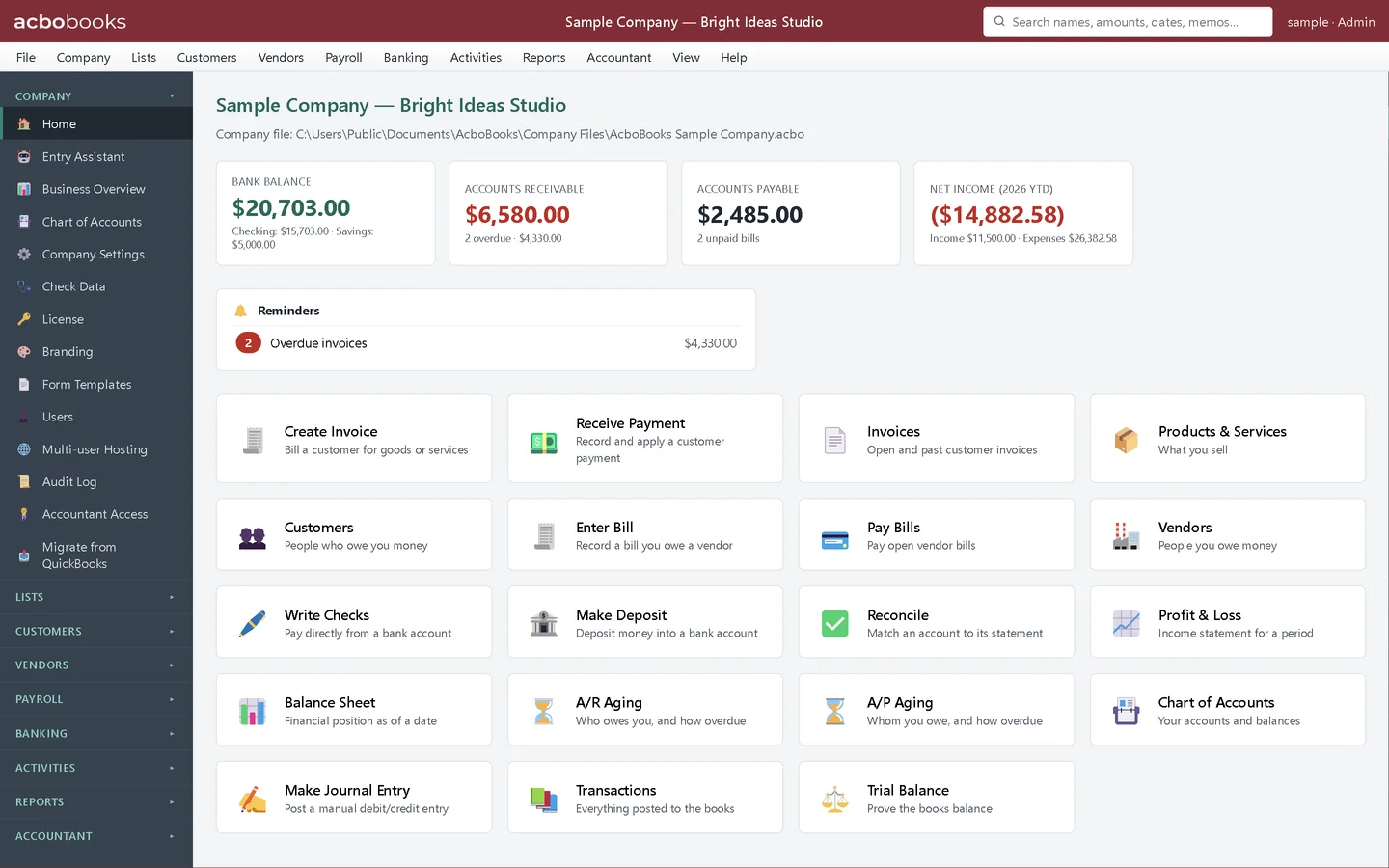
The main parts of the window
Step 1: Look around the home screen
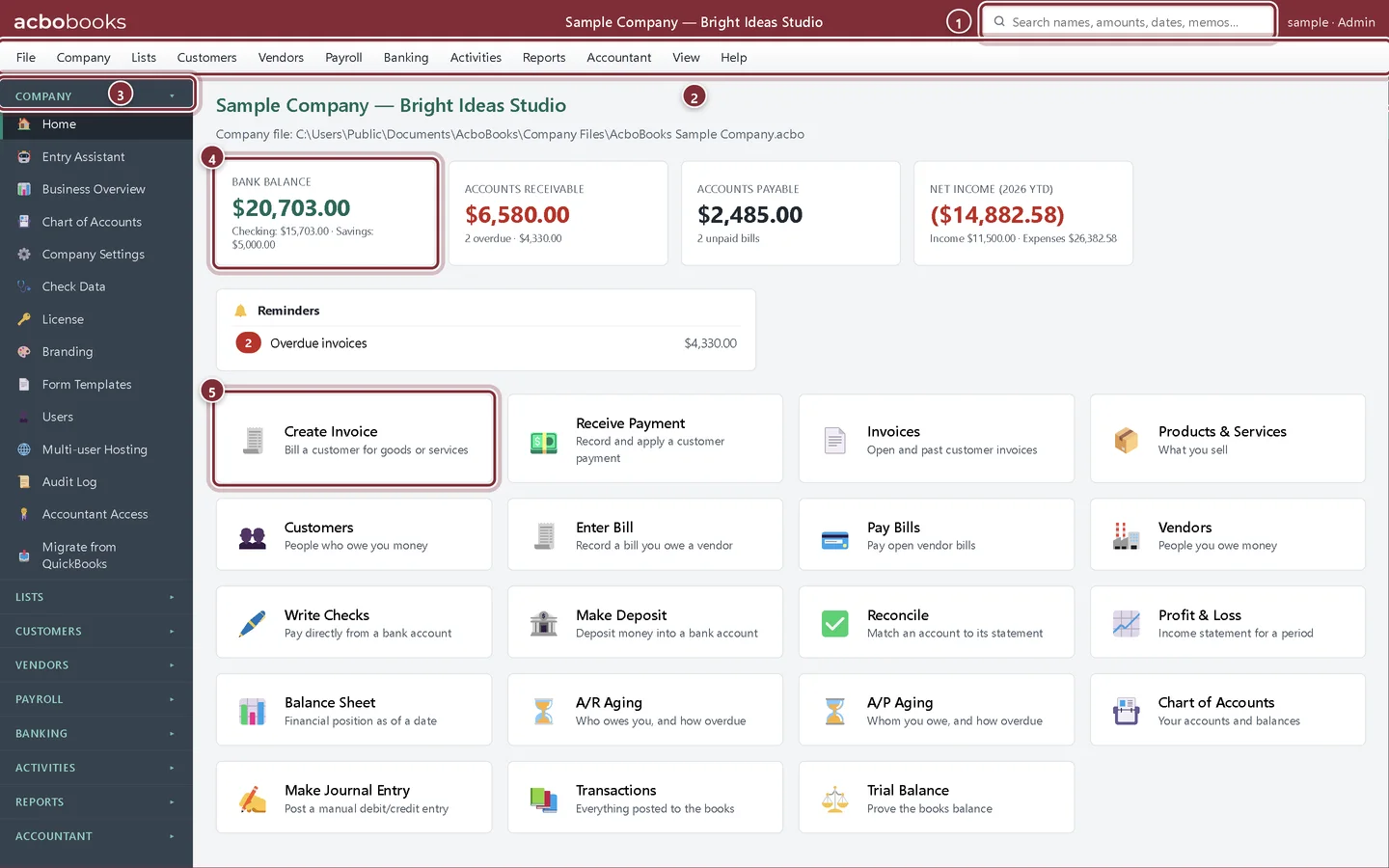
The company name sits in the middle of the top bar, and the user you are signed in as sits on the right. Below them, the window has five parts you will use every day.
- Search finds names, amounts, dates and memos anywhere in the file.
- The menus hold every command: File, Company, Lists, Customers, Vendors, Payroll, Banking, Activities, Reports, Accountant, View and Help.
- The side panel opens the same screens with one click, grouped the same way as the menus.
- The key figures: bank balance, Accounts Receivable, Accounts Payable and net income for the year so far. Click one to open the matching report.
- Shortcut tiles for everyday work, such as Create Invoice.
Step 2: Read the reminders
Under the key figures, Reminders lists what needs attention: overdue invoices, invoices or bills coming due, recurring transactions that are due and low stock. Click a reminder to open the screen that deals with it. It disappears when there is nothing to remind you about.
Getting to any screen
Step 3: Use the menus
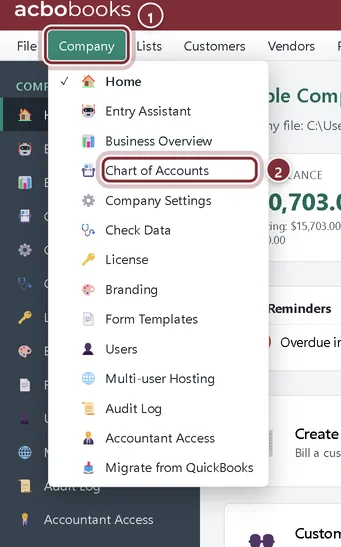
Click a menu title to open it, then choose a command. While one menu is open, moving the mouse to another title switches to it. Press Esc or click elsewhere to close it. A tick marks the screen you are on.
- The Company menu: company-wide screens such as settings, users and Check Data.
- Choose a command, such as Chart of Accounts.
Step 4: Or use the side panel
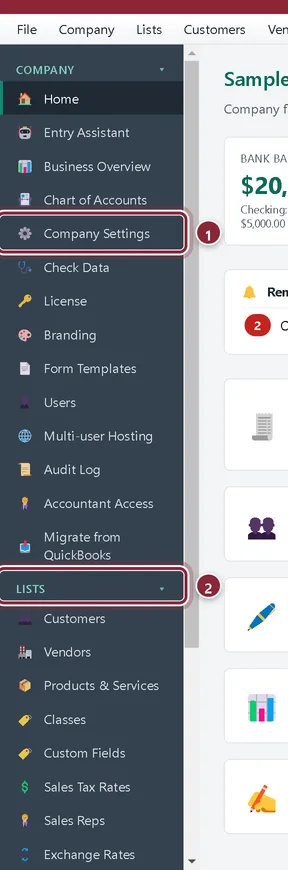
The side panel lists the same screens. Click a group heading to open or close it; AcboBooks remembers which groups you leave open.
- A screen in the open Company group.
- Click a heading such as Lists to open or close that group.
Step 5: Change the view
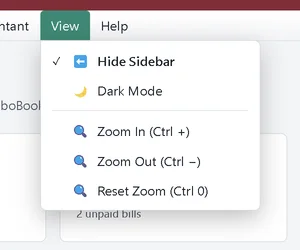
The View menu hides or shows the side panel, switches between light and dark mode, and zooms the whole window in or out. The keyboard works too: Ctrl + and Ctrl − to zoom, Ctrl 0 to reset.
Finish a session
Step 6: Close the company or exit
The File menu has Home, Business Overview, Sign Out, Close Company and Exit. Close Company returns to the welcome screen. If automatic backups are on, AcboBooks makes one as the company closes.
Recap
- You know where search, the menus, the side panel, the key figures and the shortcuts are.
- You can open any screen from a menu or the side panel.
- You can use reminders to jump to work that needs attention.
- You can change the view and close the company.
Questions
Some menu items are missing for me. Why?
AcboBooks hides screens your user role cannot use. View-only users do not see screens that enter transactions, and only Administrators see settings, users and similar screens.
Are the menus the same as QuickBooks Desktop?
They are close. AcboBooks groups commands the way QuickBooks Desktop users expect, though some names differ, for example Products & Services for the item list and Recurring for memorized transactions.
Screenshots from AcboBooks 0.2.2 with the built-in sample company. Updated October 25, 2026. Your screens may differ slightly with another version or window size.