
In this lesson you will
- Install AcboBooks from the Microsoft Store or acbobooks.com
- Accept the licence agreement on the first launch
- Read the trial bar and know what the trial includes
- Find the License screen when you are ready to activate
Install and open AcboBooks
Step 1: Install the app
Get AcboBooks from the download page. It installs from the Microsoft Store, which keeps it up to date. The same page also offers the Microsoft-signed package to download and double-click, for PCs without the Store app; that copy does not update itself. AcboBooks runs on 64-bit Windows 10 or Windows 11, and your books stay on your own computer.
Step 2: Accept the licence agreement
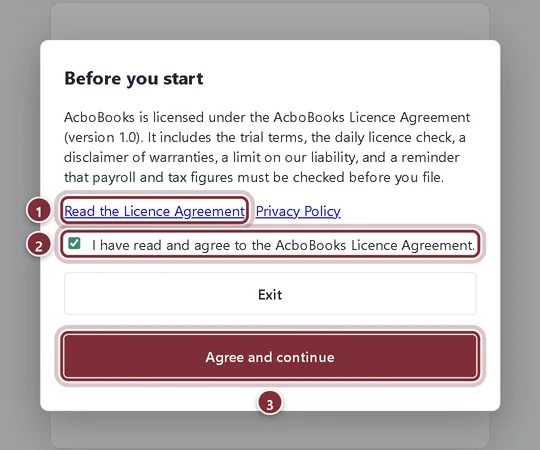
The first time AcboBooks opens on a Windows user account, it shows Before you start. It asks once per Windows user, and again only if the agreement changes.
- Read the Licence Agreement opens the full text on acbobooks.com. The Privacy Policy link sits next to it.
- Tick I have read and agree to the AcboBooks Licence Agreement.
- Agree and continue becomes available once the box is ticked. Exit closes AcboBooks without accepting.
Step 3: Meet the welcome screen
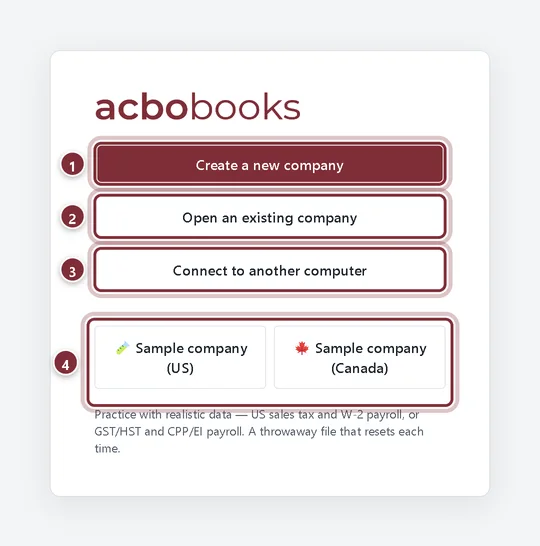
The welcome screen appears whenever no company file is open. From here you start every session.
- Create a new company sets up a new company file for your business.
- Open an existing company finds a company file or a backup on this computer or a network drive.
- Connect to another computer joins a company that another PC in your office is hosting.
- The two sample companies open a practice file with realistic data, one for the US and one for Canada.
How the free trial works
Step 4: Read the trial bar
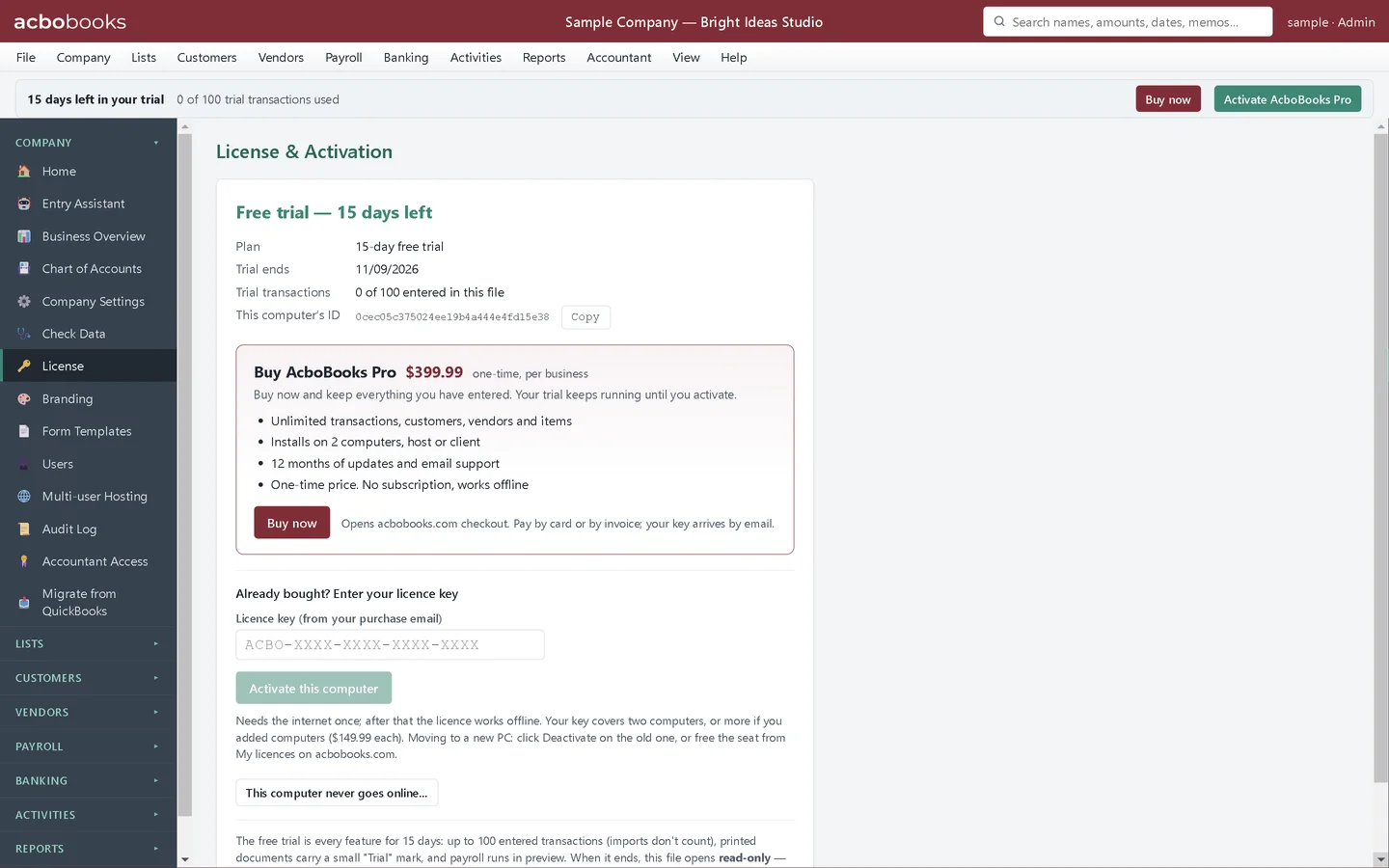
While the trial runs, a slim bar under the menus shows how many days are left and how many trial transactions you have used. Buy now opens the acbobooks.com checkout; Activate AcboBooks Pro takes you to the License screen.
- The trial bar: days left, transactions used, and the Buy now and Activate buttons.

Step 5: Know the trial limits
The trial gives you every feature for 15 days, with up to 100 entered transactions in a company file. Imported data does not count toward the 100, and the count is kept separately for each company file. Printed documents carry a small "Trial" mark, and payroll runs in preview. When the trial ends, the file opens read-only until you activate, so nothing you entered is lost.
Step 6: Activate when you buy
Open Company → License (also under Help → License). The License & Activation screen shows your plan, when the trial ends and this computer's ID. After you buy, paste the licence key from your purchase email into Licence key and click Activate this computer. Activation needs the internet once; after that the licence works offline.
Recap
- You can install AcboBooks and accept the licence agreement.
- You know what the three welcome-screen buttons and the sample companies do.
- You can read the trial bar and know the 15-day, 100-transaction trial rules.
- You know where to paste your licence key to activate.
Questions
Do I need to create an account to try AcboBooks?
No. Install it and start working. You only need a licence key when you decide to buy.
What happens to my data when the trial ends?
Nothing is deleted. The company file opens read-only, so you can still view, print and back up your books. Activating a licence unlocks it again.
Can I use the sample company during the trial?
Yes, as much as you like. The sample starts fresh each time it opens, and practising there does not use up your own company's 100 trial transactions.
Related
Screenshots from AcboBooks 0.2.2 with the built-in sample company. Updated October 25, 2026. Your screens may differ slightly with another version or window size.