
Take the tour
Ten minutes around AcboBooks
The real program, step by step: where things are, what each screen does, and the Academy lesson that goes deeper. Click any screenshot to see it full size.

Step 1 of 10
Open a company, or the sample
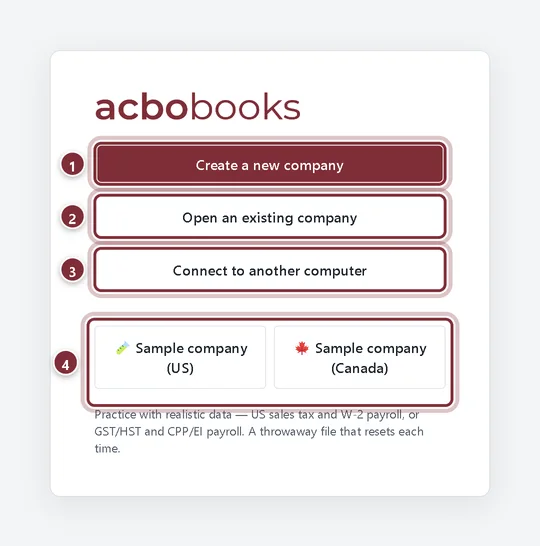
The first screen lists your company files. Create a new company (US or Canadian), open one you already have, connect to one another PC is hosting, or open a sample company and click around with nothing at stake. Each company is one encrypted file on your computer.
Lesson: Install and first launch
Step 2 of 10
The home screen
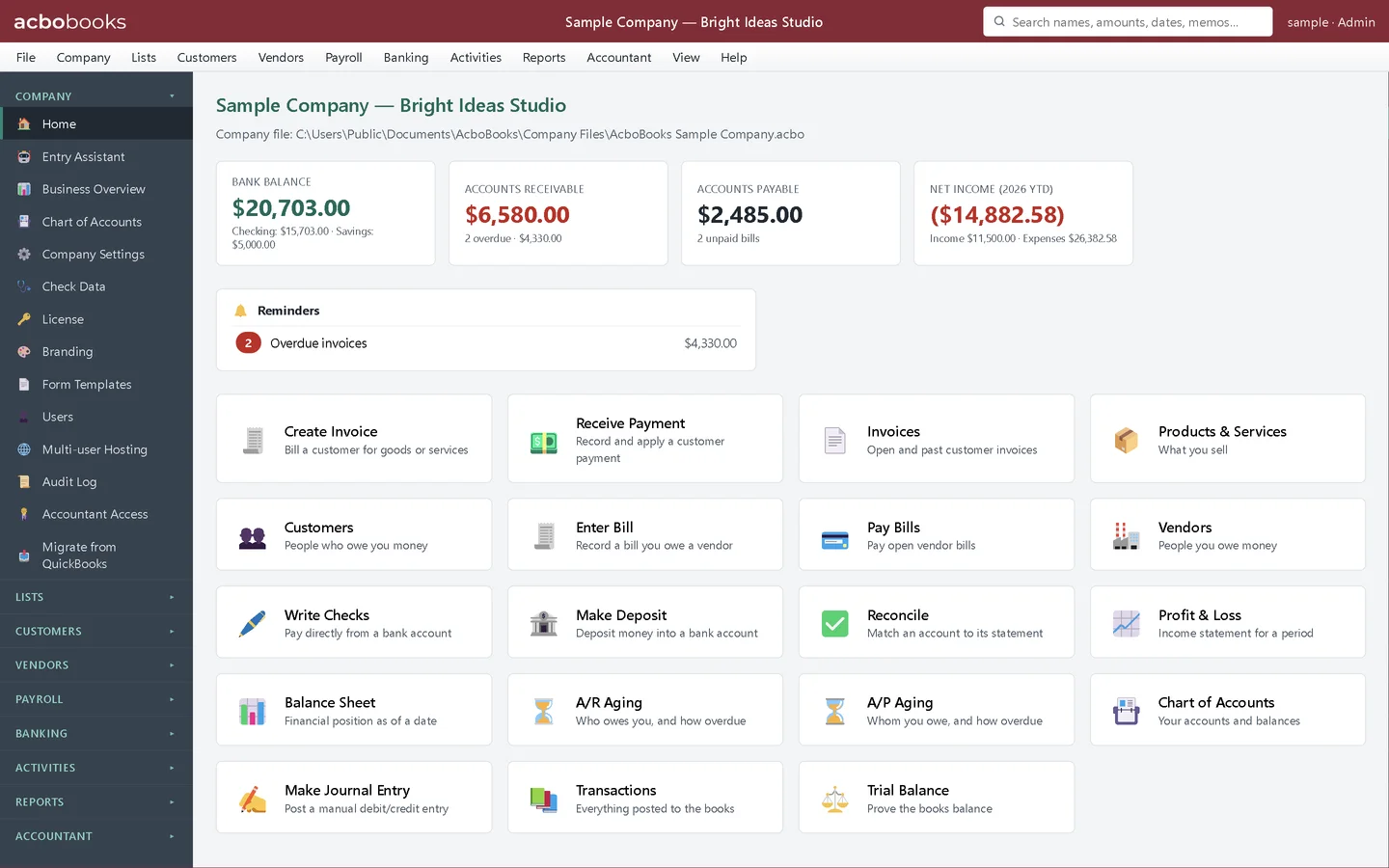
Across the top: what is in the bank, what customers owe you, what you owe vendors and the year's net income. Below them, reminders such as overdue invoices, then the everyday tasks one click away. The menus and the sidebar hold everything else, and the search box finds names, amounts, dates and memos.
Lesson: Home screen tour
Step 3 of 10
Create an invoice
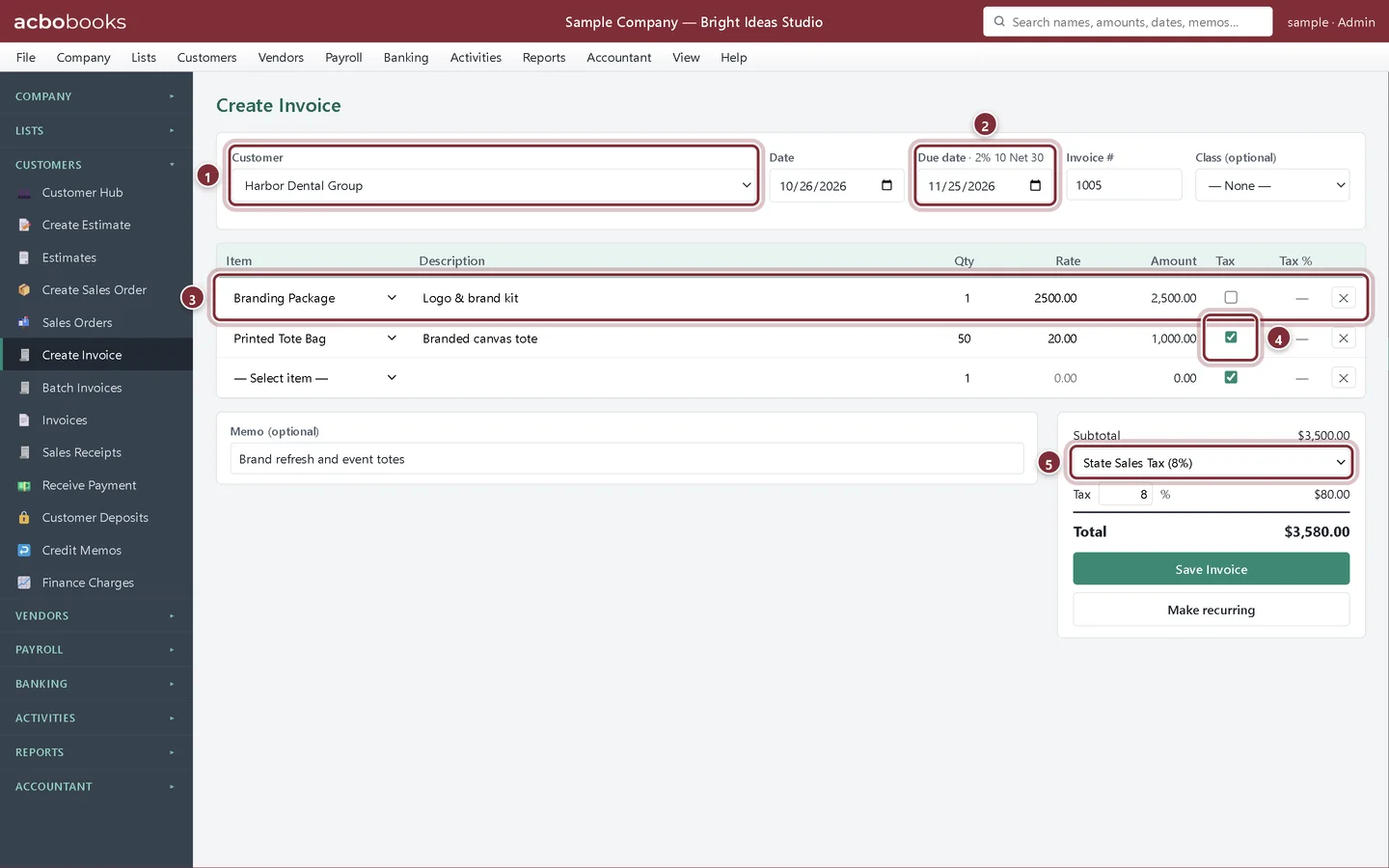
Pick the customer and the items. The due date comes from the customer's terms, sales tax (or GST/HST in the Canadian edition) is worked out per line, and the invoice posts to receivables and income when you save. Then save it as a PDF, print it, or open a ready-written email to the customer.
Lesson: Create an invoice
Step 4 of 10
Pay your bills
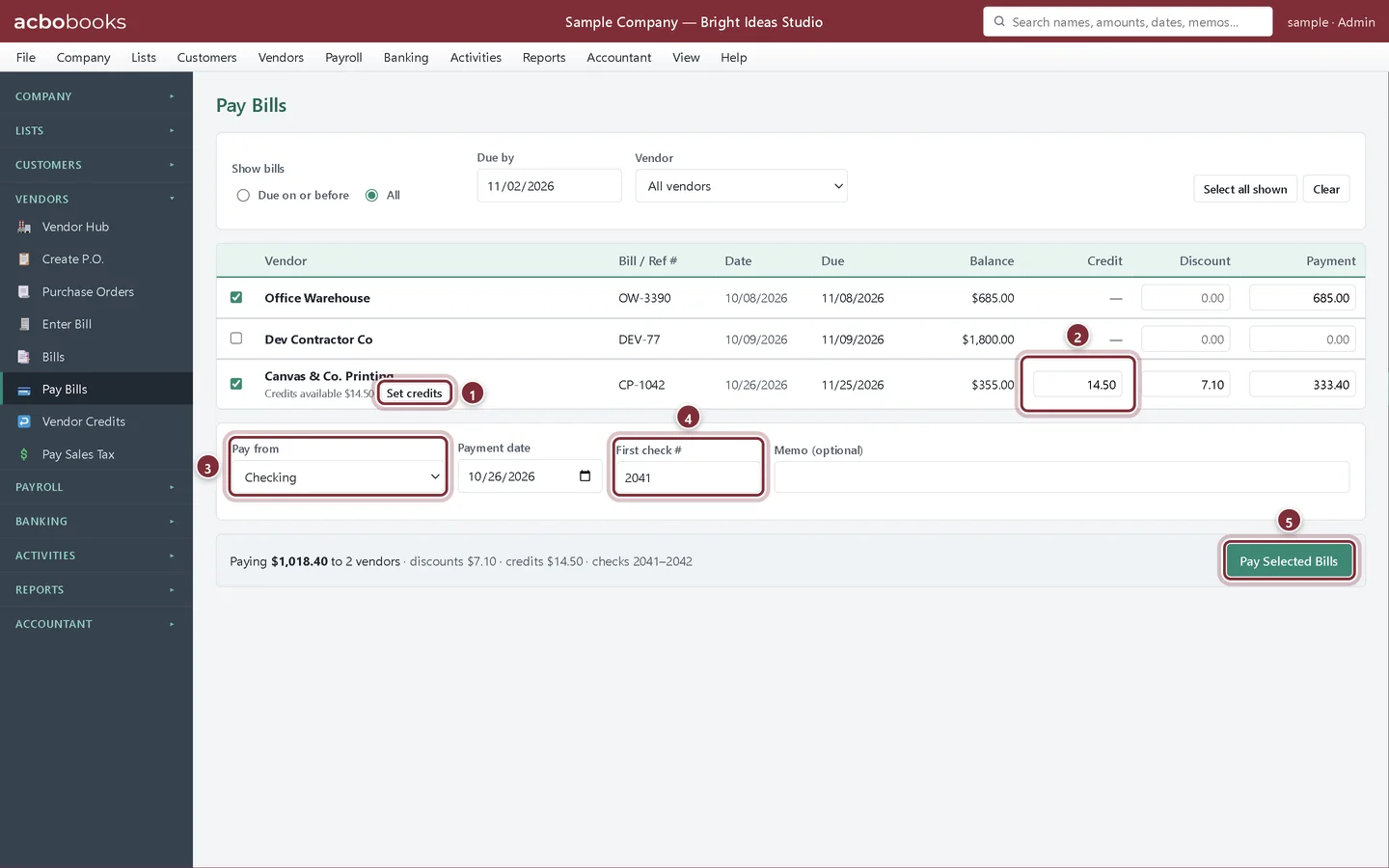
Every open bill, across every vendor, on one screen with a due-date filter. Tick what you are paying; vendor credits and early-payment discounts apply in the same run, and one cheque is written per vendor, ready to print.
Lesson: Pay bills
Step 5 of 10
Bring in the bank
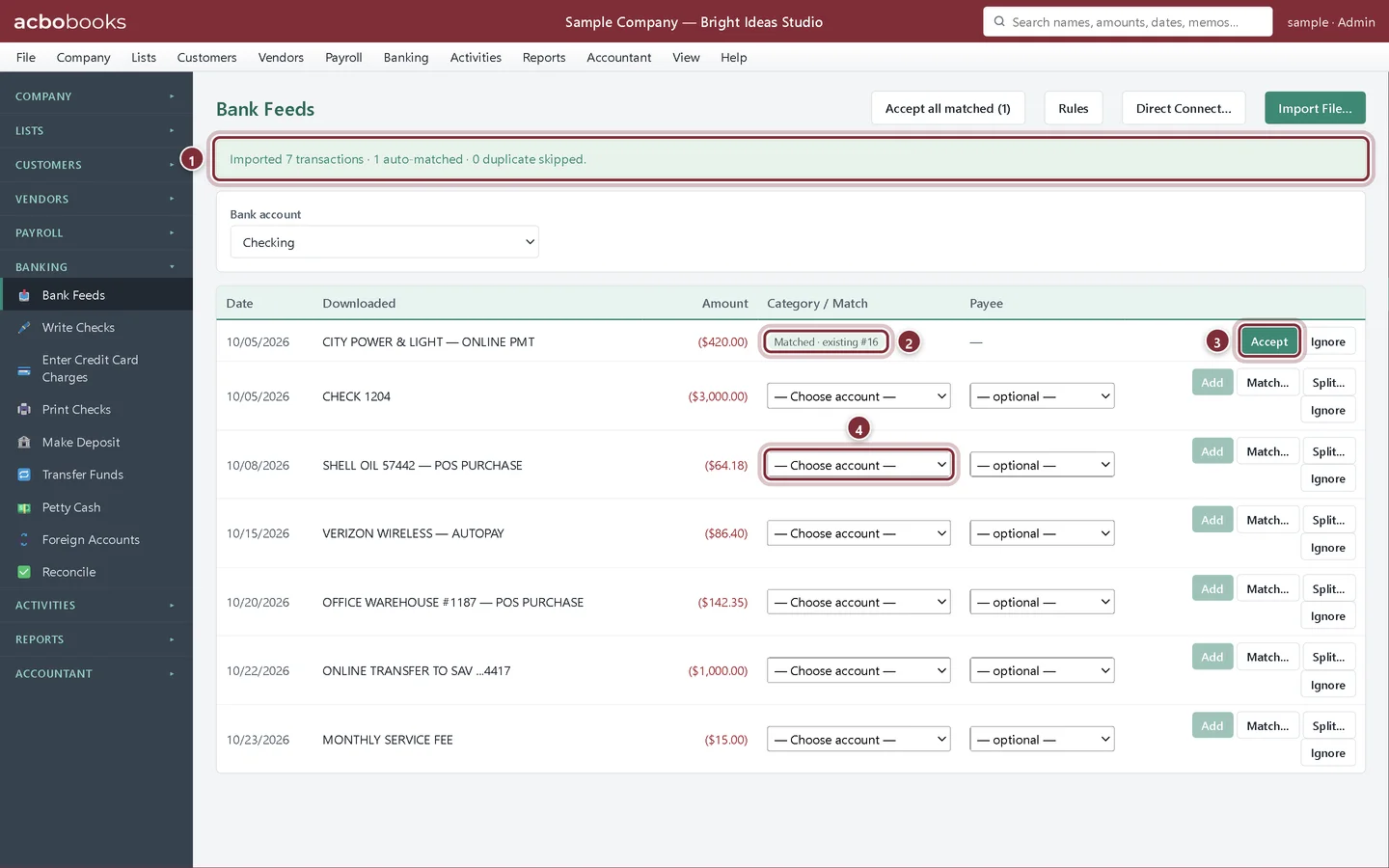
Download your statement from online banking (OFX, QFX or CSV) and import it. Lines that match what you have already entered are matched for you; the rest you add to an account, split, or let a rule handle next time. Anything already imported is skipped.
Lesson: Import bank transactions
Step 6 of 10
Reconcile to the statement
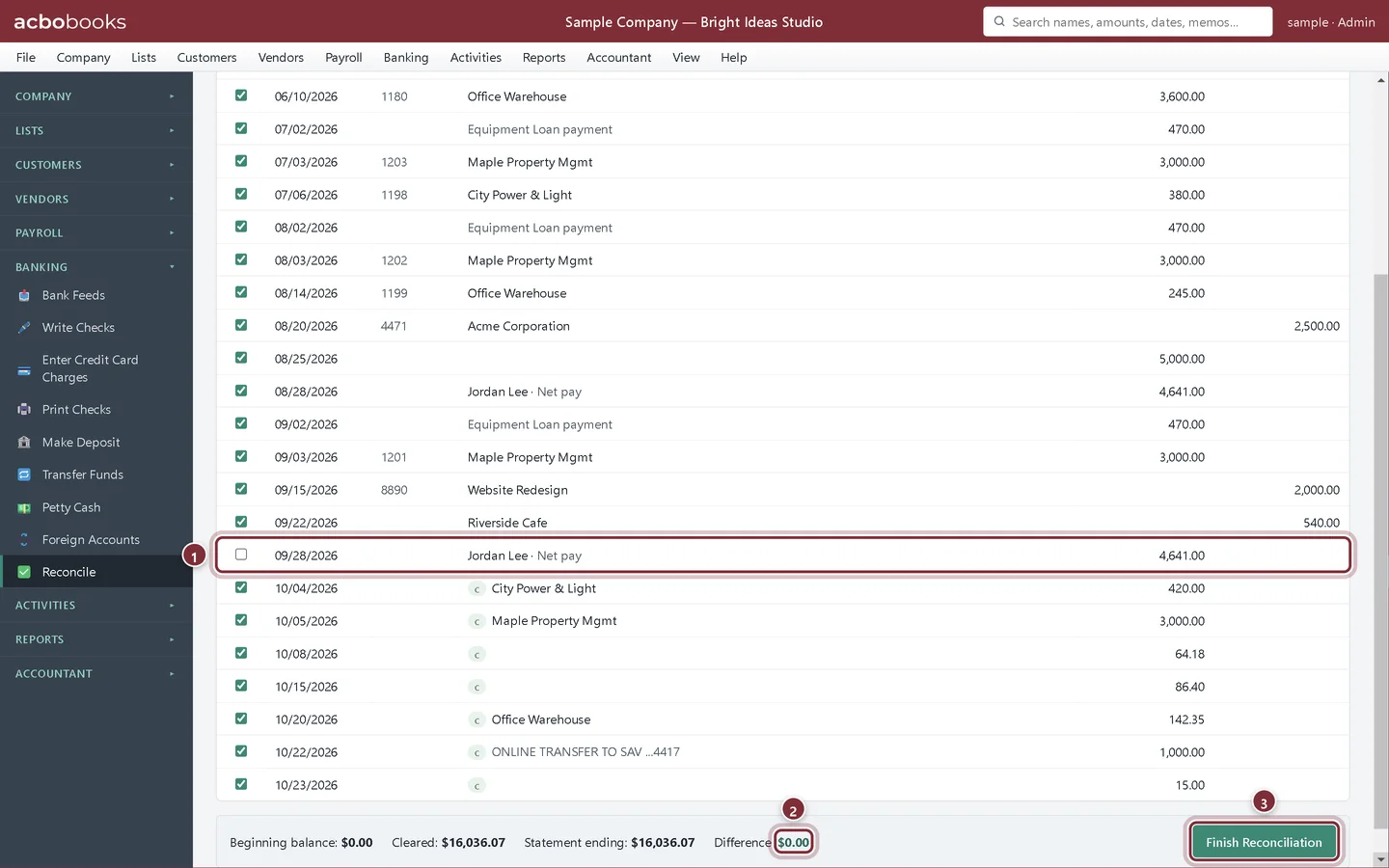
Enter the statement's ending balance and tick off each item. The difference is always on screen, so you know you are done when it reaches zero, and the reconciliation report is saved for your accountant.
Lesson: Reconcile a bank account
Step 7 of 10
Run payroll
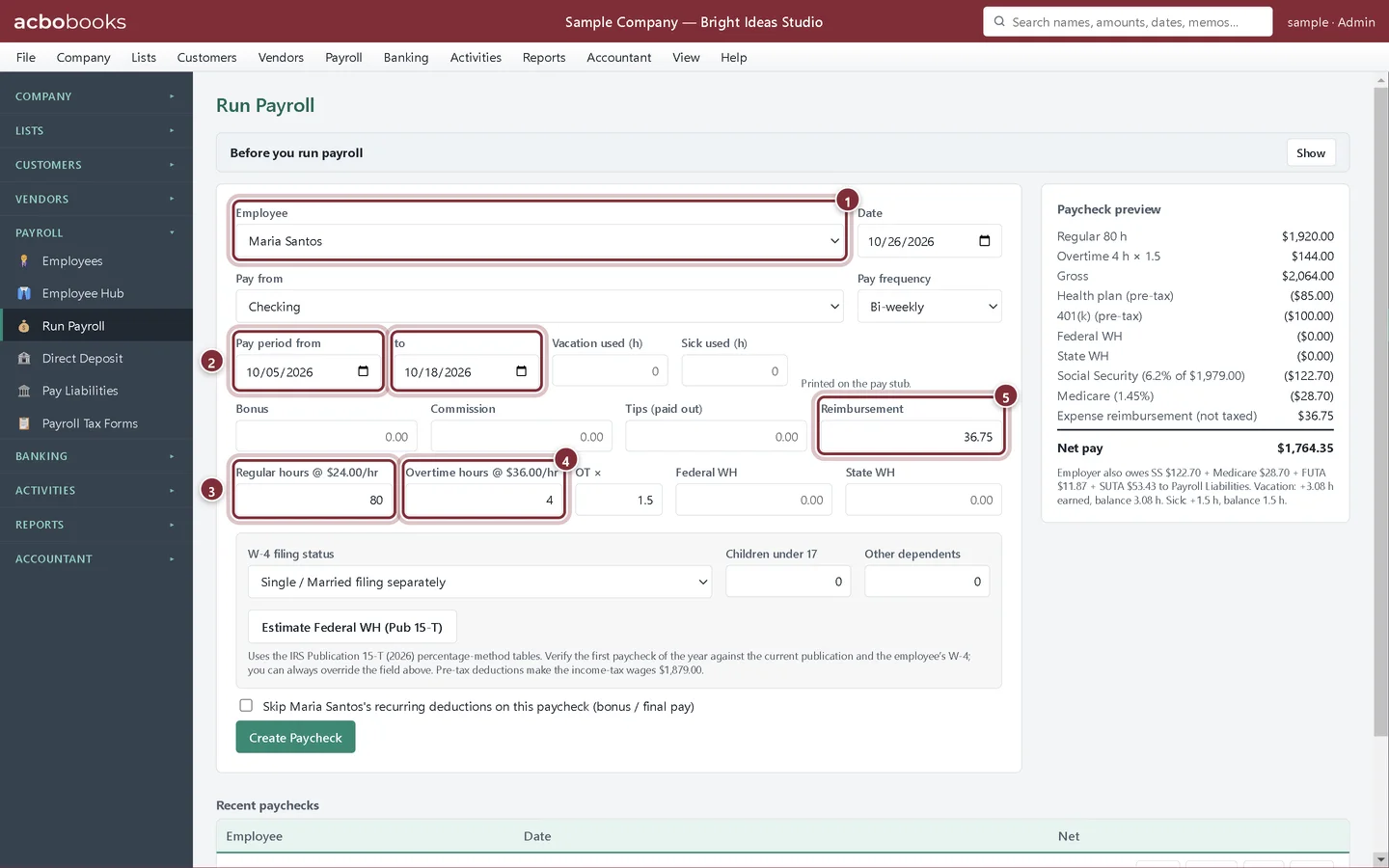
Enter hours or salary and AcboBooks works out the withholding: federal income tax, Social Security and Medicare in the US; CPP, EI and income tax in Canada. Pay stubs, cheques or a direct deposit file follow, and what you owe the agencies waits under Pay Liabilities. It is included in the price.
Lesson: Run payroll (US)
Step 8 of 10
See the numbers
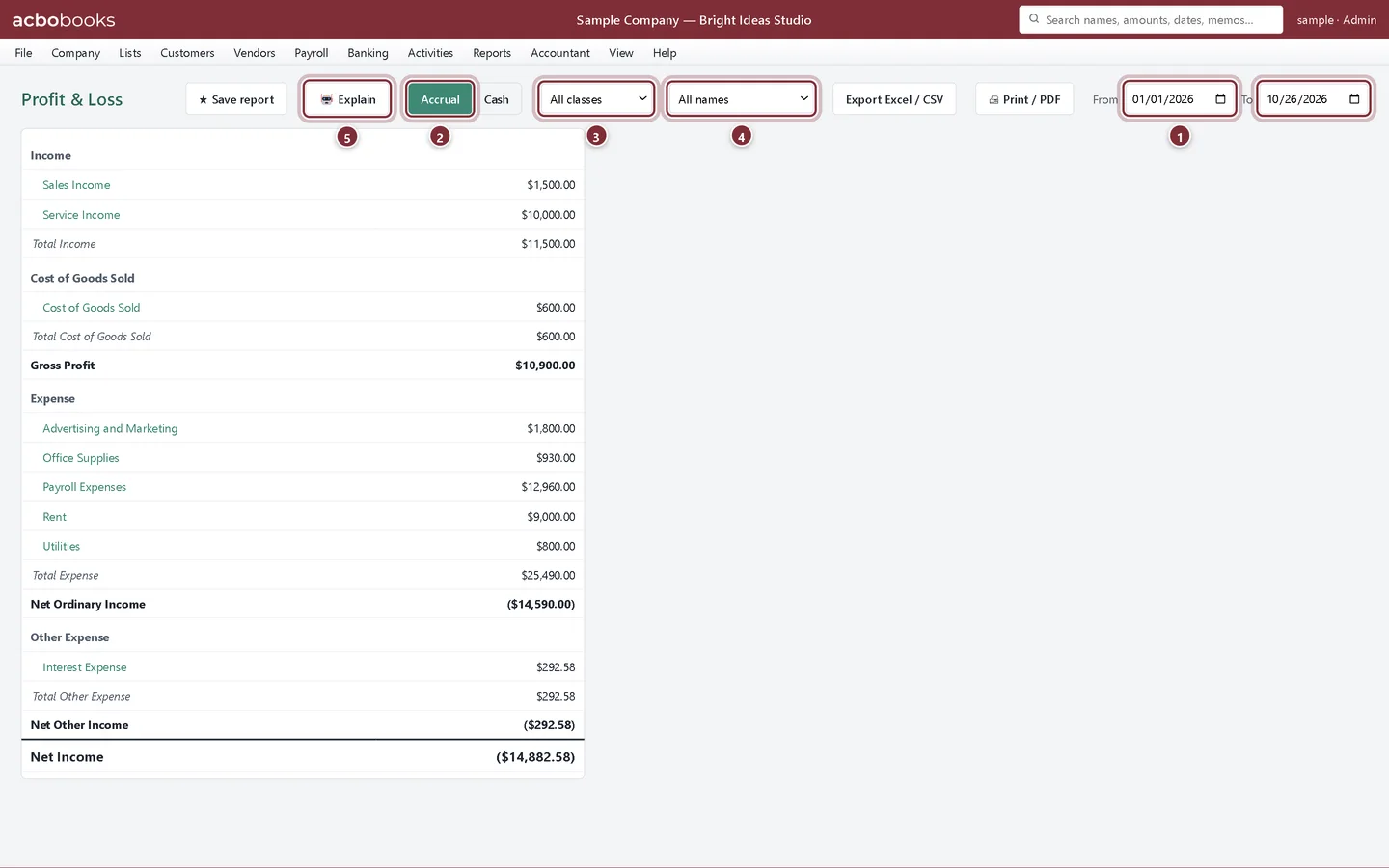
Profit and loss, balance sheet, agings, sales tax, payroll and dozens more, for any dates, cash or accrual. Click a line to see the transactions behind it, then export to Excel or save a PDF.
Lesson: Profit and loss
Step 9 of 10
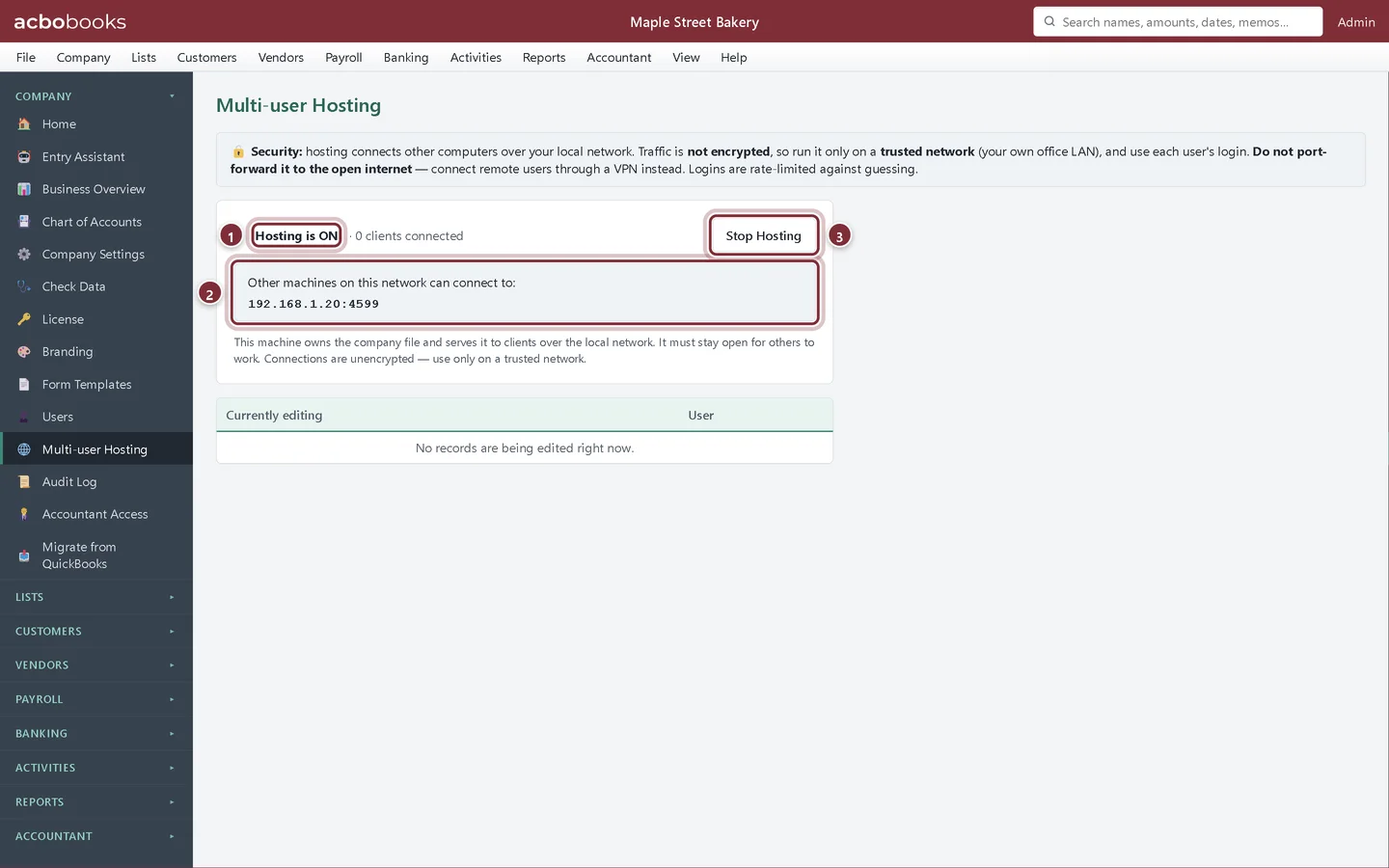
Work together on the office network
Turn on hosting on one PC and the others connect to it over the office network, each person with their own sign-in and role. Records lock while someone is editing them, and nothing goes through the internet.
Lesson: Multi-user hosting
Step 10 of 10
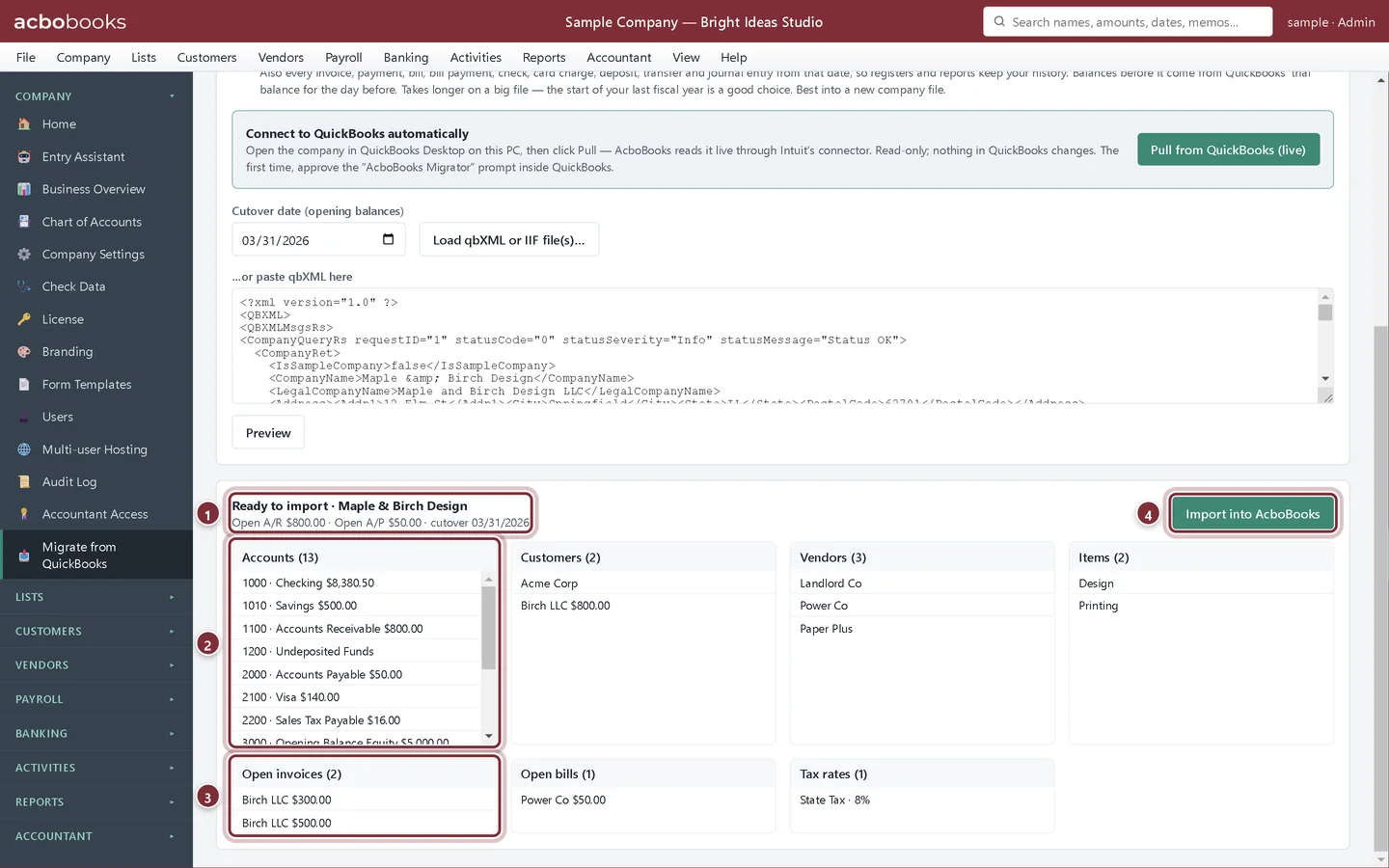
Move from QuickBooks
Bring your chart of accounts, customers, vendors, items and open invoices and bills across from QuickBooks® Desktop. You see what was found before anything is imported, a backup is made first, and you compare the trial balance in both programs.
Lesson: Migrate from QuickBooks Desktop
Keep going
Try it on your own computer
The 15-day trial is the full program, with the same sample company you see here. The Academy has a lesson for every screen.
Screenshots show the sample company Bright Ideas Studio. QuickBooks® is a registered trademark of Intuit Inc.; AcboBooks is not affiliated with Intuit.
Get started
Take the real tour on your own PC.
Install AcboBooks, open the sample company and follow these steps yourself. Every feature, free for 15 days.
No card. No account. Nothing to cancel.