
In this lesson you will
- Import an OFX or QFX file from your bank
- Accept transactions that AcboBooks matched to entries already in the books
- Add new transactions to the right expense account and payee
- Know what Ignore and Direct Connect do
Before you start
Download the file from your bank
In your online banking, look for Download, Export or Statements. Choose a date range that starts where your last import ended.
Step 1: Pick the file type
Choose QFX, OFX (sometimes called Quicken or Money format) or CSV. OFX and QFX are best: each transaction carries a unique id, so if you import the same file twice AcboBooks skips the duplicates.
Import the file
Step 2: Open Banking → Bank Feeds
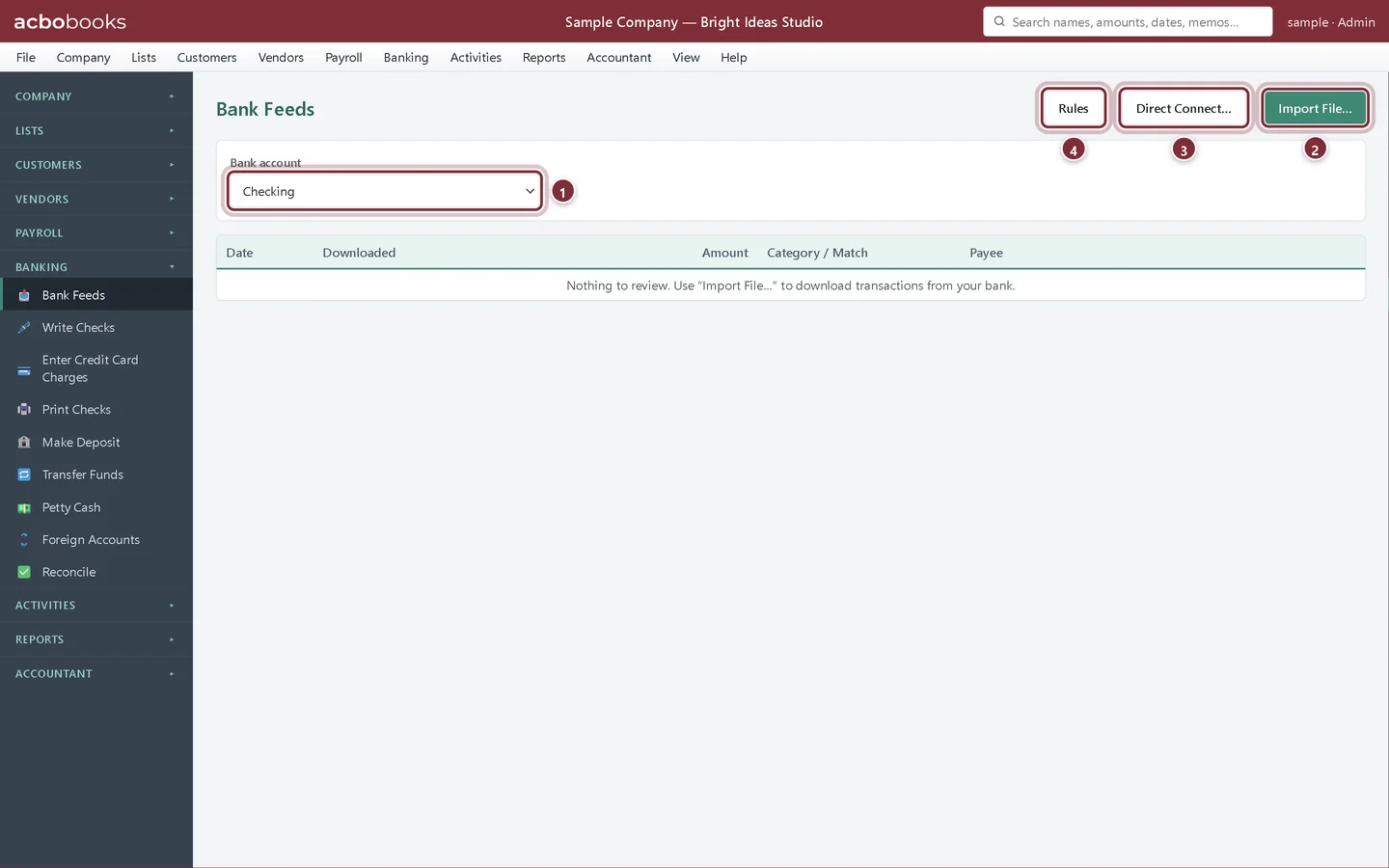
Choose the bank account the file belongs to, then click Import File… and pick the file you downloaded.
- Bank account: the account the statement is for.
- Import File… opens the file you downloaded (.ofx, .qfx, .csv or .txt).
- Direct Connect… downloads straight from banks that offer OFX Direct Connect.
- Rules fill in the account for transactions you see every month. See the next lesson.
Step 3: Read what came in
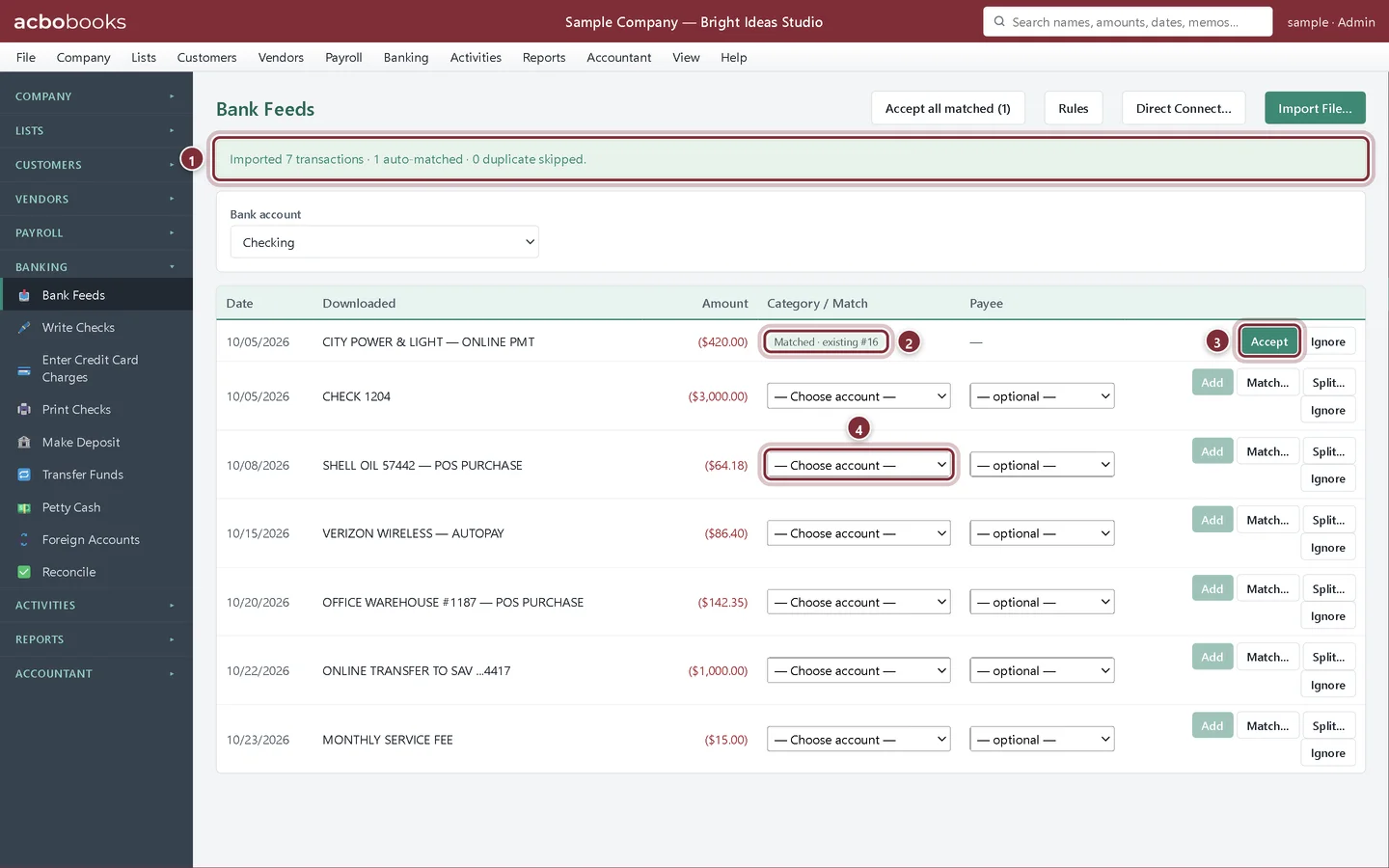
A banner tells you how many lines were imported, how many matched and how many duplicates were skipped. Each line shows the date, the bank's description and the amount (money out in red).
- The import summary.
- Matched: this payment is already in the books, so AcboBooks paired the two.
- Accept confirms the match. Nothing new is posted; the entry is marked as cleared.
- New lines need an account before you can add them.
Add the new transactions
Step 4: Choose the account and payee, then Add
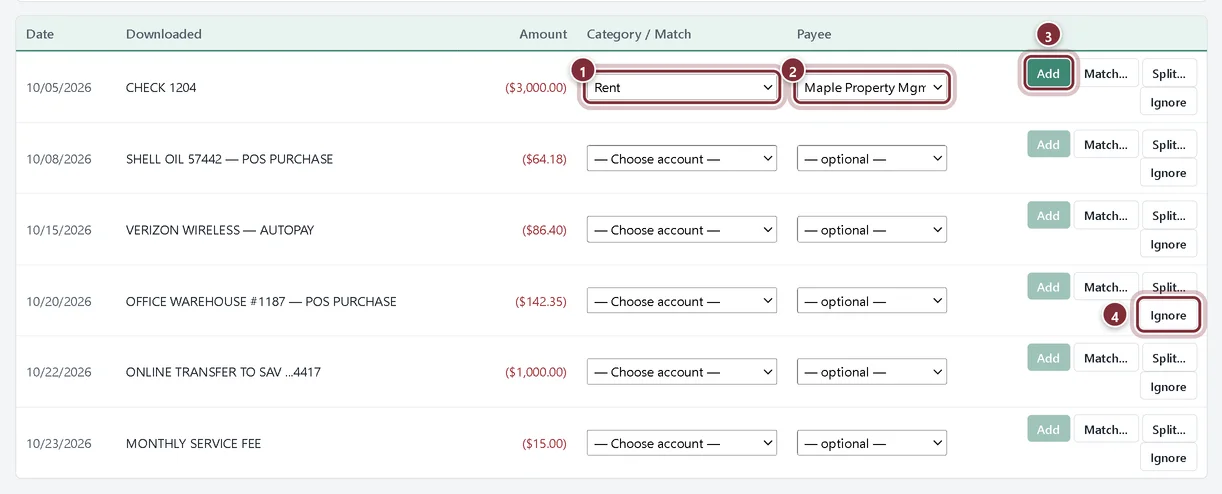
For each new line, choose the account it belongs to under Category / Match, and a payee if you want the vendor on the record. Then click Add. AcboBooks posts the payment from the bank account and marks it cleared. You can pick accounts on several lines first and add them one after another: the choices you made on the other lines stay in place.
- Check 1204 was the monthly rent, so it goes to Rent.
- The payee, Maple Property Mgmt, links the payment to the vendor.
- Add posts it.
- Ignore takes a line off the list without posting anything, for example a line the bank shows twice.
Step 5: Work down the list
Bright Ideas Studio adds the fuel purchase to Travel and Meals, the phone bill to Telephone and the monthly fee to Bank Service Charges. Two lines are left: an office supplies purchase that needs splitting, and a transfer to savings. The next lesson handles both.

Direct Connect
Step 6: Download without a file (optional)
Some banks offer OFX Direct Connect, often for a monthly fee and after you enroll. Click Direct Connect…, enter the bank's OFX URL, FID, ORG, routing number and your account details from the bank's Direct Connect page, and click Download. Your bank password is used only for that download and is never saved.
Recap
- You can import an OFX, QFX or CSV file into Bank Feeds.
- You can accept lines that matched entries already in the books.
- You can add new lines to the right account and payee.
- You know that OFX and QFX files skip duplicates and CSV files do not.
Questions
Is my bank login stored in AcboBooks?
No. Importing a file needs no login at all. With Direct Connect the password is used for that one download and is never saved.
A customer payment came in. Should I add it from Bank Feeds?
Record it with Receive Payment and deposit it first, so the invoice is marked paid. The bank line will then match the deposit, and you just Accept it.
Can I import my credit card statement?
Bank Feeds works with Bank accounts. Enter card purchases with Enter Credit Card Charges and reconcile the card to its statement; see Reconcile and pay a credit card.
Screenshots from AcboBooks 0.2.2 with the built-in sample company. Updated October 25, 2026. Your screens may differ slightly with another version or window size.