
In this lesson you will
- Post a balanced journal entry
- Know what the Adjusting entry box is for
- Know when another form is a better choice
Before you start
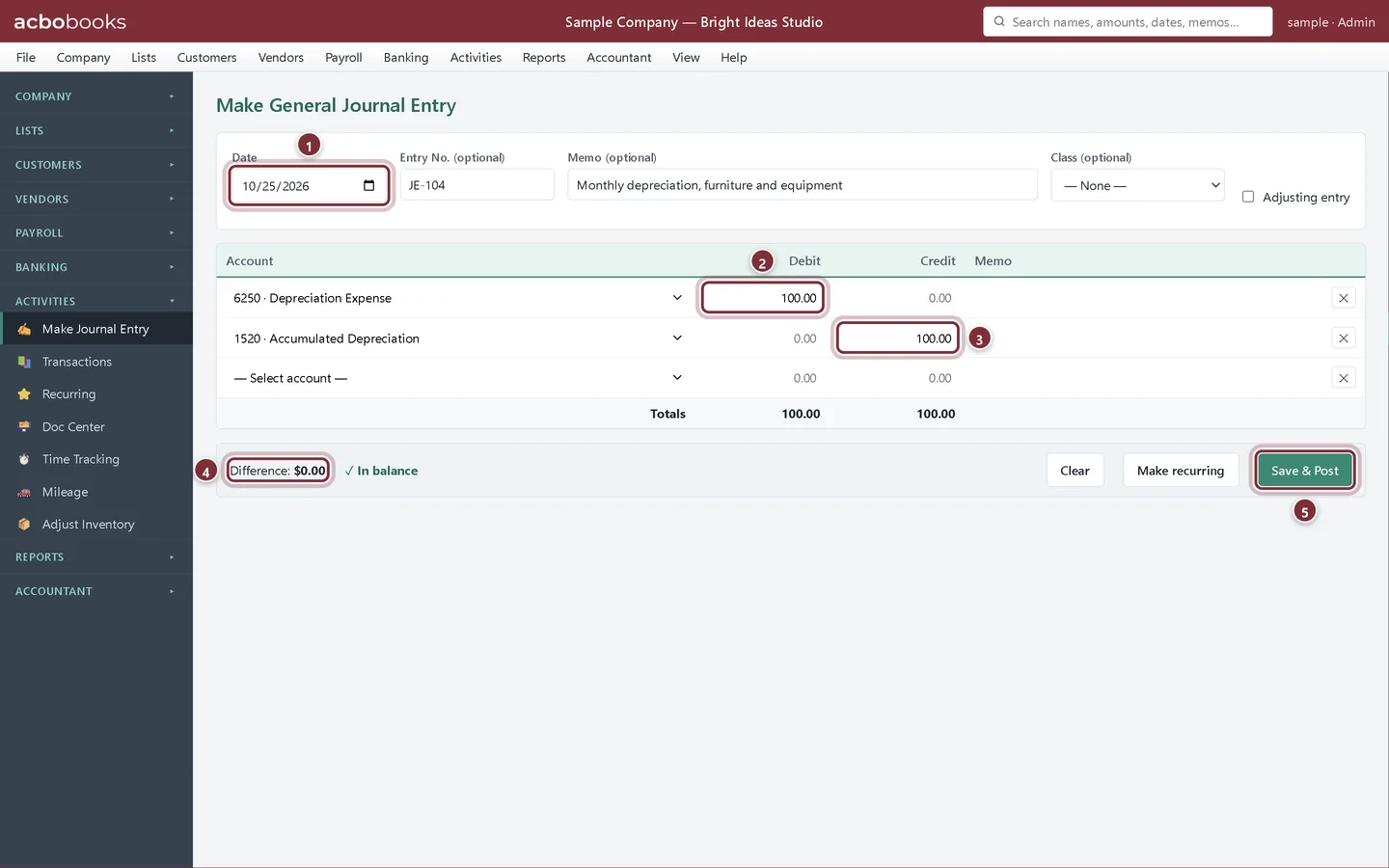
Enter the journal entry
Bright Ideas Studio records a month of depreciation on its furniture and equipment: an expense of $100.00, and the same amount added to Accumulated Depreciation.
Step 1: Open Activities → Make Journal Entry
The form opens as Make General Journal Entry. Enter the date, an entry number if you number them, and a memo that explains the entry to anyone reading it later. Then fill in one line per account.
- Date of the entry.
- Debit on the first line: Depreciation Expense, 100.00.
- Credit on the second line: Accumulated Depreciation, 100.00.
- Difference must be $0.00. The form shows In balance when debits equal credits.
- Save & Post posts the entry.
Step 2: Adjusting entries and classes
Tick Adjusting entry for year-end or period-end adjustments, such as the ones your accountant sends. They are listed on the Adjusting Entries and Adjusted Trial Balance reports, so the adjustments are easy to review. Class (optional) tags the entry for reports by class.
When not to use a journal entry
Step 3: Use the form made for the job
Customer invoices and payments, vendor bills, bill payments, paychecks and sales tax payments have their own forms. Those forms update customer and vendor balances, aging reports and tax reports; a journal entry to Accounts Receivable or Accounts Payable doesn't apply to any invoice or bill. To change a journal entry you posted, find it in Activities → Transactions.
Recap
- You can post a balanced journal entry with a clear memo.
- You know to tick Adjusting entry for period-end adjustments.
- You know to use invoices, bills and paychecks instead of journal entries for everyday work.
- You know where to reverse an entry or make it recurring (next lesson).
Questions
Who can post journal entries?
Admin and Standard users. A View only user can see entries and reports but can't post anything. Users are set up in Company → Users.
How do I undo an entry?
Open Activities → Transactions, find the entry and use Edit, Void or Delete. To cancel it with an opposite entry on a later date, use Reverse: see Reversing and recurring journal entries.
Related
Screenshots from AcboBooks 0.2.2 with the built-in sample company. Updated October 25, 2026. Your screens may differ slightly with another version or window size.