
In this lesson you will
- Create bank rules that fill in the account for regular transactions
- Import a CSV file and map its columns
- Add a transfer between two of your accounts from both feeds at once
- Split one bank line across several accounts
Before you start
Rules for the regulars
Step 1: Add a rule
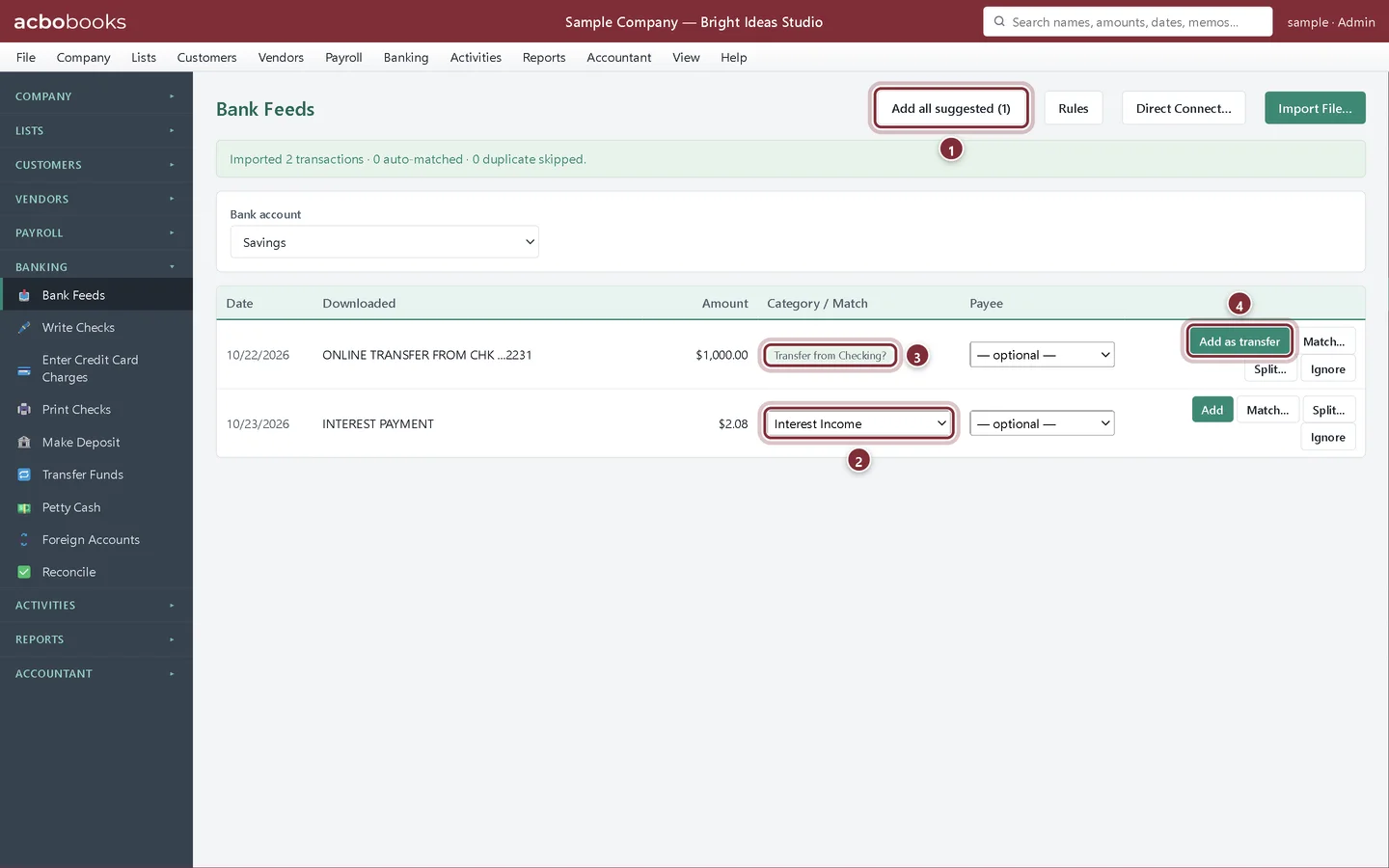
In Bank Feeds, click Rules. A rule says: when a downloaded description contains this text, fill in this account (and payee). Matching ignores upper and lower case. Bright Ideas Studio adds a rule for the interest its savings account earns.
- Contains: text from the bank's description, such as INTEREST.
- Category: the account to fill in, here Interest Income.
- Payee (optional): a vendor or customer to put on the entry.
- Add Rule saves it.
Step 2: Keep the list short and specific
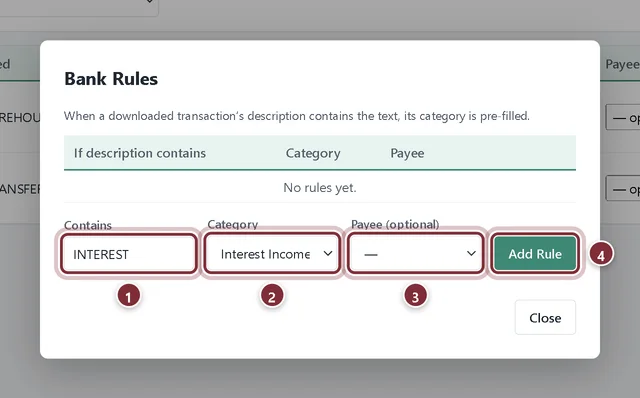
Add one rule per regular payee. Use text that only that payee's lines contain: SHELL for fuel, a utility's name, the bank's fee wording. Use Edit or Remove to change a rule later.
Import a CSV file
Step 3: Map the columns
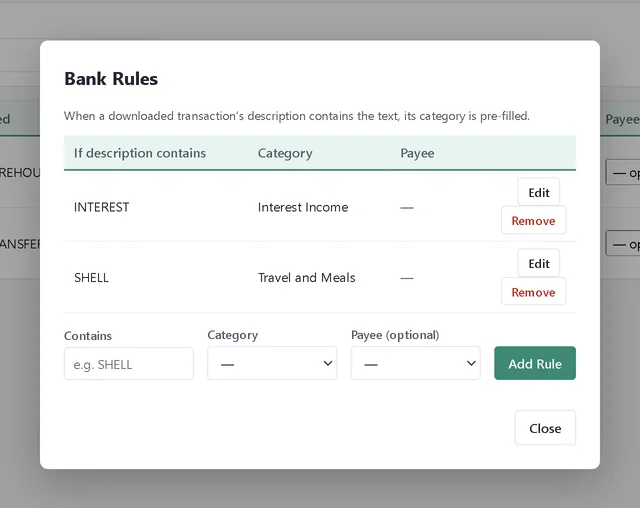
Choose the bank account (here Savings), click Import File… and pick the CSV file. Because every bank lays out its CSV differently, AcboBooks asks which column is which and shows a preview of the first rows.
- Date column and Description column.
- Amount layout: one signed Amount column, or separate Debit / Credit columns. Tick Money out is positive if your bank shows withdrawals without a minus sign.
- The Preview shows how the rows will come in. Check that money out is negative.
Transfers and rule suggestions
Step 4: Review the savings lines
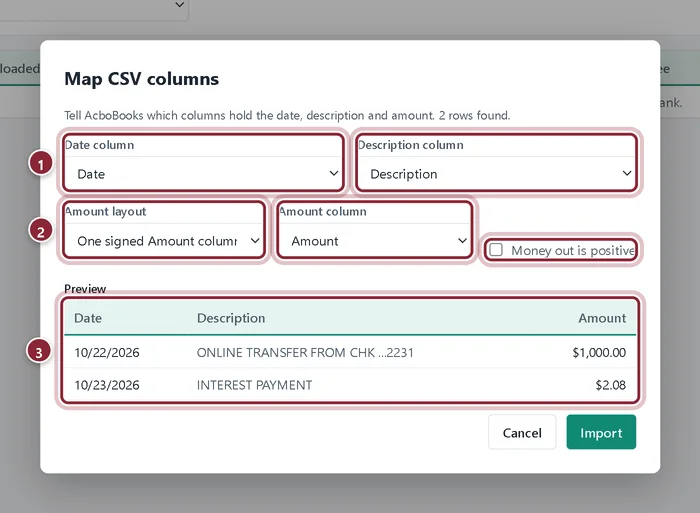
Click Import. The interest line already has Interest Income filled in by the rule. The transfer line has a tag instead of an account: AcboBooks found the opposite amount on the Checking feed within three days and offers to treat the two lines as one transfer.
- Add all suggested adds every line that a rule filled in.
- The account the rule filled in.
- Transfer from Checking? The matching withdrawal is waiting on the Checking feed.
- Add as transfer posts one transfer and clears both lines, on both feeds.
Split one line across accounts
Step 5: Use Split… for a mixed purchase
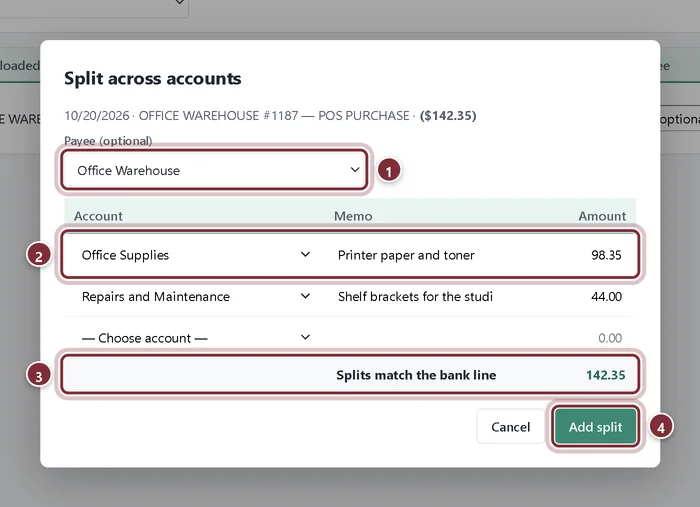
Back on Checking, the Office Warehouse purchase was partly printer supplies and partly shelf brackets for a repair. Click Split… on the line and enter each part.
- Payee (optional): the vendor.
- One line per account, with a memo and an amount.
- The total must equal the bank line before you can save.
- Add split posts one payment split across the accounts.
Step 6: One line, several entries: Match…
The opposite case is one bank line that covers several entries already in the books, such as a deposit of several customer checks. Click Match…, tick the entries that make up the bank amount (they must add up exactly) and click Match.
Step 7: An empty list means you're done
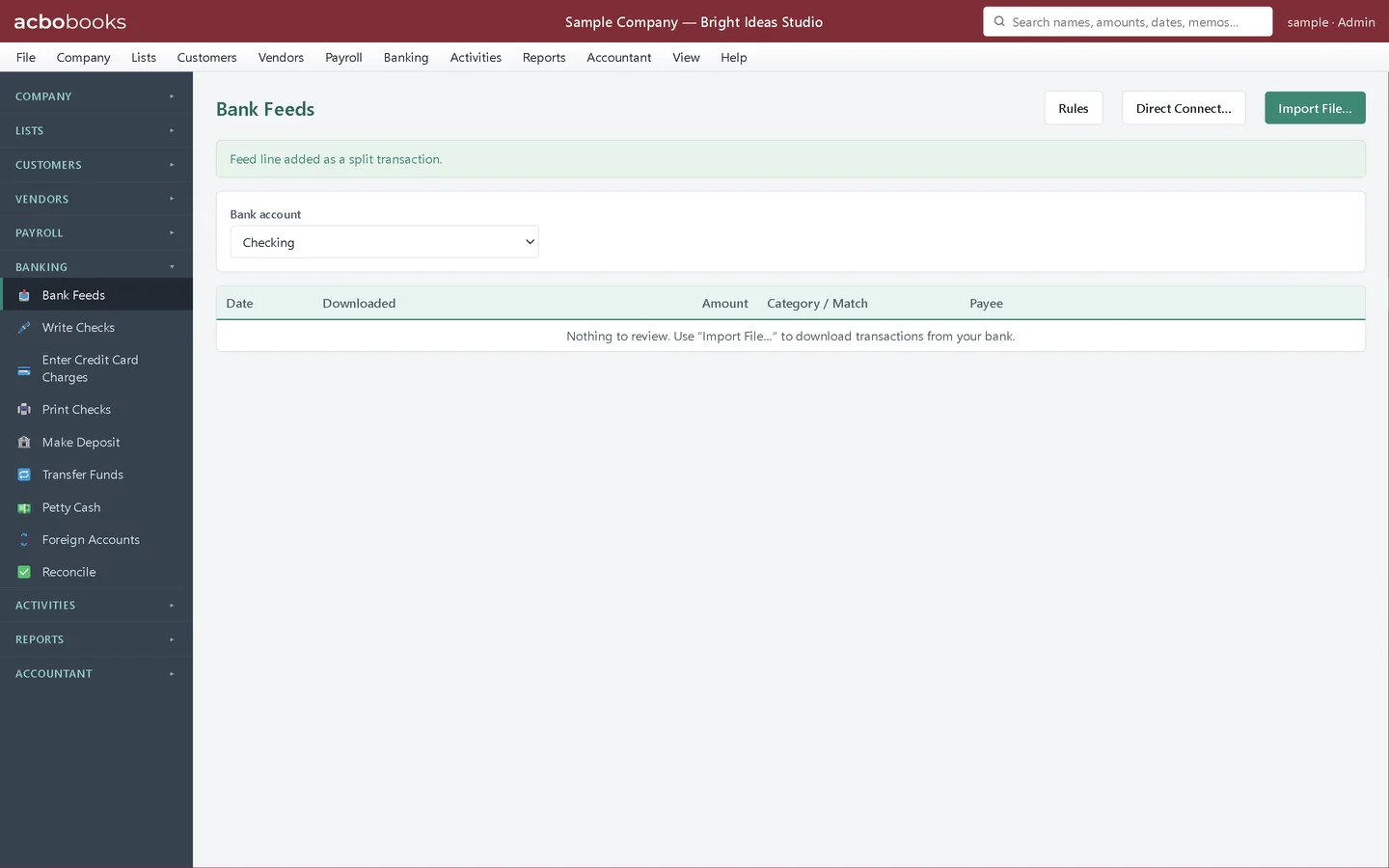
When every line is matched, added or ignored, Bank Feeds says there is nothing to review. The account is ready to reconcile.
Recap
- You can set up bank rules so regular transactions come in with the account filled in.
- You can import a CSV file and map its columns.
- You can add a transfer between two of your accounts from both feeds at once.
- You can split one bank line, or match one line to several entries.
Questions
Why didn't my rule fill in a line?
Rules run at import time, and the description must contain the rule's text. Lines imported before you made the rule are not changed. Check the exact wording on the line and adjust the rule for next time.
Two rules match the same line. Which wins?
The first matching rule in the list. Make the text specific enough that only one rule fits.
What if the transfer was to an account I don't import?
Choose that account as the category and click Add. The money moves between the two accounts just like a transfer.
Related
Screenshots from AcboBooks 0.2.2 with the built-in sample company. Updated October 25, 2026. Your screens may differ slightly with another version or window size.