
In this lesson you will
- Reconcile a bank account to its statement
- Find and fix a difference that isn't zero
- Print the reconciliation report
- Undo a reconciliation if you need to
Before you start
Start the reconciliation
Have your bank statement in front of you, on paper or as a PDF. Import and review the month's bank lines first: everything you added or accepted in Bank Feeds is ticked for you.
Step 1: Open Banking → Reconcile
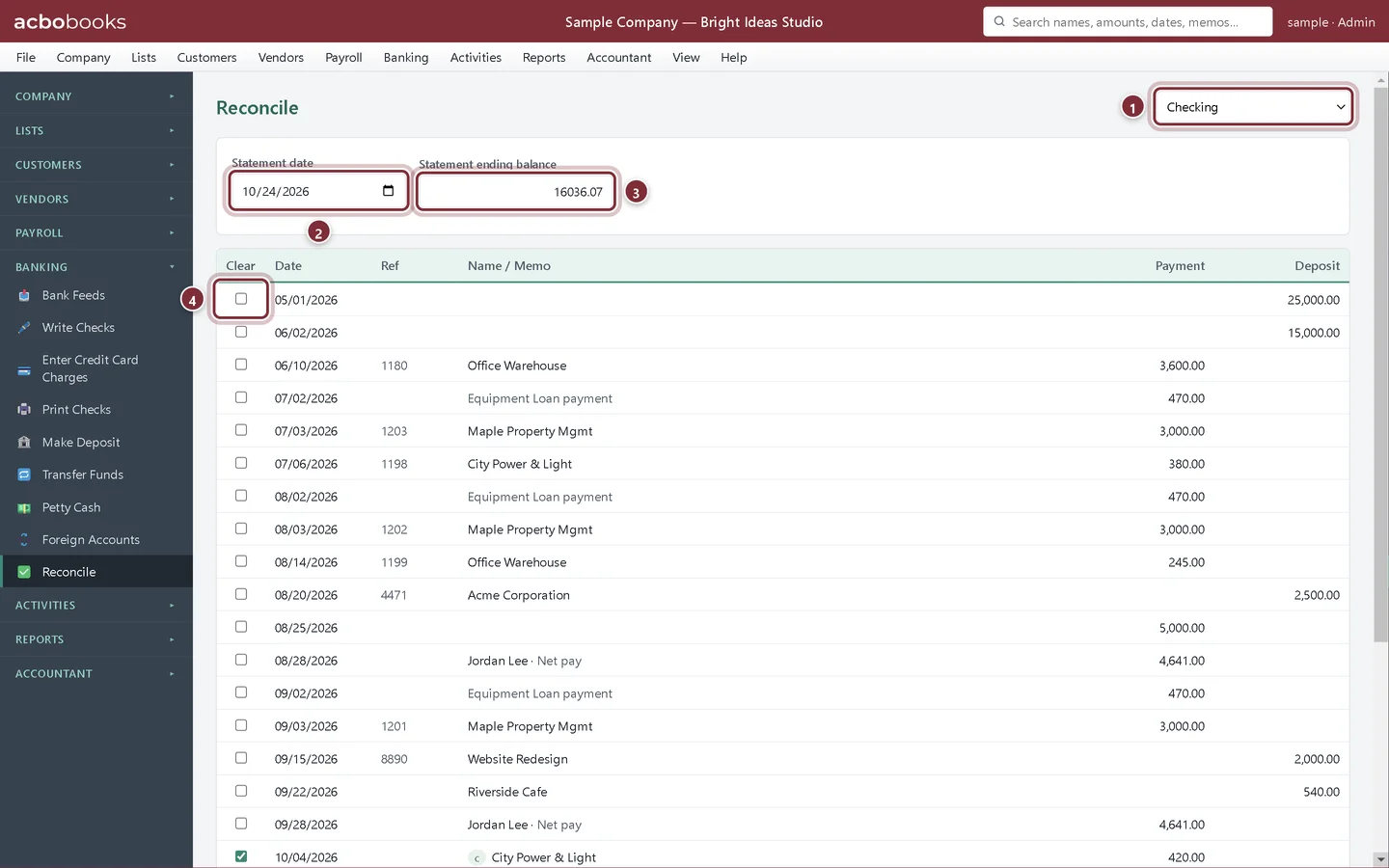
Choose the account, then enter the statement date and the ending balance exactly as they appear on the statement.
- The account to reconcile.
- Statement date: the last day the statement covers.
- Statement ending balance: the closing balance on the statement.
- Clear: tick each item that appears on the statement.
Step 2: Tick what's on the statement
Work down the statement and tick each deposit and payment you find in the list. Items with a small c were cleared through Bank Feeds and are ticked already. The bar at the bottom keeps a running total.
When the difference isn't zero
The difference is the statement ending balance minus the beginning balance and everything you ticked. It must be $0.00 before you can finish.
Step 3: Look for the amount of the difference
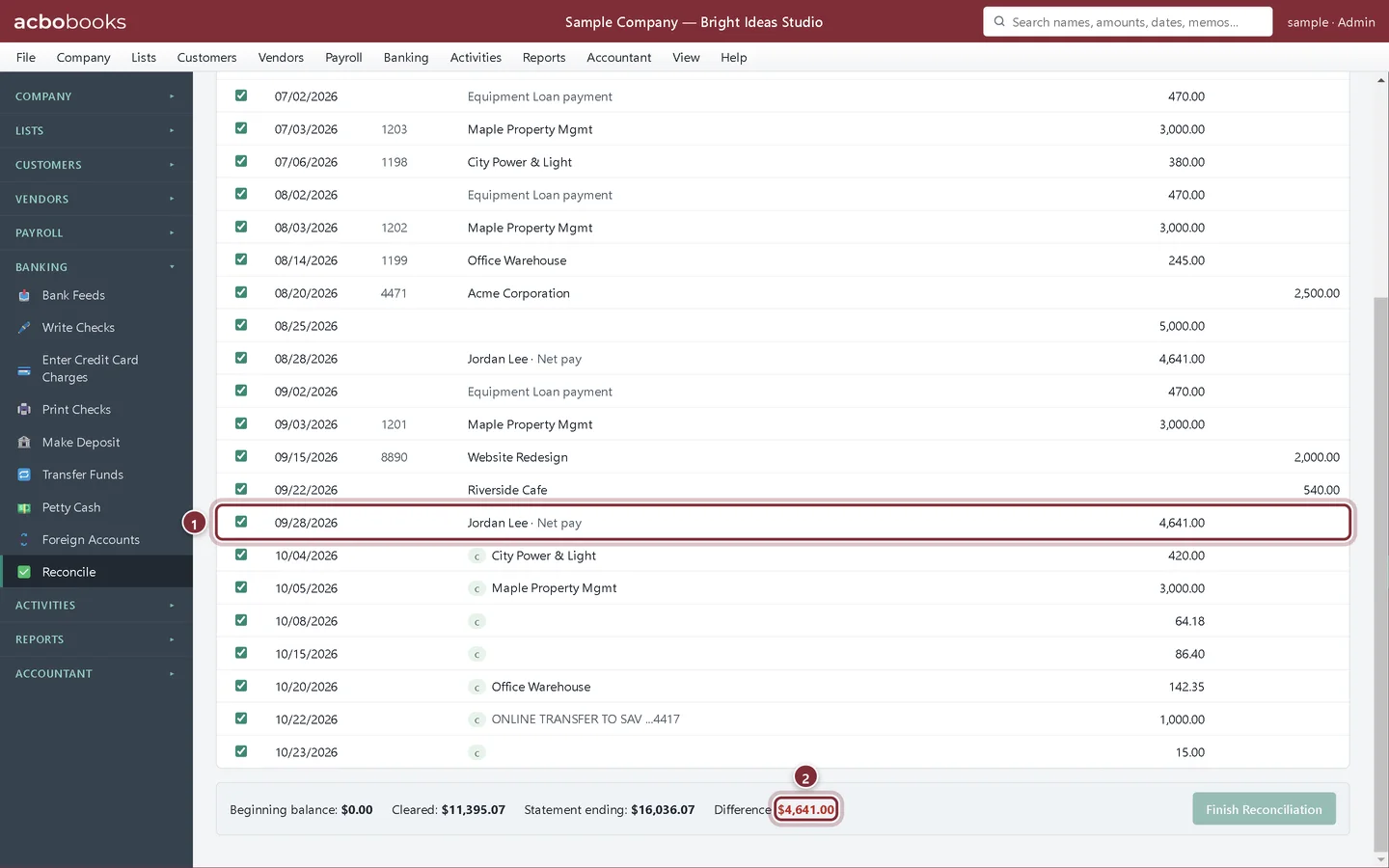
Here every item through the statement date is ticked, yet the difference is $4,641.00. That is exactly the amount of the last paycheck: the employee hasn't cashed it yet, so it isn't on the statement.
- A ticked item that is not on the statement.
- Difference: the amount still to explain.
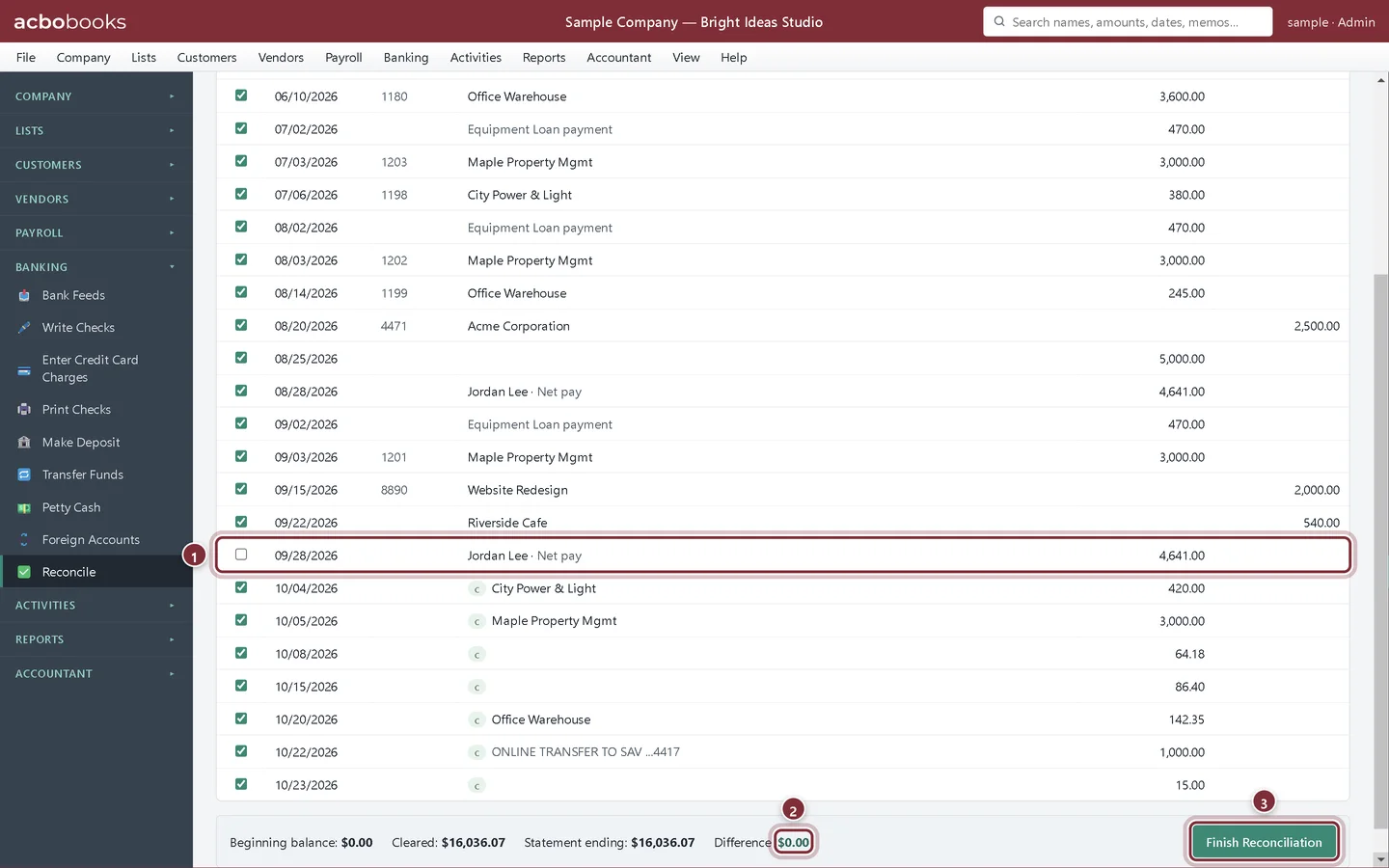
Step 4: Untick it, and finish
Untick the paycheck. The difference drops to $0.00 and Finish Reconciliation becomes available. Click it to save. The paycheck stays in the list as outstanding until it shows up on a later statement.
- The uncashed paycheck, now unticked.
- Difference: $0.00.
- Finish Reconciliation saves the reconciliation.
Step 5: If that doesn't find it
Check these in order. Is there an item on the statement that isn't in the books, such as a bank fee or interest? Add it (from Bank Feeds, Write Checks or Make Deposit) and come back. Is an amount typed differently from the statement, for example 45.80 instead of 45.08? Is the ending balance typed correctly? Was an item ticked twice because it was entered twice? Delete or void the duplicate.
The reconciliation report
Step 6: Open the report
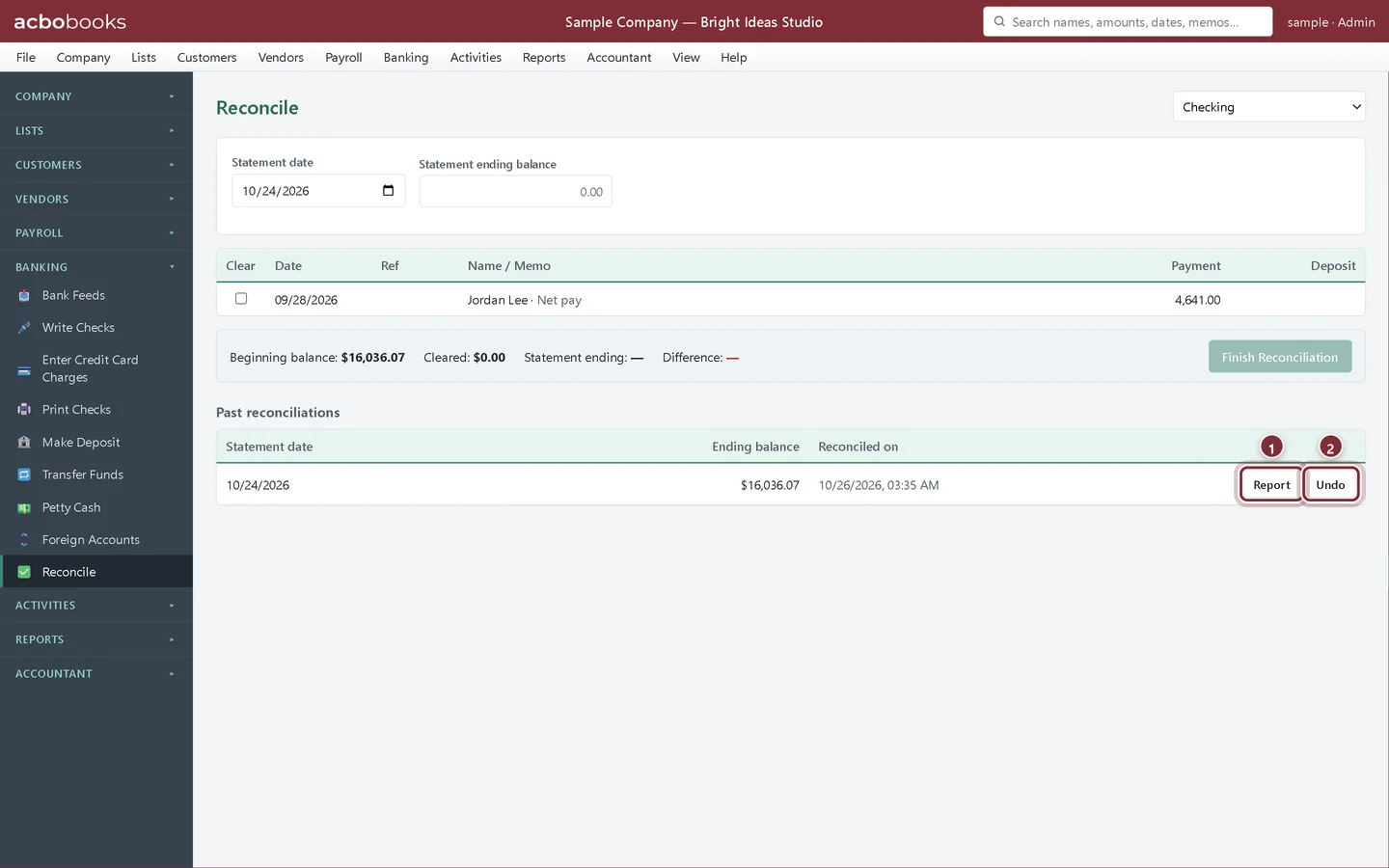
Finished reconciliations are listed under Past reconciliations at the bottom of the screen.
- Report opens the Reconciliation Detail for that statement.
- Undo reopens a reconciliation: its items become unreconciled again so you can correct them and reconcile again.
Step 7: Read and save it
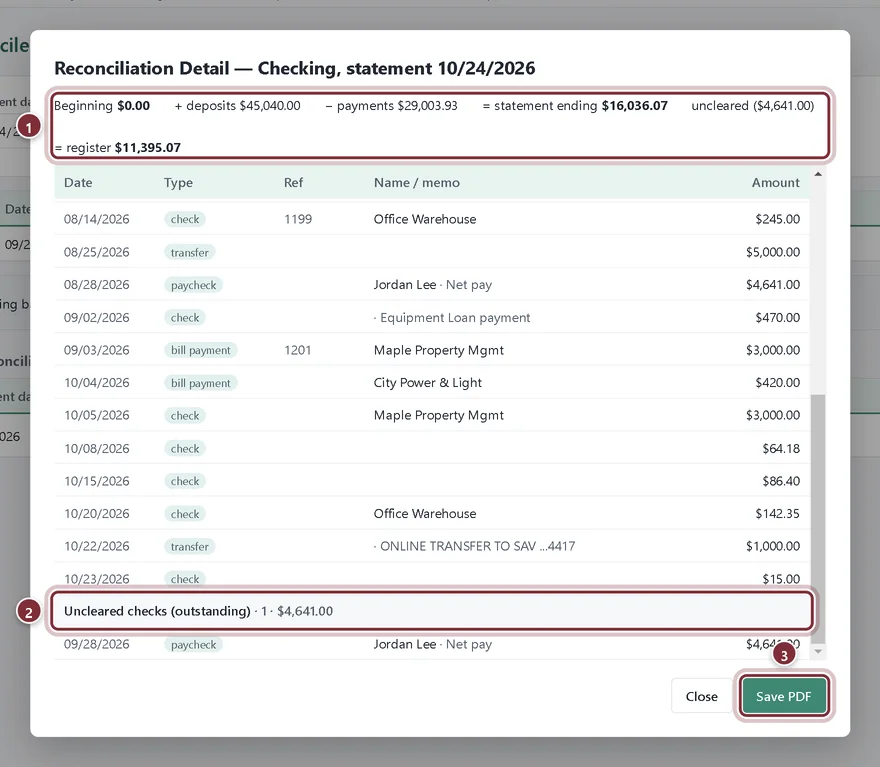
The report walks from the beginning balance through the cleared deposits and payments to the statement balance, then adds the items still outstanding to reach the balance in your books. Click Save PDF to keep a copy with your statement or send it to your accountant.
- The balance walk from the beginning balance to the register balance.
- Outstanding items: here, the paycheck that hasn't cleared.
- Save PDF saves the report.
Recap
- You can reconcile a bank account to its statement.
- You can track down a difference: an uncleared item, a missing fee, a typo or a duplicate.
- You can save the reconciliation report as a PDF.
- You know how to undo a reconciliation and redo it.
Questions
How often should I reconcile?
Every month, as soon as the statement arrives. A month is easy to fix; a year of unreconciled transactions is not.
My beginning balance doesn't match the statement's opening balance.
The beginning balance is where your last reconciliation ended. If it differs, a reconciled item was changed or deleted since. Open the last reconciliation's Report to compare, or Undo it and reconcile again.
Where do I enter the bank's service charge?
Add it before you reconcile: from Bank Feeds if you import the statement, or with Write Checks to the Bank Service Charges account. Then tick it like any other item.
Related
Screenshots from AcboBooks 0.2.2 with the built-in sample company. Updated October 25, 2026. Your screens may differ slightly with another version or window size.