
In this lesson you will
- Prepare QuickBooks Desktop for the pull
- Pull the company, or load an IIF or qbXML file
- Review the preview and set the cutover date
- Read the import summary and data check
Before you start
- Choose how to move your QuickBooks data
- QuickBooks Desktop installed on this PC, with your company file
- A backup of your QuickBooks file
Get QuickBooks ready
Step 1: Open your company in QuickBooks Desktop
On the same Windows PC as AcboBooks, start QuickBooks Desktop and open the company file. Close any QuickBooks window or message that is waiting for an answer: AcboBooks can't connect while a dialog is on screen.
Step 2: Read the Desktop tab
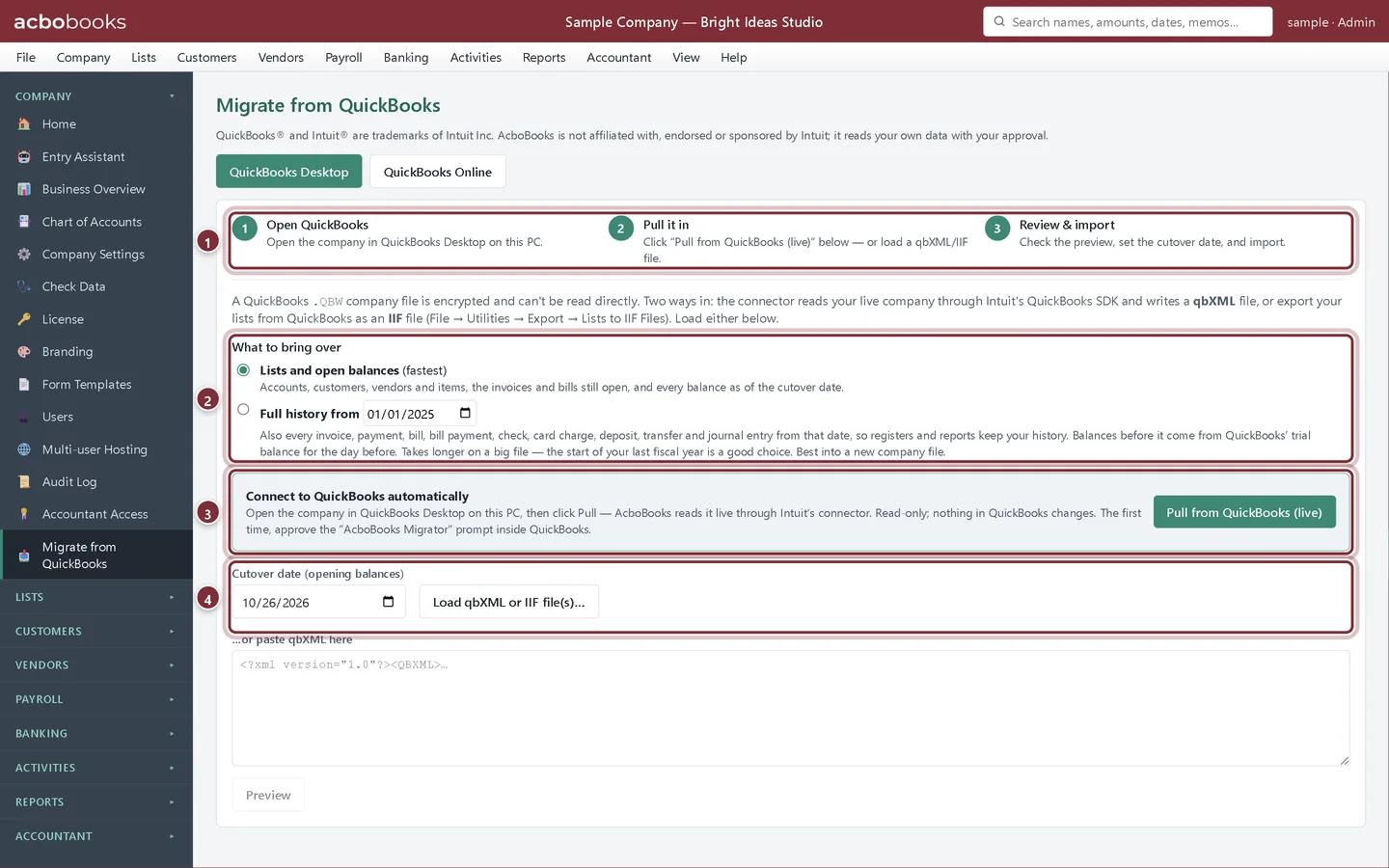
In AcboBooks, open Company → Migrate from QuickBooks and stay on QuickBooks Desktop. The three steps across the top are the whole process.
- The three steps: open QuickBooks, pull it in, review and import
- What to bring over: lists and open balances, or full history from a date
- Connect to QuickBooks automatically
- The cutover date and Load qbXML or IIF file(s)…
Pull the company
Step 3: Choose what to bring, then click Pull from QuickBooks (live)
Pick Lists and open balances or Full history from a date, set the cutover date (for full history it is labelled History through (end date)), and click Pull from QuickBooks (live). AcboBooks only reads; nothing in QuickBooks changes.
- Pull from QuickBooks (live)

Step 4: Approve AcboBooks in QuickBooks the first time
The first time, QuickBooks asks whether to let AcboBooks Migrator read the company file. Allow it. If QuickBooks is running as administrator, AcboBooks shows Retry as administrator: click it, accept the Windows permission prompt, then the QuickBooks prompt.
Step 5: No QuickBooks on this PC? Use an export file
In QuickBooks Desktop choose File → Utilities → Export → Lists to IIF Files, copy the file to this PC, and click Load qbXML or IIF file(s)…. An IIF file brings your lists (accounts with their opening balances, customers, vendors, items) but not open invoices, bills or history.
Review and import
Step 6: Check the preview
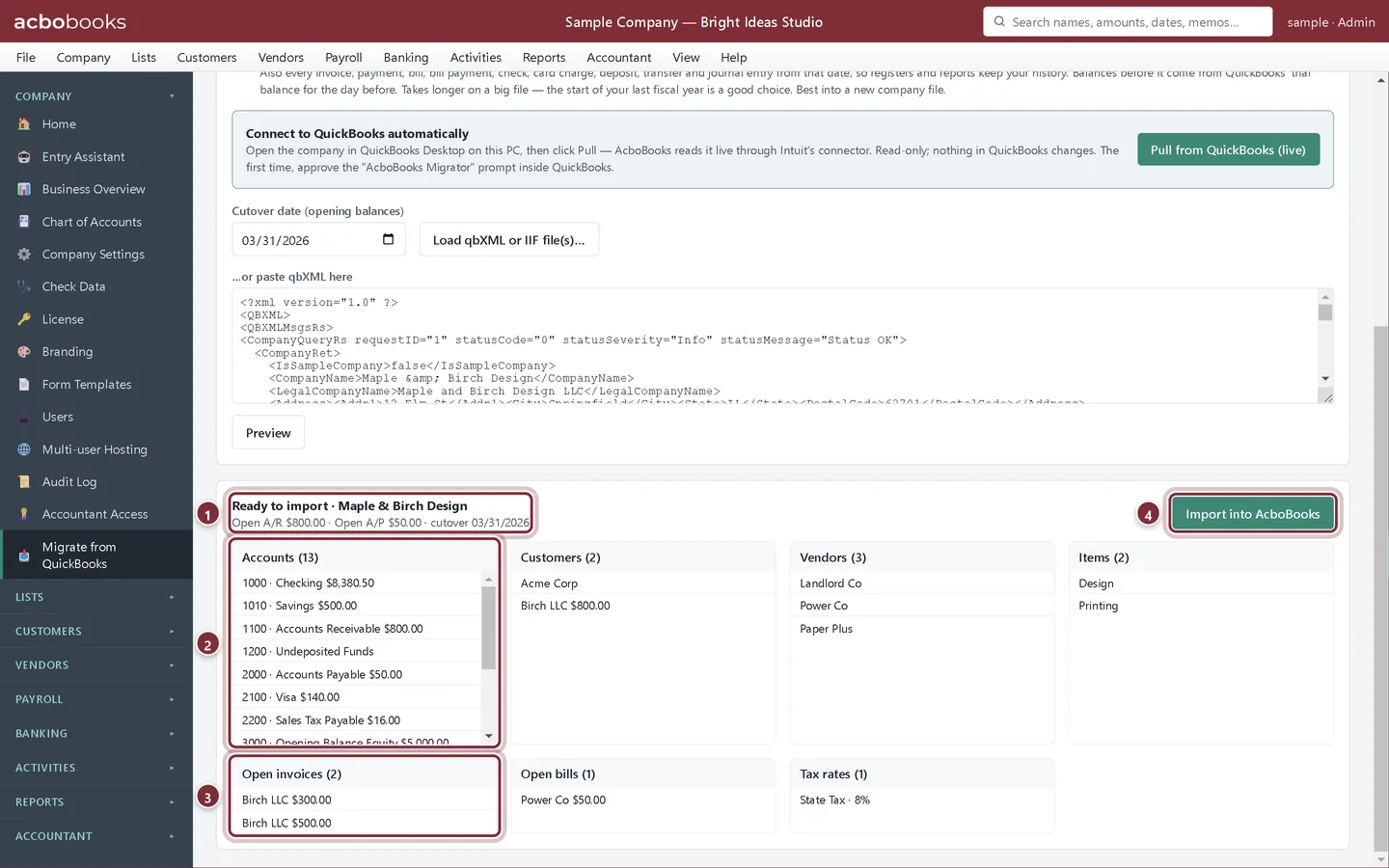
When the pull finishes, a preview appears below. Check the company name, the open A/R and A/P totals against QuickBooks' aging reports, and look through the lists. Changing the cutover date or the mode updates the preview.
- Ready to import: company, open A/R, open A/P and cutover date
- Accounts with their balances
- Open invoices (open bills are next to them)
- Import into AcboBooks
Step 7: Click Import into AcboBooks
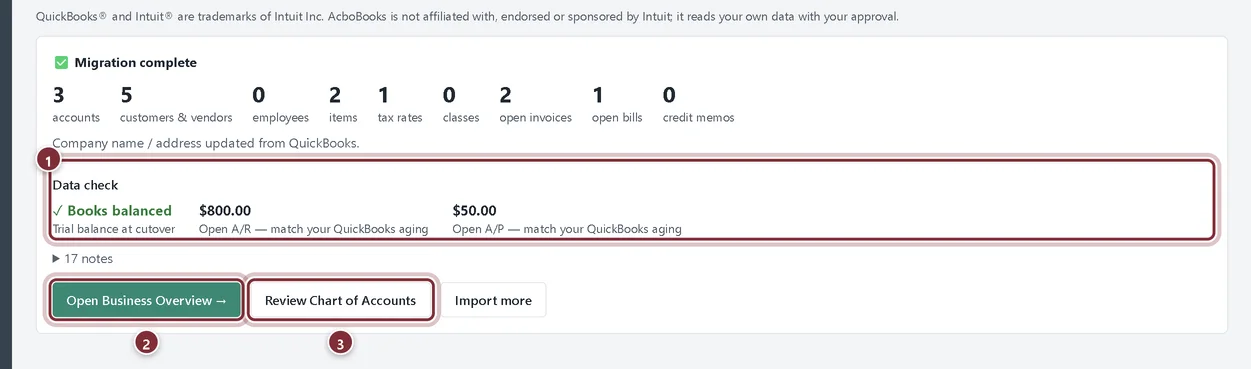
The summary counts what was created and runs a Data check: whether the books balance at the cutover date, and the open A/R and A/P totals to compare with QuickBooks. Open the notes link for anything the import adjusted or skipped. For a full-history import the summary also lists each transaction type with how many were in QuickBooks and how many came in, and compares every account with QuickBooks' trial balance.
- Data check: books balanced, open A/R and open A/P
- Open Business Overview →
- Review Chart of Accounts
Recap
- Open the company in QuickBooks Desktop with no dialog on screen
- Pull it with Pull from QuickBooks (live), or load an IIF list export
- Check the preview's open A/R and A/P against QuickBooks
- Read the data check after importing
Questions
Does AcboBooks change anything in my QuickBooks file?
No. The connection only reads. Keep a QuickBooks backup anyway, as you would before any move.
Does QuickBooks have to be on the same computer?
For the live pull, yes: AcboBooks connects to QuickBooks Desktop running on this PC. Otherwise use an IIF export file.
Which QuickBooks Desktop editions work?
The pull goes through QuickBooks Desktop's own connection for other programs, so it works with Pro, Premier and Enterprise on Windows, both the older 32-bit and the newer 64-bit versions.
Screenshots from AcboBooks 0.2.2 with the built-in sample company. Updated October 25, 2026. Your screens may differ slightly with another version or window size.