
In this lesson you will
- Prepare a CSV file AcboBooks can read
- Import customers, vendors or service items
- Know what is skipped
Before you start
- A spreadsheet or CSV export of the list
Prepare the file
Step 1: Save the list as CSV with a header row
The first row must name the columns. A column whose header contains name is required. For customers and vendors AcboBooks also reads company, email and phone; for items, price (or rate or amount). Other columns are ignored. If your list is in Excel, use File → Save As → CSV.
Import it
Step 2: Open Lists → Import Data
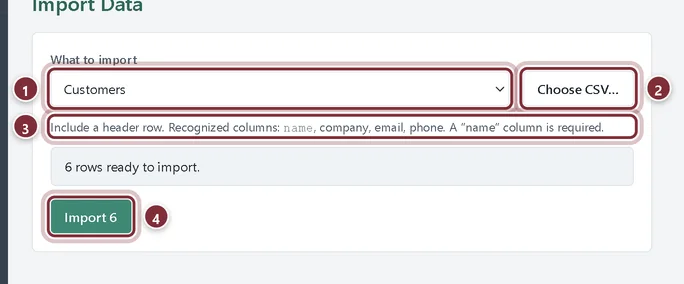
Choose Customers, Vendors or Items (services) in What to import (for items, also the Income account), then click Choose CSV… and pick the file. AcboBooks counts the rows it can read; click the Import button to bring them in.
- What to import
- Choose CSV…
- The columns AcboBooks reads
- Import 6: one button with the row count
Step 3: Check the result
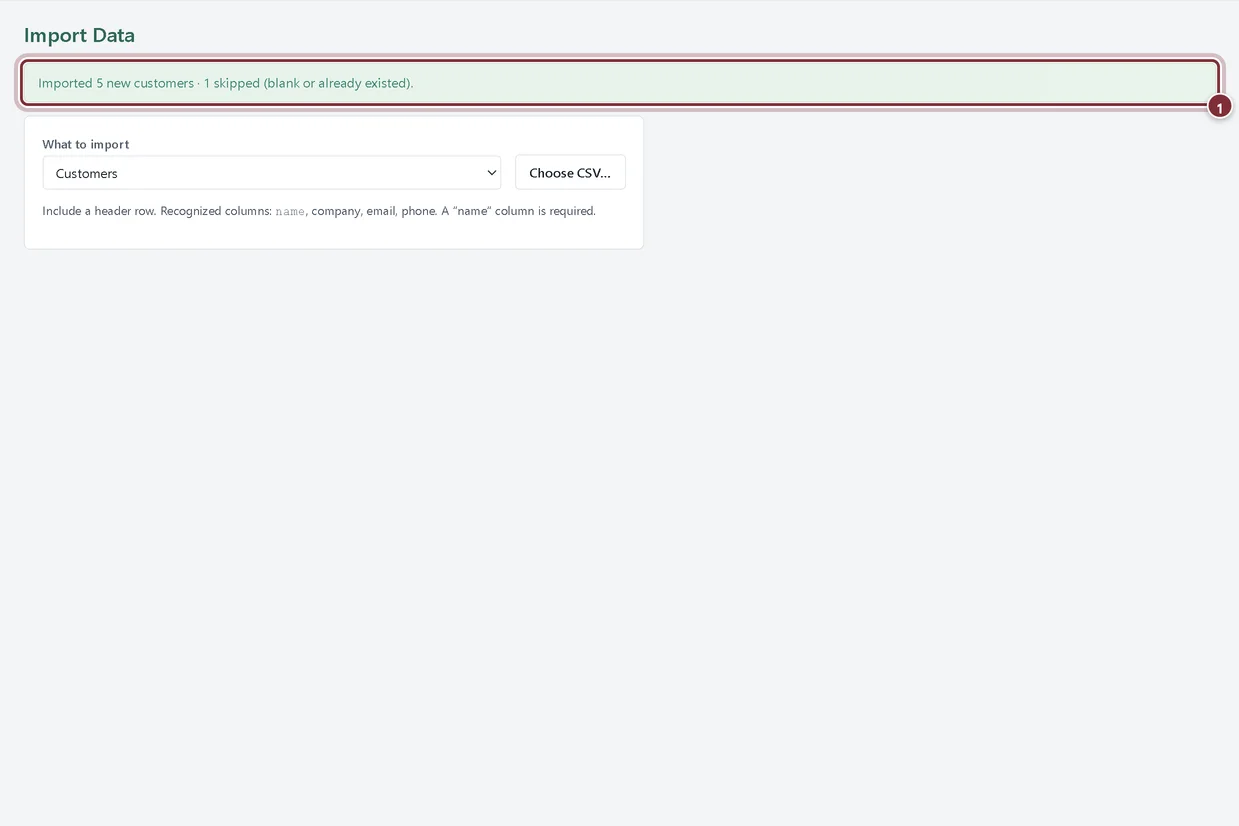
The message says how many were imported and how many were skipped. Rows are skipped when the name is blank or already exists; here Acme Corporation was already a customer.
- Imported 5 new customers, 1 skipped
Recap
- Save the list as CSV with a header row and a name column
- Import it with Lists → Import Data
- Know that existing names are skipped
Questions
Can I import an .xlsx file directly?
Import Data reads CSV only. Save the sheet as CSV first. (QuickBooks Online's Excel exports go through Company → Migrate from QuickBooks instead.)
Does it update customers that already exist?
No. Existing names are skipped and left as they are. Edit them in Lists → Customers.
Can I import opening balances this way?
No. Give a customer or vendor an opening balance in its New Customer or New Vendor window, or migrate the balances from QuickBooks.
Screenshots from AcboBooks 0.2.2 with the built-in sample company. Updated October 25, 2026. Your screens may differ slightly with another version or window size.