
In this lesson you will
- Export the right files from QuickBooks Online
- Load them into AcboBooks in one go
- Check what each file was recognized as and set the start date
- Import and read the summary
Before you start
- Choose how to move your QuickBooks data
- Admin access to your QuickBooks Online company
Export from QuickBooks Online
Step 1: Open the QuickBooks Online tab
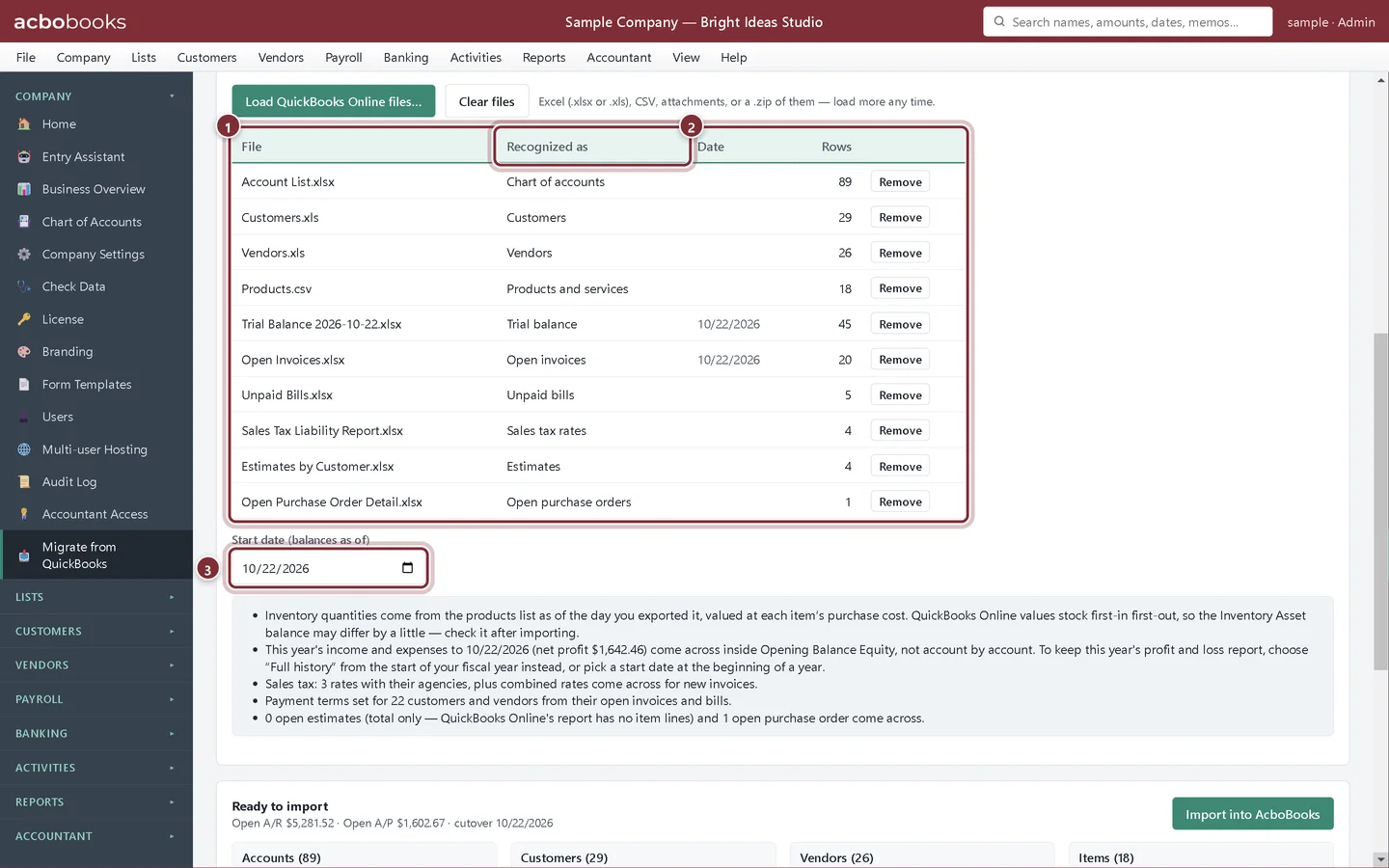
In Company → Migrate from QuickBooks, click QuickBooks Online and choose Lists and open balances or Full history. The numbered steps change to match: they list exactly which exports to make and where QuickBooks Online keeps them.
- What to bring over
- The exports to make, in order
- Load QuickBooks Online files…
Step 2: Make the exports
For lists and open balances you need the chart of accounts (Settings → Chart of accounts → Run report → Export → Export to Excel), the customer, vendor and product lists (the Export icon above each list), and the Trial Balance, Open Invoices and Unpaid Bills reports, each as of your start date. The Sales Tax Liability Report, Estimates by Customer and Open Purchase Order Detail are optional extras.
Step 3: For full history, add the Journal
Full history also needs the Journal report for the period and Trial Balances for the day before it starts and for its last day. Sales by Customer Detail brings past invoices with their item lines. Payroll Details, the Recurring Template List, Budget Overview, Transaction Detail by Account (with the Cleared column) and the attachments .zip bring payroll, recurring templates, budgets, reconciled status and receipts.
Load and check the files
Step 4: Click Load QuickBooks Online files…
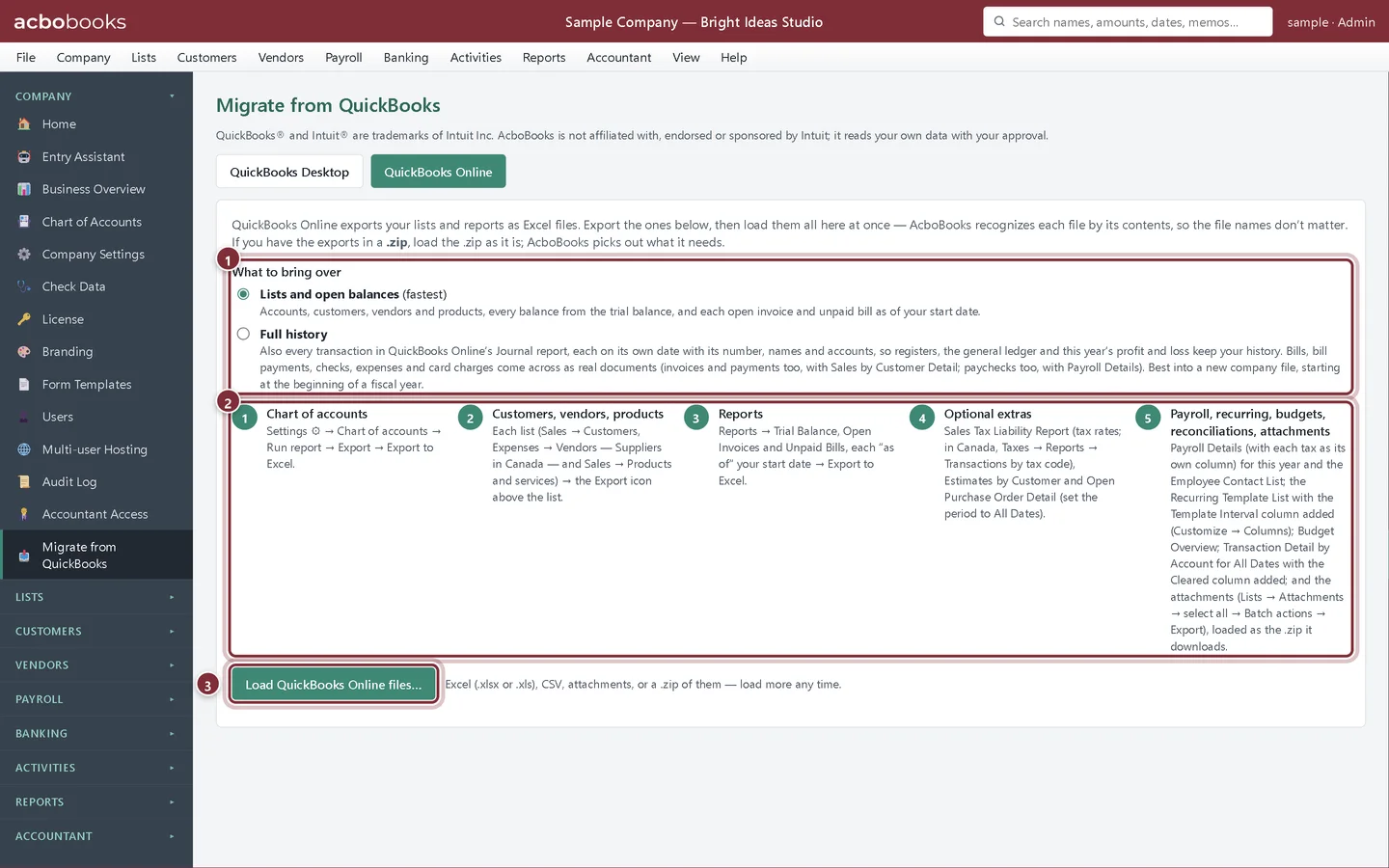
Select all the exports at once, or the .zip they came in. File names don't matter: AcboBooks reads each file's contents. The table shows what each one was recognized as, its date and how many rows it holds. A file shown as Not used wasn't recognized; Remove takes a file out.
- The loaded files
- Recognized as
- Start date (balances as of): filled from the trial balance's date
Step 5: Read the notes
Under the date, a red Still needed before importing box lists any export that is missing, and a blue box explains what will happen, for example that this year's income and expenses come across inside Opening Balance Equity in lists mode. Load more files at any time; they are added to the list.
Import
Step 6: Check the preview and import
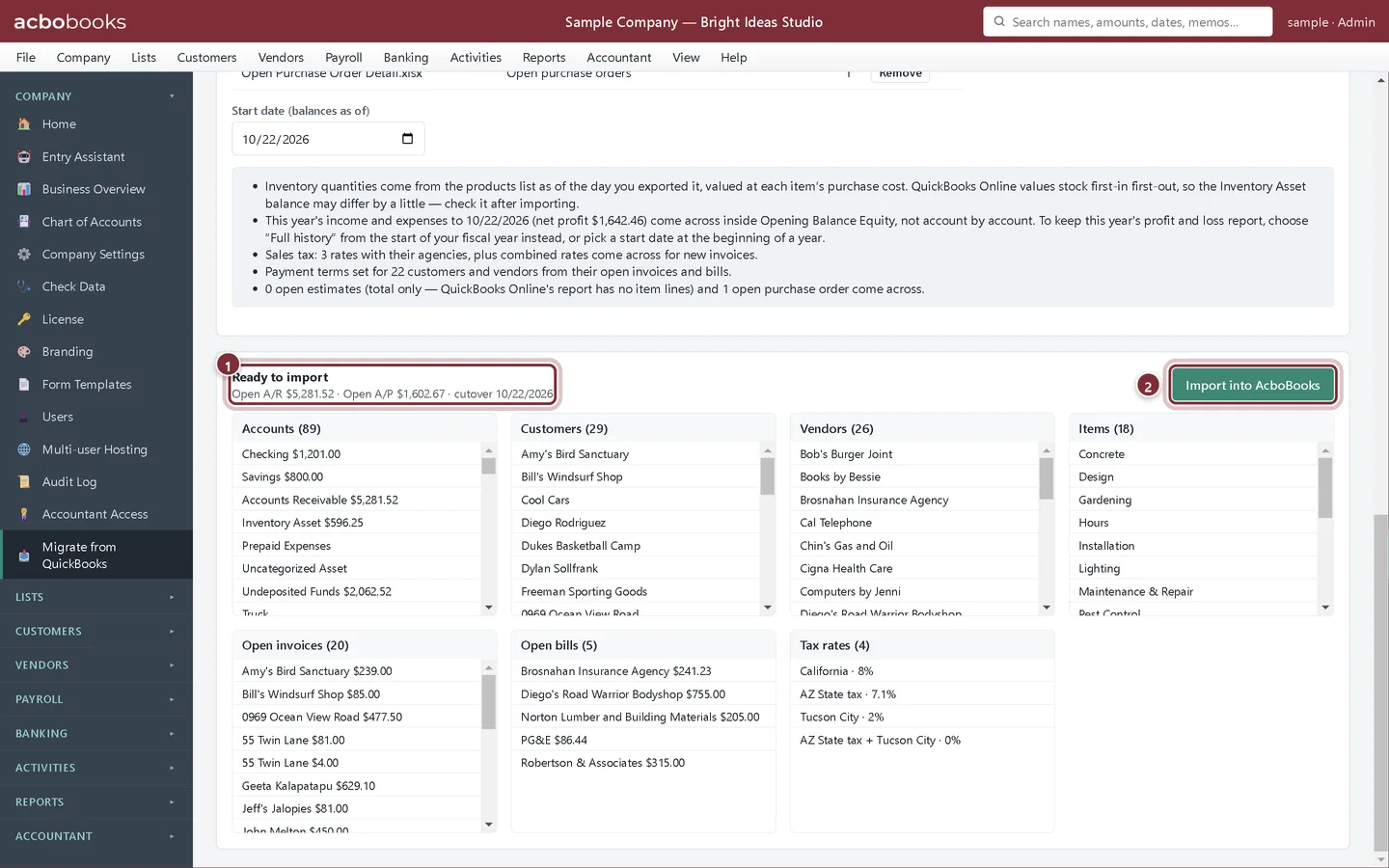
The preview below shows the accounts, customers, vendors, items, open invoices, open bills and tax rates that will be created. Compare the open A/R and A/P with QuickBooks Online's reports, then click Import into AcboBooks.
- Ready to import: open A/R, open A/P and the cutover date
- Import into AcboBooks
Step 7: Read the summary
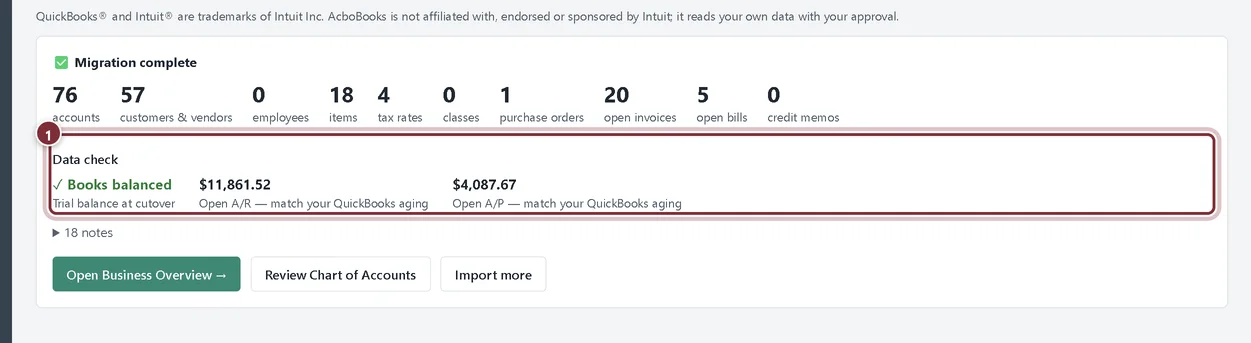
The summary counts what was created and shows the Data check. Open the notes for details such as payment terms set from open documents.
- Data check
Recap
- Export the lists and reports the Online tab lists
- Load them all at once, or as a .zip
- Check what each file was recognized as and what is still needed
- Import and compare the totals with QuickBooks Online
Questions
Do the files need particular names?
No. AcboBooks recognizes each export by its contents, so you can keep QuickBooks Online's own file names.
Can I bring my attachments?
Yes. Export them from Lists → Attachments in QuickBooks Online and load the .zip; they land in the Doc Center, linked to their transactions where AcboBooks can match them.
My exports are CSV files, not Excel. Is that OK?
Yes. The loader takes .xlsx, .xls and .csv files, and a .zip of them.
Screenshots from AcboBooks 0.2.2 with the built-in sample company. Updated October 25, 2026. Your screens may differ slightly with another version or window size.