
In this lesson you will
- Find Company → Migrate from QuickBooks
- Pick the route that matches your QuickBooks
- Choose between lists and open balances, and full history
- Pick a good cutover date
Before you start
- AcboBooks installed, with a new company file for the business you are moving
Open the migration screen
Step 1: Company → Migrate from QuickBooks
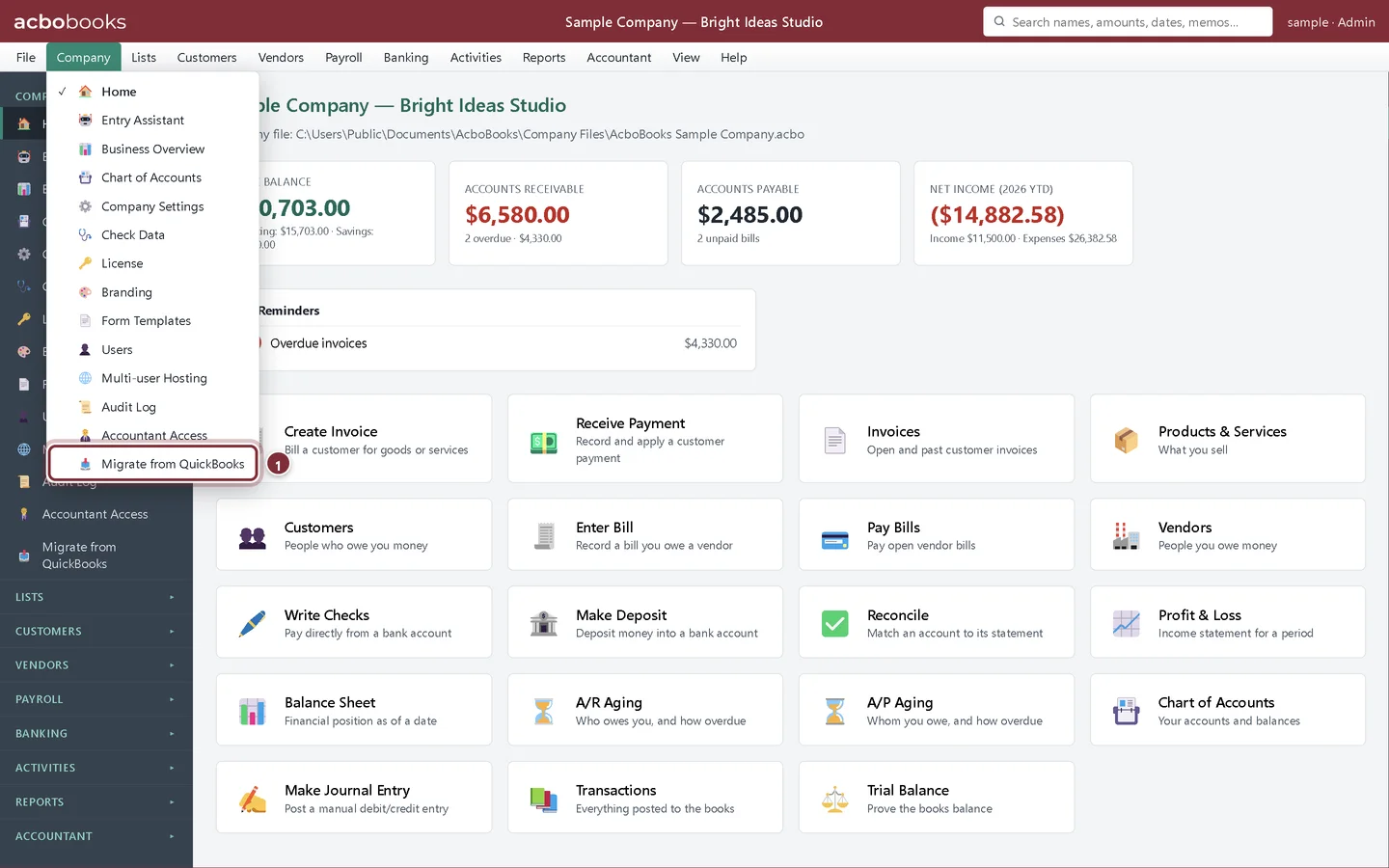
Open the Company menu at the top of the window (or the Company group in the sidebar) and choose Migrate from QuickBooks. Users with read-only access don't see it.
- Migrate from QuickBooks in the Company menu
Step 2: Pick your QuickBooks
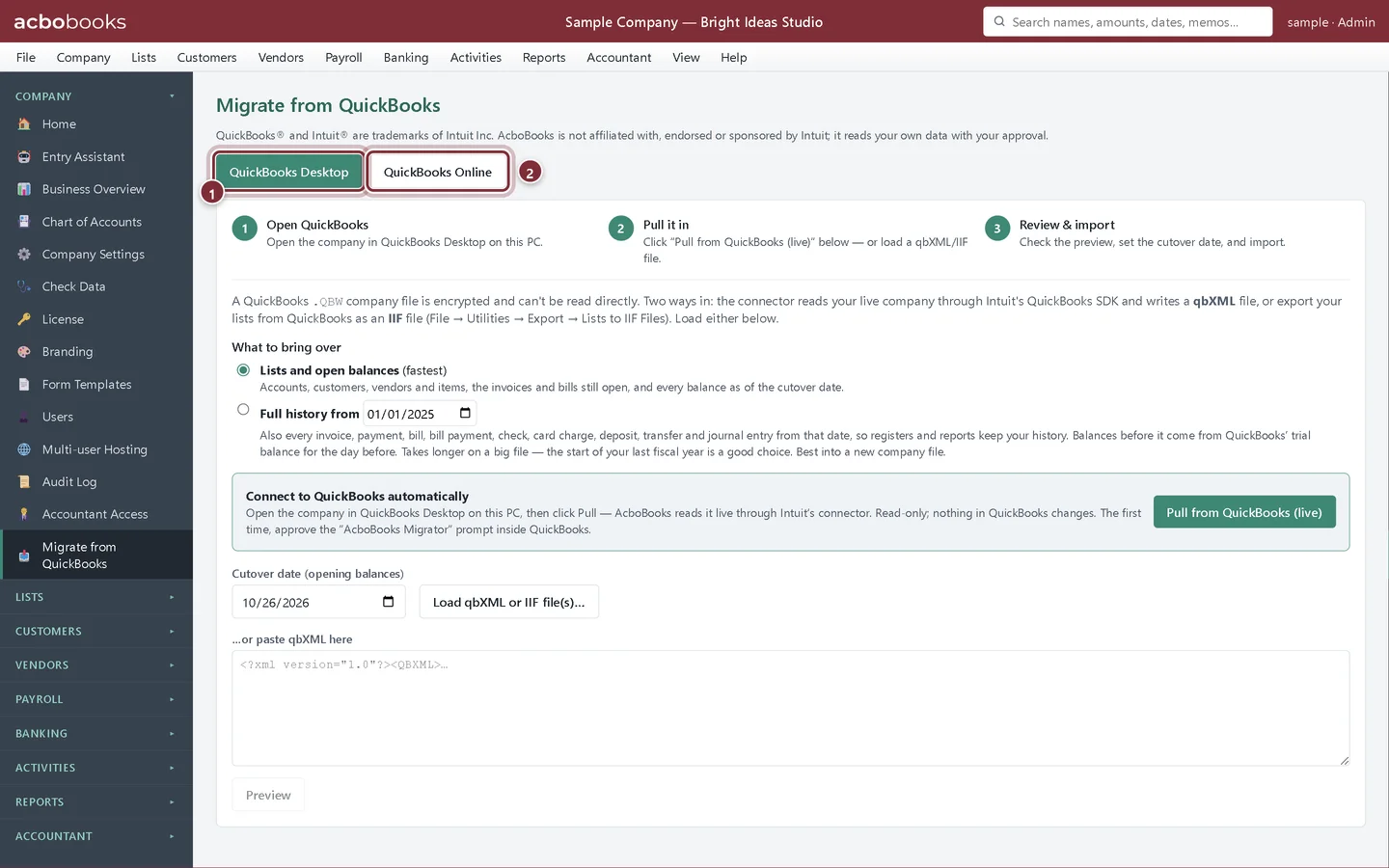
The screen has two tabs. QuickBooks Desktop reads your company from QuickBooks running on the same PC, or from an IIF list export. QuickBooks Online reads the Excel reports and lists you export from QuickBooks Online.
- QuickBooks Desktop
- QuickBooks Online
Decide how much to bring
Step 3: Lists and open balances, or full history
Lists and open balances is the fastest: accounts, customers, vendors and items, the invoices and bills still open, and every account balance as of your cutover date. Full history also brings each transaction from a start date, so registers and reports show your past activity in AcboBooks.
Step 4: Choose a cutover date
The cutover date is the day your AcboBooks books begin: balances are brought in as of that date and you enter everything after it in AcboBooks. The end of a month, quarter or year is easiest, because you can check the balances against a bank statement and a QuickBooks trial balance for the same day.
Recap
- Open Company → Migrate from QuickBooks
- Use the Desktop tab for QuickBooks Desktop and the Online tab for QuickBooks Online
- Choose lists and open balances, or full history
- Pick a month-end, quarter-end or year-end cutover date
Questions
Can AcboBooks open my .QBW file directly?
No. A QuickBooks company file is encrypted. AcboBooks reads it through QuickBooks itself while the file is open, or from files QuickBooks exports.
Should I import into my existing AcboBooks file?
Use a new company file for the business you are moving. Importing into a file that already has transactions mixes two sets of balances.
Related
Screenshots from AcboBooks 0.2.2 with the built-in sample company. Updated October 25, 2026. Your screens may differ slightly with another version or window size.