
In this lesson you will
- See which items are taxable
- Mark an item taxable or not taxable
- Give an item its own sales tax code
- Invoice a tax-exempt customer
Before you start
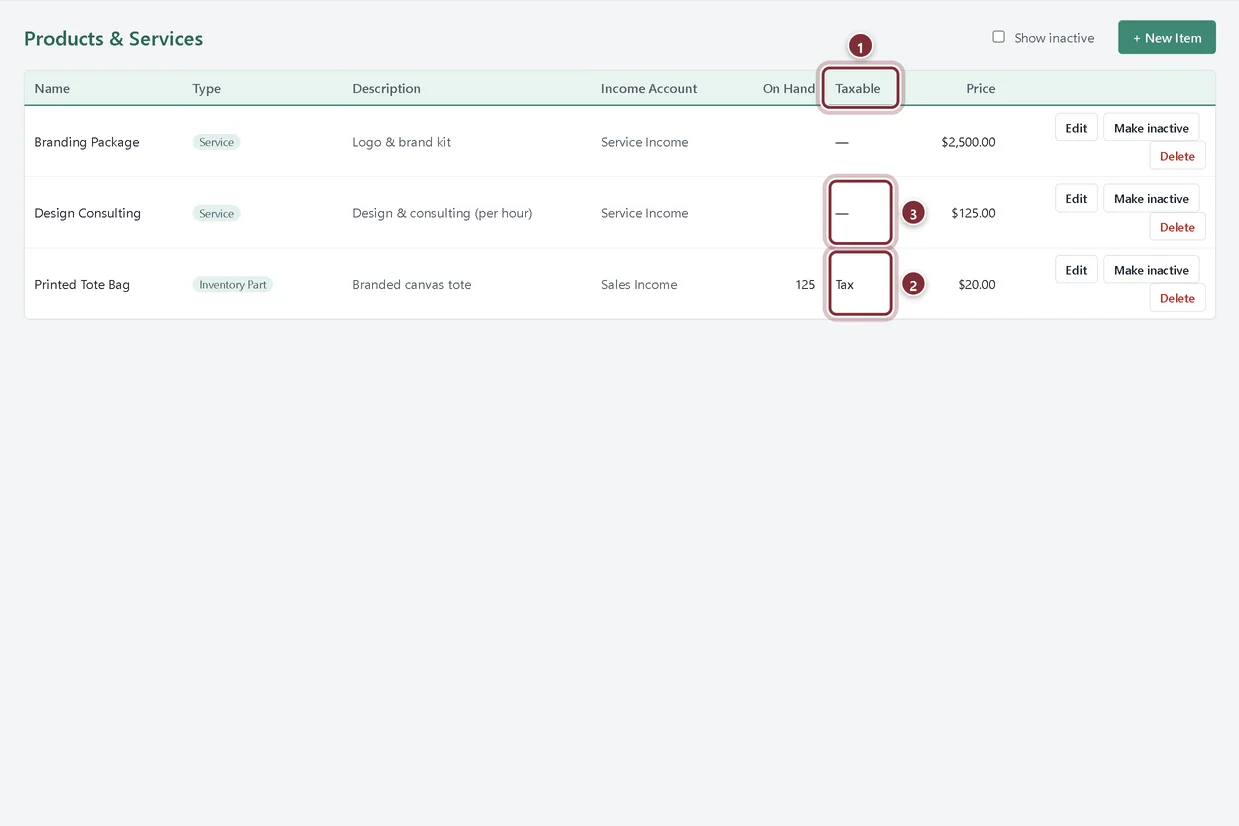
See which items are taxable
Step 1: Open Lists → Products & Services
The Taxable column shows Tax for taxable items and a dash for items that aren't. An item with its own tax code shows the code's name instead.
- The Taxable column
- Tax: a taxable item that uses the invoice's rate
- A dash: not taxable
Change an item's tax settings
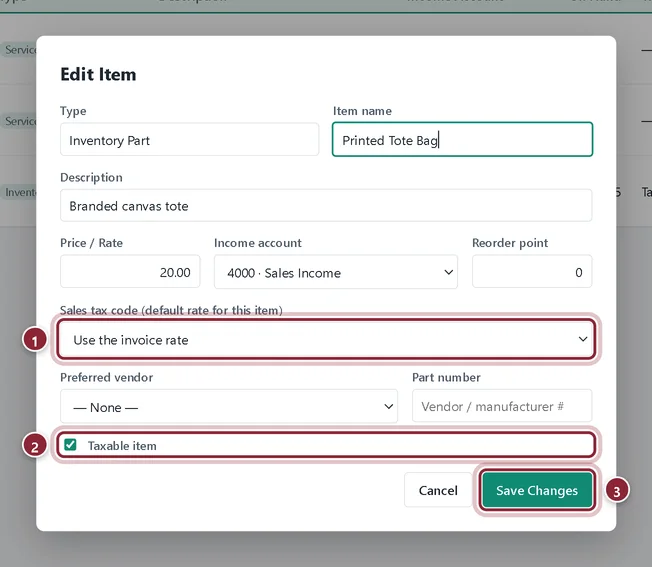
Step 2: Click Edit on the item
In the Edit Item window, Taxable item decides whether the item's lines are ticked for tax when you add them to an invoice. Sales tax code (default rate for this item) is usually left on Use the invoice rate. Choose a rate there only for an item taxed differently from your other sales; its percentage then fills the line's Tax % box. Click Save Changes.
- Sales tax code: leave on Use the invoice rate unless this item has its own rate
- Taxable item
- Save Changes
Invoice a tax-exempt customer
Step 3: Untick Tax on their lines
AcboBooks has no exempt setting on the customer, so you handle exemptions on the invoice. For a reseller or a non-profit with an exemption certificate, untick Tax on each line, or leave the invoice's rate on Choose a tax rate… with the Tax box at 0. Unticked lines are reported as Non-taxable sales, which is the figure your return asks for.
Recap
- Find the Taxable column in Lists → Products & Services
- Mark an item taxable or not in Edit Item
- Give an item its own sales tax code when it is taxed at a different rate
- Leave tax off an exempt customer's invoice
Questions
Can I make a whole customer tax-exempt?
Not as a customer setting. Untick Tax on their invoice lines, or leave the invoice rate at 0.
Does changing an item affect old invoices?
No. Invoices keep the tax they were saved with. The new setting applies the next time you add the item to a document.
Screenshots from AcboBooks 0.2.2 with the built-in sample company. Updated October 25, 2026. Your screens may differ slightly with another version or window size.