
In this lesson you will
- Choose the rate or tax group for an invoice
- Control which lines are taxed
- Override the rate on a single line
- Know where the tax is recorded
Fill in the invoice
Step 1: Add the lines
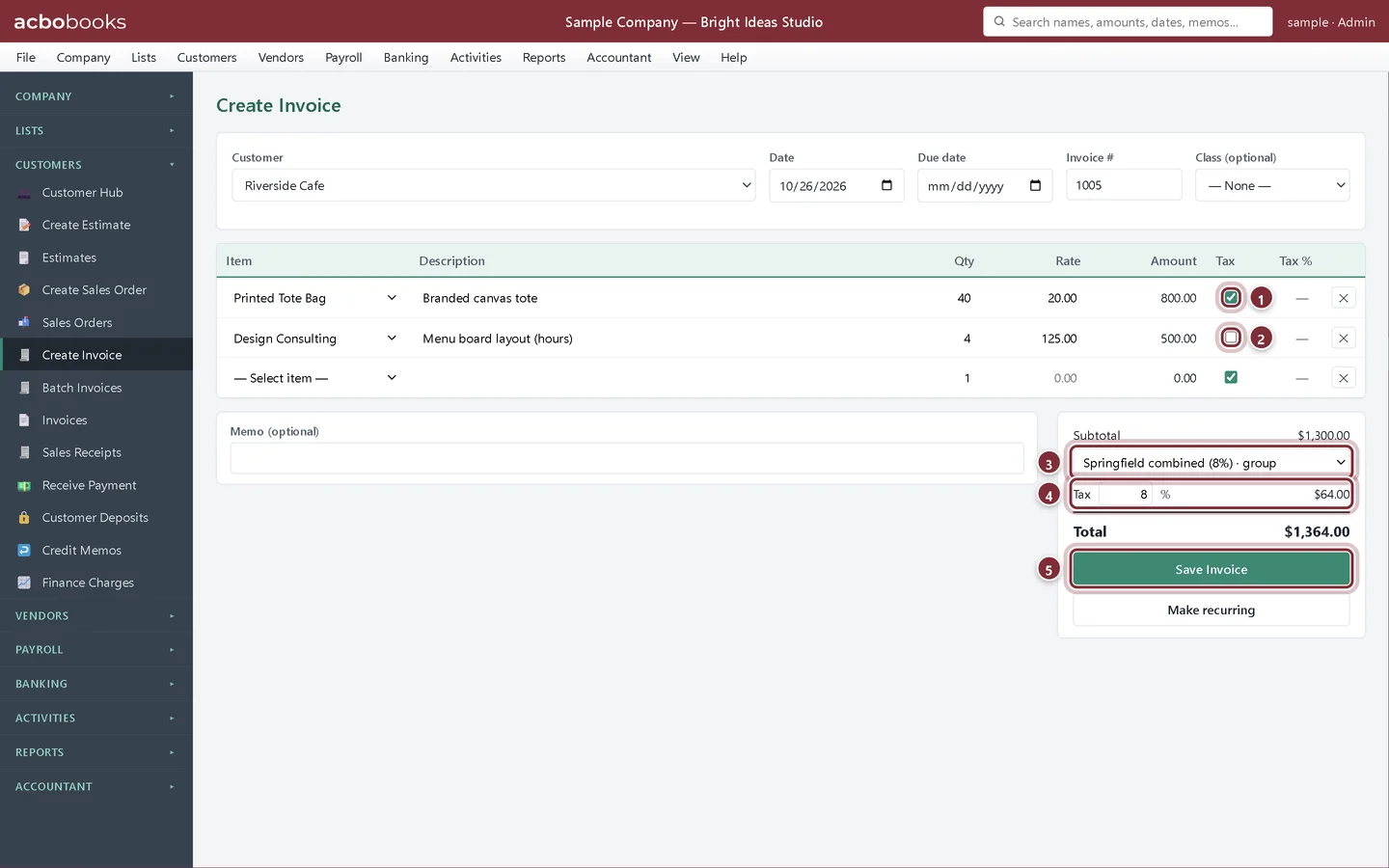
Go to Customers → Create Invoice, choose the customer and add the items. Each line's Tax box is ticked or not from the item's Taxable item setting; you can change it on the line. Here the tote bags are taxed and the design hours are not.
- Taxed line: the tote bags
- Untaxed line: design consulting
- The rate for the invoice: Springfield combined (8%) · group
- Tax: 8% of the $800 taxed, $64.00
- Save Invoice
Step 2: Choose the rate under Subtotal
Open the list under Subtotal and pick the rate or tax group for where the sale happens. The percentage fills the Tax box and the tax is worked out on the ticked lines. Always pick from this list rather than typing a percentage: a typed rate isn't linked to an agency and shows as Unassigned on the by-agency report.
Step 3: Override one line if you need to
The Tax % column is blank for lines that use the invoice rate. Type a percentage into a line's Tax % box only when that line is taxed differently. Items with their own sales tax code fill this box for you.
What happens when you save
Step 4: Click Save Invoice
The customer owes the total including tax. The tax itself is credited to Sales Tax Payable, a liability: it is money you are holding for the agencies, not income. It stays there until you record a payment with Pay Sales Tax.
Recap
- Pick a rate or tax group under Subtotal
- Tick or untick Tax on each line
- Use Tax % for a line taxed at a different rate
- Know that sales tax builds up in Sales Tax Payable until you pay it
Questions
Why does my tax show as Unassigned on Sales Tax by Agency?
The invoice's percentage was typed into the Tax box instead of picked from the rate list. Edit the invoice and choose the rate or group from the list.
Can one invoice use two different rates?
Yes. The invoice rate applies to the ticked lines, and any line with its own Tax % uses that instead.
Related
Screenshots from AcboBooks 0.2.2 with the built-in sample company. Updated October 25, 2026. Your screens may differ slightly with another version or window size.