
In this lesson you will
- Add a tax agency as a vendor
- Create a sales tax rate linked to its agency
- Combine two or more rates into a tax group
- Read the Sales Tax Rates list
Before you start
- A company file open in AcboBooks (the sample company works well for practice)
- Your state and local rates from your state's department of revenue
Open the Sales Tax Rates list
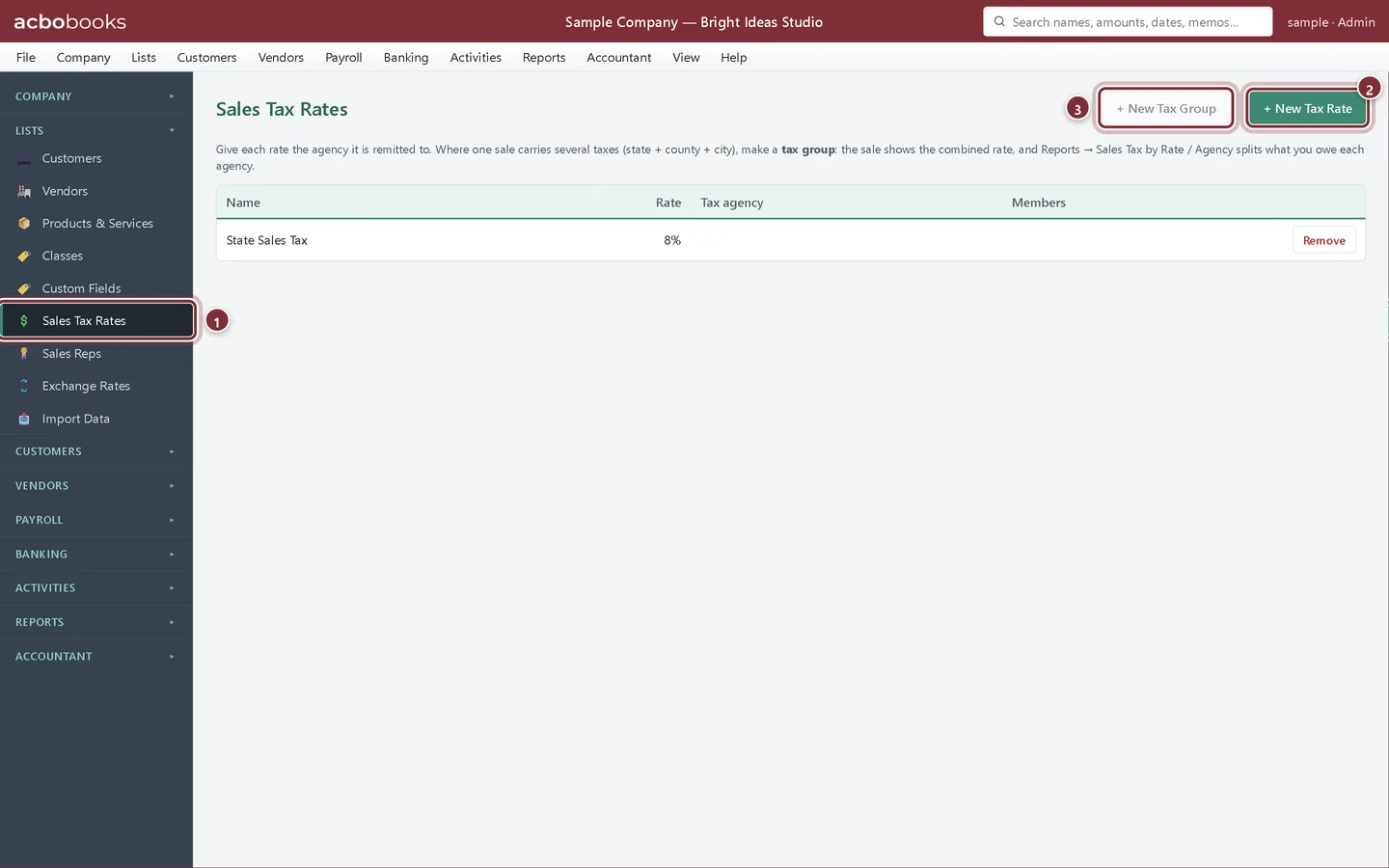
Step 1: Go to Lists → Sales Tax Rates
Open the Lists group in the sidebar and click Sales Tax Rates. The list shows each rate's name, percentage and tax agency. A new file can already hold a rate; the sample company has State Sales Tax at 8% with no agency.
- Sales Tax Rates in the Lists group
- + New Tax Rate adds one tax
- + New Tax Group combines rates you already have
Add the tax agency as a vendor
A tax agency is the government office you pay. AcboBooks keeps it in your vendor list, so the payment shows in your registers and the by-agency report can total what each one is owed.
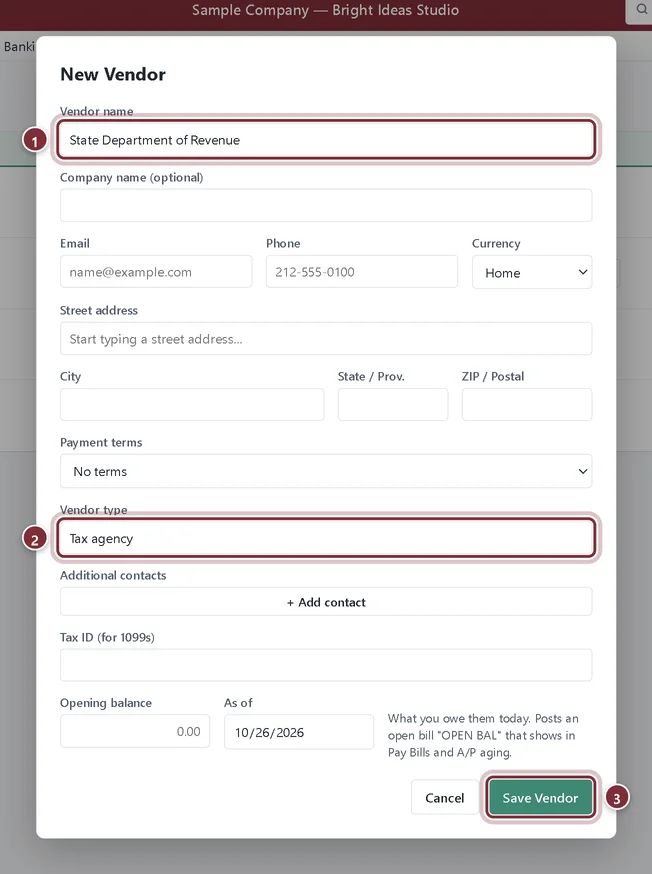
Step 2: Create the agency in Lists → Vendors
Go to Lists → Vendors and click + New Vendor. Type the agency's name the way it appears on your returns. Vendor type is optional; Tax agency is one of its suggestions and helps you find agencies later. Click Save Vendor.
- Vendor name: the agency, for example State Department of Revenue
- Vendor type: Tax agency
- Save Vendor
Create a rate for each tax
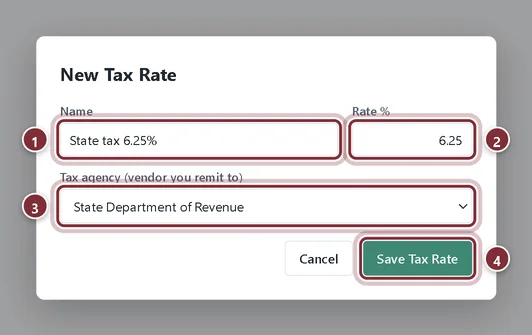
Step 3: Click + New Tax Rate
Back on Lists → Sales Tax Rates, click + New Tax Rate. Give the rate a name you will recognise on invoices, enter the percentage, and choose the agency in Tax agency (vendor you remit to). Click Save Tax Rate. Repeat for every tax you collect; the example adds City tax 1.75% for the city.
- Name: shown in the invoice's rate list
- Rate %: 6.25 means 6.25%
- Tax agency: who receives this tax
- Save Tax Rate
Combine rates into a tax group
Where one sale carries several taxes, such as state plus county plus city, a tax group charges the combined rate on the invoice and still splits the tax among the agencies on your reports.
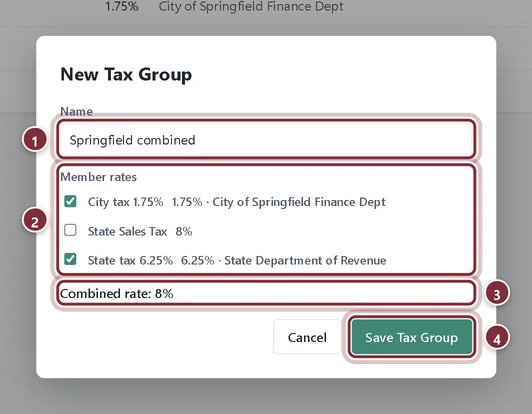
Step 4: Click + New Tax Group
The button works once you have at least two rates. Name the group, tick the member rates, and check the Combined rate line before you click Save Tax Group.
- Name: for example the city or district
- Member rates: tick each tax in the group
- Combined rate: the total the invoice charges
- Save Tax Group
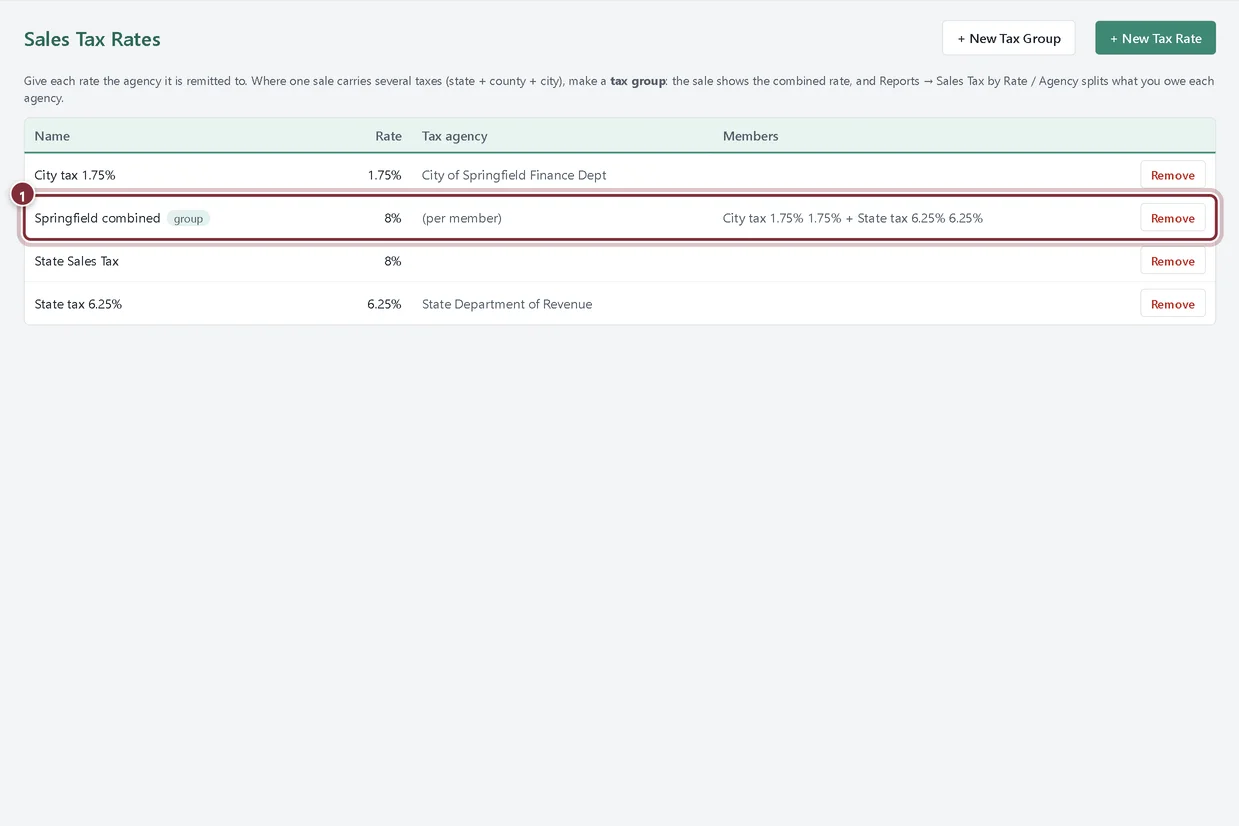
Step 5: Check the list
The group appears with a group tag. Its Tax agency column reads (per member) and Members lists the rates inside it. Pick the group on invoices for sales in that area.
- The tax group, its combined 8% rate and its members
Recap
- Add a tax agency as a vendor
- Create a sales tax rate with its percentage and agency
- Combine rates into a tax group that charges one rate
- Replace a rate by adding a new one and removing the old
Questions
Do I need a tax group if I only collect one tax?
No. A single rate is enough. Groups are for sales that carry two or more taxes paid to different agencies.
What happens if I remove a rate?
It leaves the list and can't be picked on new documents. Invoices and sales receipts that already used it keep their tax amounts.
Where do I find the right rate for an address?
From the state's department of revenue. AcboBooks doesn't look up rates by address; you enter the rates you are registered to collect.
Related
Screenshots from AcboBooks 0.2.2 with the built-in sample company. Updated October 25, 2026. Your screens may differ slightly with another version or window size.