
In this lesson you will
- Run the GST/HST Return worksheet for your reporting period
- Know which lines to enter in CRA NETFILE
- Record the return as a payment or a refund
- Understand the balances the screen clears
Run the worksheet
Step 1: Open Reports → GST/HST Return
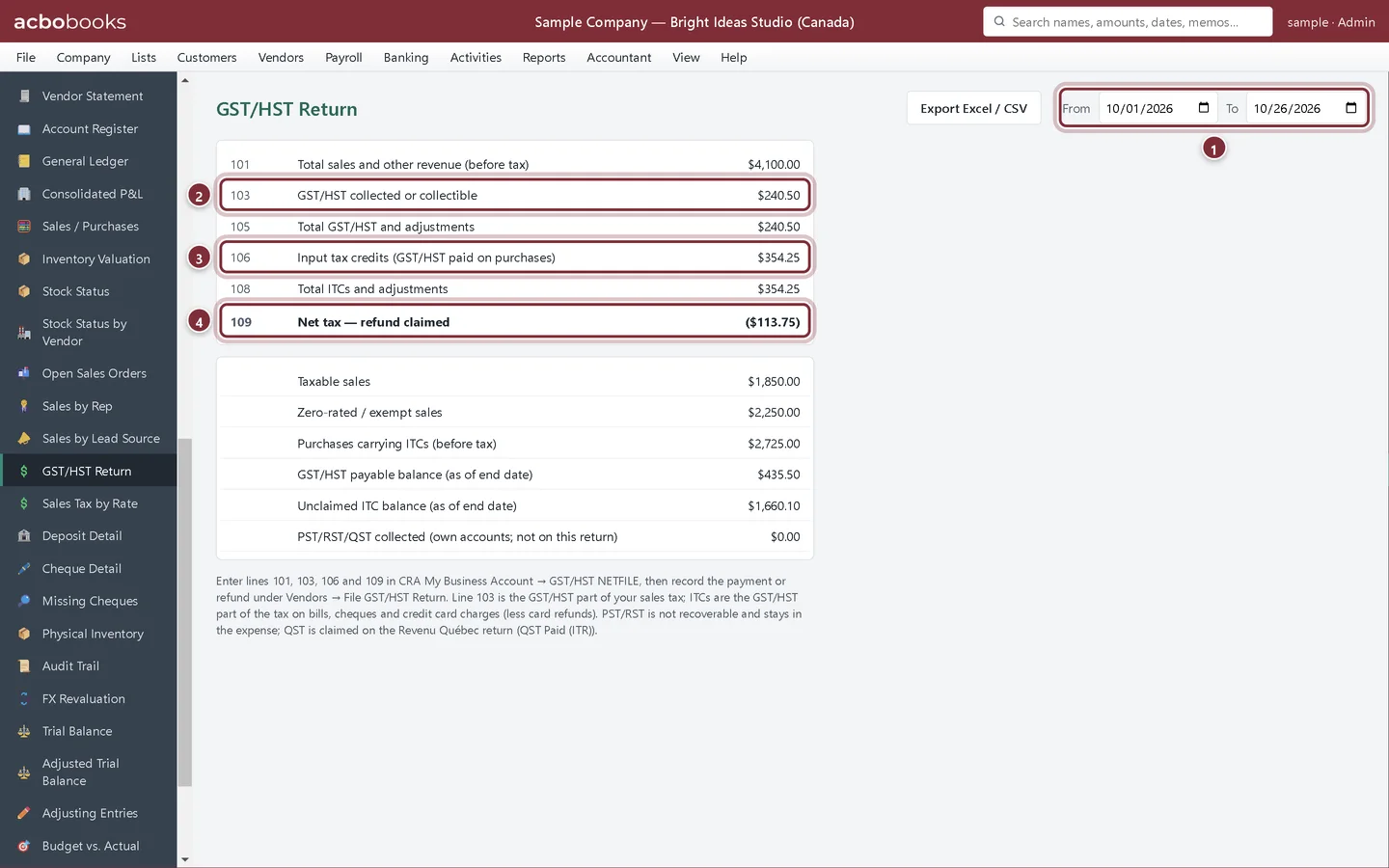
Set From and To to your reporting period; the report opens on January 1 to today. The top panel follows the return's line numbers. The panel below shows taxable and zero-rated or exempt sales, the purchases carrying ITCs, and the account balances at the end date.
- From and To: your reporting period
- 103 GST/HST collected or collectible
- 106 Input tax credits
- 109 Net tax: an amount owing, or a refund in brackets
Step 2: File with CRA
Sign in to CRA My Business Account (or use GST/HST NETFILE) and enter lines 101, 103, 106 and 109 from the worksheet. Export Excel / CSV keeps a copy of the figures you filed.
Record the return in AcboBooks
Step 3: Go to Vendors → File GST/HST Return
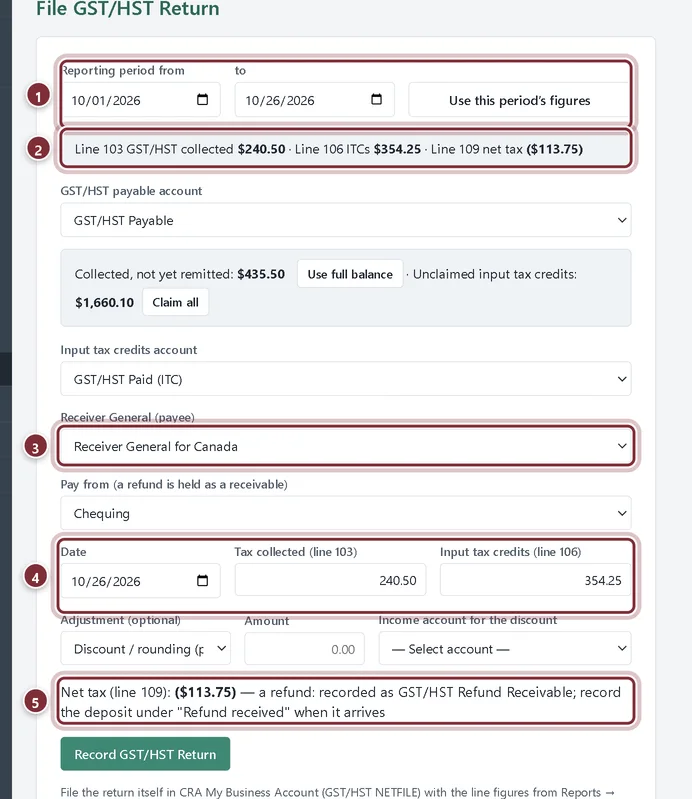
Enter the same reporting period and click Use this period's figures: the line 103 and line 106 amounts fill in from the worksheet. Choose Receiver General for Canada (add it as a vendor first) in Receiver General (payee) and the bank account in Pay from / refund to.
- Reporting period and Use this period's figures
- The period's lines 103, 106 and 109
- Receiver General (payee)
- Date, Tax collected (line 103) and Input tax credits (line 106)
- Net tax (line 109): what leaves or arrives in the bank
Step 4: Click Record GST/HST Return
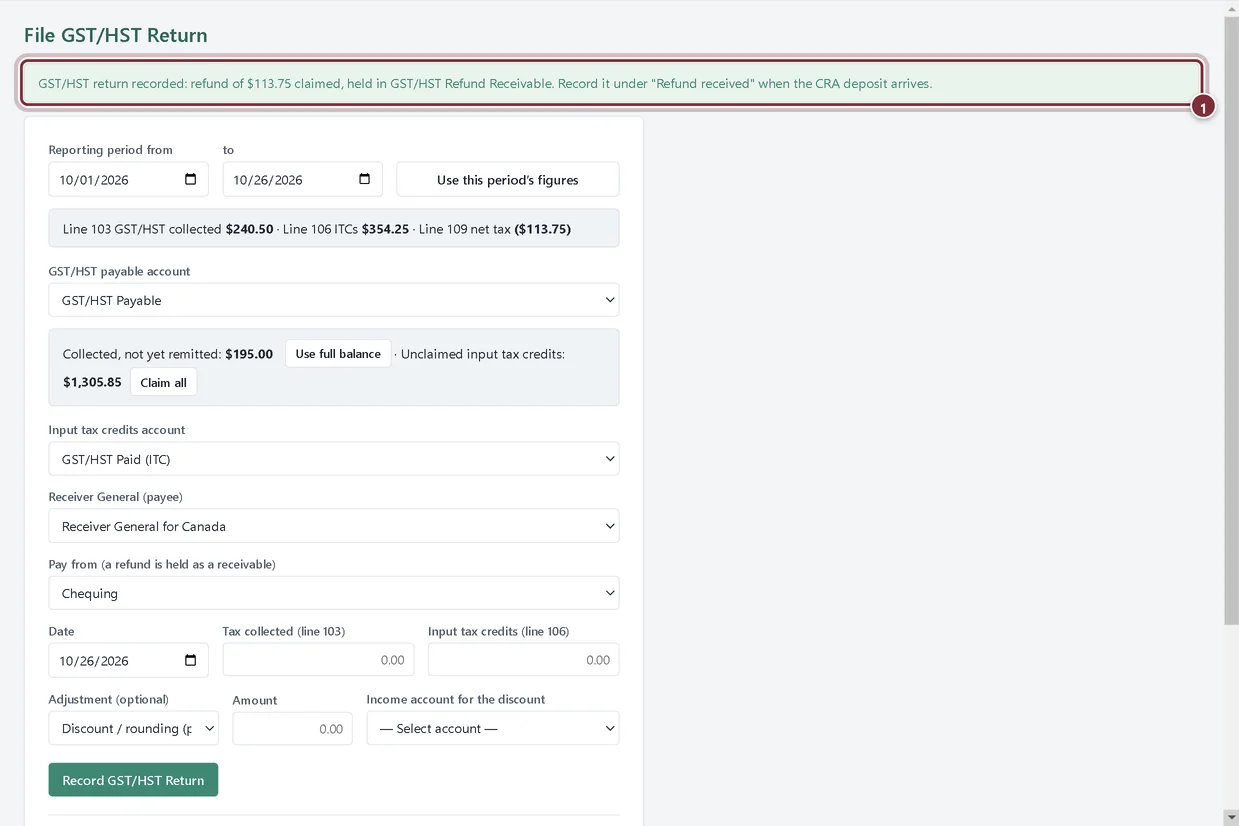
AcboBooks reduces GST/HST Payable by the tax collected and GST/HST Paid (ITC) by the credits claimed. Net tax owing is recorded as a payment from the bank account on the date you entered. A refund is recorded in GST/HST Refund Receivable, because CRA hasn't paid it yet.
- The confirmation: here a refund of $113.75
Step 5: When the refund arrives
While a refund is owed, File GST/HST Return shows a Refund received section with the receivable balance. When CRA's deposit reaches your bank, enter the Deposit date and Amount received (or click Full amount) and click Record Deposit. The money goes into the bank account chosen above and the receivable clears.
Recap
- Run the GST/HST Return worksheet for a reporting period
- Enter lines 101, 103, 106 and 109 in CRA NETFILE
- Record the payment or refund with File GST/HST Return
- Know that recording clears GST/HST Payable and GST/HST Paid (ITC), and a refund waits in GST/HST Refund Receivable
Questions
Can AcboBooks file my return electronically?
No. It prepares the line figures; you enter them in CRA My Business Account or GST/HST NETFILE.
Why is my net tax in brackets?
Your input tax credits are larger than the GST/HST you collected, so CRA owes you a refund.
What about lines 105 and 108?
The worksheet shows them as equal to lines 103 and 106. If you have adjustments to report, add them on the CRA form yourself.
Screenshots from AcboBooks 0.2.2 with the built-in sample company. Updated October 25, 2026. Your screens may differ slightly with another version or window size.