
In this lesson you will
- Enter the ACH details your bank gives you
- Add an employee's bank account
- Send a prenote and mark the account verified
- Create the direct-deposit file for a pay run
Before you start
- Run payroll and review the paycheck
- ACH origination (NACHA file upload) turned on for your business bank account
One-time setup
Step 1: Enter your bank's ACH details
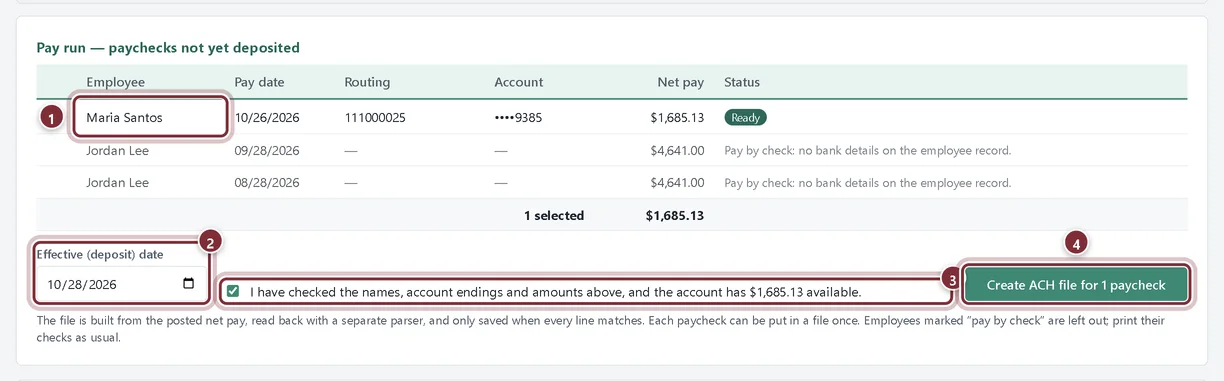
Ask your bank to enable ACH origination for your business account. Then open Company → Company Settings and fill in the Direct Deposit panel with what the bank gives you. Click Save Direct Deposit Settings.
- Company ID / immediate origin (10): from your bank, often 1 followed by your EIN.
- Bank's routing number (9 digits): the routing number the bank wants in the file header. AcboBooks checks the digits.
- Name on employees' statements: up to 16 characters.
- Save Direct Deposit Settings. The panel then shows set up.
Step 2: Add the employee's bank account
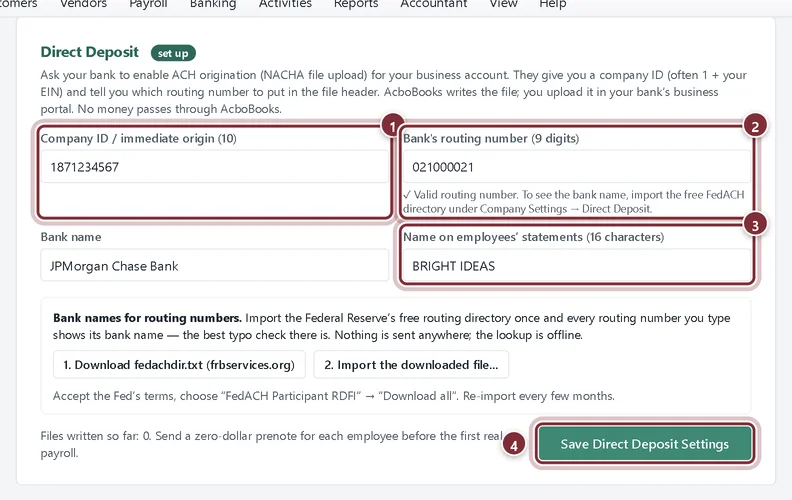
In Payroll → Employees click Edit on the employee. Under Direct deposit enter the routing number, account number and account type from a void check or the bank's direct-deposit form. Click Save Changes.
- Routing number: 9 digits, checked as you type.
- Account number: 4 to 17 digits.
- Account type: Checking or Savings.
Verify the account with a prenote
Step 3: Send a prenote
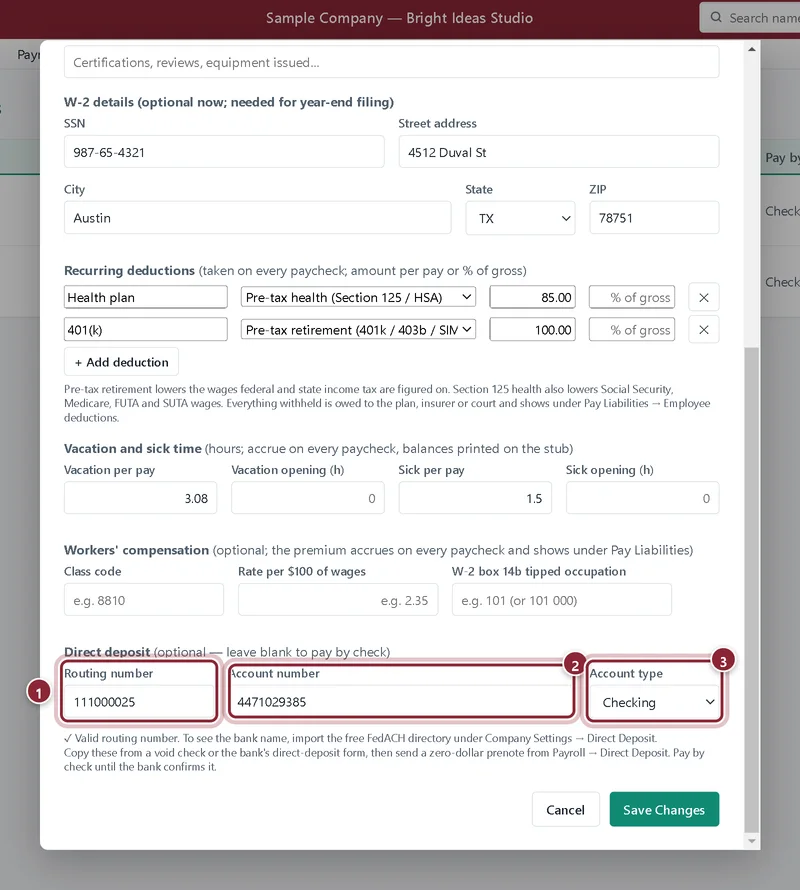
Open Payroll → Direct Deposit. New or changed accounts are listed under New or changed bank accounts — prenote. Tick the employee and click Create prenote file, save the file and upload it in your bank's portal. The employee stays on check until the account is verified.
- The employee whose account needs a prenote.
- Create prenote file for 1 account writes the zero-dollar file.
Step 4: Mark the account verified
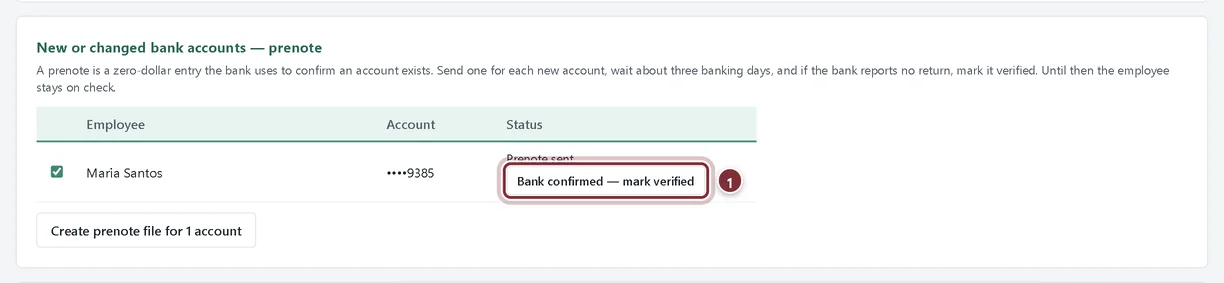
Wait about three banking days. If the bank reports no return, click Bank confirmed — mark verified. From now on the employee's paychecks can go in a direct-deposit file.
- Bank confirmed — mark verified moves the employee to direct deposit.
Pay a payroll by direct deposit
Step 5: Create the ACH file
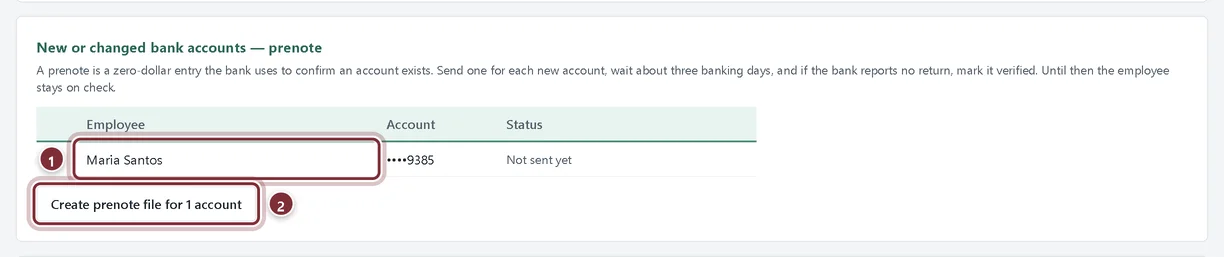
After you run payroll, open Payroll → Direct Deposit. Pay run lists paychecks not yet deposited. Employees without a verified account are left out and paid by check. Set the deposit date, tick the confirmation, and click Create ACH file. AcboBooks saves the file, reads it back and compares every line before it is recorded.
- A paycheck marked Ready for a verified account.
- Effective (deposit) date: a banking day, usually one or two days after you upload.
- The confirmation that you checked the names, account endings and amounts, and that the money is in the account.
- Create ACH file saves the NACHA file to upload in your bank's portal.
Recap
- Your bank's ACH details are in Company Settings.
- You can add an employee's account and verify it with a prenote.
- You can create the NACHA file for a pay run and upload it to your bank.
Questions
Does AcboBooks send the money?
No. It writes the file; you upload it in your bank's business portal and the bank releases the money.
Can I skip the prenote?
No. AcboBooks only puts verified accounts in a payment file, so a typo in an account number cannot send pay to the wrong place unnoticed.
Screenshots from AcboBooks 0.2.2 with the built-in sample company. Updated October 25, 2026. Your screens may differ slightly with another version or window size.