
In this lesson you will
- Find the payroll screens on the Payroll menu
- Enter the state, EIN and address payroll forms need
- Turn on FUTA and enter your state's SUTA rate and wage base
Before you start
- A company file open in the US edition (Company → Company Settings shows Country: United States)
Where payroll lives
Step 1: Open the Payroll menu
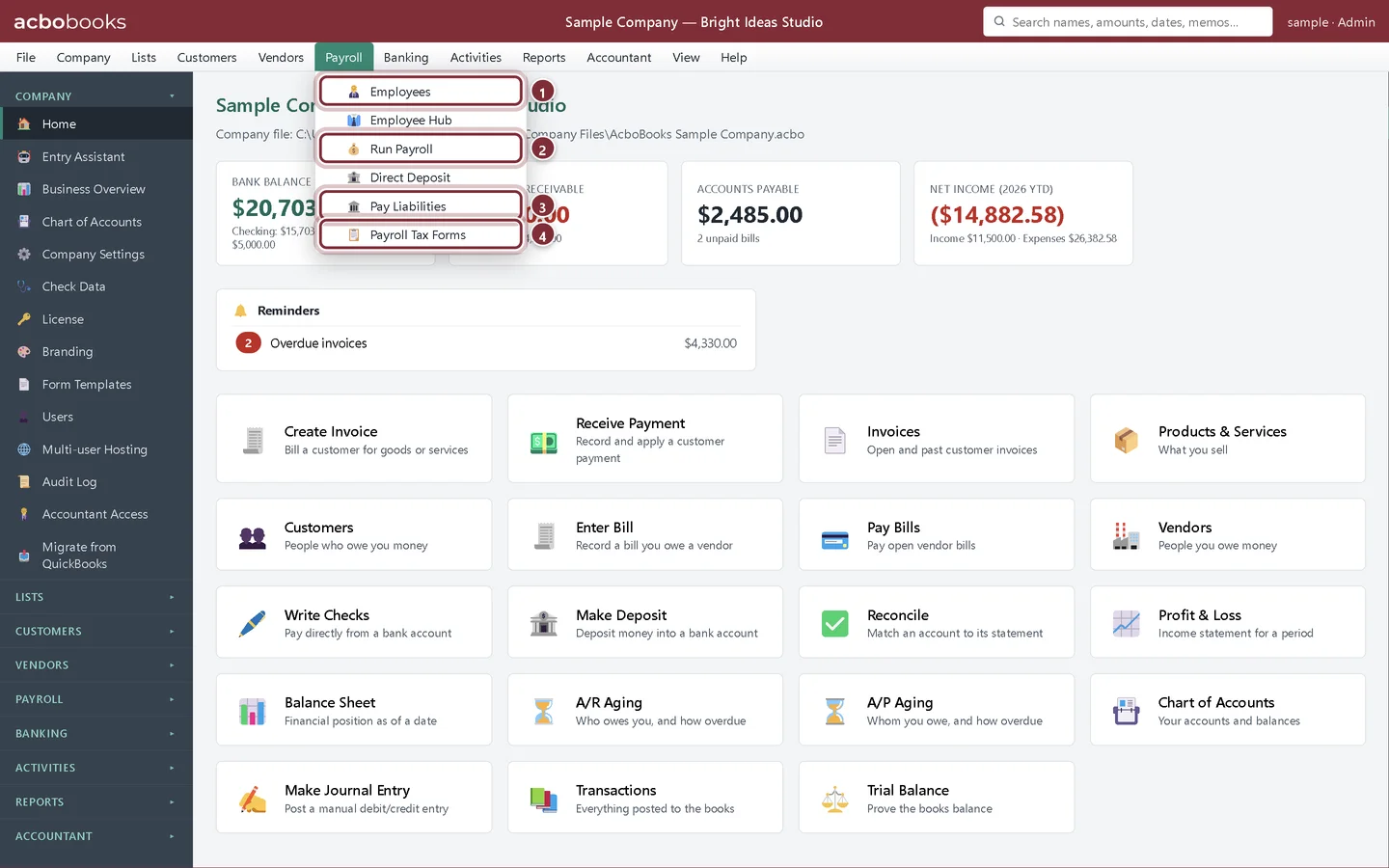
Everything for payroll is on the Payroll menu, and the same screens are in the Payroll group of the side panel. You will use four of them most.
- Employees: add and edit the people you pay.
- Run Payroll: write a paycheck and see the stub figures before you post it.
- Pay Liabilities: what you owe the IRS, your state and benefit plans, and the button to record each payment.
- Payroll Tax Forms: Form 941, Form 940 and W-2 worksheets, and the EFW2 file.
Company details payroll needs
Step 2: Fill in Company Settings
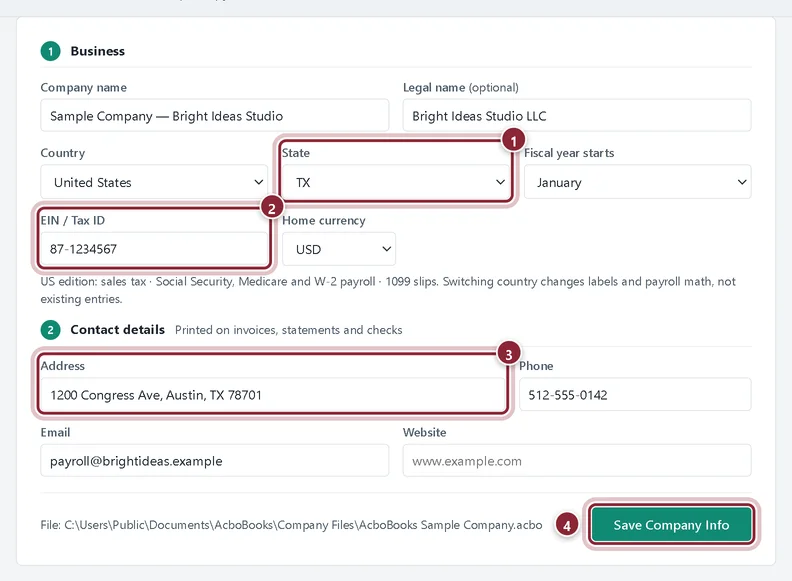
Open Company → Company Settings. In the Business section choose your State and type your EIN / Tax ID. Under Contact details enter the company Address, phone and email. Click Save Company Info.
- State: the state you run payroll in.
- EIN / Tax ID: your federal employer identification number. It prints on W-2s and is required in the EFW2 file.
- Address: the W-2 and EFW2 file use it. Keep the last part in the form "Austin, TX 78701".
- Save Company Info stores the changes.
Employer unemployment taxes
FUTA and SUTA are taxes the employer pays, not deductions from the employee. AcboBooks accrues them on every paycheck as an expense and a payroll liability, so Pay Liabilities and Form 940 show what you owe.
Step 3: Set FUTA and SUTA
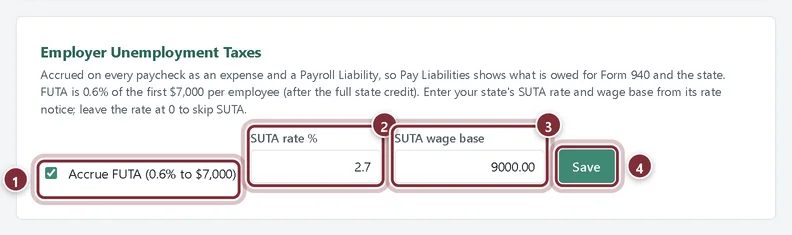
Scroll down Company Settings to Employer Unemployment Taxes. Leave Accrue FUTA ticked unless your business is exempt. Type the SUTA rate % and SUTA wage base from your state's rate notice, then click Save.
- Accrue FUTA: the federal unemployment tax, accrued on each paycheck until the employee reaches the federal wage limit shown on screen.
- SUTA rate %: your state unemployment rate. New employers get a starting rate from the state; it changes every year.
- SUTA wage base: the yearly wages per employee your state taxes.
- Save stores the settings for future paychecks.
Recap
- You know which payroll screen does what.
- Your company has a state, EIN and address for W-2s.
- FUTA and SUTA accrue on every paycheck from now on.
Questions
Does AcboBooks calculate state income tax?
No. AcboBooks ships the federal withholding tables only. You type the state withholding on each paycheck, from your state's tables or calculator. In states with no income tax, such as Texas, leave it at 0.
Does AcboBooks file or pay payroll taxes for me?
No. It works out what you owe and prepares the worksheets and the EFW2 file. You pay through EFTPS and your state's portal, and file the forms yourself or through your accountant.
Where do I set the deposit schedule?
There is no deposit-schedule setting in the US edition. Pay Liabilities shows each liability with a due date; check your own schedule (monthly or semiweekly) with the IRS.
Screenshots from AcboBooks 0.2.2 with the built-in sample company. Updated October 25, 2026. Your screens may differ slightly with another version or window size.