
In this lesson you will
- Check each employee's T4 boxes
- Read the T4 Summary totals
- Print slips and export the T4 XML
Before you start
- Remit source deductions (PD7A)
- Each employee's SIN and address on the Employees screen
Check and file the T4s
Step 1: Open T4 Slips & Summary
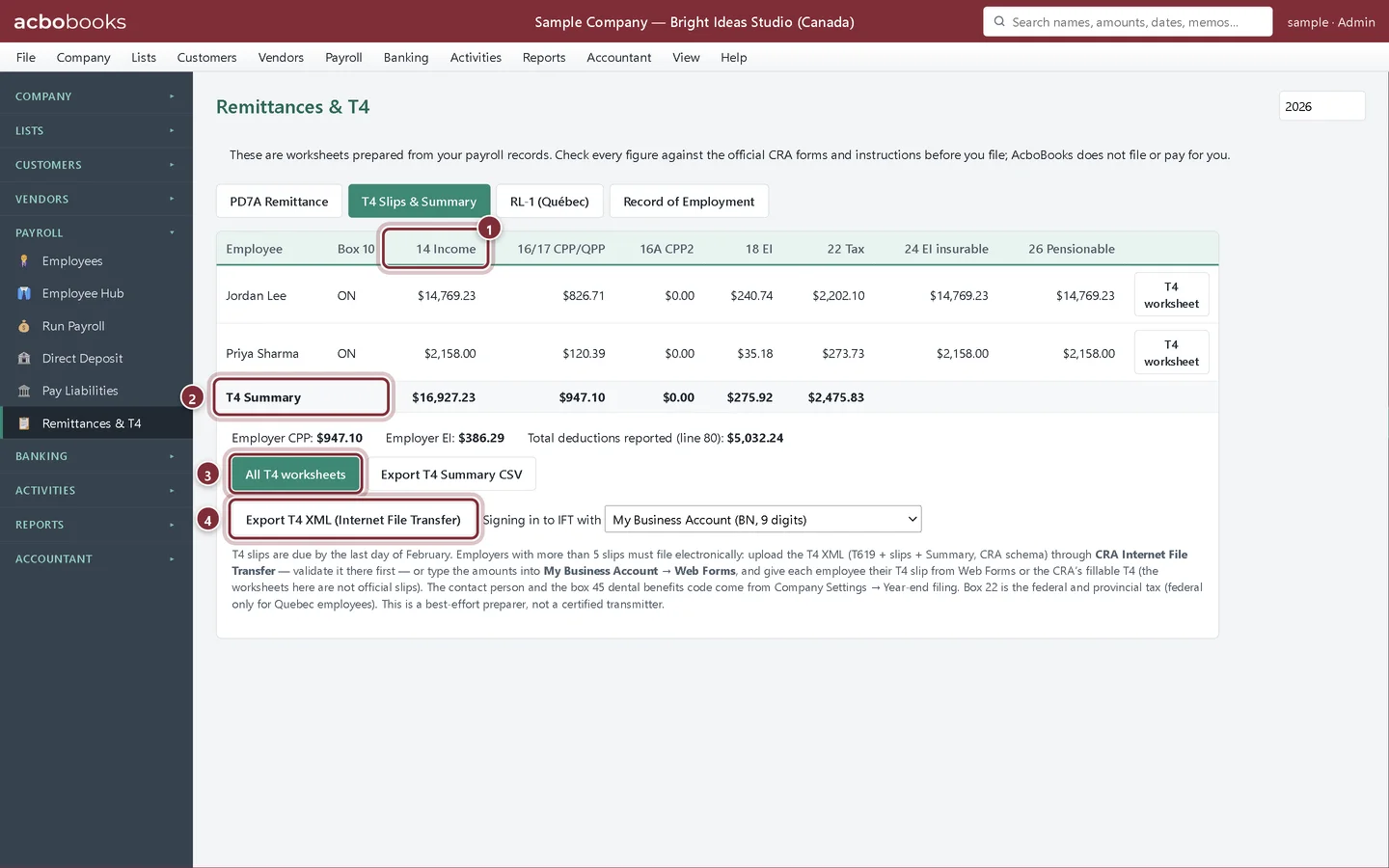
In Payroll → Remittances & T4 click T4 Slips & Summary and check the year. Each row is one employee's slip. The T4 Summary row and the line below it give the totals for the T4 Summary, including employer CPP and EI.
- 14 Income and the other box columns: CPP or QPP, CPP2, EI, income tax, insurable and pensionable earnings.
- T4 Summary: the totals for all slips.
- All T4 worksheets saves every employee's T4 figures as a PDF worksheet; T4 worksheet on a row does one. They are not official slips: copy the figures into CRA Web Forms or the CRA's fillable T4 and give each employee the slip from there.
- Export T4 XML (Internet File Transfer) saves the file to upload to the CRA.
Step 2: Export the T4 XML
Choose how you sign in to Internet File Transfer (My Business Account with your BN, or a Web Access Code), then click Export T4 XML (Internet File Transfer). If something is missing, such as a SIN, AcboBooks lists it under The CRA will reject the XML until these are fixed. Validate the file in Internet File Transfer before you submit.
Recap
- You can check each T4 and the Summary totals.
- You can print T4 worksheets to copy into the CRA's slips.
- You can export and validate the T4 XML.
Questions
What if a T4 figure is wrong?
Correct the paycheque it comes from (Run Payroll → Edit). The T4 tab is rebuilt from the paycheques each time.
Does AcboBooks do T4A slips?
Not for employees on this screen. T4A (fees for services) and T5018 slips for vendors are on Accountant → T4A / T5018 Slips.
Related
Screenshots from AcboBooks 0.2.2 with the built-in sample company. Updated October 25, 2026. Your screens may differ slightly with another version or window size.